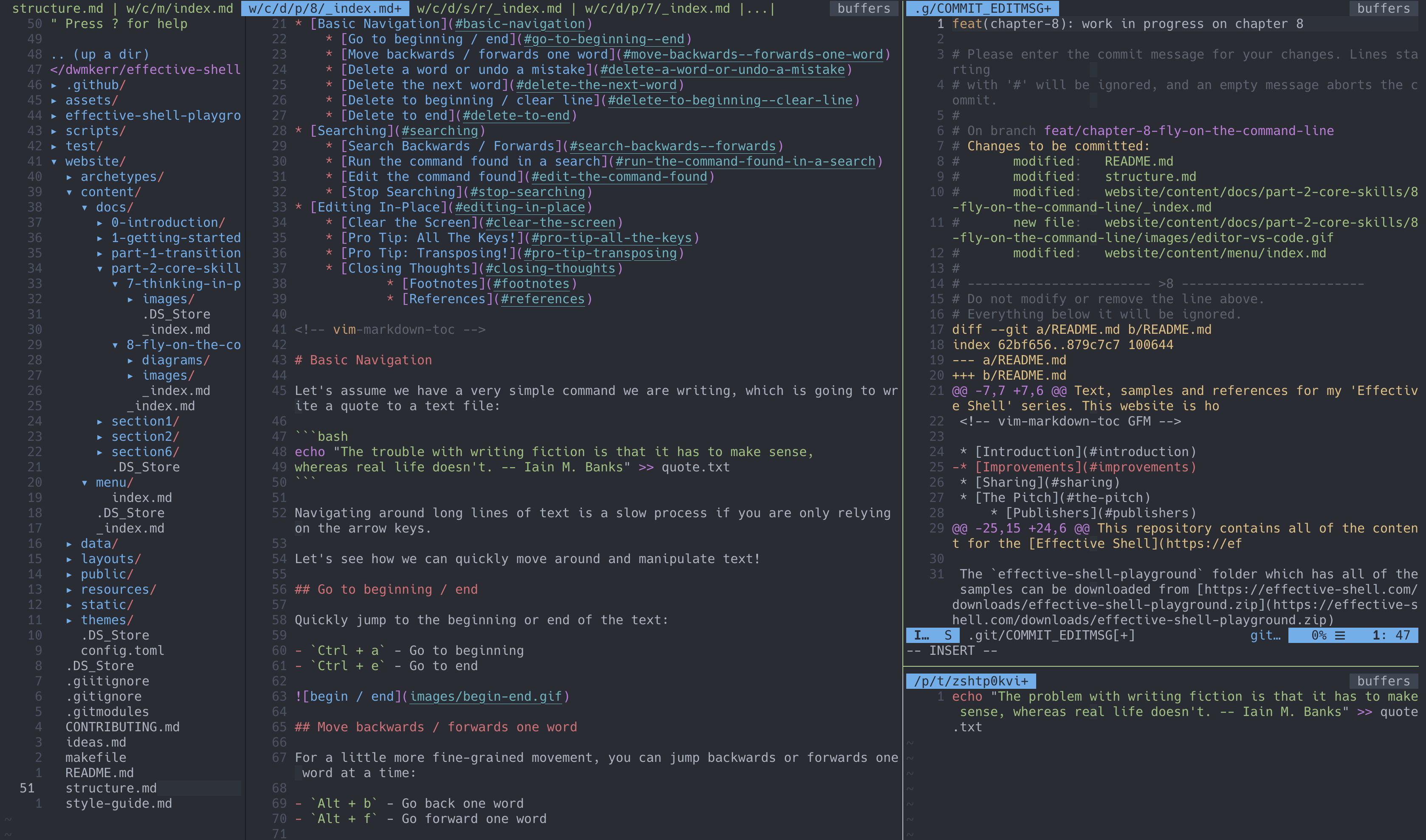
Command-line translation tools enable system administrators, developers, and terminal users to translate text directly within a shell session without switching to a web browser. By leveraging utilities like Translate Shell, Argos Translate, or custom API scripts, users can perform single-phrase queries, process interactive text input, convert raw files, and integrate real-time language translation into automated shell scripts.
The command-line interface (CLI) remains one of the most efficient environments for system administration, software development, and data processing. However, working across global teams, reading multilingual system logs, or localizing documentation often introduces language barriers. Switching back and forth between a terminal and a web browser disrupts productivity and breaks keyboard-centric workflows.
Shell translation tools bridge this gap. They sit directly inside the terminal, accepting text input through standard streams or command flags, querying local models or remote machine translation services, and printing clean, formatted output to the terminal screen.
Understanding CLI Translation Architecture
To effectively use and configure terminal translation tools, it is helpful to understand how they function beneath the terminal prompt. Command-line translation utilities operate on a input-process-output architecture aligned with Unix design principles.
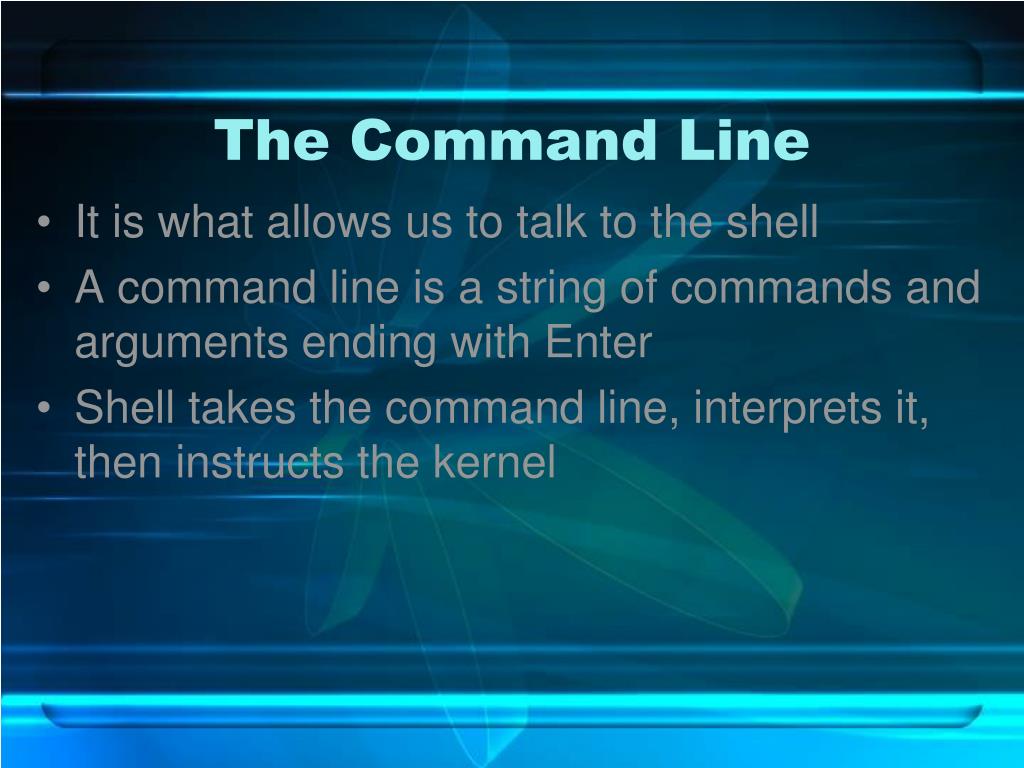
When a translation command is executed, the utility accepts text through three primary mechanisms: standard input (stdin), positional command-line arguments, or an interactive subshell prompt. The core application parses these inputs alongside specified flags, such as target language codes, source language overrides, and output style preferences.
Once the input is parsed, the utility routes the text to a translation engine. The engine architecture generally falls into one of two categories:
- Remote Cloud API Utilities: Tools like Translate Shell (
trans) or custom REST API scripts package the input text into an HTTP request. This request is sent across the network to online machine translation providers, such as Google Translate, DeepL, Bing Translator, Yandex Translate, or open REST instances like LibreTranslate. The remote service processes the translation and returns a JSON payload or HTML response, which the local CLI tool parses, strips of markup, and formats for terminal display. - Local Neural Machine Translation (NMT): Tools like Argos Translate run machine translation models directly on the user's local hardware. Built upon open-source neural network engines such as OpenNMT, these utilities download pre-trained language pair packages to disk. When a translation command is issued, the local processor runs inference on the source text locally, offering complete privacy, zero network latency, and full functionality in air-gapped environments.
After receiving or generating the translation, the CLI utility formats the output. High-powered tools use ANSI escape codes to render colorized output, display phonetic transcriptions (IPA), show part-of-speech dictionary entries, and output alternative translations. Alternatively, a brief or raw mode can strip all formatting to pass pure translated text cleanly down a shell pipeline (stdout) into another utility or file.
Leading Shell Translation Utilities Evaluated
Several command-line translation tools exist across the open-source ecosystem, each optimized for different operating environments, privacy constraints, and output requirements.
1. Translate Shell (trans)
Translate Shell (formerly known as Google Translate CLI) is the most widely adopted command-line translation utility in Unix-like operating systems. Written as a POSIX-compliant shell script that wraps around gawk, curl, and native system utilities, Translate Shell provides deep flexibility without heavy software dependencies.
Translate Shell supports multiple backend engines, allowing users to switch dynamically between Google Translate, Bing Translator, Yandex Translate, and DeepL. It automatically detects the language of input text, generates detailed dictionary definitions, provides phonetic pronunciations, and supports integrated text-to-speech output when paired with terminal audio players such as mpv, mplayer, or mpg123.
- Key Strengths: Rich terminal formatting, multi-engine support, built-in dictionary and text-to-speech features, zero heavy runtime dependencies.
- Best For: Everyday interactive terminal use, quick dictionary lookups, and flexible command-line piping.
2. Argos Translate
Argos Translate is an open-source, offline neural machine translation engine designed specifically for local execution. Available as both a Python library and a standalone command-line executable (argos-translate), it eliminates dependency on third-party cloud endpoints.
Users install individual language pair modules using the internal package manager (argospm). Once a language pair is downloaded, Argos Translate performs translation locally using CTranslate2, an optimized inference engine for OpenNMT models. This architecture guarantees that sensitive text—such as internal code base comments, customer support logs, or system diagnostics—never leaves the local computer.
- Key Strengths: Complete privacy, offline operational capability, zero reliance on external web APIs or web scrapers.
- Best For: Air-gapped enterprise environments, privacy-focused developers, and offline shell automation.
3. Crow Translate
Crow Translate is an open-source desktop application written in C++ using the Qt framework. While widely recognized for its minimalist graphical interface, Crow Translate includes a powerful command-line interface (crow) that shares the same underlying engine core.
Crow Translate allows command-line users to interface with engines such as Google, Bing, Yandex, LibreTranslate, and Lingva. Because it is compiled as native C++ binaries, the CLI client executes rapidly with minimal CPU and memory overhead compared to script-based tools.
- Key Strengths: Fast C++ performance, dual GUI/CLI design, clean desktop integration.
- Best For: Users who want a single, unified translation tool for both graphical desktop environments and headless shell sessions.
4. Custom Shell Pipelines with curl and jq
For technical environments where third-party CLI wrappers cannot be installed due to strict package policies or security audits, administrators can construct native translation pipelines using standard system tools like curl and jq.
By sending direct REST API requests to official translation services (such as DeepL API or Google Cloud Translation REST API), users achieve maximum stability and programmatic control. Using formal API endpoints avoids the breaking changes and rate-limiting issues that can occur when community tools use public web-scraping backends.
- Key Strengths: No third-party software dependencies, high stability through official enterprise APIs, complete control over JSON request parameters.
- Best For: Production shell scripts, CI/CD pipeline automation, and enterprise server maintenance.

Tool Feature Matrix
The following table provides a comparison of the primary command-line translation tools available for modern Linux, macOS, and BSD systems.
| Utility Name | Engine Support | Offline Capability | Audio (TTS) Support | Primary Distribution Method | Primary Use Case |
|---|---|---|---|---|---|
| Translate Shell | Google, Bing, Yandex, DeepL | No | Yes (mpv, mplayer) |
System Package Manager, Direct Script | Interactive CLI, dictionary lookup, scripting |
| Argos Translate | Local OpenNMT Models | Yes (Full) | No | Python PyPI (pip), OpenNMT Packages |
Private, offline, air-gapped automation |
| Crow Translate | Google, Bing, Yandex, LibreTranslate | Partial (via local instances) | Yes (Qt Audio engine) | Native distribution repositories, Flatpak | Dual GUI/CLI desktop integration |
Custom curl Script |
Any REST API (DeepL, Google Cloud) | Dependent on endpoint host | Manual piping to espeak |
Native POSIX binaries (curl, jq) |
Enterprise CI/CD pipelines and stable scripts |
Installing and Setting Up Translation Tools
Installing CLI translation utilities varies based on the target operating system and administrative permissions. Below are the installation procedures and configuration steps for standard Unix-like environments.
Installing Translate Shell
Translate Shell is available in the official software repositories of major Linux distributions and macOS package managers.
On Debian, Ubuntu, and derivative distributions, install Translate Shell using the default package manager:
- Update system indices:
sudo apt update - Install the binary:
sudo apt install translate-shell
On Arch Linux and its derivatives, install directly from the main repositories:
- Install via Pacman:
sudo pacman -S translate-shell
On macOS environments using Homebrew:
- Install via formula:
brew install translate-shell
Alternatively, on systems lacking root permissions or package access, download the self-contained executable directly:
- Fetch the standalone script:
curl -O https://translate-shell.org/trans - Make the script executable:
chmod +x trans - Move to local binary path:
mv trans ~/.local/bin/
Installing Argos Translate
Argos Translate is distributed as a Python package, requiring Python 3.8 or newer and the pip package manager.
- Create a dedicated virtual environment or install globally:
pip install argostranslate - Install the associated package manager CLI:
pip install argostranslatefiles
After installing the base package, language pairs must be downloaded before executing translations offline:
- Update local language index:
argospm update - Search for available languages:
argospm search - Install a specific language pair (e.g., English to Spanish):
argospm install translate-en_es
Configuring Default Options and Language Preferences
To avoid typing source and target language parameters repeatedly, CLI tools support user-level configuration files.
For Translate Shell, create a configuration file at ~/.config/translate-shell/init.trans or ~/.readdif.rc. Inside this file, set global defaults using standard option keys:
- Set the default target language:
:hl "en" - Set default target translation language:
:tl "es" - Set default engine preference:
:engine "google" - Set default text-to-speech audio player:
:player "mpv"
Setting these defaults allows commands to run with minimal syntax, automatically translating arbitrary text to your designated primary language.
Practical Command Line Workflows and Examples
Command-line translation tools excel when integrated into everyday terminal interactions, text processing pipelines, and shell scripts.
Basic Interactive Lookup
The simplest usage pattern involves translating individual words, phrases, or sentences directly from the command line prompt.
To translate a simple string into a target language using Translate Shell:
trans :fr "System update completed successfully."
In this command, :fr explicitly sets the target language to French. Translate Shell detects the input language as English automatically and prints the translated text alongside a dictionary overview and phonetic details.
To retrieve brief, unformatted output suitable for reading within tight terminal windows, pass the -brief flag:
trans -brief :de "Disk usage warning on volume root."
This returns only the translated output line: Disk space Warnung auf Volume root.
Processing Text Files and Standard Input Streams
Because command-line translation tools comply with Unix stdin and stdout conventions, you can pipe text directly into translation utilities.
To translate the contents of a local text file and view the output directly in the terminal:
cat server_error.log | trans :en
To read a file written in a foreign language, translate it, and save the result into a new local document:
trans fr:en -input French_Documentation.txt -output English_Documentation.txt
In this example, fr:en explicitly defines both the source language (French) and the target language (English), ensuring accuracy when processing specialized technical documentation.
Converting Logs in Real-Time
System administrators monitoring multi-region server infrastructure can stream international log entries through inline translation pipelines using tail:
tail -f /var/log/nginx/access.log | trans -brief :en
This command streams live log updates, passing each line through the engine to provide translated log messaging in real time.
Using Interactive Shell Translation Mode
Translate Shell features an interactive shell interface that operates like a dedicated translation terminal session. Launch the interactive session by passing the -shell flag:
trans -shell en:es
This opens an interactive prompt (trans>). Type any word or sentence into the prompt and press Enter to receive immediate translation results. Type q or press Ctrl+D to exit the session and return to your standard terminal environment.
Terminal Shell Aliases for Faster Workflow
To maximize speed, define shell aliases inside your shell configuration file (~/.bashrc or ~/.zshrc).
Add the following alias definitions:
- Quick Spanish lookup:
alias tres='trans -brief :es' - Quick German lookup:
alias trde='trans -brief :de' - Quick Japanese lookup:
alias trja='trans -brief :ja'
After reloading the shell configuration (source ~/.bashrc), translate any string instantly using your new short commands:
tres "Configuration file loaded."
Advanced Automation and Shell Scripting
Integrating command-line translation into shell scripts opens opportunities for automated content localization, automated error log handling, and international notification pipelines.
When writing production Bash scripts, avoid relying on interactive web-scraping backends that can fail if the provider updates their web layout. Instead, use local NMT utilities like Argos Translate or structured JSON API endpoints via curl.
Automated Log Error Translation Script Concept
Consider a maintenance script that monitors system logs, isolates critical error entries, translates foreign log entries into English, and appends the translated alerts into a central administrative dashboard.
Using inline commands, the script logic functions as follows:
- Read incoming log text from a raw source file.
- Filter for lines containing error tags such as
ERRORorFATAL. - Pass the extracted string through
trans -brief :enorargos-translate. - Append the translated output alongside an epoch timestamp into an audit file.
To achieve this without external tools, construct a custom script using native curl and DeepL API:
- Send an HTTP POST request containing the target auth key, target text payload, and target language code (
target_lang=EN). - Pipe the HTTP response into
jq -r '.translations[0].text'. - Store the resulting output inside a shell variable for further processing.
Using structured REST endpoints prevents shell script failures caused by unexpected formatting changes, providing rock-solid reliability for enterprise systems.
Operational Limitations, Privacy, and Rate Limits
While command-line translation tools offer tremendous speed and utility, deploying them in enterprise environments requires careful consideration of security, data privacy, and provider rate limits.
Data Privacy and Security Considerations
When using utilities like Translate Shell or public REST endpoints, any text passed to the command is transmitted over the internet to third-party corporate servers (such as Google, Microsoft, or DeepL).
- Risk: Passing sensitive data—including server IP addresses, access tokens, customer names, private encryption keys, or proprietary code base comments—to public endpoints can violate security policies and data governance regulations (such as GDPR, HIPAA, or SOC 2).
- Mitigation: For privacy-sensitive workloads, strict enterprise policy dictates using offline tools like Argos Translate or local self-hosted instances of LibreTranslate. Because processing occurs entirely on local memory and hardware, zero data leaves the corporate security boundary.
Rate Limiting and Endpoint Blockade
Free translation CLI utilities that do not require an API key operate by mimicking web browser requests to public translation portals.
- Risk: Sending high-volume automated requests (for example, attempting to translate a 50,000-line CSV file via
transin a loop) will trigger automated anti-scraping systems. The engine provider will issue HTTP 429 ("Too Many Requests") response codes or temporarily block your server's IP address. - Mitigation: For bulk text processing or continuous integration pipelines, always use an official API key from a commercial translation service or execute translation workloads offline using local NMT models.
Hardware Overhead of Local Models
While local neural engines protect data privacy, they impose hardware demands on the host system. Running local inference via Argos Translate or OpenNMT consumes significant CPU cycles and RAM. On resource-constrained edge machines or basic virtual private servers (VPS) with under 1 GB of memory, running local NMT models can cause performance bottlenecks or out-of-memory errors.
Troubleshooting Common CLI Translation Errors
When working with terminal-based translation utilities, technical issues usually stem from network disruptions, missing dependencies, or terminal character encoding mismatches.
1. HTTP 429 / 403 API Connection Errors
- Symptom: Translate Shell returns an error stating
Null responseorHTTP/1.1 429 Too Many Requests. - Cause: The target backend engine has temporarily blocked your IP address due to rapid request rates, or the provider altered their public web endpoint structure.
- Solution: Switch the active engine using the
-engineflag. For example, switch from Google to Bing by executingtrans -engine bing :es "text". Alternatively, update Translate Shell to the latest release using your package manager or git source to receive updated scraper patches.
2. Missing Audio Playback for Text-to-Speech
- Symptom: Running
trans -speak "Hello"outputs text, but no audio is heard, displaying an error like[WARNING] No audio player found. - Cause: Translate Shell relies on external terminal media players to decode and play audio streams sent back from translation servers.
- Solution: Install a supported audio backend player such as
mpv,mplayer, ormpg123. On Debian/Ubuntu systems, runsudo apt install mpv. Ensure your terminal user account has active permissions to access system sound devices (alsaorpulseaudio/pipewire).
3. Garbled Output and Special Character Display Issues
- Symptom: Foreign scripts (such as Cyrillic, Kanji, Hanzi, or Arabic) render as question marks, empty boxes, or unreadable escape characters.
- Cause: The terminal emulator's active locale is not configured for UTF-8 character encoding, or the terminal font lacks the necessary international glyphs.
- Solution: Verify that your shell environment uses a UTF-8 locale by running
locale. If necessary, export UTF-8 environment variables inside your shell startup file:
export LANG=en_US.UTF-8export LC_ALL=en_US.UTF-8
Additionally, configure your terminal emulator to use a Unicode-compliant font (such as Noto Sans, JetBrains Mono, or a comprehensive Nerd Font) that includes global glyph sets.
Choosing the Right Tool for Your Terminal Workflow
Selecting the optimal shell translation tool depends on your specific security requirements, script automation needs, and daily usage patterns.
- Choose Translate Shell (
trans) if you want an easy-to-use, feature-rich tool for interactive terminal lookups, rapid dictionary queries, and multi-engine flexibility on a standard workstation. - Choose Argos Translate if you process confidential company logs, manage air-gapped infrastructure, or require full data privacy with zero third-party internet requests.
- Choose Custom REST API Pipelines (
curl+jq) if you are writing production Bash scripts, automated server management tasks, or CI/CD pipelines that require high stability, formal SLA guarantees, and enterprise API integration.
By integrating these translation tools into your shell environment, you can build a streamlined, keyboard-driven system for reading, processing, and localizing global text directly from the command line.
Frequently Asked Questions
What is the most popular shell translate command-line tool?
Translate Shell (invoked with the command trans) is the most popular open-source CLI translation utility. It supports multiple online engines—including Google Translate, Bing Translator, Yandex Translate, and DeepL—and provides rich terminal formatting, phonetic transcriptions, dictionary definitions, and audio output options.
Can I translate text in the Linux terminal without an internet connection?
Yes. You can translate text offline by using local neural machine translation tools like Argos Translate. Argos Translate runs open-source language models directly on your computer's local hardware, allowing full translation functionality without sending data over the network or connecting to external APIs.
How do I translate a full file using the Linux command line?
Using Translate Shell, you can translate a full file by specifying the source and target languages alongside the -input and -output parameters. For example, executing trans fr:en -input input.txt -output output.txt reads the French text inside input.txt, translates it to English, and writes the translated output directly to output.txt.
How can I make my CLI translation commands run faster?
To speed up CLI translation queries, use the brief output flag (-brief in Translate Shell) to skip dictionary lookups, phonetic rendering, and extra formatting. If you perform frequent lookups, define short aliases in your ~/.bashrc file or switch to locally installed engines like Argos Translate to eliminate network latency.
Is it safe to translate confidential logs using CLI tools?
It depends on the utility used. Command-line utilities that rely on third-party cloud engines (like Translate Shell's default Google or Bing backends) transmit your text across the internet to commercial servers, which may violate corporate privacy policies. For sensitive logs or proprietary source code, use offline tools like Argos Translate or self-hosted LibreTranslate instances to ensure data never leaves your infrastructure.
Image Gallery
Select an image to open it in a new tab.


Celine Dubois
Contemporary Living and Global Arts Columnist
