The Best Auto Tune Software Free for Beginners: Pitch Correction Tools to Start With
Finding free auto tune software for beginners allows you to explore vocal pitch correction, tuning algorithms, and audio production without making a financial commitment. Whether you want to fix minor off-key notes in a raw vocal recording or experiment with the robotic hard-tuned robotic vocal effects popularized in modern pop and hip-hop, several robust free Digital Audio Workstation (DAW) plugins and standalone tools provide an accessible entry point to vocal processing.
Understanding Vocal Pitch Correction and Auto-Tune
Before downloading software, it helps to understand how pitch correction functions in a modern recording environment. The term "Auto-Tune" is a registered trademark of Antares Audio Technologies, but it has become a generic term for any pitch-correction software. At its core, pitch correction software analyzes incoming audio signals, identifies the fundamental frequency of a vocal performance, compares it to a user-defined musical scale or target pitch, and shifts the audio file's frequency to match the intended note.
For beginners, navigating the world of audio engineering can feel intimidating due to dense terminology like latency, buffer size, formant shifting, and MIDI mapping. Free tools generally fall into two categories: real-time automatic processors and graphical pitch editors.
- Real-time processors listen to the vocal track on the fly, snapping notes automatically to a chosen scale. These are ideal for live monitoring or quick fixes.
- Graphical editors display the vocal performance as a visual piano roll, allowing users to manually draw, drag, and fine-tune individual notes, vibrato, and pitch drift for precise control.
Top Free Auto Tune Options for Beginners
While industry-standard software like Antares Auto-Tune Pro or Celemony Melodyne command steep price tags, several developers offer completely free or freemium tools well-suited for users building foundational audio production skills.
1. GSnap by Graham Yallop
GSnap is one of the oldest and most respected free pitch-correction plugins available. Developed originally as a VST plugin for Windows, it remains a staple for bedroom producers and hobbyists seeking a classic hard-tuned effect or subtle pitch stabilization.
- Key Features: Threshold controls, speed adjustments, gate parameters, and MIDI control mode where you can dictate target notes via a MIDI keyboard.
- Pros: Extremely lightweight on CPU resources, highly customizable, and captures the classic robotic hard-tune effect popularized by early 2000s electronic music.
- Cons: The interface looks dated and utilitarian, which can intimidate absolute beginners who prefer modern, graphical layouts. It is primarily available for Windows in VST2 format, requiring bridging tools or specific DAW compatibility on macOS.
2. MAutoPitch by MeldaProduction
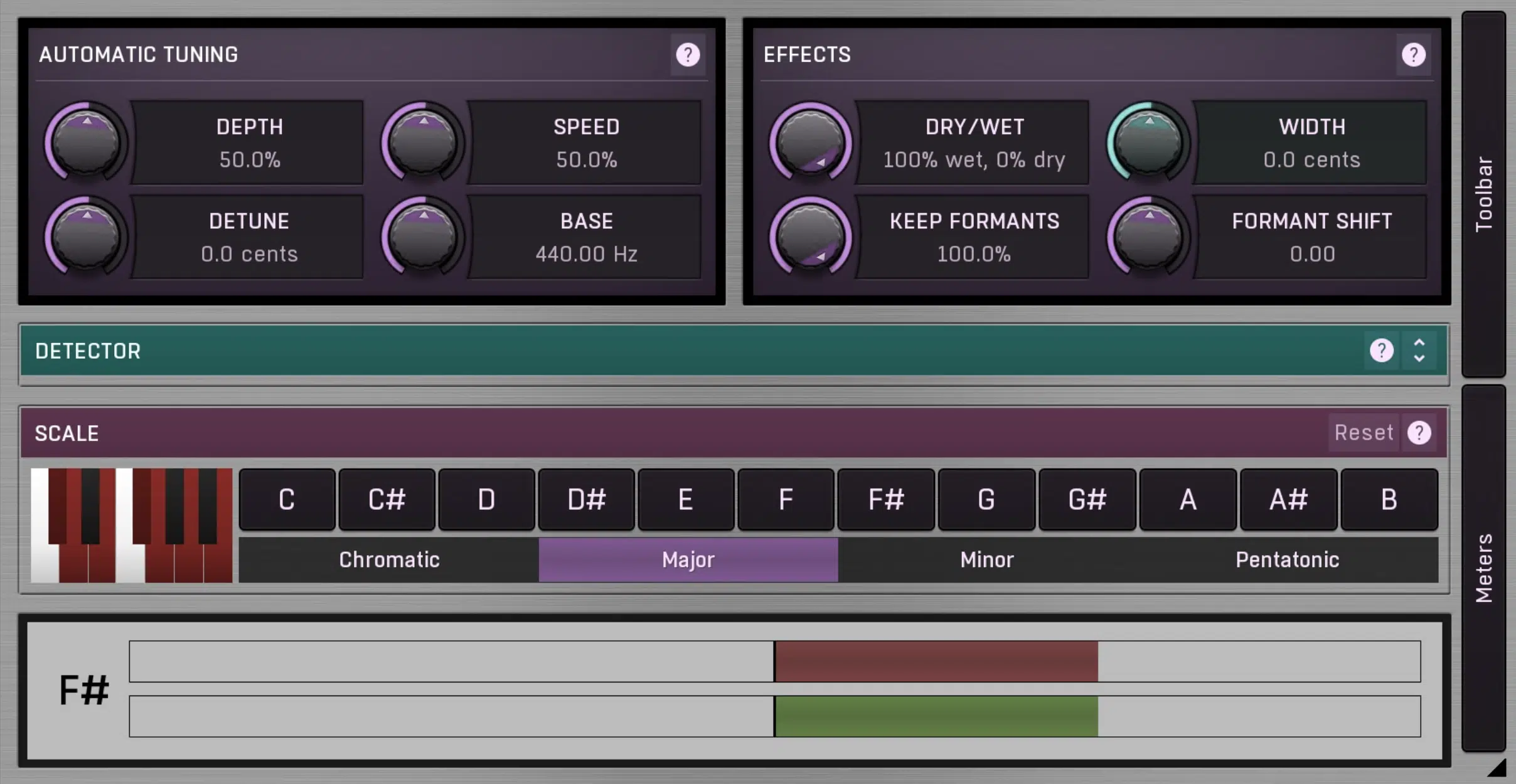
MeldaProduction offers MAutoPitch as part of their massive free bundle. It is widely considered one of the best introductory plugins for modern vocal processing because of its clean interface and comprehensive feature set.
- Key Features: Automatic pitch correction, depth and speed controls, a built-in limiter, stereo expansion, and a graphical formant shift section that lets you alter the perceived gender or timbre of the voice.
- Pros: Modern, resizable user interface; stable across multiple DAWs (supporting VST, VST3, AU, and AAX formats on both Windows and macOS); includes visual metering to see pitch deviations in real-time.
- Cons: MeldaProduction's installer manages all their free plugins together, which can install extra plugins you might not want unless you deselect them during setup.
3. Kilohearts Pitch Shifter (Free Tier)
While not an automated pitch-correction scale-snapper in the traditional sense, Kilohearts offers a modular ecosystem where their basic pitch-shifting utility can be combined with other free effects to create creative vocal textures.
- Key Features: Simple semitone and cent tuning knobs, high-quality algorithm processing, and integration into the Kilohearts snap-in ecosystem.
- Pros: Incredibly easy to use for manual transposing and doubling effects.
- Cons: Does not automatically lock vocals to a musical key, making it unsuitable for traditional pitch correction without manual automation.
4. Audacity (Built-in Pitch and Tempo Tools)
For users who do not yet use a full Digital Audio Workstation, Audacity is a free, open-source audio editor that includes basic pitch modification tools. While it lacks real-time plugin monitoring for live tracking, it features effect algorithms like "Change Pitch" and "Sliding Time Scale/Pitch Shift."
- Key Features: Destructive audio editing, waveform visualization, and Nyquist-based pitch plugins.
- Pros: Completely free, open-source, multi-platform (Windows, macOS, Linux), and serves double-duty as a general audio editor.
- Cons: Edits are destructive (meaning they alter the original audio file permanently unless undone), and it lacks the seamless automatic scale-snapping found in dedicated VST plugins.

Comparison of Free Pitch Correction Tools
| Software Name | Primary Platform | Main Function | Best For | Learning Curve |
|---|---|---|---|---|
| MAutoPitch | Windows, macOS | Real-time auto-tune & formant shifting | General vocal sweetening & modern pop effects | Easy |
| GSnap | Windows (VST) | Real-time pitch correction & MIDI control | Classic hard-tune effects & lightweight setups | Moderate |
| Audacity | Windows, macOS, Linux | Standalone audio editor & pitch modification | Basic manual editing without a DAW | Easy |
| Kilohearts Pitch | Windows, macOS | Manual pitch shifting & modular sound design | Creative vocal layering & sound design | Easy |
Essential Setup Steps for Beginners
Getting clean results from free auto-tune software requires proper signal chain management and recording habits. Even the most advanced pitch-correction algorithm will struggle with muddy or poorly recorded audio.
Step 1: Secure a Clean Vocal Take
Pitch correction cannot completely rescue a vocal performance buried in background noise, room echo, or distortion. Record in a quiet space using a pop filter to mitigate plosive sounds (harsh "p" and "b" consonants) that confuse pitch detection algorithms.
Step 2: Know Your Song's Key and Scale
To use automatic pitch correction effectively, you must set the plugin to the correct musical key (e.g., C Major, A Minor). If you select the wrong key, the plugin will force your vocals into incorrect notes, creating jarring, dissonant artifacts. Use an instrument or a free tuning app to identify the instrumental backing track's key before applying the plugin.
Step 3: Insert the Plugin on the Vocal Track
Open your DAW (such as Reaper, GarageBand, Tracktion Waveform Free, or Cakewalk by BandLab), load your vocal audio file onto a track, and insert your chosen free pitch plugin (like MAutoPitch) into the insert effects slot.
Step 4: Dial in Speed and Depth
- Speed (or Retune Speed): A faster speed setting forces the voice instantly to the target note, creating the distinct robotic Cher/T-Pain effect. A slower speed allows natural human vibrato and slide to remain intact, resulting in a transparent, subtle correction.
- Depth: Controls how intensely the plugin applies the correction. 100% depth forces every note strictly onto the scale; lower percentages blend the corrected pitch with the original uncorrected vocal.
Common Mistakes Beginners Make
Avoid these common pitfalls to achieve professional-sounding vocal mixes with free tools:
- Over-Tuning Everything: Cranking the retune speed to maximum on every track creates an artificial, warbly digital artifact known as "tuning flutter." Reserve aggressive settings for artistic effect rather than trying to fix an entirely out-of-tune performance.
- Ignoring Formants: When shifting pitch drastically, voices can start to sound like chipmunks or giants. Adjusting the formant controls helps preserve the natural timbre and warmth of the human voice.
- Placing Plugins Incorrectly in the Chain: Pitch correction plugins generally perform best near the beginning of your vocal processing chain—typically right after noise reduction or gain staging, and before heavy compression or reverb.
Frequently Asked Questions
Can free auto-tune software sound professional?
Yes. Many free plugins utilize high-quality digital signal processing algorithms comparable to paid software. Achieving a professional sound relies more on the quality of the raw vocal recording, proper key selection, and careful mixing than on the price tag of the plugin.
Do I need a paid DAW to use free auto-tune plugins?
No. Several powerful DAWs are completely free, including GarageBand (for macOS/iOS), Tracktion Waveform Free, and Cakewalk by BandLab (for Windows). These free hosts support third-party VST and AU plugins like MAutoPitch and GSnap.
What is the difference between manual pitch correction and automatic tuning?
Automatic tuning plugins listen to incoming audio and snap notes to a scale in real time with minimal user input. Manual pitch correction software (such as graphical editors) allows you to view audio waveforms on a grid and manually adjust individual syllables, pitch drifts, and timing discrepancies note by note.
Why does my auto-tune plugin sound robotic or glitchy?
A robotic sound usually results from setting the retune speed too fast or selecting the wrong musical key in the plugin settings. Lowering the retune speed and double-checking your track's key signature will restore natural vocal characteristics.
Next Actions for Your Production Workflow
To begin your journey into vocal production, download a reputable free DAW alongside MeldaProduction's MAutoPitch. Record a short vocal phrase over a simple instrumental track, determine the song's key, and experiment with adjusting the retune speed slider from slow to fast. Listening to how these parameters alter your vocal performance provides the practical experience needed to master audio pitch correction.
Image Gallery
Select an image to open it in a new tab.

Mateo Castillo
Decentralized Finance and E-Payments Strategist
