
If your headphones are not producing sound, the issue usually stems from a physical connection break, an incorrect software output setting, or a Bluetooth pairing conflict. To resolve this, first verify the physical connection or battery level, then ensure your playback device has the correct headphones selected as the primary audio output in the system settings.
Headphones are essential tools for both productivity and leisure, but because they are frequently moved, plugged, and unplugged, they are highly susceptible to mechanical wear and software glitches. In 2026, as audio technology transitions further into high-resolution wireless standards and USB-C universal connectivity, the complexity of "why they don't work" has shifted from simple broken wires to more intricate digital handshake issues.
Identifying the Root Cause: Wired vs. Wireless
Before attempting a fix, you must categorize the failure. Headphone issues generally fall into two categories: hardware (physical damage or component failure) and software (configuration or signal processing errors).
Wired Headphone Failures
Wired headphones rely on a continuous electrical circuit from the digital-to-analog converter (DAC) of your source device to the voice coils in the headphone drivers. If this circuit is interrupted, you will experience total silence, audio in only one ear, or distorted crackling.
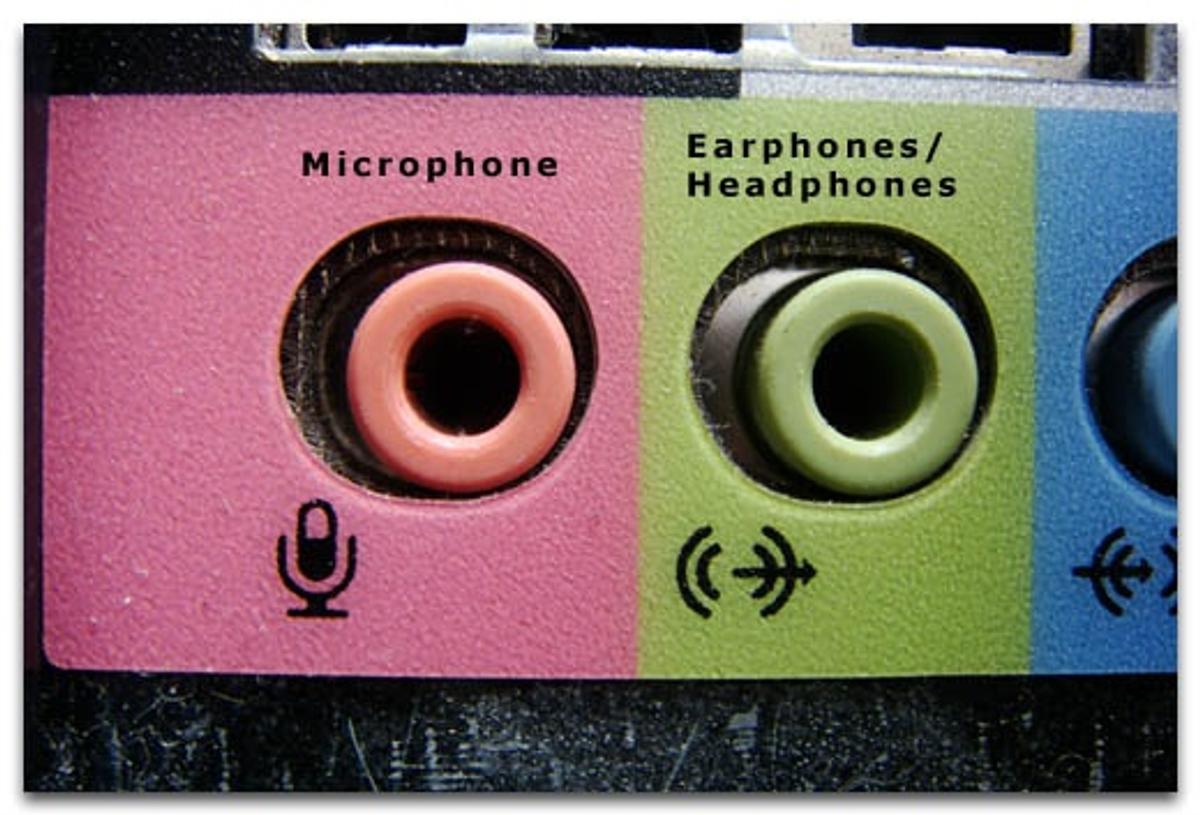
- Connector Debris: One of the most common reasons a wired connection fails is "pocket lint." Over time, dust and debris accumulate inside the 3.5mm or USB-C port, preventing the jack from seating fully. Even a fraction of a millimeter of separation can prevent the "detection" pin from triggering the audio switch.
- Internal Wire Fatigue: Cables are made of braided copper. Repeatedly bending the wire near the jack or the earcups causes "work hardening," where the metal becomes brittle and eventually snaps inside the insulation. This is why wiggling the wire sometimes brings the sound back briefly.
- Oxidization: If the gold or nickel plating on your headphone jack appears dull or has dark spots, oxidization may be resisting the low-voltage electrical signal.
Wireless and Bluetooth Failures
Wireless headphones, including modern Bluetooth 5.4+ and LE Audio devices, face a different set of challenges. These are essentially small computers with their own operating systems (firmware), batteries, and radios.
- Pairing State Conflicts: A pair of headphones might remain "bonded" to a laptop in another room, preventing it from connecting to your phone.
- Codec Mismatches: In rare cases, if a source device is forced to a codec the headphones don't support (like LDAC or aptX Adaptive), the handshake may fail, resulting in a connection that shows "connected" but produces no audio.
- Battery Dormancy: If lithium-ion batteries are left at 0% for several months, they may enter a deep discharge state where the internal protection circuit prevents them from charging for safety reasons.
Software and Configuration Issues
Even if the hardware is pristine, the operating system (Windows, macOS, Android, or iOS) may be the culprit. As of 2026, modern operating systems have aggressive power management and "smart" switching that can occasionally malfunction.
Default Output Routing
The most frequent software issue is that the computer or smartphone is sending audio to the wrong place. This happens often when multiple monitors are connected (sending audio to HDMI) or when a virtual audio cable is installed for streaming.
In Windows, you must check the Sound Output menu in the Taskbar. Often, the system defaults to "Realtek Audio" (onboard speakers) instead of the specific USB or Bluetooth headset. In macOS, the Audio MIDI Setup utility is a deeper tool used to see if the device is muted at the system level despite the volume slider being up.
Driver and Firmware Corruption
For USB-C and Bluetooth headphones, the device relies on a driver to interpret the digital data stream.
- Corrupted Drivers: If an update was interrupted, the driver may be "wedged," meaning the OS sees the device but cannot communicate with it.
- Outdated Firmware: Manufacturers like Sony, Bose, and Sennheiser frequently release firmware updates to fix connectivity bugs. If your headphones work with a phone but not a PC, a firmware update via the mobile app is often the solution.

Hardware Components and Mechanical Failure
If software troubleshooting yields no results, the problem is likely internal. Understanding the anatomy of your headphones helps in diagnosing which part has failed.
The Voice Coil and Diaphragm
Inside the earcups are magnets and a coil of wire (the voice coil) attached to a thin membrane (the diaphragm). If you have dropped your headphones or played music at excessively high volumes, the voice coil can "blow"—meaning it has either melted from heat or shifted out of its magnetic gap. If this happens, the headphones are usually beyond simple repair and require a driver replacement.
The Jack and Port Integrity
USB-C ports on headphones are surface-mounted to a small circuit board. If you exert too much pressure while plugging them in, the solder joints can crack. For wired 3.5mm headphones, the "spring" contacts inside the female port of your phone or laptop can lose their tension, leading to a loose fit that cuts out with any movement.
Comparison of Common Symptoms and Solutions
The following table outlines the most frequent symptoms users encounter and the verified steps to resolve them.
| Symptom | Most Likely Cause | Primary Fix |
|---|---|---|
| Total Silence (Wired) | Port Debris or Muted Software | Clean the port with compressed air; check OS output device. |
| Sound in One Ear Only | Broken internal wire near the jack | Replace the cable or re-solder the connector. |
| Crackling when moving | Dirty connector or loose jack | Clean the plug with isopropyl alcohol (90%+). |
| Connected but no sound (BT) | A2DP Profile conflict | "Forget" the device in Bluetooth settings and re-pair. |
| Low volume/muffled | Earwax buildup or "High Impedance" | Clean the mesh filters; check if an amp is required. |
| Cutting out in crowds | 2.4GHz interference | Switch to a less congested codec (SBC) via the app. |
Advanced Troubleshooting: Impedance and Power
A less common but significant reason headphones "don't work" (or sound extremely quiet) is an impedance mismatch. Professional-grade headphones (like the Beyerdynamic DT 990 Pro 250-ohm version) require more voltage than a standard smartphone or laptop can provide.
If you plug high-impedance headphones into a low-power source, the volume may be so low that it sounds broken. In this case, the headphones are functional, but you require an external Headphone Amplifier or a dedicated DAC (Digital-to-Analog Converter) to drive the speakers to audible levels.
Environmental and User Errors
Sometimes the environment is the enemy of audio.
- Moisture Damage: Sweat is corrosive. If you use non-IPX rated headphones for exercise, salt deposits can bridge contacts on the internal circuit board, leading to phantom button presses or total failure.
- "Find My" Features: Some modern headphones in 2026 have security features that "lock" the audio if the device is reported lost or if it hasn't checked in with a verified account recently.
- Mono Audio Settings: If you only hear one side, check the "Accessibility" settings on your device. Occasionally, users accidentally toggle the balance slider all the way to the left or right.
Frequently Asked Questions
Why do my headphones work on my phone but not my laptop?
This is usually a driver or output setting issue on the laptop. Laptops often have multiple audio outputs (Internal Speakers, HDMI, DisplayPort, and the 3.5mm jack). Ensure that the "Headphones" or "High Definition Audio Device" is set as the Default Playback Device in your computer's sound settings. Additionally, some laptops use "Combo Jacks" that require a specific driver to distinguish between a microphone and a pair of headphones.
How do I clean a headphone jack safely?
Do not use metal objects like needles, as they can short out the internal pins or scratch the contact surfaces. Use a wooden or plastic toothpick to gently tease out lint. For chemical cleaning, use a cotton swab dampened (not dripping) with 99% Isopropyl Alcohol. Insert it into the jack and rotate it gently to remove oxidization and oils.
Can a software update break my headphones?
Yes. Operating system updates (especially on Windows and macOS) can occasionally overwrite audio drivers with generic versions that lack specific features required for your headset. If your headphones stopped working immediately after an OS update, go to the Device Manager, find your audio device, and select "Roll Back Driver."
Why is there a delay between the video and the sound in my wireless headphones?
This is known as latency. It occurs because the digital audio must be compressed, transmitted via radio waves, and then decompressed by the headphones. To fix this, ensure your headphones and source device both support low-latency codecs like aptX Low Latency or LC3 (Bluetooth LE Audio). Most modern video apps (YouTube, Netflix) automatically delay the video to match the audio, but this doesn't work for gaming or live production.
My headphones are connected but I hear a loud buzzing noise. What is that?
A loud, consistent hum (often 50Hz or 60Hz) is usually a ground loop. This happens when your audio source (like a PC) and your headphones (if they are powered/active) are plugged into different power outlets with different ground potentials. If using wired headphones, this can also indicate a shield failure in the cable where the ground wire is touching the signal wire.
Summary of Next Actions
If your headphones are still not working after checking the basics, follow this sequence:
- Test on a second device: This immediately tells you if the problem is the headphones or the source.
- Inspect the physical connectors: Use a bright light to look into the ports for any obstructions.
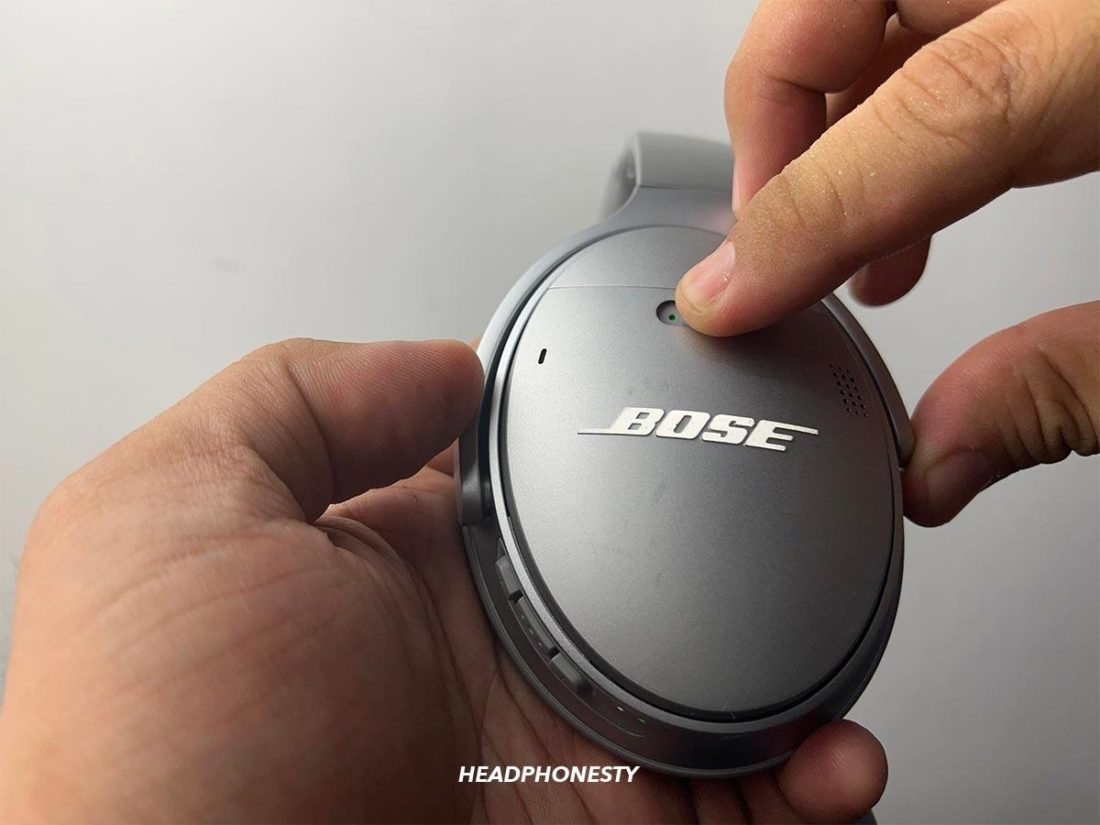
- Perform a Factory Reset: For Bluetooth models, refer to the manual for the button combination (usually holding the power and volume buttons for 10 seconds) to clear the internal cache.
- Check for Professional Repair: If the headphones are high-end and have a broken internal wire, many independent shops can "re-terminate" the cable with a new jack for a fraction of the cost of new headphones.
For high-end audio enthusiasts, maintaining your gear by using a dedicated hard-shell case and avoiding wrapping cables tightly around the headphones will prevent the vast majority of "no sound" issues before they start.
Image Gallery
Select an image to open it in a new tab.


Lars Thomsen
Global Labor Markets and Economic Strategy Editor
