
Capturing text on the go using an RTF (Rich Text Format) file involves creating a central document stored within a cloud-synchronized folder. By leveraging this universal format, you can access, edit, and save notes across iOS, Android, and desktop platforms using lightweight, often free applications, ensuring your data remains portable and free from proprietary software lock-in.
The Case for Rich Text Format in a Modern Workflow
In 2026, the digital landscape is saturated with complex, subscription-based note-taking applications that promise AI-driven organization and multi-media integration. However, for many writers, researchers, and professionals, these platforms introduce unnecessary friction, high latency, and "data silos." The Rich Text Format (RTF), a specification originally developed by Microsoft in 1987, remains one of the most resilient and practical solutions for mobile text capture.
Using an RTF file as your primary "capture bucket" allows for a level of interoperability that modern formats struggle to match. Unlike a plain text (.txt) file, RTF supports essential formatting such as bolding, italics, underlining, and various font sizes. Unlike the Word Document format (.docx), RTF is an open-ended specification that does not require heavy word processors to open. This middle-ground position makes it the ideal candidate for a "lean" mobile workflow where speed and compatibility are the highest priorities.
Technical Advantages of RTF for Mobile Use
Understanding why RTF works so well on mobile requires a brief look at its underlying structure. RTF uses a human-readable keyword syntax to define formatting. Because it is a non-binary format, it is significantly less prone to file corruption than the compressed XML structures used by modern office suites. If a portion of an RTF file is damaged, the rest of the text remains easily recoverable.
Furthermore, RTF files have extremely low overhead. In an era where mobile apps can consume gigabytes of cache, a dedicated RTF editor typically weighs only a few megabytes. This results in near-instantaneous "cold boot" times. When you have a fleeting thought or need to record a quick interview snippet, the seconds saved in application loading can be the difference between capturing the idea or losing it.
Cross-Platform Reliability
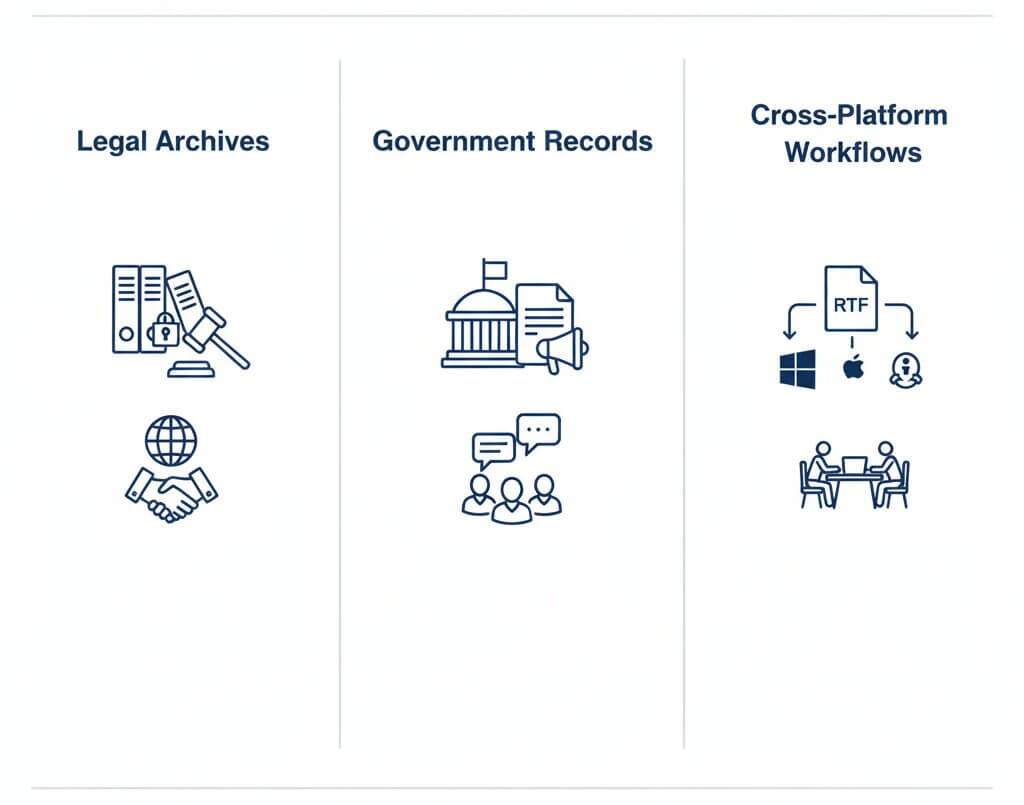
The primary strength of RTF is its "write once, read anywhere" nature. In 2026, whether you are using a high-end smartphone, a budget tablet, or a legacy laptop, the RTF specification is natively understood by the operating system's core text engines. This eliminates the "formatting drift" often seen when moving files between different versions of proprietary software.

Setting Up Your RTF Mobile Capture System
To effectively use an RTF file to capture text on the go, you must establish a reliable synchronization pipeline. This ensures that the note you start on your phone is waiting for you when you return to your workstation.
Step 1: Selecting a Cloud Synchronizer
The most efficient way to manage your mobile RTF files is through a file-level sync service rather than a database-driven app. Services like iCloud Drive, Dropbox, Google Drive, or specialized privacy-focused options like Proton Drive are ideal. These services treat the RTF file as a standalone object, allowing different apps on different devices to "hand off" the file seamlessly.
Step 2: Creating Your "Master" Capture File
On your desktop, create a new document and save it with the .rtf extension. Name it something recognizable, such as Capture_2026.rtf or Inbox_Mobile.rtf. Place this file in the root folder of your chosen cloud service. By keeping the file in the root directory, you minimize the number of "taps" required to reach it on a mobile interface.
Step 3: Choosing the Right Mobile Editor
Not all mobile text editors handle RTF equally. You need an app that supports "Open in Place" or "File Provider" capabilities. This allows the app to edit the file directly on the cloud server without creating redundant local copies.
- For iOS/iPadOS: The native "Files" app can preview RTF files, but for editing, apps like Textor or Pages are excellent. Pages, while a full word processor, handles RTF imports and exports with high fidelity.
- For Android: JotterPad and QuickEdit are standout choices. They offer a distraction-free interface and robust support for the RTF syntax, ensuring that bolding and lists created on your phone look identical on your PC.
Comparing RTF to Other Mobile Capture Formats
When deciding on a capture format, it is helpful to see how RTF stacks up against its primary competitors: Plain Text (TXT), Markdown (MD), and Word Documents (DOCX).
| Feature | RTF (Rich Text) | TXT (Plain Text) | MD (Markdown) | DOCX (Word) |
|---|---|---|---|---|
| Basic Formatting | Yes (Native) | No | Yes (Via Syntax) | Yes (Extensive) |
| Mobile Loading Speed | Very Fast | Instant | Fast | Slow |
| Cross-App Compatibility | High | Universal | Medium (Needs Viewer) | Medium (Needs Office) |
| File Size | Small | Minimal | Small | Large |
| Human Readable Code | Yes | Yes | Yes | No |
| Image Support | Basic | No | Link-only | Full |
As the table demonstrates, RTF provides the best balance for users who need more than just raw text but do not want the baggage associated with the .docx ecosystem.
Advanced Strategies for RTF Capture
Once your basic system is in place, you can employ several strategies to maximize productivity while on the move.
The "Top-Down" Journaling Method
Instead of creating a new RTF file for every thought, maintain a single, long-running file. When you open the file on your mobile device, scroll to the top and insert a date stamp. This "reverse-chronological" approach ensures that your most recent thoughts are always the first thing you see, and it reduces the clutter of having dozens of small files in your cloud storage.
Using RTF Templates
If you frequently capture specific types of information—such as meeting minutes or grocery lists—create a "Template" RTF file. This file can contain pre-formatted headers and bullet points. When you are on the go, simply "Duplicate" the template file in your mobile file manager and begin typing. This retains the structural integrity of your notes without requiring you to manually format them on a small touchscreen.
Managing Large Files and Pagination
While RTF is lightweight, an extremely large file (over 500 pages) may begin to lag on older mobile hardware. In 2026, most modern smartphones can handle large RTF files with ease, but it is still best practice to "archive" your capture file once it reaches a certain size (e.g., 1MB). Simply rename the file to include the date range (e.g., Capture_Jan_June_2026.rtf) and start a fresh one.
Common Pitfalls and Troubleshooting
Despite its reliability, using RTF on mobile can occasionally present challenges.
Encoding Issues
Occasionally, an RTF file created on an older Windows machine might use an encoding that a modern mobile app struggles to interpret, leading to "gibberish" characters where accented letters or smart quotes should be. To resolve this, ensure your mobile editor is set to UTF-8 or Windows-1252 encoding. Most modern apps in 2026 handle this automatically, but it is the first thing to check if text looks corrupted.
Image Bloat
RTF supports the insertion of images, but it does so by converting the image into a massive string of hexadecimal code. If you paste a high-resolution photo from your mobile gallery into an RTF file, the file size will explode, leading to slow sync times and potential app crashes. For mobile capture, it is recommended to keep RTF files for text only. If you need to include an image, use a placeholder description or a link to the image in your cloud storage.
Sync Conflicts
The biggest risk with a file-based workflow is the "Conflicted Copy." This happens if you edit the RTF file on your phone while it is still open and being edited on your desktop. To avoid this, always ensure you have "closed" the file or exited the editing mode on one device before opening it on another. Most cloud services will detect a conflict and save two versions of the file, preventing data loss, but merging these versions manually can be tedious.
Security and Privacy Considerations
In 2026, data privacy is a paramount concern. Because RTF files are standard files and not part of a proprietary database, you have full control over how they are encrypted. You can store your RTF capture files inside an encrypted vault (like a VeraCrypt volume or a Locked Folder in a secure cloud) without breaking the functionality of your text editor.
Unlike many "smart" note apps, RTF editors generally do not require an internet connection to function. You can capture text in "Airplane Mode" or in areas with poor connectivity. The file will simply wait on your local device storage until a connection is established, at which point the cloud service will handle the synchronization. This "offline-first" capability is a significant advantage for travelers and field researchers.
Frequently Asked Questions
Can I open an RTF file if I don't have a dedicated app?
Yes. Most modern mobile operating systems include a native file viewer that can display RTF content. On iOS, the Files app "Quick Look" feature allows you to read the file without any third-party software. On Android, the default HTML viewer or Google Drive previewer can typically render RTF text perfectly.
Is RTF better than Markdown for mobile notes?
It depends on your preference. Markdown is excellent for those who are comfortable using symbols (like # or *) to format text. However, RTF is better for those who prefer a "What You See Is What You Get" (WYSIWYG) experience where bold text actually looks bold while you are typing it. RTF also has better support for different fonts and colors, which Markdown lacks.
Will my formatting be lost when I move the file back to my computer?
No. One of the core purposes of the RTF specification is to preserve formatting across different programs. Bold, italics, font choices, and paragraph alignment are stored as part of the file's standard code. When you open the file in Microsoft Word, LibreOffice, or TextEdit on your computer, the formatting you applied on your mobile device will remain intact.
How do I search through my RTF capture files on mobile?
Because RTFs are standard files, you can use the built-in search functionality of your mobile OS. On iOS, "Spotlight" search can index the contents of RTF files stored in iCloud. On Android, the file manager search or the search bar within your chosen text editor can quickly locate specific keywords within your notes.
Can I password-protect an individual RTF file?
The RTF format itself does not support native password protection. If you need to secure a specific file, you should store it within a cloud service that offers "Vault" features or use a mobile file manager that allows you to lock specific folders with a PIN or biometric authentication.
Final Recommendation for Mobile Text Capture
For a reliable, future-proof, and distraction-free mobile writing environment in 2026, the RTF format is an unparalleled choice. To begin, simply select a cloud-sync provider, create a master .rtf file, and install a lightweight RTF-compliant editor on your smartphone. By sticking to this "open" workflow, you ensure that your notes remain your own, accessible on any device you choose, without the limitations of modern proprietary software.
Image Gallery
Select an image to open it in a new tab.



Omar Farooq
EdTech Innovation and Virtual Pedagogy Journalist
