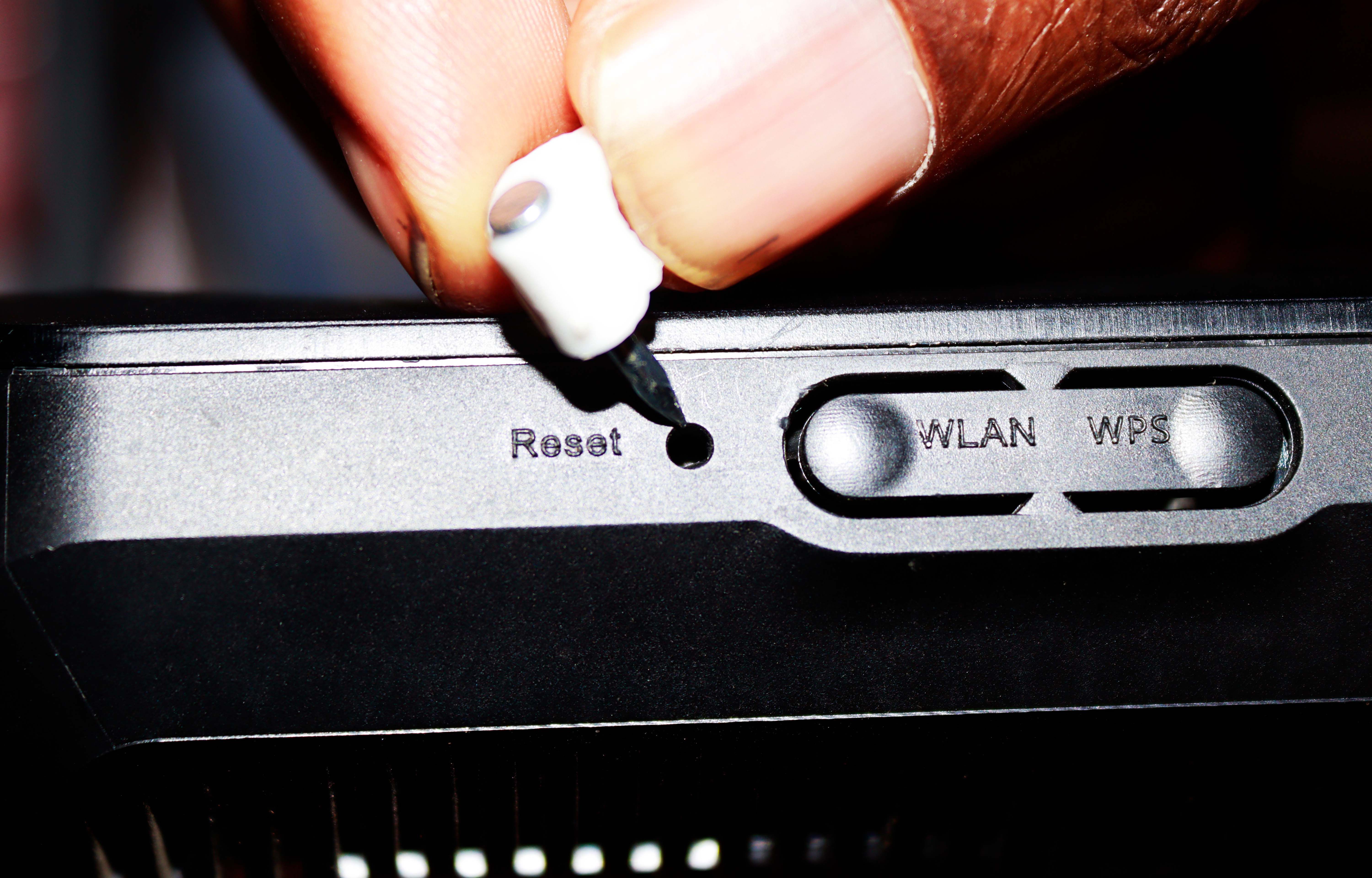
A factory reset of your router is worth the effort if you are facing persistent performance degradation, suspected security breaches, or a complete loss of administrative access. While it effectively eliminates software-level bugs and restores the device to its "out-of-the-box" state, it requires a manual reconfiguration of your entire network, making it a high-impact troubleshooting step that should be reserved for specific scenarios.
Resetting vs. Rebooting: Understanding the Fundamental Difference
Before determining if a reset is worth your time, it is vital to distinguish between a "reboot" (often called a restart or power cycle) and a "factory reset." These terms are frequently used interchangeably in casual conversation, but in technical terms, they are worlds apart.
A reboot is the process of turning the router off and back on again. This clears the router’s temporary memory (RAM). In 2026, modern routers are essentially small computers with their own operating systems, processors, and memory. Just like a smartphone or a laptop, a router's RAM can become cluttered with "zombie" processes or minor data errors that cause the connection to feel sluggish. A reboot flushes these temporary errors without changing any of your settings. Your Wi-Fi name (SSID), password, and port forwarding rules remain intact.
A factory reset, however, is a much more invasive procedure. It wipes the non-volatile memory (NVRAM) where your custom settings are stored. This includes your custom Wi-Fi password, any parental controls, DNS configurations, and guest network setups. When the router finishes resetting, it reverts to the state it was in the day it left the factory. For many users, this is the "nuclear option." It is highly effective at solving deep-seated software issues, but it "costs" you the time it takes to set your network back up from scratch.
When Is Resetting Your Router Truly Worth the Effort?
Because a factory reset involves significant downtime and reconfiguration work, you should only perform one when the benefits outweigh the labor. In 2026, with the average household managing over 20 connected IoT (Internet of Things) devices—from smart fridges to security cameras—the ripple effect of a reset is larger than it was a decade ago.
1. Recovering Lost Administrative Access
The most common reason a reset is absolutely worth it is when you have lost access to the router’s administrative console. If you have forgotten the admin password and the recovery email or security questions are no longer accessible, a factory reset is your only path forward. Without access to the admin panel, you cannot update firmware, change security settings, or manage which devices are on your network. In this case, the time spent reconfiguring the network is a mandatory investment in the security and manageability of your home internet.
2. Remediation After a Security Breach
If you suspect your router has been compromised—perhaps you noticed unauthorized devices in your network logs or your traffic is being redirected to suspicious sites—a factory reset is a critical security step. Sophisticated malware can sometimes embed itself in a router's configuration files or change the DNS settings to route your traffic through malicious servers. A standard reboot will not remove these changes. A factory reset, followed by an immediate firmware update, is the gold standard for reclaiming a compromised device. The Cybersecurity & Infrastructure Security Agency (CISA) has historically recommended factory resets for routers affected by widespread botnet infections.
3. Fixing "Configuration Drift" After Firmware Updates
Over several years of use, a router might go through five or ten firmware updates. Sometimes, the new code in an update doesn't play perfectly with the old settings stored in the NVRAM. This leads to "configuration drift," where the router begins to behave erratically—dropping connections, failing to assign IP addresses, or exhibiting poor range. In 2026, as Wi-Fi 7 and advanced Mesh networking become standard, the complexity of these configurations has increased. If your internet has become progressively "glitchy" despite having the latest firmware, a factory reset provides a clean slate, ensuring the hardware and the software are perfectly synced.
4. Preparing for Resale or Disposal
If you are upgrading to a new model or moving out of a rental property, a factory reset is essential. Your router stores a significant amount of metadata about your browsing habits, your connected devices, and, of course, your Wi-Fi passwords. Leaving this data on the device when you sell it or give it away is a major privacy risk. In this context, the reset is worth the 60 seconds it takes to hold down the button, as it protects your digital identity.
The Tangible Benefits of a Factory Reset in 2026
While most users dread the setup process, there are objective technical advantages to a clean start. By clearing out years of accumulated data, you are optimizing the device's limited resources.
- Clearing the NVRAM: Every time you add a device to your "blocked" list, set a static IP, or create a new port forwarding rule, you use a tiny bit of the router's permanent storage. Over time, these files can become fragmented or corrupted. A factory reset wipes the slate clean, which can slightly improve the speed at which the router's processor handles traffic requests.
- Eliminating Ghost Devices: Old routers often maintain tables of every device that has ever connected to them. If you’ve lived in the same place for five years, your router might be "remembering" dozens of smartphones, tablets, and guest laptops that are no longer there. While modern routers are better at managing this, a reset ensures the internal device table is empty, reducing the overhead on the DHCP (Dynamic Host Configuration Protocol) server.
- Restoring Default Security Protocols: If you previously lowered your security settings for an old device that only supported WPA-Personal, a factory reset will typically bring you back to the current manufacturer-recommended standard (such as WPA3 in 2026). This ensures you aren't accidentally leaving a "backdoor" open due to a setting you changed years ago and forgot about.
The Downsides and "Hidden Costs" of a Reset
The primary reason a reset is often not worth it for minor issues is the labor involved in the aftermath. You must weigh the performance gain against the following logistical hurdles:
- IoT Device Disconnection: Many smart home devices (like smart bulbs or older Wi-Fi plugs) are notoriously difficult to reconnect once the network they "knew" disappears. If you change the SSID or the security protocol during your reset, you may have to manually reset and re-pair every single smart device in your home.
- ISP Credentials: Depending on your provider and the type of connection (like some fiber-to-the-home setups), you may need specific PPPoE credentials or VLAN tags to get back online. If you don't have these written down before the reset, you will have no internet access at all until you call your ISP's support line.
- Advanced Customizations: If you use a VPN at the router level, complex parental control schedules, or specific QoS (Quality of Service) settings to prioritize gaming traffic, you will lose all of them. Documenting these settings before the reset is a prerequisite for a smooth transition.
Comparison: Rebooting vs. Factory Resetting
To help you decide which path to take, refer to the table below which highlights the differences in impact and recovery time.
| Feature | Reboot (Restart) | Factory Reset |
|---|---|---|
| Data Cleared | Temporary RAM / Cache | All custom settings (NVRAM) |
| Wi-Fi SSID/Password | Maintained | Reverted to Factory Default |
| Admin Password | Maintained | Reverted to Factory Default |
| Firmware Version | Remains the same | Remains the same |
| Time Required | 2–5 Minutes | 15–60 Minutes (plus reconfiguration) |
| Difficulty Level | Low | Moderate to High |
| When to Use | Slow speeds, minor glitches | Forgotten passwords, security breaches, persistent bugs |
Alternatives to a Full Factory Reset
If you are experiencing slow internet but don't want to deal with a full reset, consider these intermediate steps. These are often "worth it" because they provide many of the same benefits with much less work.
Firmware Updates
Before resetting, check the manufacturer’s app or web portal for a firmware update. Manufacturers frequently release patches that fix the very bugs you might be trying to solve with a reset. Updating the firmware often triggers a soft reboot and a re-indexing of settings, which can solve stability issues without erasing your data.
Wi-Fi Channel Optimization
If your issue is specifically Wi-Fi speed rather than the router "crashing," the problem is likely congestion. In 2026, the 5GHz and 6GHz bands are increasingly crowded. Instead of a reset, try changing the channel width or selecting a less congested channel through the router’s settings.
Checking Cable Integrity
Physical layer issues are often mistaken for software bugs. An old Cat5e cable that has been pinched or bent can cause intermittent signal drops. Before committing to a factory reset, swap out the Ethernet cable between your modem and router with a modern Cat6 or Cat6a cable.
Step-by-Step: How to Perform a Reset Properly
If you have decided that a reset is indeed worth it, follow this protocol to minimize downtime:
- Backup Settings (Optional): Many routers allow you to "Export Configuration." Do this if you aren't resetting due to a security breach. If you are resetting for security reasons, do not use a backup, as you might re-import the malicious setting.
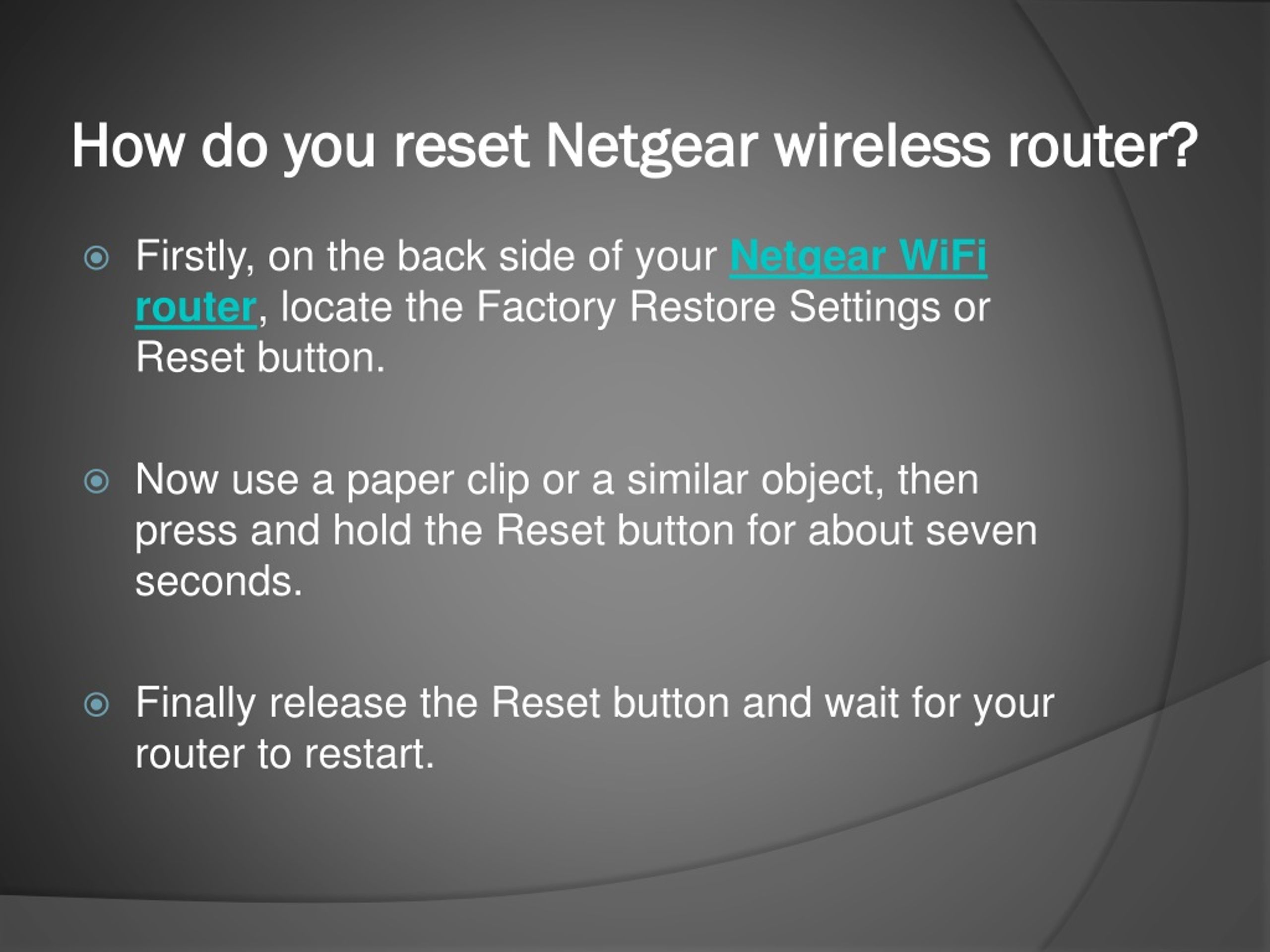
- Locate the Reset Button: Most routers have a recessed button labeled "Reset." You will need a paperclip or a SIM tool to press it.
- The 30-Second Rule: With the router powered on, press and hold the reset button for about 30 seconds. The lights on the front will usually flash or change color to indicate the process has started.
- Wait for Initialization: Do not unplug the router during this phase. It may take 3 to 5 minutes to fully reboot into its factory state.
- Reconnect via Ethernet or Default Wi-Fi: Use the default Wi-Fi name and password printed on the sticker on the bottom of the device to log back in and begin the setup wizard.
FAQs
Will resetting my router increase my internet speed?
A factory reset can increase your speed if the slowdown was caused by corrupted settings, an overloaded device cache, or "ghost" processes in the router's software. However, it will not increase your speed beyond the limit set by your ISP or the physical limitations of your hardware. If your hardware is five years old, a reset won't make it perform like a 2026 Wi-Fi 7 model.
Is it safe to reset my router?
Yes, it is physically safe for the hardware. Modern flash memory is rated for thousands of write cycles, so a factory reset will not "wear out" your router. The only "risk" is the inconvenience of losing your settings and the potential difficulty of getting back online if you don't have your ISP credentials handy.
How often should I reset my router?
There is no set schedule for a factory reset. Unlike a reboot—which can be beneficial once a month—a factory reset should only be done "as needed." If your network is stable and secure, there is no benefit to performing a reset just for the sake of it.
Do I need to contact my ISP after a reset?
In most cases, no. Modern "Plug and Play" ISPs will automatically assign an IP address to your router via DHCP as soon as it boots up. However, if you have a static IP address or use an older DSL/Fiber authentication method, you will need to re-enter your account details into the router's WAN settings.
Does a factory reset change the firmware version?
No. A factory reset only clears user data and settings. It does not "roll back" the firmware to an older version. It stays on the version that was most recently installed. If you want to change the firmware version, you must do so manually through the update/upload tool in the admin panel.
Next Action: A Practical Recommendation
If you are struggling with your network today, start with a timed reboot: unplug your router for exactly 60 seconds and then plug it back in. If the performance issues persist for more than 48 hours after a reboot, or if you suspect a security issue, proceed with the factory reset. Before you press that button, ensure you have a physical copy of your ISP's login credentials and a list of your most important port-forwarding or static IP requirements to ensure a smooth recovery.
Image Gallery
Select an image to open it in a new tab.


Zara El-Hashem
Sociocultural Dynamics and Academics Writer
