
To use Google on an iPhone, you can download the dedicated Google app and Google Chrome from the App Store, or integrate your Google Account directly into iOS Settings to sync Mail, Contacts, and Calendars. For the best experience, set Google Chrome as your default browser and utilize Google widgets for instant search access.
While Apple provides its own suite of native applications, many users prefer the Google ecosystem for its cross-platform synchronization, advanced search algorithms, and collaborative tools. In 2026, the integration between Google services and iOS has become more sophisticated, offering features that range from AI-driven search results to deep system-level widgets. This guide provides a comprehensive walkthrough on how to configure and optimize Google on your iPhone.
1. Establishing the Foundation: The Google Account
Before you can effectively use Google services on your iPhone, you must establish a connection between your Google Account and the iOS environment. This integration allows for a "set it and forget it" synchronization of your essential data.
System-Level Integration
Integrating your Google Account at the system level is the most efficient way to ensure your contacts and calendar events are always up to date across all devices.
- Navigate to Settings on your iPhone.
- Scroll down and tap on Mail (or Calendar or Contacts; they all lead to the same account management screen).
- Tap on Accounts, then select Add Account.
- Choose Google from the list of providers.
- A secure browser window will open; enter your Gmail address and password.
- Complete the Two-Factor Authentication (2FA) if prompted.
- Once authenticated, toggle the switches for the services you wish to sync: Mail, Contacts, Calendars, and Notes.
By enabling these toggles, your Google Contacts will appear in the native Phone and Messages apps, and your Google Calendar events will show up alongside your iCloud events in the iOS Calendar app.
Managing Multiple Accounts
If you use separate Google accounts for work and personal life, iOS allows you to add multiple Google profiles. This is particularly useful for keeping your professional and private schedules distinct while still accessing both on a single device. You can customize which account is the "Default Account" for new contacts or calendar invites within the respective app settings in the iOS Settings menu.
2. Using Google Search and the Google App
The Google app serves as a centralized hub for the Google experience on iOS. Unlike a standard browser, the Google app is optimized for rapid information retrieval and features several proprietary technologies like Google Lens and Gemini AI integration.
The Google App Interface
The primary advantage of using the dedicated Google app is the Discover feed, which provides a curated list of news and articles based on your interests. To get started:
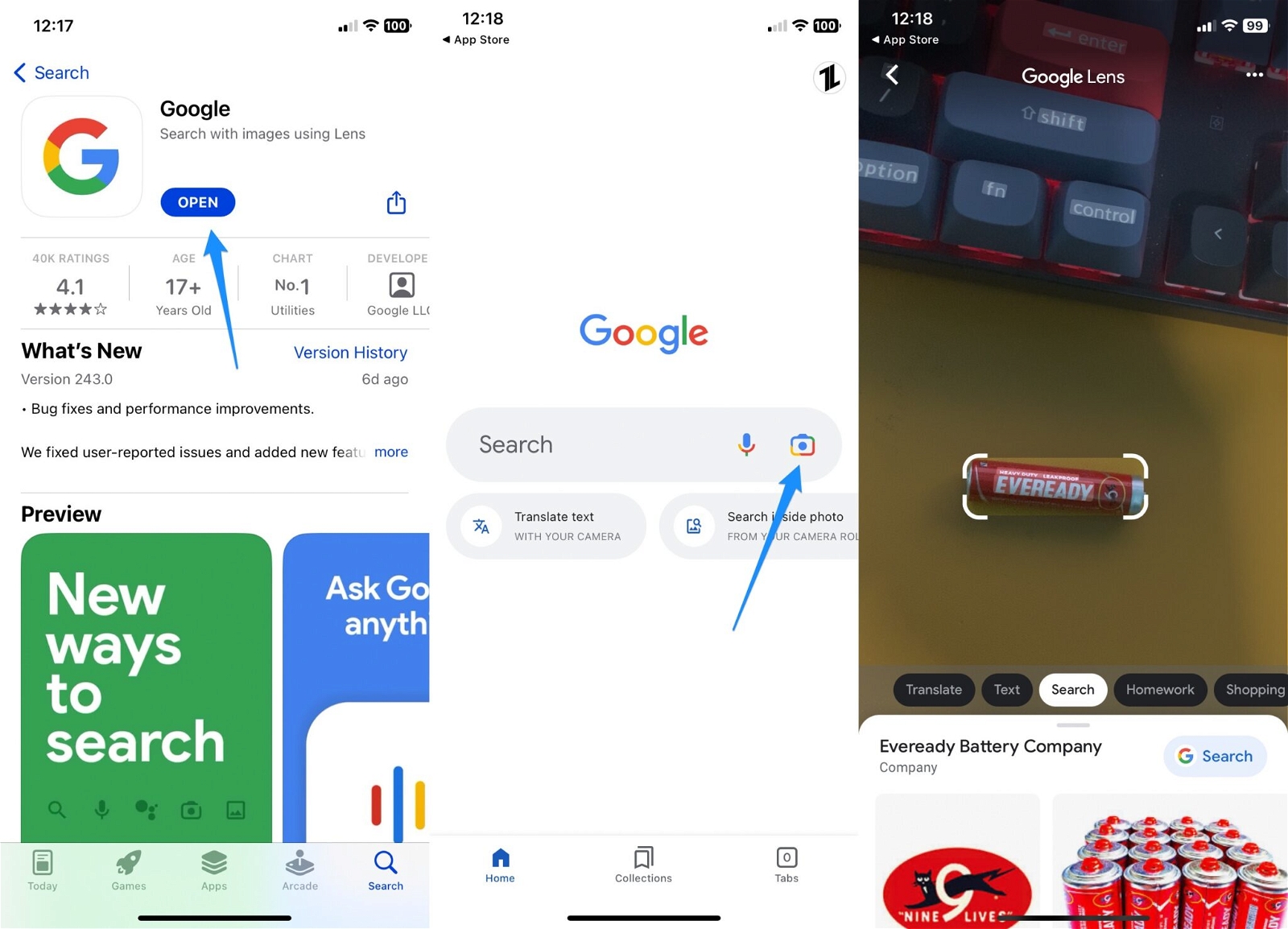
- Download the Google app from the App Store.
- Sign in to your account to personalize your feed.
- Tap the Camera icon in the search bar to access Google Lens. This tool allows you to translate text in real-time, identify plants or animals, and shop for items simply by pointing your camera at them.
Implementing Google Widgets
In 2026, iOS widgets have become highly interactive. You can add a Google Search widget to your Home Screen or even your Lock Screen for immediate access.
- Long-press an empty area on your Home Screen until the icons jiggle.
- Tap the (+) button in the top left corner.
- Search for "Google" and choose from the available widget sizes (Standard Search, Lens, or Voice Search).
- Drag the widget to your preferred location.
This eliminates the need to open a browser and type a URL, streamlining the search process to a single tap.

3. Optimizing Web Browsing with Google Chrome
While Safari is the default browser for iOS, Google Chrome offers superior synchronization for users who also use Chrome on a Windows PC, Mac, or Chromebook.
Setting Chrome as the Default Browser
To ensure all links from Mail or Messages open in Chrome rather than Safari:
- Download Google Chrome from the App Store.
- Open the iPhone Settings app.
- Scroll down until you find Chrome and tap it.
- Tap Default Browser App and select Chrome.
Cross-Device Synchronization
One of the primary reasons to use Chrome on an iPhone is the ability to access open tabs, bookmarks, and saved passwords from other devices. When you sign in to Chrome with your Google Account, your browsing history is unified. This means you can start reading an article on your desktop and pick up exactly where you left off on your iPhone via the "Recent Tabs" section.
4. Google Maps vs. Apple Maps on iPhone
Despite improvements to Apple Maps, Google Maps remains the gold standard for many due to its extensive Point of Interest (POI) database and superior real-time traffic data.
Essential Google Maps Features for iPhone
- Offline Maps: If you are traveling to an area with poor cellular coverage, you can download specific map areas. Tap your profile icon > Offline maps > Select your own map.
- Live View: Use Augmented Reality (AR) to navigate walking directions. By holding up your iPhone, Google Maps overlays arrows and directions onto the real-world view via the camera.
- Google Assistant Integration: Within Google Maps settings, you can enable "OK Google" detection to change your destination or find a gas station hands-free while driving.
Privacy and Location History
When using Google Maps, it is important to manage your Location History. Google uses this data to provide personalized recommendations and "Timeline" features. You can review and delete this data by going to your Google Account settings within the app and navigating to "Data & Privacy."
5. Productivity: Google Workspace on iOS
For users who rely on Google Docs, Sheets, and Drive, the iPhone experience is remarkably robust. Google provides individual apps for each service rather than a single "Office" suite, allowing you to download only what you need.
| Service | Best Use Case on iPhone | Key Feature |
|---|---|---|
| Google Drive | File management and storage | "Available Offline" mode for PDF and doc viewing. |
| Google Docs | Document editing and drafting | Real-time collaboration with comment notifications. |
| Google Sheets | Data tracking and quick edits | Mobile-optimized entry for spreadsheet cells. |
| Gmail | Primary email communication | Category tabs (Social, Promotions) to declutter the inbox. |
| Google Keep | Quick notes and checklists | Location-based reminders that trigger when you arrive at a store. |
Handling Files and Attachments
The iOS Files app can integrate directly with Google Drive. Once Google Drive is installed and signed in:
- Open the Files app.
- Tap Browse at the bottom right.
- Tap the More (...) icon in the top right and select Edit.
- Toggle Google Drive to "On." Now, you can attach files stored in Google Drive directly to emails in the native Mail app or move files between iCloud and Google Drive seamlessly.
6. Managing Photos and Storage: Google Photos
Google Photos is often used as a secondary backup or a complete replacement for the iOS Photos app. It is particularly valued for its "Magic Eraser" and AI editing tools which, as of 2026, have become standard for all Google One subscribers.
Backing Up Your Library
To ensure your iPhone photos are backed up to Google:
- Install Google Photos.
- Grant the app permission to "Allow Access to All Photos."
- Enable Back up & sync.
- Choose your upload quality: "Storage saver" (compressed but free-ish) or "Original quality" (counts against your Google storage quota).
Caution: If you use both iCloud Photos and Google Photos, deleting a photo in one app may delete it from the device entirely, which then triggers a deletion in the other cloud service. It is recommended to manage your "Master" library in one place to avoid accidental data loss.
7. Advanced Google Features: Gemini and Assistant
As of 2026, Google’s AI, Gemini, has replaced many legacy functions of Google Assistant on the iPhone. While it cannot replace Siri for system-level commands (like turning off the flashlight), it excels at complex tasks.
Using Gemini on iPhone
You can access Gemini through the dedicated Google app or a standalone Gemini app. It can be used for:
- Summarizing long emails or documents found in your Google Drive.
- Drafting replies or creative content.
- Planning itineraries by pulling data from Google Maps and Flights.
To make Gemini more accessible, you can create a Siri Shortcut. By saying "Hey Siri, ask Google," you can bridge the gap between Apple's voice control and Google's AI capabilities.
8. Troubleshooting Common Integration Issues
Using Google on an iPhone is generally stable, but software updates or credential changes can occasionally cause friction.
Syncing Errors
If your Google Calendar or Contacts stop updating:
- Go to Settings > Mail > Accounts.
- Tap your Google account and ensure the toggles are still green.
- If they are, try toggling them off, waiting 30 seconds, and toggling them back on.
- If the issue persists, delete the account from the iPhone and re-add it.
Battery Drain
The Google app and Google Maps are known to be resource-intensive due to frequent background location updates. To mitigate this:
- Go to Settings > General > Background App Refresh.
- Turn off refresh for Google apps that you don't need running constantly.
- Set Location Access for Google Maps to "While Using the App" instead of "Always."
9. Privacy and Security Considerations
When using Google services on an iPhone, you are essentially balancing two different privacy philosophies. Apple prioritizes on-device processing, while Google relies on cloud-based data to improve services.
Recommended Privacy Audit
- Google Privacy Checkup: Visit myaccount.google.com frequently to review what data is being saved.
- App Tracking Transparency: When you first open Google apps on iPhone, iOS will ask if you want to allow the app to track your activity across other companies' apps and websites. Choosing "Ask App Not to Track" limits the data Google can collect for advertising.
- Sign-in with Google: Use this feature for third-party apps to avoid creating new passwords, but ensure you utilize "Hide My Email" if you are an iCloud+ subscriber to keep your primary Gmail address private.
FAQ
Can I use Google Assistant to control my iPhone? Google Assistant cannot control system-level iOS settings like volume, Wi-Fi, or alarms due to Apple's security restrictions. However, you can use the Google Assistant app or Siri Shortcuts to perform tasks within the Google ecosystem, such as controlling smart home devices linked to Google Home or sending a message via WhatsApp.
Will Google Maps work with Apple CarPlay? Yes, Google Maps is fully compatible with Apple CarPlay. Once the app is installed on your iPhone, the icon will automatically appear on your CarPlay dashboard. You can set Google Maps as your primary navigation tool, and it will provide turn-by-turn directions through your vehicle's interface.
How do I transfer my iCloud contacts to Google? The easiest way is to go to Settings > Contacts > Default Account and set it to your Google account. To move existing contacts, you may need to export a vCard file from iCloud.com and import it into contacts.google.com. Alternatively, use a third-party "Contact Sync" app for a more automated process.
Do I have to pay for Google storage on my iPhone? Google provides 15GB of free storage shared across Gmail, Google Drive, and Google Photos. If you exceed this limit—which is common if you back up high-resolution photos—you will need to subscribe to a Google One plan. Prices typically start at a few dollars a month for 100GB of storage.
Is Google Chrome faster than Safari on an iPhone? On iOS, all browsers are required to use the same underlying "WebKit" engine. This means that the actual rendering speed of websites is virtually identical between Chrome and Safari. The perceived speed of Chrome usually comes from its faster synchronization of your existing data and its familiar interface.
Final Recommendation: For the most cohesive experience, don't just download the apps; integrate your account in the iOS Settings and take five minutes to set up Google widgets on your Home Screen. This hybrid approach allows you to enjoy the stability of Apple's hardware with the intelligence and search prowess of Google's software.
Image Gallery
Select an image to open it in a new tab.

Vivian Cho
Executive IT and Emerging Technologies Reporter
