
Voicemeeter Banana is a sophisticated virtual audio device mixer developed by VB-Audio, designed to act as a virtual patch bay for your Windows audio environment. By installing a virtual audio driver, it allows users to route audio signals from multiple hardware and software inputs into various physical and virtual outputs. This setup effectively solves the problem of managing disparate audio streams—such as game audio, system sounds, music players, and microphone inputs—by giving users granular control over mixing, routing, and distribution, which is particularly useful for streamers, podcasters, and advanced PC audio users.
Understanding the Core Architecture of Voicemeeter Banana
To effectively utilize Voicemeeter Banana, one must first grasp its underlying architecture. Unlike a standard physical mixer, Voicemeeter operates via a virtual audio cable driver that integrates directly into the Windows Sound Control Panel. It presents itself as both an Input device (what you record) and an Output device (where you send system sounds).
The interface is divided into three primary sections: Inputs, Virtual Inputs, and Outputs.
- Hardware Inputs (1, 2, 3): These represent your physical devices, such as microphones or line-in instruments.
- Virtual Inputs (Voicemeeter VAIO & AUX): These are the pipelines for your software audio. VAIO serves as the primary playback destination for your OS, while the AUX input serves as a secondary bus for specific applications like communication software.
- Hardware Outputs (A1, A2, A3): These are the physical destinations for your audio, such as your speakers, headphones, or a secondary interface.
By routing these sources to distinct "Buses" (labeled A and B), you gain the ability to create separate mixes for your personal monitoring and your broadcast signal.
Pre-Installation Requirements and System Preparation
Before initiating the setup, ensure your system meets the basic requirements. Voicemeeter Banana functions as a kernel-level driver, meaning it is sensitive to Windows audio settings.
- Operating System: Windows 10 or 11 (2026 standards).
- Permissions: You must have administrative privileges to install the drivers.
- Audio Drivers: Ensure you have the latest WDM (Windows Driver Model) or MME (Multimedia Extensions) drivers for your physical hardware.
- Cleanup: If you have previously installed other virtual audio cables or mixers, consider disabling them to avoid conflicts.
To begin, download the latest version from the official VB-Audio website. Always perform a system restart after installation to allow the virtual driver to correctly hook into the Windows Kernel.
Step-by-Step Configuration: Establishing Your Routing
The power of Voicemeeter Banana lies in its routing capabilities. Follow these steps to establish a standard functional workflow.
1. Setting the Default Windows Playback Device
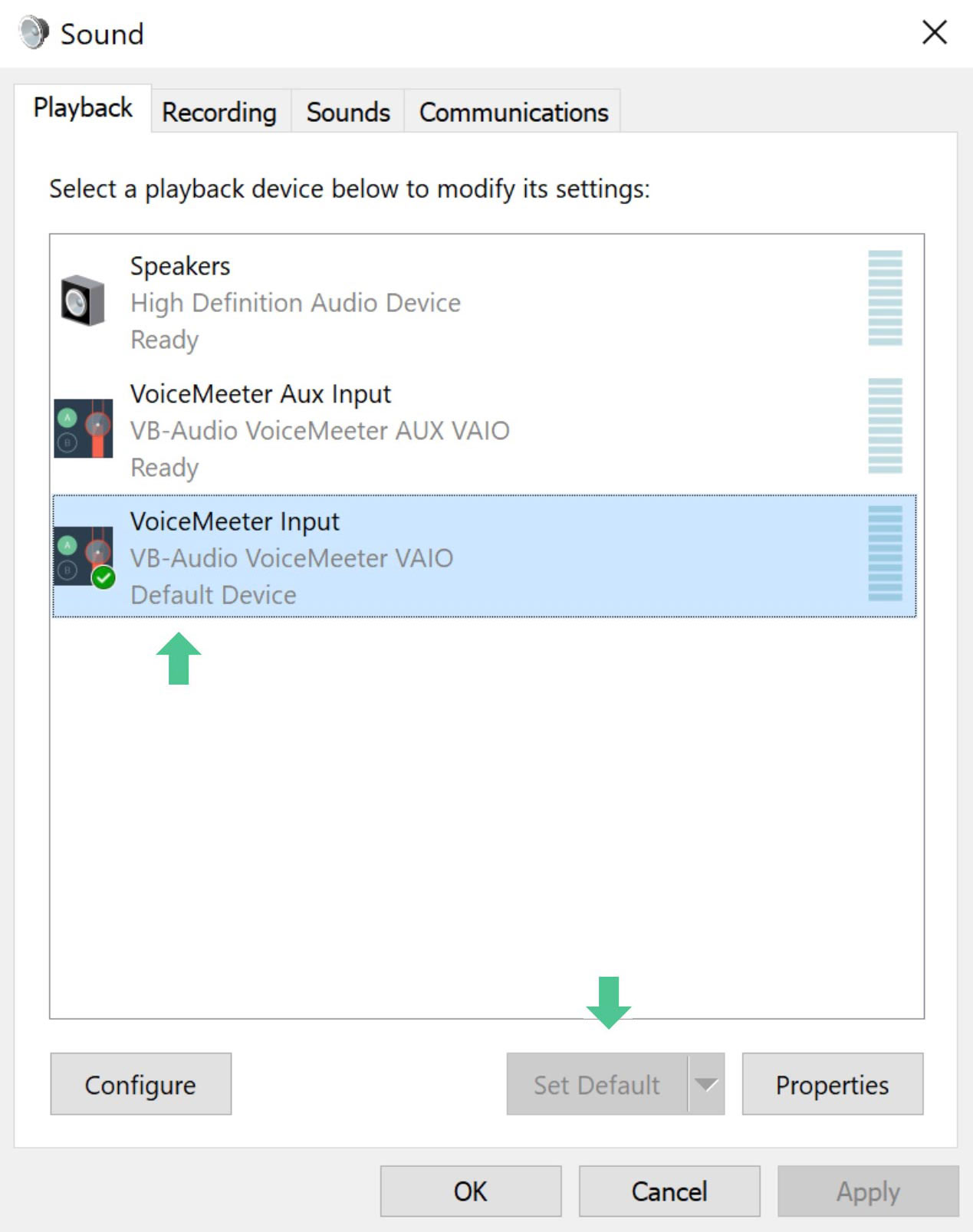
Navigate to your Windows Sound Control Panel. Set "Voicemeeter Input (VB-Audio VoiceMeeter VAIO)" as your Default Playback device. This ensures that all general system audio is funneled through the virtual mixer rather than directly to your speakers.
2. Configuring Hardware Inputs
In the Voicemeeter Banana interface, click on "Hardware Input 1" at the top left. Select your primary microphone using the WDM driver (e.g., "WDM: Microphone (Your Device Name)"). Repeat this for "Hardware Input 2" if you are using an additional physical source, such as a musical instrument or a secondary headset.
3. Assigning Physical Outputs
Under the "Hardware Out" section at the top right, click "A1." Select the device you use for your primary monitoring, such as your main speakers or headset. Ensure you select the driver that matches your OS preference—typically WDM for lower latency or MME for broader compatibility.
4. Directing Audio to the Buses
This is the most critical step. Every input channel (Hardware and Virtual) has a grid of buttons labeled A1, A2, A3, and B1, B2.
- A-Buttons: These send audio to physical hardware outputs.
- B-Buttons: These send audio to your "Recording" or "Broadcast" stream.
For example, if you want your music to be heard by you, click "A1" on that channel. If you want it to be heard by your viewers on Discord or OBS, click "B1."
Comparative Analysis of Routing Configurations
The following table summarizes how to manage different audio sources effectively depending on the intended destination.
| Source Type | Bus A (Monitor) | Bus B (Broadcast) | Typical Use Case |
|---|---|---|---|
| Microphone | Usually Disabled | Enabled (B1) | Clear broadcast voice |
| System Sounds | Enabled (A1) | Enabled (B1) | Game audio for self and stream |
| Music Player | Enabled (A1) | Optional (B1) | Background music |
| Comms (Discord) | Enabled (A1) | Enabled (B2) | Separation for better mixing |
Troubleshooting Common Setup Challenges
Even with a perfect setup, users may encounter common issues that require intervention.
- Audio Crackling or Stuttering: This is typically caused by buffer size mismatches. Go to Menu > System Settings / Options and increase the buffer size (e.g., from 512 to 1024). This provides the CPU more time to process the audio, reducing artifacts at the cost of slight latency.
- Mic Not Working in Applications: Ensure the application is pointing to "Voicemeeter Output (VB-Audio VoiceMeeter VAIO)" as its input device.
- Audio Loops: If you hear your own voice echoed back, ensure you are not routing your microphone (Hardware Input) to the same Bus (A1) that your physical output is assigned to.
- Driver Conflict: If Voicemeeter fails to initialize, check if another program is "locking" your sound card. You may need to restart the audio engine by clicking Menu > Restart Audio Engine.
Advanced Features: Equalization and Virtual Cables
Voicemeeter Banana includes a built-in parametric equalizer for every input. Right-click the strip in the interface to open the EQ panel. This is invaluable for cutting out low-end rumble from a microphone or boosting high frequencies for clarity.
Furthermore, if you require more virtual inputs than the standard two provided, you can pair Voicemeeter Banana with VB-Audio Virtual Cables. These act as "bridges," allowing you to route specific application audio (like a web browser or a specific video game) into its own dedicated slider in the Voicemeeter interface. This provides unprecedented control over your volume mix without having to toggle settings mid-stream.
Best Practices for 2026 Audio Management
As of 2026, the reliance on high-quality audio routing has grown due to the prevalence of high-fidelity remote collaboration tools.
- Monitor Your Levels: Use the gain knobs sparingly. Avoid pushing the red "Peak" indicators, as this will lead to digital clipping.
- Consistency: Save your configuration by going to Menu > Save Settings. This ensures that in the event of a crash or system update, your complex routing map remains intact.
- Firmware Awareness: Ensure your physical audio interface firmware is current. Modern USB-C and Thunderbolt interfaces perform significantly better when paired with updated drivers alongside Voicemeeter.
Frequently Asked Questions
Is Voicemeeter Banana free to use? Yes, Voicemeeter Banana is distributed under a Donationware license. You can download and use the full feature set without restriction, though the developers encourage a contribution to support continued development.
Can Voicemeeter Banana handle professional audio production? While it is excellent for streaming and general content creation, professional DAW (Digital Audio Workstation) users may prefer dedicated ASIO interfaces. Voicemeeter is intended for routing rather than complex audio processing chains.
Why does my audio sound robotic? This is often a symptom of the audio engine struggling with your current sample rate. Ensure that all your devices in the Windows Sound Control Panel are set to the same sample rate, such as 48kHz, to prevent resampling conflicts.
Does this software work with Bluetooth headsets? Yes, but be aware that Bluetooth introduces significant latency. While Voicemeeter can route audio to a Bluetooth device, the delay may be noticeable compared to wired hardware.
How do I completely uninstall the software if needed? Always use the provided uninstaller found in the Windows "Apps & Features" menu. Manually deleting files can leave orphaned drivers in the Windows Registry, which may cause system instability.
Next Steps for Users
Once you have mastered the basic routing of your inputs to your desired outputs, the natural next step is to explore "Macro Buttons." This application, which is bundled with the Voicemeeter installation, allows you to trigger volume changes, toggle microphone muting, or switch routing presets via keyboard shortcuts or external MIDI controllers. By mapping these controls, you can shift from a "Gaming" audio profile to a "Podcasting" profile with a single keypress, dramatically increasing your workflow efficiency in 2026 and beyond.
Image Gallery
Select an image to open it in a new tab.
Ingrid Bjornson
Global Cyber Policy and Regulation Analyst
