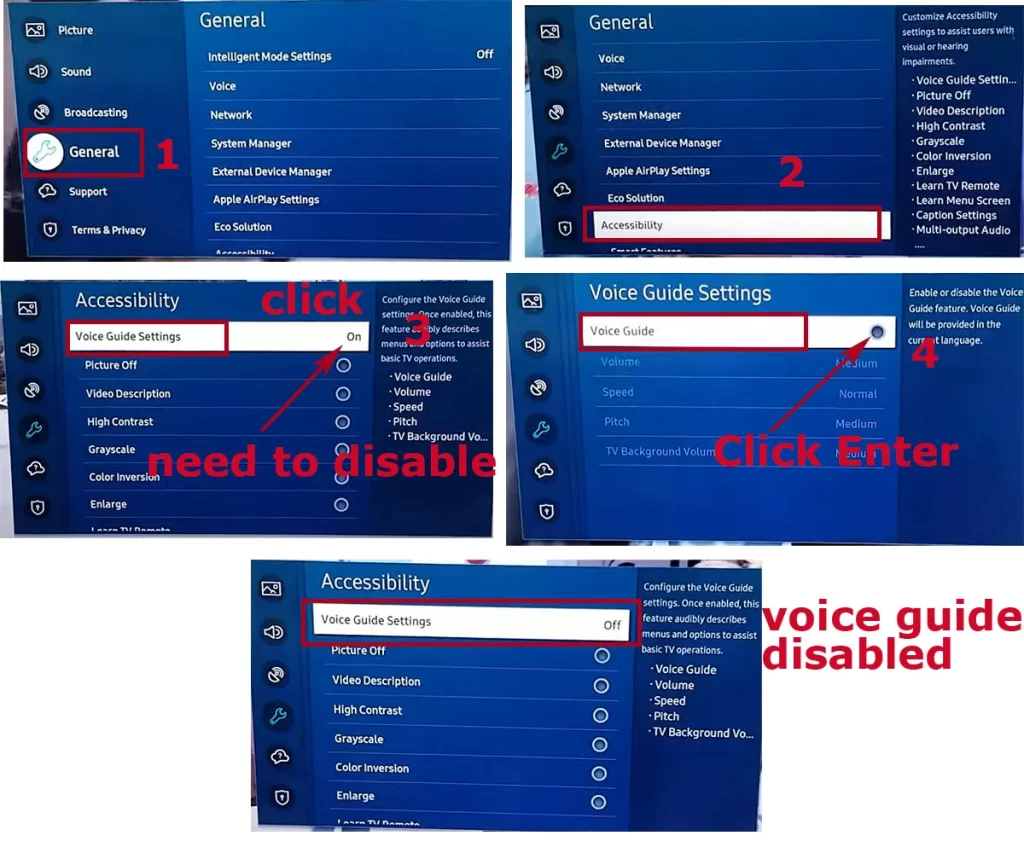
To turn off accessibility features on a Samsung TV, navigate to Settings, select General or All Settings, choose Accessibility, and toggle off features such as Voice Guide, High Contrast, or Sign Language Zoom. The exact menu layout depends on your TV's Tizen operating system version and year of manufacture.
Navigating modern smart television interfaces can occasionally result in accidental setting changes. Among the most common adjustments that catch viewers off guard are accessibility features. While these tools are essential for users with visual, auditory, or physical impairments, activating them unintentionally can introduce persistent audio descriptions, altered screen contrasts, or magnified visual elements that disrupt standard viewing. Resolving this issue requires understanding where Samsung hides these specific software toggles within its comprehensive settings menus, which have evolved significantly across different generations of hardware and software iterations.
Understanding Samsung TV Accessibility Options
Samsung smart TVs operating on the Tizen OS include a robust suite of built-in accessibility tools designed to comply with modern broadcasting and digital accessibility standards. These tools are integrated directly into the system software rather than functioning as downloadable applications, meaning they can be managed globally across all connected inputs, including HDMI devices, streaming apps, and live antenna television.
When an accessibility feature activates unexpectedly—often triggered by holding down a specific button combination on the remote control, such as the Volume or Mute button—it alters the audiovisual presentation of the screen. Recognizing the specific behavior of your TV helps identify which exact setting needs to be disabled. The primary accessibility options built into Samsung TVs include Voice Guide, High Contrast, Grayscale, Color Inversion, Magnification, and Sign Language Zoom.
Common Accessibility Triggers and Symptoms
Accidental activation typically happens when a remote control button is held down for too long. For instance, pressing and holding the Mute button on older Samsung remotes, or the Volume button on newer SolarCell remotes, acts as a shortcut that automatically turns on Voice Guide. Recognizing these symptoms allows for a targeted fix rather than hunting blindly through system menus.
- Voice Guide: A synthesized robotic voice describes every on-screen action, menu item, and channel change out loud.
- High Contrast / Grayscale: The display switches to a stark black-and-white color scheme or dramatically deepens contrast, making normal video playback look unnatural or washed out.
- Sign Language Zoom: A localized window appears on the screen, magnifying a portion of the broadcast, which is intended for sign language interpretation.
- Audio Description: An alternate audio track plays over normal dialogue, describing visual scenes in movies and TV shows for visually impaired viewers.
Step-by-Step Instructions to Turn Off Accessibility on Modern Samsung TVs (2020–Present)
Modern Samsung TVs utilize a streamlined interface that groups settings into logical categories. If your television was manufactured within the last several years and runs a recent version of the Tizen operating system, the path to disable accessibility features follows a standardized menu structure.
Before beginning, ensure you are using the official Samsung remote control. Universal remotes or third-party streaming device remotes may not successfully map to the system menu keys required to navigate deep system settings.
Method 1: Using the All Settings Menu
- Power on your Samsung TV and ensure you are viewing the home screen or an active video source.
- Press the Home button on your Samsung remote control to bring up the main menu bar.
- Navigate to the far left or right of the menu bar and select the Settings icon, which resembles a gear.
- On newer Tizen versions, select All Settings (usually represented by an icon with multiple gears) to open the full configuration panel.
- Scroll down the left-hand sidebar and select General & Privacy (or simply General, depending on the exact firmware year).
- Select Accessibility from the main panel options.
- Locate the specific feature that is active—such as Voice Guide Settings, High Contrast, or Sign Language Zoom Guide—and press the Select (Enter) button on your remote to toggle it to Off.
Method 2: Using the Quick Settings Shortcut
Many recent Samsung TVs feature a shortcut menu designed to bypass the deep configuration hierarchy for common settings.
- Press and hold the Mute button on your remote control for approximately two to three seconds. Alternatively, on some newer remote layouts, pressing and holding the Volume rocker button down will invoke the shortcut panel.
- The Accessibility Shortcuts menu window will automatically pop up on the screen, displaying active features.
- Use the directional navigation pad to uncheck or turn off the highlighted accessibility options.
- Press Exit or Return to resume normal viewing.
| Feature Name | Primary Symptom | Default State | Recommended Action |
|---|---|---|---|
| Voice Guide | Spoken narration of menus and actions | Off | Toggle Off to stop verbal readouts |
| High Contrast | Altered background/text color ratios | Off | Toggle Off for standard color grading |
| Grayscale | Removal of all color from the display | Off | Toggle Off to restore full color |
| Sign Language Zoom | Floating window magnifying screen area | Off | Toggle Off to remove unwanted overlay |

Navigating Legacy Samsung TV Interfaces (Pre-2020)
Older Samsung smart television models feature different menu layouts. If your TV does not match the modern Tizen interface described above, the path to access accessibility settings requires a slightly different sequence of remote button presses.
For TVs Manufactured Between 2017 and 2019
- Press the Home button on your remote control.
- Navigate left and select Settings.
- Scroll down and select System (or Broadcasting on certain firmware versions).
- Select Accessibility from the menu list.
- Highlight Voice Guide and press the center button to switch it from On to Off. Repeat this process for any other active accessibility features such as Menu Transparency or High Contrast.
For TVs Manufactured Prior to 2017
Older non-Tizen smart TVs and standard LED models organize settings under a dedicated user menu rather than an overlay bar.
- Press the Menu button on your remote control.
- Use the arrow keys to navigate to the System tab (represented by a gear or cog icon).
- Scroll down and select Accessibility.
- Disable Voice Guidance and other sub-settings within this menu.
- Exit the menu to save changes automatically.
Troubleshooting Stubborn Accessibility Settings
If you have successfully toggled off Voice Guide or High Contrast within the menu, but the television continues to exhibit accessibility-related behavior, underlying software bugs or external input settings may be causing the issue.
External Streaming Devices and Cable Boxes
Often, the vocal descriptions or high-contrast overlays are not coming from the Samsung TV itself, but rather from an external source device connected via HDMI. Devices such as Apple TV, Roku, Amazon Fire Stick, and modern cable set-top boxes have independent accessibility settings.
- Check the audio output settings on your cable box or streaming device to ensure Audio Descriptions or Descriptive Video Service (DVS) are disabled.
- Navigate to the accessibility menu of the specific streaming device rather than the Samsung TV menu.
Software Glitches and Firmware Resets
If the television interface becomes unresponsive or fails to save your setting changes, a temporary software glitch may be present.
- Perform a power cycle by unplugging the television from the wall outlet for a full 60 seconds before plugging it back in.
- Check for pending firmware updates by navigating to Settings > Support > Software Update > Update Now to ensure your system software is running the latest stable build released by Samsung.
Frequently Asked Questions
Why does my Samsung TV keep turning Voice Guide back on by itself?
This behavior usually occurs if a remote control button is being pressed accidentally, or if a stuck button on the remote is repeatedly triggering the accessibility shortcut. Additionally, check if an external streaming device or cable box is sending accessibility commands through HDMI-CEC (Anynet+). Disabling Anynet+ temporarily can help isolate whether an external device is forcing the setting on.
Can I completely remove the accessibility menu from my Samsung TV?
No, accessibility features are hardcoded into the Tizen operating system to comply with global broadcasting regulations and accessibility standards. They cannot be uninstalled or permanently deleted, but they will remain inactive as long as they are toggled off in the settings menu.
How do I turn off Audio Descriptions on specific movies or shows?
Audio descriptions that activate only during certain films or television programs are typically tied to the active audio track of the broadcast or streaming app. Press the audio or subtitle button on your remote control (or access the audio settings within the streaming app's playback menu) and switch the audio track from English [AD] (Audio Description) to the standard English stereo or 5.1 audio track.
What should I do if my Samsung remote does not have a Mute button?
Samsung's modern SolarCell remotes feature a minimalist design. If your remote lacks a physical Mute button, press and hold the Volume button down until the shortcut menu appears, or navigate manually through Settings > All Settings > General & Privacy > Accessibility to disable the features directly.
Does performing a factory reset turn off accessibility features?
Yes, executing a complete factory reset restores the television to its out-of-the-box default state, which automatically disables all custom accessibility settings, including Voice Guide and High Contrast. However, this process also erases all saved Wi-Fi networks, logged-in streaming accounts, and custom picture calibrations, so it should be used only as a last resort.
Next Actions
To maintain an uninterrupted viewing experience, verify that all external devices connected to your Samsung TV have their own independent accessibility features disabled. If you frequently trigger Voice Guide by accident, consider storing your remote control in a secure location where buttons cannot be inadvertently compressed by couch cushions or heavy objects. For ongoing maintenance, keep your television software updated to benefit from bug fixes and interface refinements provided by Samsung.
Image Gallery
Select an image to open it in a new tab.
Ingrid Bjornson
Global Cyber Policy and Regulation Analyst
