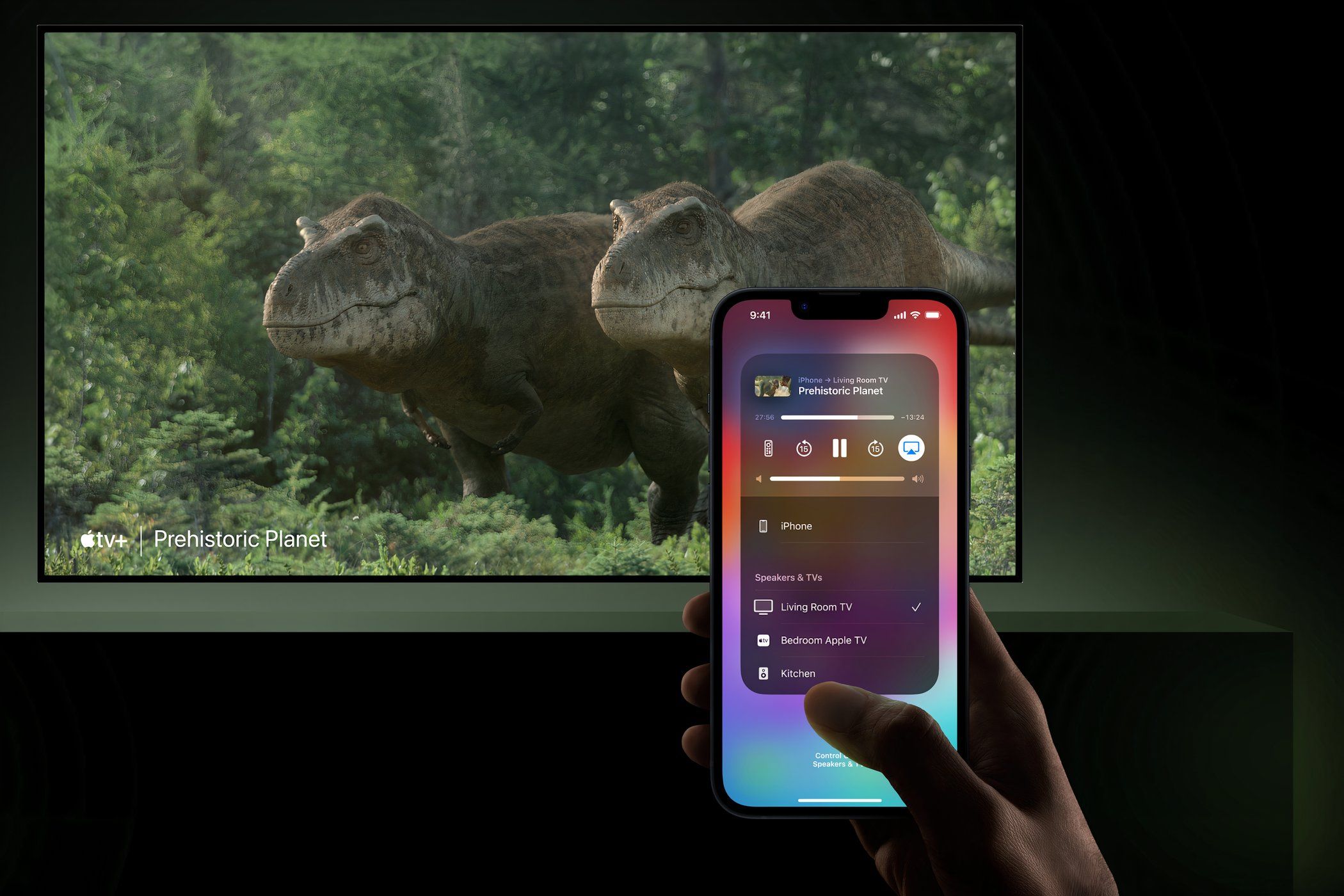
Connecting your iPhone to a television allows you to mirror your display or stream high-definition content from apps directly to a larger screen. This process generally relies on either wireless protocols like AirPlay, dedicated hardware adapters such as the Lightning or USB-C Digital AV Adapter, or specific streaming app functionality that leverages your home Wi-Fi network.
Understanding the Connectivity Landscape
To connect your iPhone to a TV, you must identify whether your equipment supports wireless communication or requires a physical cable connection. Modern televisions, particularly those designated as "Smart TVs," frequently feature built-in support for Apple AirPlay 2, which is the standard wireless protocol for iPhone-to-TV integration. If your television lacks this feature, or if you prefer a hardwired connection for lower latency and zero dependency on network stability, physical adapters provide a robust alternative.
The iPhone’s connection capabilities have evolved alongside its hardware. Older models equipped with Lightning ports require specific digital adapters, whereas models featuring the USB-C port—introduced to the iPhone lineup in 2023—can utilize standard USB-C to HDMI adapters or direct USB-C DisplayPort connections. Assessing your specific iPhone model and television input ports is the necessary first step in selecting the appropriate method.
Method 1: Wireless Mirroring via AirPlay
AirPlay is the most convenient method for connecting an iPhone to a television. It operates over your local wireless network, allowing you to stream audio and video, or mirror the entire contents of your iPhone screen.
Prerequisites for AirPlay
- Network Compatibility: Both your iPhone and your television must be connected to the same local Wi-Fi network. Ensure your router is not configured to isolate devices, as this will prevent the devices from "seeing" each other.
- Device Compatibility: Your TV must either be an Apple TV unit or a television that explicitly lists "Apple AirPlay" or "AirPlay 2" in its settings or technical specifications.
- Software Versions: Ensure your iPhone is running the latest available version of iOS to maintain compatibility with updated security and streaming protocols.
The Mirroring Process
- Open Control Center: On your iPhone, swipe down from the top-right corner of the screen (or up from the bottom on models with a Home button).
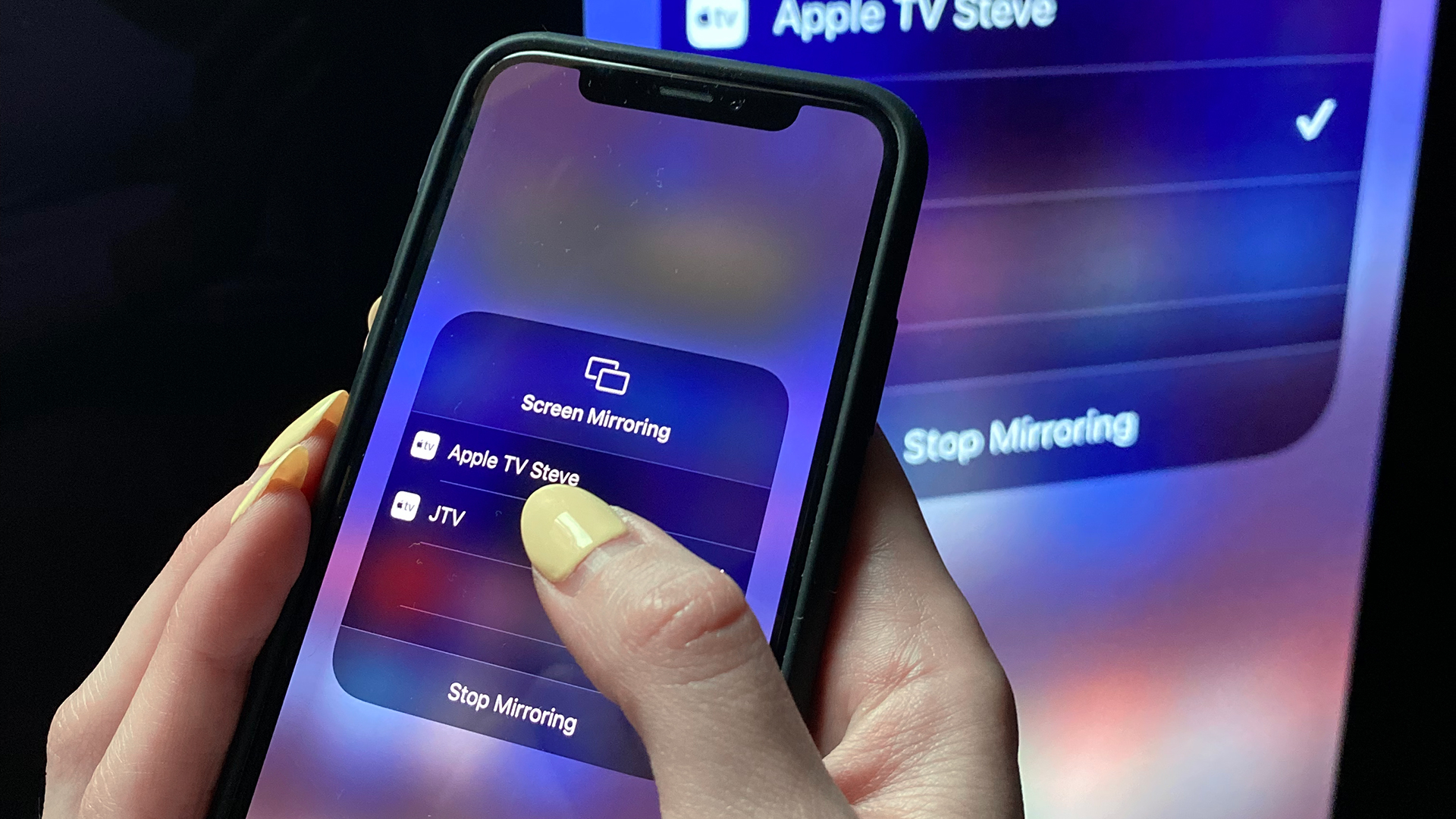
- Select Screen Mirroring: Tap the icon that resembles two overlapping rectangles.
- Select Your Device: A list of available AirPlay-compatible displays will appear. Tap your TV’s name.
- Enter Verification Code: If an AirPlay passcode appears on your TV screen, enter that four-digit code onto your iPhone to authenticate the connection.
Method 2: Physical Connections Using HDMI Adapters
For environments where Wi-Fi is unstable, unavailable, or where you require absolute synchronization without latency, a physical cable connection is the professional standard.
The Lightning Digital AV Adapter
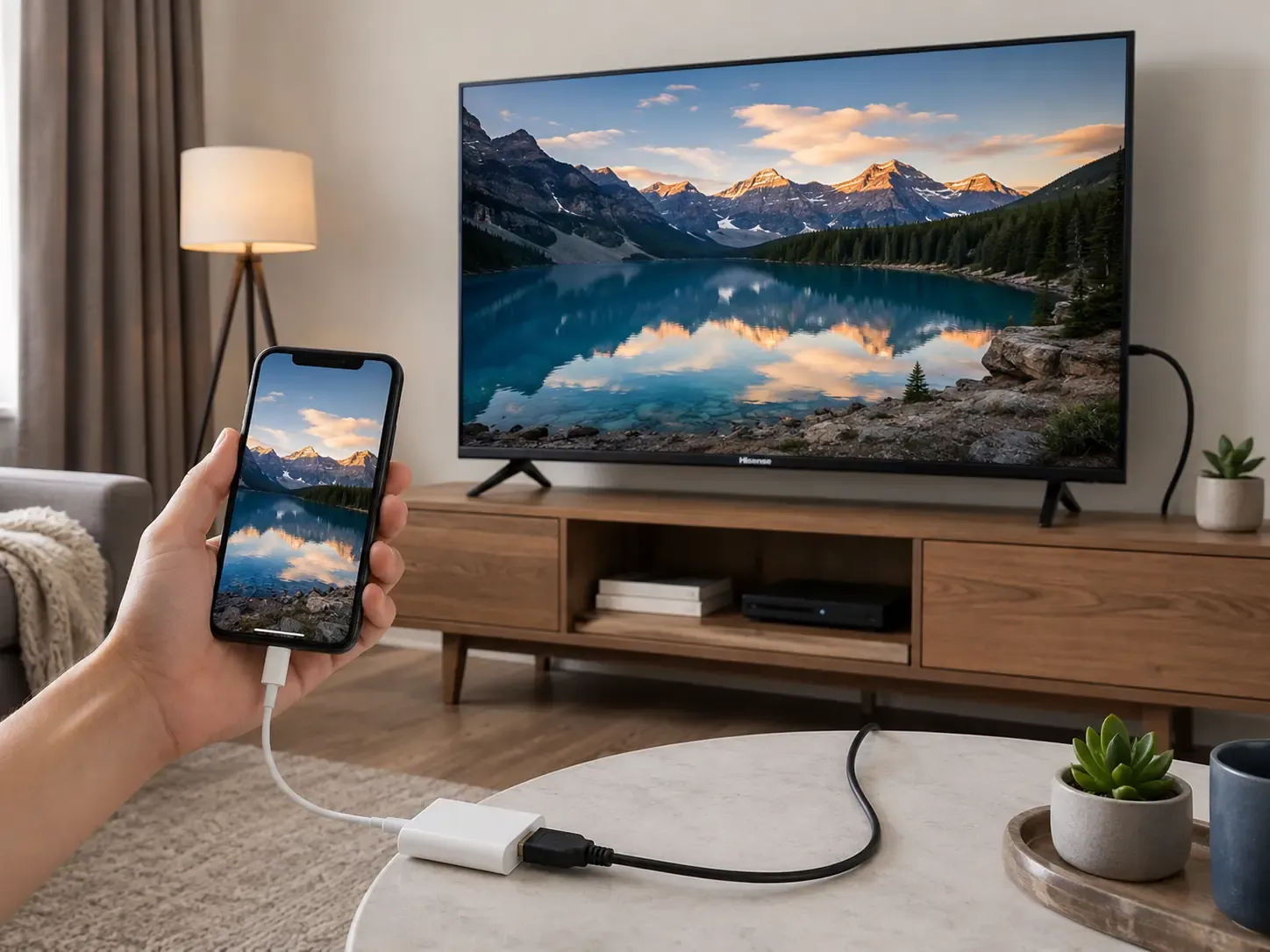
If you are using an iPhone 14 or earlier, you likely possess a Lightning port. To connect this to a standard HDMI-equipped television, you must use the Apple Lightning Digital AV Adapter. This device provides an HDMI port for your cable and a secondary Lightning port so you can charge your phone while it is connected to the TV.
- Connect the HDMI cable to your TV’s HDMI input.
- Connect the other end of the HDMI cable to the Digital AV Adapter.
- Plug the Lightning end of the adapter into your iPhone.
- Set your TV’s source/input to the corresponding HDMI port.
The USB-C DisplayPort Connection
iPhone 15 and newer models utilize the USB-C standard. These devices support DisplayPort Alt Mode, which allows for a direct digital video signal transmission. You do not require a proprietary adapter; any high-quality USB-C to HDMI adapter or a direct USB-C to HDMI cable will facilitate the connection.
- Insert the USB-C connector into the base of your iPhone.
- Connect the HDMI end of the cable or adapter into an open HDMI port on your television.
- Use your television’s remote control to cycle through "Input" or "Source" settings until you match the HDMI port you selected.
Comparison of Connection Methods
| Method | Latency | Dependency | Setup Complexity | Best Use Case |
|---|---|---|---|---|
| AirPlay | Moderate | Wi-Fi Network | Low | Casual media consumption, photos |
| HDMI Adapter | Negligible | Physical Cable | Moderate | Gaming, professional presentations |
| USB-C to HDMI | Negligible | Physical Cable | Low | Direct high-fidelity video output |
Troubleshooting Common Connectivity Issues
Even when following standard procedures, external factors can interfere with the connection between an iPhone and a TV.
Network and Signal Interference
If you are using AirPlay and the devices cannot find each other, the most frequent cause is a discrepancy between network bands. Some routers operate dual-band networks (2.4GHz and 5GHz). If your iPhone is on one band and your TV is on the other, discovery may fail. Ensure both devices are on the same SSID and frequency band if issues persist.
HDMI Handshake Failures
When using a physical cable, the TV and iPhone must perform an "HDMI Handshake" to negotiate resolution and HDCP (High-bandwidth Digital Content Protection) standards. If you see a black screen, ensure the HDMI cable is firmly seated. Occasionally, simply unplugging the HDMI cable from the TV, waiting ten seconds, and plugging it back in forces a new handshake, which resolves the majority of signal initialization errors.
Power and Charging Limitations
When using a Lightning Digital AV Adapter, the iPhone draws a significant amount of power while outputting video. If your phone battery is critically low, it may disable the video output to conserve energy. Always connect a charging cable to the adapter's integrated port to ensure stable performance during extended viewing sessions.
FAQ: Frequently Asked Questions
Can I watch Netflix or Disney+ via HDMI if my TV doesn't have an app? Yes. Using a Digital AV Adapter or USB-C to HDMI cable will mirror your screen regardless of the app, provided the application supports external display output. Note that some streaming services use DRM (Digital Rights Management) that may restrict output to specific hardware.
Why is there a black border around my iPhone screen on the TV? This is known as "letterboxing." Your iPhone typically operates at a different aspect ratio than a standard 16:9 television. When mirroring, the phone maintains its native ratio, resulting in unused space on the sides of your television screen.
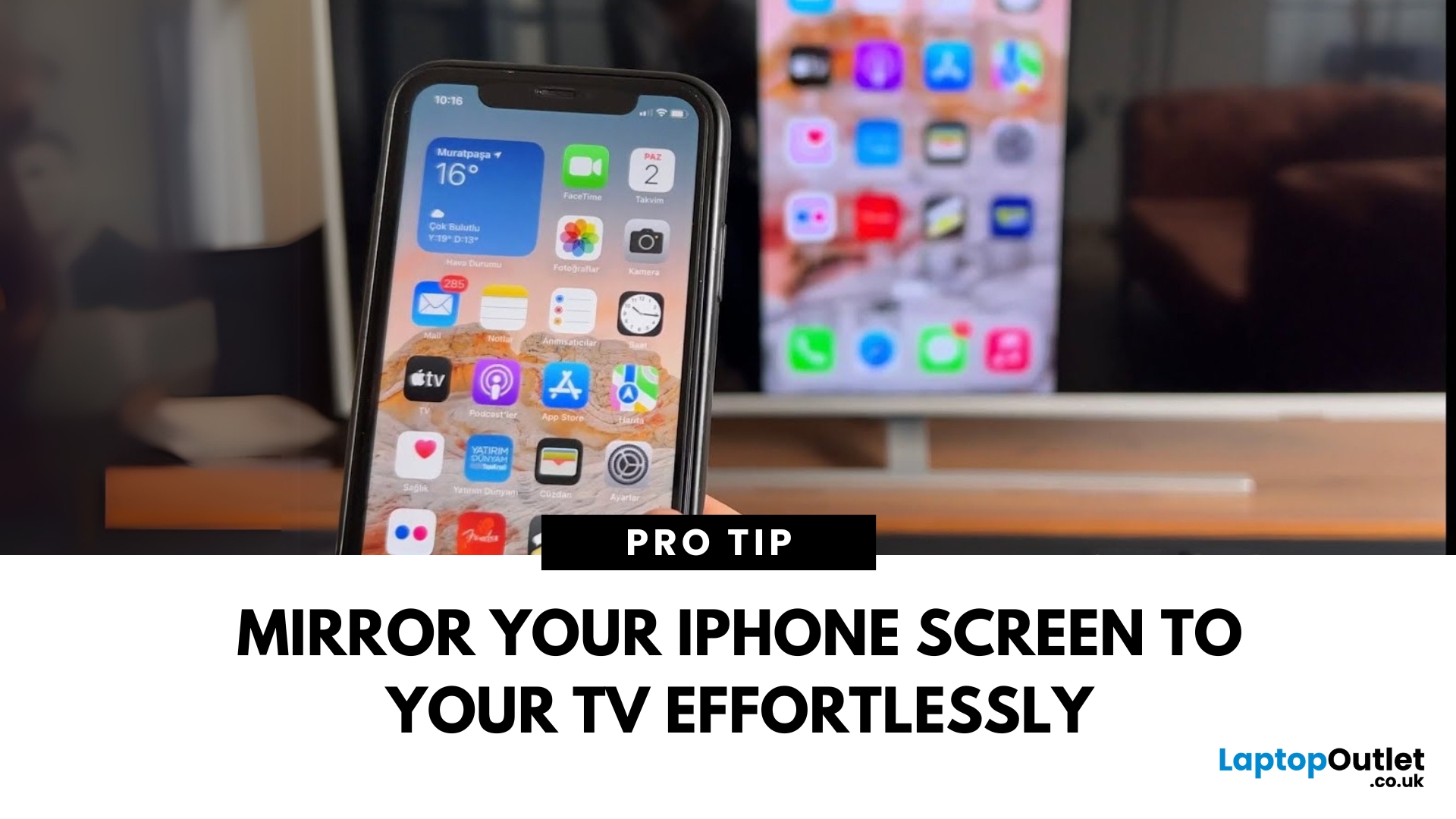
Will my iPhone remote work as a controller while connected to the TV? Yes. You can continue to use your iPhone’s touch interface as you normally would. The image on your TV is a real-time reflection of your iPhone's display.
Can I connect my iPhone to an older TV without HDMI? Connecting to analog televisions (using VGA or composite RCA inputs) is possible but requires a signal converter. You would need a digital-to-analog converter box that accepts HDMI input and outputs the appropriate legacy signal. These are generally not recommended due to high signal loss and low resolution.
Does AirPlay affect my iPhone's battery life? Yes. Because the iPhone is responsible for processing the video stream and transmitting it over the wireless network, the battery will deplete faster than during local playback. It is advised to keep your device plugged in during long sessions.
Professional Next Steps
For most users in 2026, the wireless experience provided by AirPlay 2 offers the best balance of convenience and quality. If you find that your environment is prone to interference or you are using your iPhone for high-resolution gaming, prioritize a physical USB-C to HDMI connection. Before purchasing any hardware, verify that your specific television model has at least one open HDMI port. If you are choosing between a wireless setup and an adapter, consider that cables provide a consistent, uncompressed signal that is immune to local network congestion. If you are experiencing persistent issues with AirPlay, consult your router's manual to ensure that mDNS (multicast DNS) is enabled, as this is the protocol used for device discovery on most modern home networks.
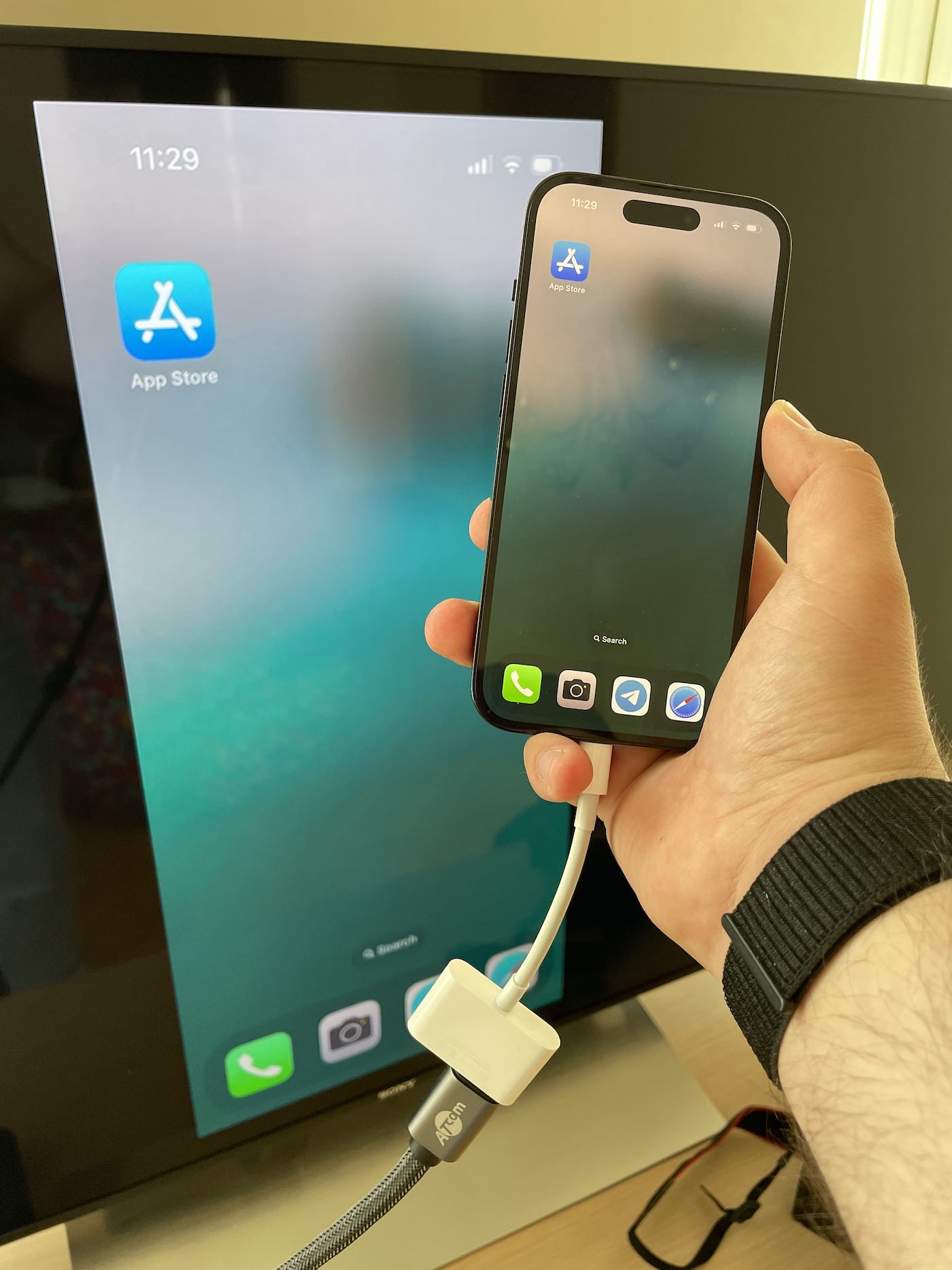
Image Gallery
Select an image to open it in a new tab.


Vivian Cho
Executive IT and Emerging Technologies Reporter
