Chromecast Not Working: Common Fixes, Root Causes, and Troubleshooting Guide

When your Chromecast is not working, the issue usually stems from local Wi-Fi configuration errors, insufficient USB power delivery, HDMI handshake failures, or temporary memory corruption. Resolving these problems requires checking your router’s multicast settings, connecting the device to a dedicated wall power adapter, toggling local network permissions, or performing a controlled system reset.
Understanding Why Chromecast Fails: Core Technical Causes
Google Chromecast devices rely on a tight integration between your local local area network (LAN), cloud streaming servers, and hardware interfaces. When any link in this chain degrades, casting stops functioning. Understanding the underlying mechanisms makes troubleshooting significantly faster and prevents recurring disruptions.
Chromecast Architecture:
- Cast Controller (Phone / PC / App)
- Connects via Local Wi-Fi / mDNS to Chromecast
- Cloud Stream Source
- Sends Direct Media Stream to Chromecast
- Chromecast
- Connects via HDMI Output to TV Screen
Wi-Fi Network Configuration and Protocol Blocks
Unlike traditional Bluetooth accessories, a Chromecast does not stream video directly from your mobile device or computer during normal casting operations. Instead, your phone acts as a remote control, sending a payload URL to the Chromecast. The Chromecast then opens a direct socket connection to the streaming server over your local Wi-Fi network.
For this handover to work, your router must allow local device discovery via Multicast DNS (mDNS) and Universal Plug and Play (UPnP). If your router has AP Isolation (also known as Access Point Isolation or Client Isolation) enabled, connected devices are forbidden from communicating directly with each other. As a result, the Cast icon vanishes from streaming apps, or the Google Home app reports that the device cannot be found.
Power Delivery and Voltage Fluctuations
A primary cause of intermittent crashing, random reboots, and persistent Wi-Fi dropouts is insufficient power. Many users plug the Chromecast USB power cable directly into a TV’s auxiliary USB port. Standard television USB 2.0 ports are rated to supply only 5 volts at 0.5 amps (2.5 Watts).
While a standard 3rd Generation Chromecast or Chromecast HD might boot under 0.5A, peak processor bursts—such as decoding high-bitrate video or updating firmware—cause voltage dips. These dips cause the device to silently crash, drop its network adapter connection, or enter a bootloop. Higher-tier models, such as the Chromecast Ultra and Chromecast with Google TV (4K), require at least 5V/1.5A to 5V/2A and will display explicitly on-screen warnings or refuse to stream 4K content if underpowered.
HDMI Handshakes and HDCP Compatibility
Chromecast hardware relies on High-Bandwidth Digital Content Protection (HDCP) protocols to negotiate secure video links with your television or audio receiver over HDMI. When you switch TV inputs or turn on your system, the Chromecast and the display conduct an "HDMI handshake" to verify resolution, refresh rate, and digital rights management (DRM) keys.
Static discharge, firmware desynchronization, or aged HDMI ports can interrupt this handshake. When this happens, the Chromecast may remain powered on (indicated by its solid white or colored LED), but the TV screen displays "No Signal," screen flickering, or distorted visual static.
App-Level Cache and Device Memory Congestion
Legacy Chromecast devices (1st, 2nd, 3rd Gen, and Ultra) run a minimal Linux-based Cast OS with limited onboard RAM. Modern devices like Chromecast with Google TV run full Android TV OS environments with local storage.
Over extended operational cycles, background caches, lingering TCP sockets, and unpurged log files accumulate. Memory leaks within specific streaming applications (such as Netflix, YouTube, or Prime Video) can prevent the Cast receiver app on the Chromecast from initiating new playback sessions, yielding endless loading spinners or quick playback drops.
Initial Diagnostic Steps: Quick System Reset and Verification
Before altering advanced router options or tearing down hardware setups, perform these universal baseline diagnostics. These preliminary steps resolve over 60% of common operational failures.
Performing a Proper Hard Power Cycle
Simply turning off your TV does not cut power to a Chromecast if it is powered by a wall adapter or an always-on USB port. You must execute a complete cold reboot to clear volatile RAM:
- Unplug the USB power cable directly from the Chromecast dongle (or the wall outlet).
- Disconnect the Chromecast from the TV’s HDMI port.
- Wait at least 60 seconds to allow all internal capacitors to discharge fully.
- Plug the HDMI connector back into the television securely.
- Reconnect the USB power cable directly to an official wall power brick.
- Allow the device two full minutes to complete its boot cycle and establish a stable connection to your Wi-Fi network.
Checking the LED Indicator Light Status
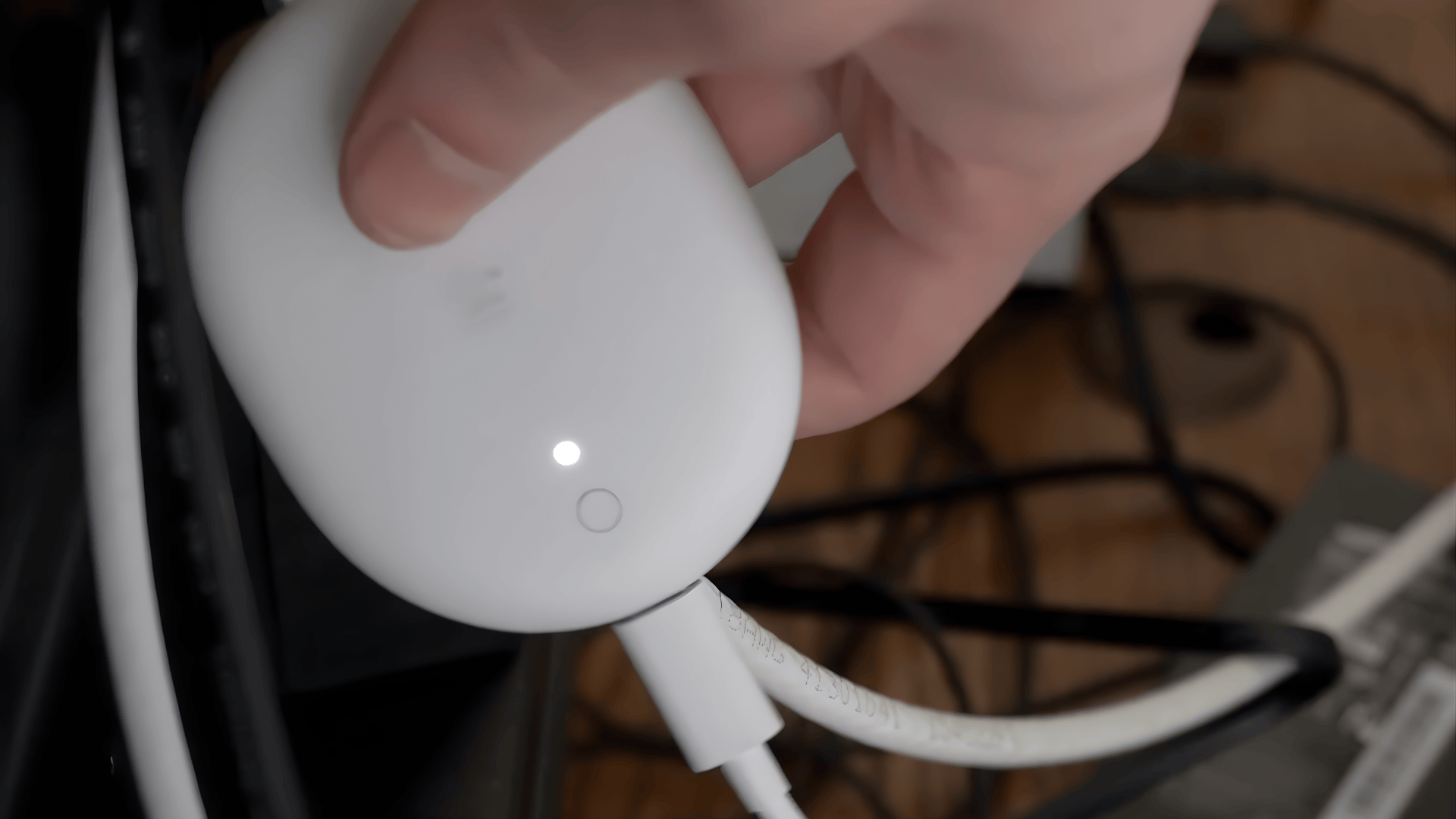
Every Google Chromecast features a physical LED light on the dongle chassis. Inspecting this light provides an immediate hardware-level status report:
- Solid White (or Solid Amber on early models): The device is powered, fully booted, and connected to the local network. If you still have no picture, the issue lies in the TV’s HDMI input selection or HDCP negotiation.
- Blinking White: The Chromecast is starting up, receiving a system update, or attempting to establish a Wi-Fi connection. If it blinks white indefinitely, network authentication has failed.
- Blinking Amber / Orange: The Chromecast is experiencing a hardware error, an invalid power connection state, or is currently executing an automated factory reset sequence.
- No Light: The device is receiving zero power. Inspect your micro-USB/USB-C cable, power brick, and power outlet.
Solving Specific Chromecast Issues Step-by-Step
Problem 1: Chromecast Not Connecting to Wi-Fi or Disconnecting Frequently
Network dropouts remain the single most common operational friction point. Follow these steps to re-establish a stable network handshake.
Wi-Fi Diagnostic Checklist:
- Are both devices on the same SSID? (Check 2.4 GHz vs 5 GHz)
- Is AP Isolation / Client Isolation turned OFF in router settings?
- Is UPnP / mDNS ENABLED on the local network router?
- Is the Chromecast within range of signal without interference?
Step 1: Standardize the Network Frequency Bands
Dual-band routers often present a 2.4 GHz band and a 5 GHz band under distinct network names (SSIDs) or automatically route devices using band steering. If your controlling phone is connected to the 5 GHz band while your Chromecast is assigned to the 2.4 GHz band, certain consumer routers block cross-band communication.
- Open your smartphone's Wi-Fi settings and verify that it is connected to the exact same SSID as the Chromecast.
- If your router supports guest networks, ensure your Chromecast is not on the Guest Wi-Fi, as Guest networks systematically enable client isolation by default to protect primary network devices.
Step 2: Modify Advanced Router Protocol Settings
Log into your wireless router’s administration panel (typically accessible by typing 192.168.1.1 or 192.168.0.1 into a web browser address bar) and adjust these essential settings:
- Enable UPnP (Universal Plug and Play): Ensures the router dynamically routes internal communication requests between devices.
- Disable AP Isolation / Client Isolation: Allows connected devices on the local subnet to talk directly to one another.
- Enable Multicast (IGMP Snooping / mDNS): Guarantees that the discovery broadcast packets sent by streaming applications reach the Chromecast hardware.
- Adjust Wi-Fi Channels: If on the 2.4 GHz spectrum, lock your router to non-overlapping channels (Channel 1, 6, or 11) to eliminate interference from neighboring networks and household electronics.
Problem 2: Black Screen, "No Signal", or Distorted Display Output
If your Chromecast’s status light is solid white but your television screen displays a black screen or an explicit "No Signal" banner, the problem is in the physical display pipeline.
HDMI Display Troubleshooting:
- Chromecast (Power: Wall Adapter)
- HDMI Extender
- TV HDMI Port 1 / HDCP (Input: Matching Selection)
Step 1: Verify HDMI Port and CEC Configuration
- Confirm that your TV input selection corresponds precisely to the physical HDMI port in use (e.g., HDMI 1, HDMI 2, or HDMI MHL).
- Clean out any dust accumulation inside the TV's female HDMI port using canned air.
- Plug the Chromecast into an alternative HDMI port on the TV to determine if a specific physical interface has hardware degradation.
- Try connecting another HDMI device (like a gaming console or laptop) to the original TV port to confirm the port operates correctly.
Step 2: Use an HDMI Extender Cable
Using a short HDMI extension cable serves two major purposes:
- It moves the Chromecast away from the television frame, reducing radio-frequency interference emitted by the TV panel's internal shielding.
- It relieves mechanical strain on the television's physical HDMI solder joints.
Step 3: Clear TV HDCP Handshake Locks
To clear a hung HDCP negotiation state:
- Disconnect the Chromecast power cable and HDMI plug.
- Turn off the television and completely unplug the TV power cord from the wall outlet for two minutes.
- Reconnect the TV power cord and turn on the television.
- Reattach the Chromecast to the HDMI port, then plug in its USB power supply. This forces the TV controller chip to renegotiate video keys from a clean state.
Problem 3: Cast Icon Missing from Streaming Apps or Chrome Browser
When the Cast icon fails to display inside supported software platforms (such as Netflix, Spotify, or the Google Chrome desktop browser), the problem usually involves software permissions or system discovery protocols.
Cast Icon Discovery Troubleshooting:
- App Level: Verify "Local Network Access" granted (iOS / Android)
- Browser Level: Check Chrome "Connect to Cast devices" flags
- OS Level: Disable active VPNs and third-party firewall software
Step 1: Grant Local Network Permissions (iOS and Android)
On mobile devices running iOS 14+ or modern Android distributions, applications require explicit user permission to scan for devices on your local local area network:
- Open Settings on your smartphone or tablet.
- Scroll down and select the specific app experiencing the issue (e.g., Netflix or YouTube).
- Ensure the toggle switch for Local Network (iOS) or Devices on Local Network (Android) is set to Enabled.
Step 2: Toggle Bluetooth and Wi-Fi Interfaces
Device discovery mechanisms use a combination of Bluetooth Low Energy (BLE) beaconing and Wi-Fi mDNS broadcasts to discover local Chromecasts:
- Turn Bluetooth OFF on your smartphone, wait 5 seconds, and turn it back ON.
- Turn Wi-Fi OFF on your smartphone, wait 5 seconds, and turn it back ON.
- Force-close the streaming application completely (swipe away from the multitasking app switcher screen) and relaunch it.
Step 3: Disable Active Virtual Private Networks (VPNs)
VPN software routes your device's traffic through a secure, encrypted tunnel to an external server. By doing so, it isolates your phone or PC from your home's physical local network segment.
- Disable any running VPN connections, proxy networks, or ad-blocking software (such as custom DNS resolvers or Pi-hole rules) on the controlling device before attempting to cast.
Problem 4: Audio-Video Desync, Lag, and Stuttering Streams
If your Chromecast streams video that frequently stutters, drops to low resolutions, or exhibits noticeable audio lag, the issue typically points to network bandwidth limits or local hardware overheating.
Step 1: Offload Local Wi-Fi Network Traffic
- Ensure no other high-bandwidth activities (such as peer-to-peer downloads or massive game updates) are fully saturating your local internet connection.
- If streaming 4K Ultra HD content, ensure your ISP download speed meets the minimum sustained thresholds (25 Mbps or higher).
Step 2: Change Video Stream Resolution Settings
If casting a tab from a PC running Google Chrome:
- Click the Cast icon in the top-right toolbar of the Chrome browser.
- Select Sources and switch from Cast Desktop to Cast Tab to reduce CPU overhead.
- Lower the source tab's video resolution from 1080p to 720p inside the content player's settings menu.
Step 3: Prevent Device Overheating
Chromecast dongles feature high-density internal heatsinks without passive or active fan cooling. If installed in an enclosed entertainment center cabinet or sandwiched tight against hot TV exhaust vents:
- Relocate the Chromecast to an open space using an HDMI extension cable.
- Verify that direct sunlight is not heating the metal/plastic housing of the dongle.
Problem 5: Chromecast with Google TV Bootloop or Remote Pairing Failures
Devices running the Google TV interface (HD and 4K variants) can experience unique operating system glitches, including endless boot loops or unresponsiveness from the included voice remote control.
Google TV Specific Recovery Steps:
- Remote Pairing: Hold Back + Home buttons for 10 seconds
- Power Fix: Connect to official 5V/2A wall adapter
- Bootloop Fix: Hardware button hard reset execution
Step 1: Re-Pair the Voice Remote
If the Chromecast turns on and displays the home screen, but the remote does not respond:
- Ensure the remote's AAA batteries are fresh and inserted with the correct polarity.
- Move the remote within 3 feet of the Chromecast dongle.
- Press and hold the Back and Home buttons simultaneously on the remote control for 10 seconds.
- The small LED light on the bottom of the remote will begin pulsing white. Release the buttons once the on-screen display indicates that the remote is connected.
Step 2: Resolve Continuous Bootloops
If the screen continuously flashes the "Google" or "Google TV" boot logo and reboots:
- Verify that the power cable is plugged into the official high-wattage wall brick, not a TV USB port. TV ports cannot supply the burst power required to boot Android TV OS.
- Bypass any third-party USB-C hubs, switches, or unverified extension cords.
Factory Resetting Your Chromecast: When and How
A factory data reset (FDR) restores the Chromecast to its original factory defaults, wiping all custom Wi-Fi profiles, local application caches, and saved accounts. This nuclear option should be performed when standard power cycling and network reconfiguration fail to solve the issue.
Method A: Factory Reset via the Google Home App
Use this method if the Chromecast is currently visible and accessible on your local network within the app.
- Launch the Google Home app on your smartphone or tablet.
- Locate and tap your Chromecast device tile.
- Tap the Settings gear icon located in the top-right corner.
- Tap the Three Dots (Menu) icon in the upper right corner of the screen.
- Select Factory Reset, then confirm your choice when prompted.
Method B: Factory Reset via Physical Hardware Button
Use this hardware button method if the device is unresponsive, not appearing on the network, or stuck in a boot loop.
Hardware Button Factory Reset Procedure:
Keep Chromecast powered ON via original wall cable.
Locate physical button on side / back of chassis.
Press and HOLD the button down continuously.
Observe LED: Blinking Amber/Yellow to Solid White.
Release button immediately once light turns Solid White.
Ensure the Chromecast remains plugged into power throughout the entire process.
Locate the single physical micro-button situated on the side or rear panel of the Chromecast dongle chassis.
Press and hold the hardware button down continuously:
- On legacy Chromecasts (1st, 2nd, 3rd Gen, Ultra): The LED light will begin flashing amber/yellow. Continue holding the button until the LED light turns solid white.
- On Chromecast with Google TV: The LED light will begin flashing yellow/amber. Continue holding the button until the LED turns solid white.
Once the LED turns solid white, release the button immediately.
The device will initiate its automatic wipe sequence, restart, and launch into the initial welcome/setup screen.
Chromecast Troubleshooting Matrix
Use this quick-reference lookup matrix to pinpoint technical causes based on observed hardware symptoms and identify the precise target resolution:
| Visual or Functional Symptom | Primary Root Cause | Critical Diagnostic Action | Recommended Resolution |
|---|---|---|---|
| No display output; LED off | Total loss of power delivery | Check micro-USB/USB-C cable, wall brick, and outlet | Connect device to an official external power adapter |
| No display output; Solid White LED | HDMI handshake / HDCP failure | Verify TV input; test alternative TV HDMI port | Cold power cycle TV and Chromecast; bypass receivers |
| Blinking Amber LED light | System recovery mode or update failure | Observe LED flashing sequence | Perform a physical hardware button factory reset |
| Cast icon missing in mobile apps | Network isolation / mDNS blocked | Check app "Local Network Access" permissions | Disable AP Isolation and enable UPnP/mDNS on router |
| Constant video buffering / freezing | Wi-Fi signal loss or thermal throttling | Test network bandwidth and localized RF interference | Switch to 5 GHz Wi-Fi or attach Ethernet adapter |
| Screen displays pixelation / static | Incompatible HDCP key sequence | Check screen resolution and HDMI port standard | Unplug TV from wall outlet to reset HDCP table |
| Remote control uncommunicative | Bluetooth pairing drop / low power | Check remote batteries and status LED | Hold Back + Home buttons for 10s to re-pair remote |
Frequently Asked Questions
Why does my Chromecast suddenly stop working after a router restart?
When a wireless router reboots, it often assigns new internal IP addresses to connected household devices via Dynamic Host Configuration Protocol (DHCP). If your smartphone retains cached network parameters from the previous session, it will fail to route command packets to the Chromecast's new IP location.
To resolve this issue, toggle Wi-Fi on off on your mobile device, or reboot the Chromecast so that both networking endpoints renegotiate fresh, synchronized IP leases with your router.
Can I run a Chromecast off my TV's USB port instead of a wall outlet?
While it may physically turn on when plugged into a TV USB port, doing so is strongly discouraged. Standard USB ports found on TVs typically output a maximum of 0.5A (2.5W). Chromecast hardware requires consistent 1.0A to 2.0A power draws, especially during startup, system updates, and video playback.
Underpowering the device leads to unexpected system crashes, degraded Wi-Fi signal processing, and continuous reboot cycles. Always use an official external power adapter plugged directly into a wall outlet.
What should I do if my Chromecast is stuck on the "Set Up" screen?
If your Chromecast gets stuck on the initial setup screen, the Google Home app cannot communicate with the Chromecast's temporary setup Wi-Fi beacon.
Ensure that Bluetooth is enabled on your setup smartphone and that you have granted full Location Services and Local Network permissions to the Google Home app inside your phone’s system settings. If setup remains stuck, press the physical hardware button on the Chromecast for 10 seconds to reset the process and start over.
Why is the Chromecast working on one app like YouTube, but failing on Netflix?
When specific applications fail while others work, the underlying hardware, network, and connection are intact. This indicates an isolated software app bug, digital rights management (DRM) handshake block, or local account cache mismatch.
Force-close the problematic app on your controlling phone, clear the application cache inside your phone's operating system settings, or log out and back into the streaming service. Furthermore, verify that your account supports simultaneous multi-screen playback streams.
How do I fix a Chromecast that keeps dropping its Wi-Fi connection?
Intermittent Wi-Fi dropouts are usually caused by physical wireless channel interference or weak signal strength. Move your router closer to the device or use a short HDMI extension cable to position the dongle away from the back of the television.
Additionally, log into your router settings and assign your Chromecast a static IP address via DHCP Reservation. This prevents the router from dropping the lease connection during long streaming sessions.
Final Recommendations for Long-Term System Stability
To guarantee ongoing reliability and prevent unexpected casting failures, configure your system around these key operational practices:
- Use Dedicated Wall Power: Never rely on television auxiliary USB ports for long-term power delivery. Always connect your Chromecast to a verified 5V/1A (or 5V/2A for 4K models) wall adapter.
- Optimize Local Wi-Fi Settings: Keep your router's firmware updated, ensure UPnP and mDNS protocols remain active, and explicitly disable AP Isolation across all local subnets.
- Prevent Physical Overheating: Maintain clear airflow around the Chromecast dongle using an HDMI extender cable. Keep it away from thermal heat sinks and high-temperature TV exhaust ports.
- Maintain App Permissions: Periodically verify that your streaming control devices retain active Local Network Access permissions following major mobile OS updates.
If your Chromecast continues to crash, drop connections, or fail to output video after completing a physical factory reset and connecting to an official wall power source, the device has likely suffered internal hardware degradation or physical component failure. In this case, replacing the hardware or utilizing an Ethernet adapter for wired networking is the most reliable long-term solution.
Image Gallery
Select an image to open it in a new tab.
Ingrid Bjornson
Global Cyber Policy and Regulation Analyst
