To run Apache Airflow with Docker Compose, you must download the official docker-compose.yaml file from the Apache Airflow documentation, set up a local environment file (.env) to define user IDs and core configurations, initialize the metadata database using the airflow-init service, and finally deploy the containers using the docker compose up command.
Apache Airflow has become the industry standard for workflow orchestration, allowing data engineers to programmatically author, schedule, and monitor complex data pipelines. As we move through 2026, the containerization of these workflows has transitioned from a best practice to a fundamental requirement. Running Airflow within Docker Compose provides a consistent, isolated environment that mirrors production settings, making it the preferred choice for both local development and streamlined deployment cycles. By using Docker Compose, you manage the entire ecosystem—the webserver, scheduler, worker, and database—as a single coordinated unit.
Prerequisites for Airflow on Docker in 2026
Before deploying Apache Airflow, your local machine or server must meet specific hardware and software benchmarks. While Airflow is flexible, the multi-container architecture of a Docker Compose deployment is resource-intensive. In 2026, the standard recommendation for a smooth development experience is at least 8 GB of RAM allocated to Docker, though a minimum of 4 GB is required for the services to even initialize.
On the software side, you need a modern version of Docker Engine and Docker Compose. If you are using Docker Desktop on Windows or macOS, ensure that the resources allocated in the settings menu reflect these requirements. Linux users should ensure they are using the Docker Compose V2 plugin, as the legacy "docker-compose" (V1) is deprecated. Additionally, ensure you have curl or wget installed to fetch the necessary configuration files and a text editor for modifying environment variables.
For Windows users, utilizing WSL2 (Windows Subsystem for Linux) is highly recommended. Running Docker containers directly on the Windows file system can lead to significant performance bottlenecks and permission issues when mapping volumes for DAGs (Directed Acyclic Graphs) and logs.
Understanding the Airflow Docker Architecture
When you execute Airflow via Docker Compose, you are not just running one application; you are orchestrating a suite of interconnected services. Understanding what each container does is vital for troubleshooting and optimization.
- Airflow Scheduler: This is the heart of the system. It monitors all tasks and all DAGs, triggering task instances whose dependencies have been met. In a Docker setup, the scheduler needs constant access to the DAG files via a mounted volume.
- Airflow Webserver: This provides the graphical user interface where you can trigger DAGs, view logs, and manage connections. It communicates with the metadata database to display the state of your workflows.
- Airflow Worker: In a Celery-based architecture (the default for the official Docker Compose file), workers are the entities that actually execute the tasks.
- Airflow Triggerer: This service runs an event loop for deferrable operators, allowing tasks to yield their execution until a certain condition is met without occupying a worker slot.
- PostgreSQL: This serves as the metadata database. It stores the history of task runs, user configurations, and the state of all DAGs.
- Redis: This acts as the message broker. It facilitates communication between the scheduler and the workers, holding the queue of tasks to be executed.
- Airflow Init: This is a transient container that runs once to initialize the database, create the default user, and ensure the environment is ready before the other services start.

Step 1: Setting Up the Project Directory
The first step is to create a dedicated workspace on your host machine. This directory will house your configuration, your DAGs, and the persistent data generated by Airflow.
Open your terminal and execute: mkdir airflow-docker && cd airflow-docker
Inside this directory, you need to create three subdirectories that will be mapped as volumes into the Docker containers: mkdir -p ./dags ./logs ./plugins
The dags folder is where you will place your Python workflow files. The logs folder will store the execution logs for every task run, and plugins is used for any custom Airflow extensions or operators you might develop.
Step 2: Fetching the Official Docker Compose File
Apache Airflow provides a maintained docker-compose.yaml file that is pre-configured with the best practices for a standard deployment. To download the latest version for the current year, use the following command:
curl -LfO 'https://airflow.apache.org/docs/apache-airflow/stable/docker-compose.yaml'
This file contains the definitions for all the services mentioned earlier. It uses the official Apache Airflow Docker image, which comes pre-loaded with essential providers for cloud platforms like AWS, GCP, and Azure.
Step 3: Configuring the Environment (.env)
Configuration in Docker Compose is primarily handled through an .env file. This file ensures that the containers have the correct permissions to write to your local folders and sets the necessary security credentials.
First, you must define the AIRFLOW_UID. On Linux and macOS, the files created by Docker containers are often owned by the root user by default, which can cause permission denied errors when you try to edit your DAGs locally. To prevent this, run:
echo -e "AIRFLOW_UID=$(id -u)" > .env
Next, you should append other essential variables to the .env file. For a standard 2026 deployment, your .env should look similar to this:
AIRFLOW_IMAGE_NAME=apache/airflow:latest _AIRFLOW_WWW_USER_USERNAME=admin _AIRFLOW_WWW_USER_PASSWORD=admin
Note that using "admin/admin" is only suitable for local development. If you are deploying this on a reachable server, use a strong password and consider setting the AIRFLOW__CORE__FERNET_KEY, which is used to encrypt sensitive data in the metadata database.
Step 4: Initializing the Database
Before you can start the services, you must initialize the backend database. This step creates the necessary tables in PostgreSQL and sets up the initial admin user. Run the following command:
docker compose up airflow-init
You will see a series of logs indicating that the database is being migrated and the user is being created. Once the process finishes with an "exited with code 0" message, your environment is ready. If you see errors here, it is usually due to insufficient RAM; the initialization process requires a temporary spike in resources.
Step 5: Launching Airflow
Now you are ready to start all the components of the Airflow ecosystem. Use the detached mode command to run the containers in the background:
docker compose up -d
After a minute or two, all containers should be in a "healthy" state. You can check the status of your containers by running:
docker compose ps
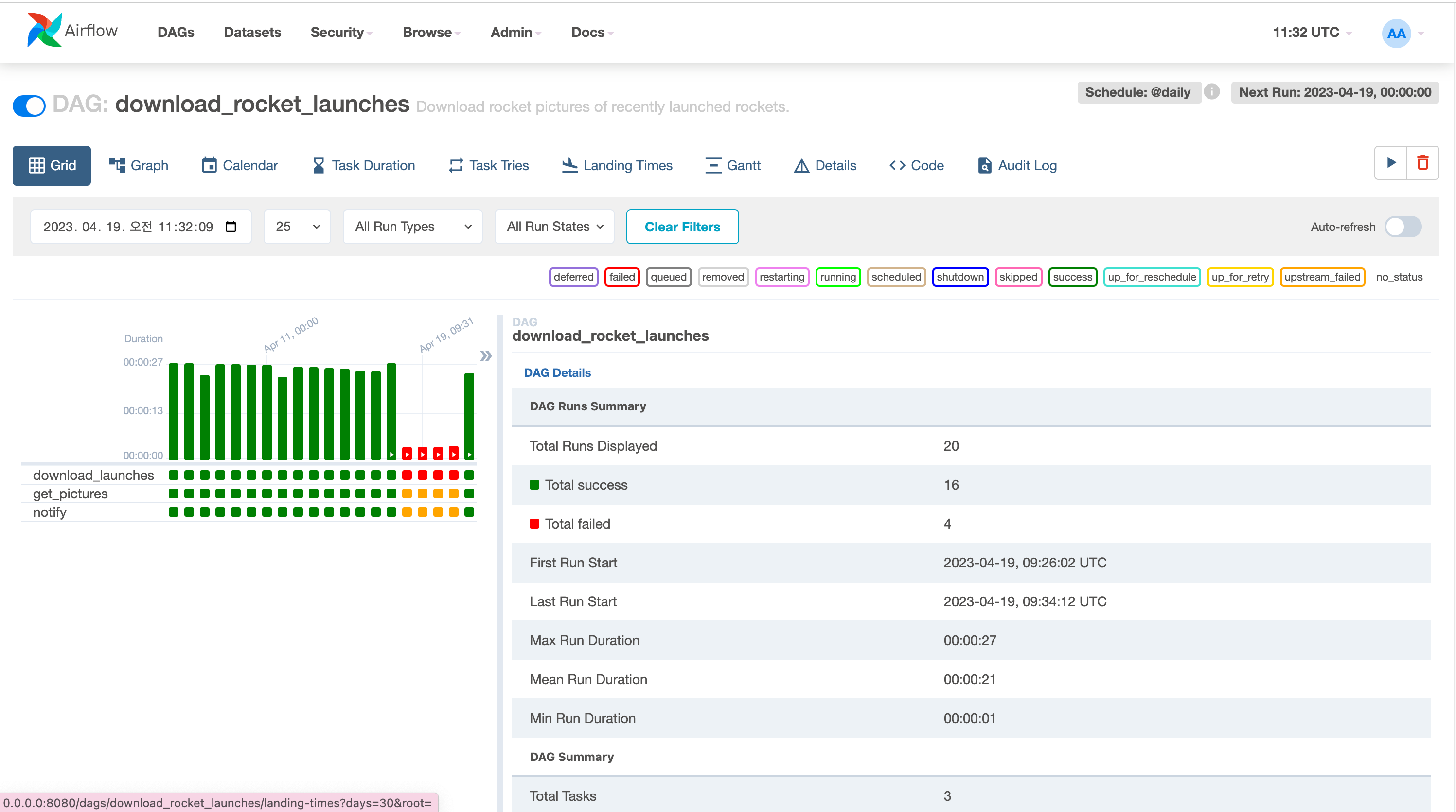
To access the Airflow UI, open your web browser and navigate to http://localhost:8080. Use the credentials you defined in your .env file (defaulting to admin/admin) to log in. You will be greeted by the Airflow dashboard, where you can see several example DAGs provided by the official image.
Customizing Your Airflow Docker Image
The official image is a great starting point, but most real-world projects require additional Python libraries or system-level dependencies. There are two primary ways to handle this in 2026.
Using the requirements.txt Method
If you only need to add Python packages (like pandas, scikit-learn, or specific API clients), you can create a requirements.txt file in your project directory. However, for the official Docker Compose setup to recognize this, you must slightly modify the way you launch the containers or, more commonly, build a custom image that inherits from the official one.
Creating a Custom Dockerfile
Create a file named Dockerfile in the same directory as your docker-compose.yaml with the following content:
FROM apache/airflow:latest COPY requirements.txt . RUN pip install --no-cache-dir -r requirements.txt
Then, in your docker-compose.yaml, find the line that says image: ${AIRFLOW_IMAGE_NAME:-apache/airflow:latest} and replace it with build: .. This tells Docker Compose to build your local Dockerfile instead of just pulling the generic image.
Comparing Executor Strategies in Docker Compose
Choosing the right executor determines how your tasks are distributed across the system. The official Docker Compose file defaults to the CeleryExecutor, which is designed for high-concurrency environments.
| Executor Type | Best Use Case | Infrastructure Requirement | Scaling Method |
|---|---|---|---|
| LocalExecutor | Medium workloads, single machine | Low (No Redis required) | Vertical (More CPU/RAM) |
| CeleryExecutor | High-concurrency, distributed tasks | High (Requires Redis/RabbitMQ) | Horizontal (Add more workers) |
| SequentialExecutor | Testing, debugging only | Very Low (SQLite) | No scaling (one task at a time) |
| KubernetesExecutor | Cloud-native, massive scale | Highest (K8s cluster) | Dynamic Pod creation |
In 2026, most developers stick with the CeleryExecutor even for local development because it more closely mimics production environments and handles task bursts more gracefully than the LocalExecutor.
Troubleshooting Common Issues
Even with a standardized Docker Compose setup, you may encounter obstacles during deployment.
Container Crash-Looping
If the webserver or scheduler keeps restarting, the most likely culprit is resource exhaustion. Docker Desktop's default memory limit is often too low for Airflow. Increase the memory limit to at least 4 GB (8 GB is better) in your Docker settings.
Database Connection Failures
If you see errors stating that the scheduler cannot connect to the database, ensure that the POSTGRES_USER and POSTGRES_PASSWORD in your .env file match what the Airflow services expect. Also, ensure you haven't manually stopped the postgres container.
Changes to DAGs Not Appearing
Airflow containers mount your local ./dags folder. If changes don't appear in the UI, check the scheduler logs using:
docker compose logs airflow-scheduler
The scheduler may be failing to parse the file due to a syntax error or a missing Python library that you haven't added to your custom image yet.
Maintenance and Operational Commands
Managing your Airflow environment requires familiarity with a few key Docker Compose commands beyond just starting and stopping.
- Stopping the services: To stop the containers but keep the data, use docker compose stop.
- Removing the environment: To stop and remove the containers, use docker compose down. This will not delete your database data unless you add the -v flag.
- Viewing Logs: To follow the logs of a specific service in real-time, use docker compose logs -f airflow-webserver.
- Entering a Container: If you need to run a manual airflow command inside a container, use docker compose exec airflow-worker bash.
FAQ: Running Airflow with Docker Compose
Can I run Docker Compose for production Airflow?
While Docker Compose is excellent for development and small-scale automation, it lacks the high availability and auto-scaling features of Kubernetes. For production environments in 2026, Docker Compose is generally reserved for internal tools or smaller pipelines where a full Kubernetes cluster would be overkill.
How do I update Airflow to a newer version?
To update, change the AIRFLOW_IMAGE_NAME in your .env file to the newer version tag. Then, run docker compose pull followed by docker compose up -d. Always back up your metadata database before performing an upgrade to prevent data loss during the database migration process.
Why is my Docker Compose setup so slow on Windows?
Performance issues on Windows are almost always related to the file system bridge between Windows and Linux. Ensure your project directory is located within the WSL2 file system (e.g., \wsl$\Ubuntu\home\user\airflow) rather than on the Windows C: drive.
How do I add environment variables to my tasks?
You can add environment variables directly to the environment: section of the scheduler and worker services in the docker-compose.yaml file. Alternatively, you can add them to the .env file, which Docker Compose loads automatically. These variables will be accessible within your Python DAGs using os.getenv().
Do I need to manually install PostgreSQL?
No. The official Docker Compose file includes a PostgreSQL service definition. When you run docker compose up, Docker will automatically download the Postgres image and start a containerized instance of the database, which is pre-configured to communicate with Airflow.
Practical Recommendations for 2026
When running Airflow with Docker Compose, prioritize volume management and image customization. For any serious project, move beyond the default image early by creating a custom Dockerfile. This ensures that all developers on your team are using identical versions of Python libraries, preventing the "it works on my machine" syndrome. Furthermore, always utilize the .env file to manage secrets and UID settings, keeping your docker-compose.yaml clean and portable.
For those looking to scale, monitor your container resource usage regularly. As your DAG library grows, the scheduler's CPU consumption will increase significantly. If you notice delays in task triggering, it may be time to transition from a single-machine Docker Compose setup to a managed service or a Kubernetes-based deployment.
Image Gallery
Select an image to open it in a new tab.


Zara El-Hashem
Sociocultural Dynamics and Academics Writer
