
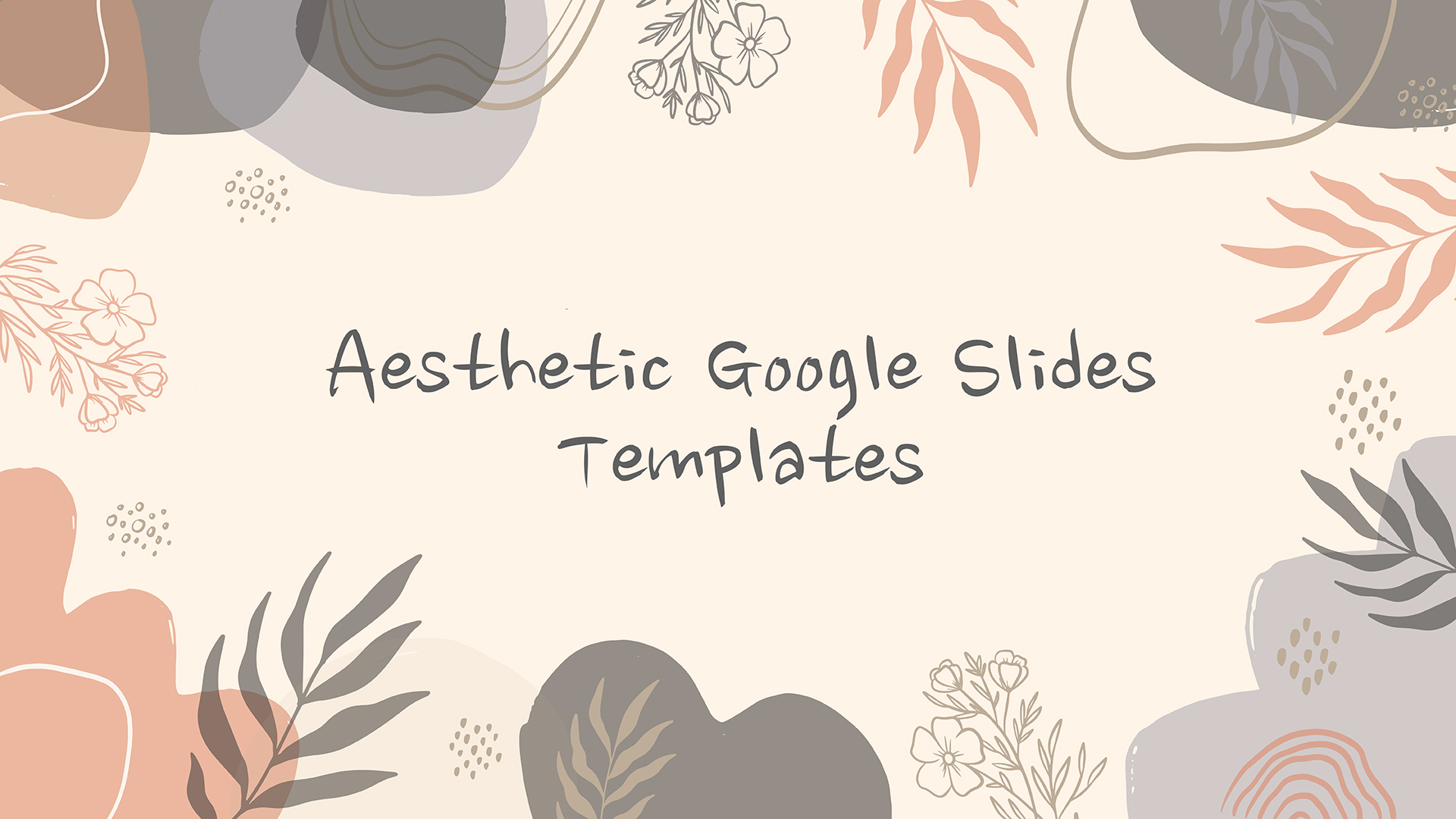
Creating cute Google Slides involves combining soft pastel color palettes, friendly typography, organic shapes, and charming illustrations while maintaining clear visual hierarchy. By leveraging Google Slides' native Theme Builder, curated Google Fonts, custom vector graphics, and structured layouts, you can easily transform generic presentations into engaging, aesthetic slide decks suitable for academic, professional, or personal projects.
Core Principles of "Cute" Presentation Design
Designing an aesthetic or "cute" presentation requires more than just dropping random stickers onto a canvas. To create a deck that looks intentionally crafted rather than cluttered, you must balance playfulness with usability. A functional cute design engages the audience visually while guiding their eyes naturally toward the main information.
Cute Presentation Design Foundation:
- Visual Hierarchy
- Soft Palettes (Pastels/Muted Tones)
- Friendly Fonts (Rounded Serif/Clean Sans)
- Organic Assets (Doodles, Soft Borders)
Soft, Cohesive Color Palettes
The foundation of any cute presentation is its color story. Standard default templates often rely on high-contrast primary colors (pure red, deep navy, bright blue) that can feel rigid or industrial. Cute designs typically lean into muted pastels, warm earthy tones, or soft monochromatic schemes.
- Pastel Palettes: Milk tea shades, soft sage greens, dusty blush pinks, light lavender, and buttery yellows create a gentle aesthetic.
- Color Contrast Rules: While soft background colors are visually soothing, body text must remain legible. Ensure your primary text color has high contrast against the background—use dark espresso brown, charcoal, or deep navy instead of pure black to maintain a soft look without sacrificing accessibility.
- The 60-30-10 Rule: Reserve 60% of your canvas for dominant neutral or light background colors, 30% for secondary structural elements (cards, content containers, sidebar backgrounds), and 10% for vibrant accent colors (buttons, highlighted key terms, icons).
Playful Yet Readable Typography
Typography sets the emotional tone of your presentation. Google Slides offers built-in integration with Google Fonts, granting access to hundreds of free typography options without installing third-party files.
Combining a handwritten or rounded display font for headings with a clean, sans-serif font for body text establishes an approachable personality without compromising readability.
- Display / Title Fonts: Fredoka, Comfortaa, Quicksand, Pacifico, Chewy, or Patrick Hand work exceptionally well for slide titles and prominent callouts.
- Body Text Fonts: Nunito, Open Sans, Lato, or Montserrat maintain readability even at smaller point sizes.
- Font Hierarchy: Keep your titles around 36 pt to 48 pt, section headers at 20 pt to 28 pt, and body copy at 14 pt to 18 pt. Never use decorative script fonts for multi-line body paragraphs.
Custom Shapes, Borders, and Soft Line Art
Rigid rectangular shapes with hard 90-degree corners often look overly formal. Replacing sharp geometry with rounded edges, dashed borders, and organic vector doodles shifts the slide feel instantly.
- Rounded Rectangles: Use rounded rectangle shapes for text boxes and image containers. You can adjust the corner radius in Google Slides by dragging the yellow control handle on a selected shape.
- Sticker Effects: Add a thin white border around photos or illustrations and apply a slight drop shadow (Radius: 5–10, Transparency: 20–30%) to make elements pop off the screen like real-world stickers.
- Doodles and Icons: Incorporate thin line art, starbursts, hand-drawn arrows, and subtle squiggles to fill empty space naturally.
Step-by-Step Walkthrough: Building a Cute Slide Deck in Google Slides
Building a custom theme directly inside Google Slides saves time, prevents repetitive formatting, and ensures overall visual consistency across all slides.
Slide Creation Workflow:
- Page Setup (16:9)
- Theme Builder Editing
- Font/Color Setup
- Content Slide Assembly
Step 1: Setting Up the Canvas and Aspect Ratio
Before adding content, establish your dimensions. By default, Google Slides uses a 16:9 widescreen layout, which fits modern monitors and projectors.
- Open a blank presentation in Google Slides.
- Click File > Page setup.
- Choose Widescreen (16:9) for standard digital presentations, or select Custom if you are designing printable materials like planners, flashcards, or vertical study guides (e.g., 8.5 x 11 inches).
Google Slides Canvas:
- Header Zone (Rounded Container / Cute Display Font)
- Left Card (Content)
- Soft background color
- Clean body font
- Right Card (Visual/Pic)
- Sticker border effect
- Curved edges
Step 2: Customizing Theme Builders and Master Slides
Using the Theme Builder prevents you from re-applying fonts and colors manually to every single slide.
- Click View > Theme builder (or Slide > Edit theme).
- Click the top-most slide thumbnail under Theme to edit global settings.
- Select the primary title text box and change the font family (e.g., Fredoka), size, and color.
- Set the body text box to your secondary font (e.g., Nunito).
- Click Colors in the toolbar to change theme color swatches. Swap default accents for custom pastel hex codes.
- Add persistent decorative elements, such as a subtle background pattern, floating clouds, or a bottom-border ribbon, directly onto layout slides.
- Close the Theme Builder by clicking the X in the top-right corner.
Step 3: Layering Aesthetic Assets and Framing Media
Images and screenshots look much cleaner when integrated into the overall visual theme rather than placed as bare rectangles.
- Framing Photos: Insert an image (Insert > Image), then select the drop-down menu next to the Crop tool icon in the toolbar. Choose Mask image > Shapes > Rounded Rectangle to smooth out the image's edges.
- Adding Shadows: Right-click the masked photo, choose Format options, check Drop shadow, and adjust the Blur radius, Distance, and Angle to create a subtle float effect.
- Washi Tape Effect: Create semi-transparent decorative accents to make items look taped onto the slide. Draw a narrow rectangle over the corner of a photo, color it a light pastel shade, set its transparency to 20–40% under Custom Color, and rotate it slightly.
Step 4: Formatting Layouts for Readability
Avoid dense blocks of text. Divide information into visual "cards" or "chunks" so readers can digest details quickly.
- Draw 2–3 rounded rectangles on a slide.
- Fill them with light pastel accent colors or soft neutral tones (e.g., cream
#FFFDD0or light gray-pink#FDF2E9). - Place text, bullet points, or icons inside these boxes to organize distinct thoughts clearly.
Font Combinations and Color Schemes for Aesthetic Slides
The following reference table pairs functional font combinations with verified hex color palettes to suit various project styles:
| Cute Aesthetic Vibe | Font Pairings (Header + Body) | Hex Code Palette | Best Project Use Case |
|---|---|---|---|
| Pastel Bakery / Sweet | Fredoka + Quicksand | #FFD1DC, #FFECB3, #B5EAD7, #C7CEEA, #4A3E3D |
Recipe decks, elementary school lessons, baking projects |
| Cozy Academic / Matchy | Patrick Hand + Nunito | #E8D8C8, #D5C5B5, #A3B18A, #588157, #343A40 |
History reports, book summaries, study group guides |
| Y2K / Aesthetic Pop | Chewy + Montserrat | #FF9AA2, #FFB7B2, #FFDAC1, #E2F0CB, #2B2B2B |
Pop culture presentations, media analysis, club promos |
| Minimalist Soft Sage | Comfortaa + Open Sans | #E9F5EC, #D2E7D6, #B7D5BC, #52796F, #2C3E35 |
Science presentations, environmental projects, wellness |
| Kawaii Lavender | Pacifico + Lato | #E8D7F6, #D4BEE4, #C2A4D8, #5A4A66, #211C27 |
Art portfolios, personal intros, creative writing pitch |
Top Resources for Free Cute Templates and Graphics
You don't have to build every asset from scratch. Several reputable design repositories provide safe, free templates and icons for Google Slides.
1. Dedicated Slide Template Repositories
- Slidesgo: Offers a dedicated "Cute" tag filtering hundreds of templates designed specifically for Google Slides and PowerPoint. Many include pre-built icon sets and sticker packs.
- SlidesMania: A popular resource created by educators, offering free, highly creative slide decks including digital notebooks, aesthetic planners, and interactive games.
- Carnival of Slides (SlidesCarnival): Provides professional and artistic templates easily imported into Google Slides via the "Use as Google Slides theme" button.
2. Illustration and Vector Icon Libraries
Adding custom vectors enhances the slide's visual appeal without inflating file size.
- Storyset (by Freepik): Offers customizable vector illustrations. You can change the primary color of illustrations to match your slide palette directly on the website before downloading them as PNG or SVG files.
- Flaticon: A massive database of free vector icons. Search for terms like "cute sticker," "pastel line art," or "doodle" to find matching sets.
- Open Peeps: A hand-drawn illustration library by Pablo Stanley, perfect for adding expressive doodle characters to your presentation.
Cute Design Ideas by Project Type
Tailor your aesthetic choices to match the context and audience of your presentation.
Project Adaptation Matrix:
- Context-Specific Visual Adjustments
- School Deck: High detail, stickers & colorful fonts
- Work Pitch: Clean cards, subtle line art accents
- Portfolio: Oversized imagery, minimal
School Presentations & Book Reports
Students can use aesthetic design choices to make academic presentations more engaging while staying informative.
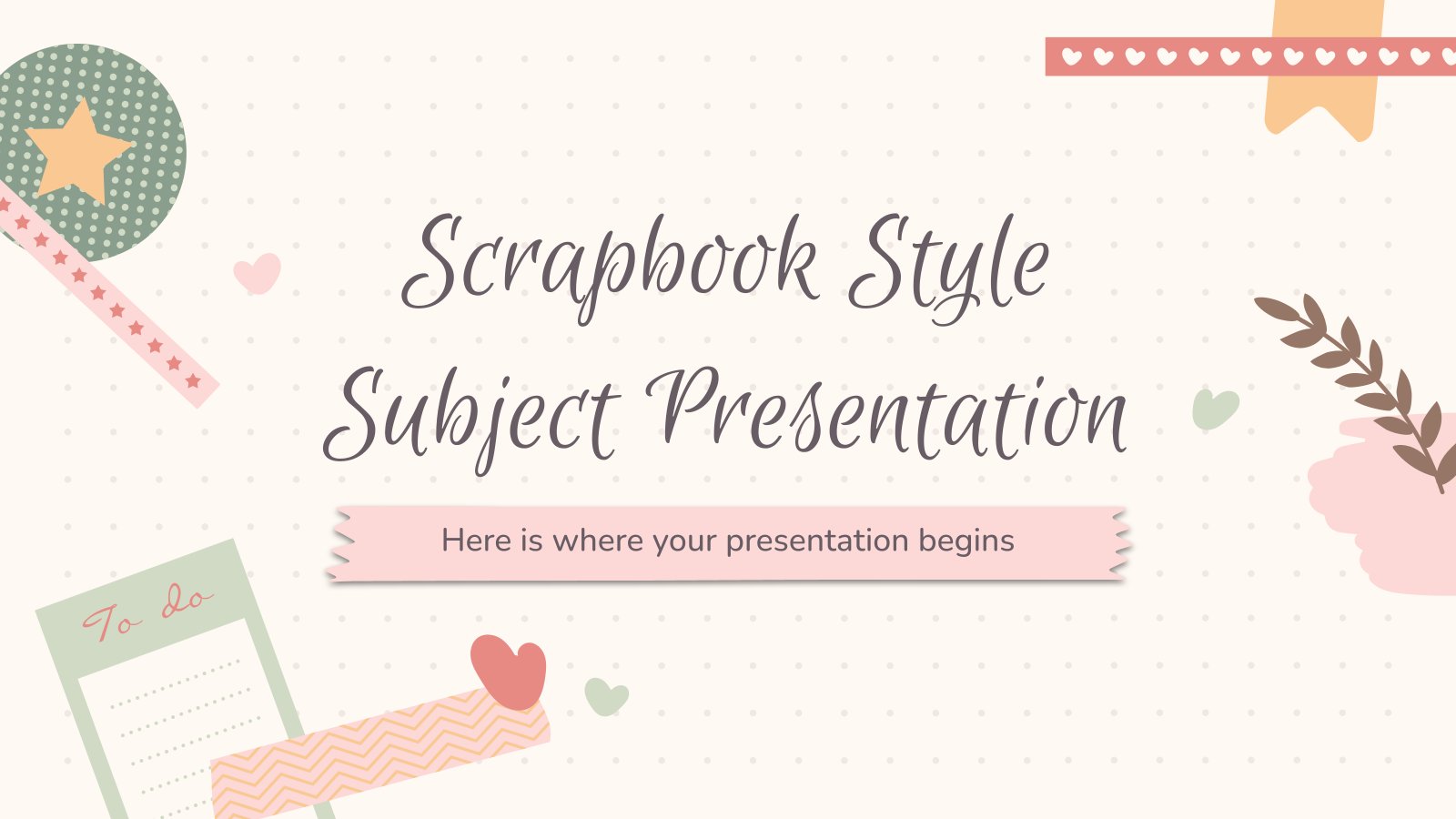
- Digital Scrapbook Style: Make slides look like an open journal or binder. Use grid backgrounds, polaroid frame masks for images, and hand-drawn fonts for slide titles.
- Interactive Tabs: Use side panels formatted as colored notebook tabs to separate chapters or key topics (e.g., Background, Plot, Characters, Themes).
Business Pitches & Work Updates
"Cute" does not have to mean unprofessional. Soft designs work very well in marketing, human resources, creative agencies, and internal team presentations.
- Soft Corporate Aesthetic: Swap rigid corporate blue layouts for warm beige and sage tones. Use clean sans-serif typography like Nunito or Outfit combined with soft rounded content cards.
- Data Visualization: Make charts and diagrams visually friendly. Color Google Slides native bar charts or pie charts using custom pastel swatches instead of high-contrast default primary colors.
Soft Corporate Layout Example:
- Title: Q2 Marketing Overview (Sage Green Bar Container)
- Pastel Pie Chart
- Soft Coral: 45%
- Mint Green: 35%
- Pale Gold: 20%
- Bulleted Highlights
- Soft espresso text
- Custom rounded icons
- Clear white background
Personal Portfolios & Creative Projects
Showcase creative work, photography, or personal introductions with minimal visual clutter.
- Gallery Grid: Arrange images in balanced grids with wide margins (white space). Add subtle drop shadows to create depth.
- Self-Introduction Decks: Include stylized character avatars, mini mood boards, and icon lists highlighting skills, hobbies, and interests.
Common Slide Design Mistakes to Avoid
Even with cute graphics and beautiful colors, common design pitfalls can make your slides difficult to read or navigate.
Over-decorating and Visual Clutter
- The Issue: Adding dozens of stickers, decorative tapes, animated GIFs, and complex patterns to every single slide overwhelms the audience.
- The Fix: Apply the concept of visual hierarchy. Every slide should have one clear focal point—typically the slide title or a central graphic. Keep backgrounds simple so text and key images remain easy to read.
Ignoring Contrast and Accessibility Rules
- The Issue: Placing light yellow or pastel pink text over a white background makes the text unreadable for viewers, especially when projected on low-contrast screens.
- The Fix: Test your visual contrast. If your background is light pastel, always use a dark text color (such as dark gray, deep purple, or dark brown). Refer to the accessibility guidelines outlined by the Web Content Accessibility Guidelines (WCAG) to maintain legible contrast ratios.
Mixing Incompatible Design Styles
- The Issue: Combining realistic 3D renderings, hand-drawn vector doodles, pixel art, and photographic elements within the same deck creates a disjointed look.
- The Fix: Pick one consistent graphic style for your deck. If you use thin doodle-style icons on slide one, maintain that visual style across all remaining slides.
Advanced Google Slides Features to Upgrade Your Design
Beyond basic shape insertion, native features inside Google Slides help refine your deck's polished, aesthetic feel.
Custom Color Palette Management
To avoid repeatedly typing custom hex codes, add them directly to your presentation's color swatches.
- Select any object and click the Fill color bucket tool.
- Click the + button under the Custom color section.
- Paste your preferred hex code (e.g.,
#B5EAD7) into the Hex field and click OK. - These custom swatches will remain accessible in the fill palette for the rest of your session across all slides in the deck.
Aligning Elements with Precise Snap-to-Grid
A key factor that separates amateur slides from professional designs is exact element alignment.
- Turn on visual guides by selecting View > Guides > Show guides.
- Select multiple items while holding
Shift, right-click, and select Arrange > Align horizontally or Distribute. This ensures even spacing between images, cards, and icon blocks.
Adding Subtle Slide Transitions
Animations can enhance your cute layout, provided they are smooth and subtle.
- Click Transition on the top toolbar.
- Select soft transitions such as Fade or Dissolve with a slow speed setting (around 1.0 second). Avoid fast, aggressive transitions like Cube or Flip, which can distract from your content.
Frequently Asked Questions
Where can I find cute fonts in Google Slides without installing software?
Google Slides includes direct access to the Google Fonts library. Highlight any text, click the Font drop-down menu in the top toolbar, and select More fonts. Search for popular rounded or hand-drawn fonts like Fredoka, Quicksand, Comfortaa, Patrick Hand, or Nunito, and click OK to add them to your font list.
How do I make a graphic or image background transparent in Google Slides?
Select the image, right-click, and open Format options. Expand the Adjustments tab and use the Opacity slider to make your image semi-transparent. To completely remove a solid background from a photo, use an external image editing tool or background removal tool before importing the PNG file into Google Slides.
Can I import Canva slide templates into Google Slides?
Yes. You can design a presentation in Canva, click the Share button in the top right corner, choose More, select Google Drive, and save the file directly to your Google Drive account. Alternatively, export your Canva presentation as a .pptx file and upload it into Google Slides via File > Open > Upload.
How do I apply a cute template to an existing plain presentation?
Open your existing presentation, click File > Import slides, and select the downloaded cute presentation template or slide deck from your Google Drive. Choose Select all slides or pick specific layout slides, check the box labeled Keep original theme if you want to apply the imported formatting, and click Import slides.
How can I make my Google Slides printable for binders or study guides?
Adjust your slide canvas to standard paper dimensions before designing. Navigate to File > Page setup, select Custom, set the units to Inches, and enter 8.5 x 11 (vertical portrait) or 11 x 8.5 (horizontal landscape). When finished, export your presentation via File > Download > PDF Document (.pdf) for high-quality printing.
Summary of Key Actions
To quickly create a cute Google Slides deck for your next project:
- Set Up Your Canvas: Establish your dimensions (16:9 for presentations, 8.5x11 for printables) via File > Page setup.
- Define Your Palette: Select 3–4 soft pastel hex codes and set your text to a dark, high-contrast shade like deep brown or dark slate gray.
- Choose Friendly Fonts: Pair a rounded title font (Fredoka or Quicksand) with a clean body font (Nunito or Open Sans).
- Use Master Layouts: Edit global typography and background accents inside View > Theme builder.
- Frame Your Media: Use rounded image masks, white sticker borders, and soft drop shadows to create visual depth.
- Maintain Visual Hierarchy: Leave clear white space around text boxes to ensure your deck is easy to read.
Image Gallery
Select an image to open it in a new tab.



Mateo Castillo
Decentralized Finance and E-Payments Strategist
