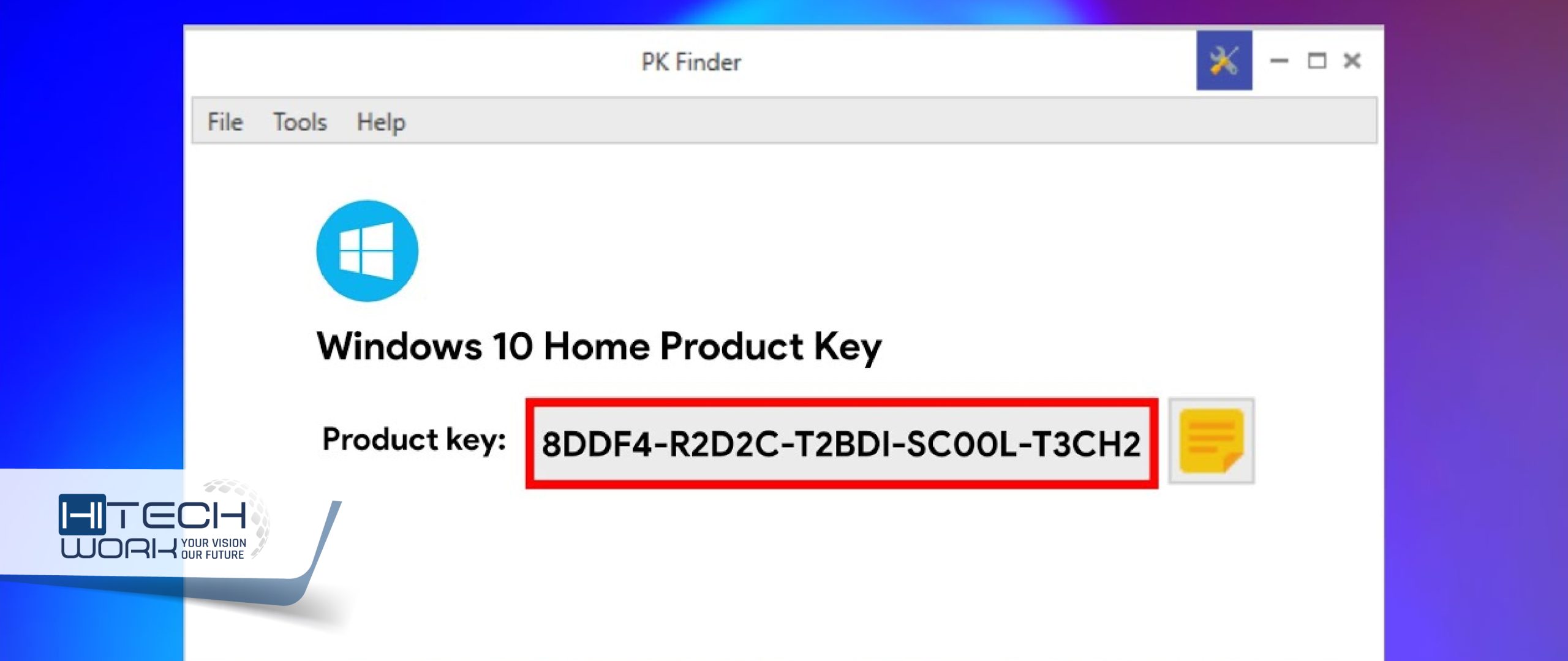
To find your Windows 10 product key, you can use the Command Prompt by typing wmic path softwarelicensingservice get OA3xOriginalProductKey or execute a specific script in PowerShell. Alternatively, for digital licenses, check your Microsoft Account or look for a Certificate of Authenticity (COA) sticker on your hardware or original packaging.
Finding a Windows 10 product key has become a more nuanced task as Microsoft moved toward digital entitlement. As we navigate 2026, Windows 10 has officially moved past its standard support lifecycle (which ended in October 2025), meaning many users are now managing legacy systems or preparing for final migrations. Whether you are performing a clean reinstallation, troubleshooting activation errors on an Extended Security Update (ESU) system, or transferring a retail license to a new machine, knowing exactly where your license information is stored is essential.
Understanding Windows 10 Licensing Types
Before attempting to extract a key, you must understand what kind of license you own. Microsoft utilizes three primary licensing models for Windows 10, and the method for finding the key varies significantly between them.
OEM (Original Equipment Manufacturer) Licenses
Most laptops and pre-built desktop computers come with an OEM license. This license is "embedded" into the motherboard's firmware (BIOS or UEFI). The advantage of an OEM license is that Windows will usually self-activate after a clean install because it recognizes the hardware ID. However, these keys are generally not transferable to a different computer.
Retail (FPP - Full Packaged Product) Licenses
If you purchased Windows 10 from a store or directly from Microsoft as a standalone product, you have a Retail license. These keys are usually provided on a card inside a box or via an email receipt. Unlike OEM keys, Retail licenses can be transferred to another machine, provided the previous installation is deactivated.
Digital Licenses (Digital Entitlement)
With the launch of Windows 10, Microsoft introduced digital licenses. If you upgraded from Windows 7 or Windows 8.1, or if you bought a license from the Microsoft Store, you likely do not have a 25-character "key" in the traditional sense. Instead, your hardware signature is stored on Microsoft’s activation servers, and the license is often linked directly to your Microsoft Account.
Method 1: Using the Command Prompt (Best for OEM Keys)
The Command Prompt is the most direct way to query the Windows Management Instrumentation (WMI) for the product key stored in your computer's firmware. This method is highly effective for machines that came pre-installed with Windows.
Steps to find your key via Command Prompt:
- Click the Start button and type
cmd. - Right-click on Command Prompt and select Run as Administrator. This is a prerequisite because querying licensing information requires elevated privileges.
- In the black window, carefully type or paste the following command:
wmic path softwarelicensingservice get OA3xOriginalProductKey - Press Enter.
If your computer has an OEM key embedded in the BIOS, the 25-character alphanumeric code will appear immediately below the command. If the prompt returns a blank line, it typically means your system is using a digital license or a retail key that was entered manually after the computer was built.
Method 2: Using Windows PowerShell
PowerShell offers a more robust environment for system queries. While the wmic command works in PowerShell as well, you can use a more specific .NET-based approach if the standard command fails to return a result.
Steps to find your key via PowerShell:
- Right-click the Start button and select Windows PowerShell (Admin).
- Type the following command:
(Get-WmiObject -query 'select * from SoftwareLicensingService').OA3xOriginalProductKey - Press Enter.
In many 2026-era Windows 10 environments, especially those receiving security patches, PowerShell is the preferred administrative tool. If this command returns nothing, your license is likely not stored in the firmware, suggesting a Retail or Digital upgrade path.
Method 3: Locating the Key in the Windows Registry
The Windows Registry stores a vast amount of configuration data, including licensing information. However, there is a catch: the key stored in the Registry is often encrypted or replaced with a "generic" key if you upgraded from a previous version of Windows.
To find the key manually (though it is difficult to read):
- Press
Windows Key + R, typeregedit, and hit Enter. - Navigate to:
HKEY_LOCAL_MACHINE\SOFTWARE\Microsoft\Windows NT\CurrentVersion\SoftwareProtectionPlatform - Look for the entry named BackupProductKeyDefault.
The value listed here is the product key Windows uses as a fallback. Be aware that if you upgraded from Windows 7 or 8 for free, this may show a generic "placeholder" key (such as those ending in -3V66T or -8HVX7) which cannot be used for activation on new hardware.
Method 4: Finding Keys through Physical Documentation
While digital storage is the norm in 2026, physical keys are still prevalent for older hardware or bulk-purchased retail copies.
- COA Stickers: On older laptops, look for a "Certificate of Authenticity" sticker on the bottom of the device. On desktops, check the side or back of the tower. This sticker contains the 25-character key.
- Original Packaging: If you bought a physical copy of Windows 10, the key is usually on a small card or a sticker inside the box.
- Email Receipts: If you purchased a digital copy from a third-party retailer (like Amazon or Newegg), search your email history for "Windows 10 Product Key" or "Microsoft Order."
Using Third-Party Software (ShowKeyPlus)
If the manual methods above seem too technical or fail to yield results, third-party tools are a reliable alternative. One of the most respected tools in the technical community is ShowKeyPlus, which is available via the Microsoft Store or GitHub.
ShowKeyPlus is useful because it displays:
- The Installed Key: The key currently being used by the operating system.
- The OEM Key: The key found in the firmware (if applicable).
- The Original Key: If you upgraded, it shows the key you upgraded from.
- License Check: You can type in a key to verify which version of Windows it belongs to.
When using third-party tools, always ensure you download them from reputable sources. Avoid "key finder" sites that look like advertisements, as they may bundle malware or unwanted software.
Comparison of Key Retrieval Methods
| Method | Target License Type | Reliability | Difficulty |
|---|---|---|---|
| Command Prompt (WMIC) | OEM (Pre-installed) | High for laptops/pre-builts | Low |
| PowerShell | OEM / Retail | High | Moderate |
| Microsoft Account | Digital License | Best for upgrades | Low |
| ShowKeyPlus | All types | Very High | Low |
| Registry Editor | Retail / Local | Low (often shows generic) | Moderate |
| Physical Sticker | Older OEM hardware | High (if legible) | Low |
Troubleshooting Common Issues
"Product Key Not Found" (Blank Results)
If the Command Prompt and PowerShell return blank results, do not panic. This almost always indicates that your computer is using a Digital License. In this case, your "key" is actually your hardware's unique ID stored on Microsoft's servers. To verify this, go to Settings > Update & Security > Activation. If it says "Windows is activated with a digital license," you do not need a physical key to reinstall Windows on that same machine.
The Key Doesn't Work During Reinstallation
If you found a key but the Windows installer rejects it, verify the version. A Windows 10 Home key will not activate Windows 10 Pro. Additionally, as of late 2023, Microsoft blocked the ability to use old Windows 7 and 8 keys to perform "fresh" activations of Windows 10 and 11. If you are using a key from a very old machine, it may no longer be valid for new installations.
Licensing Post-October 2025
Since we are in 2026, many users are operating under the Extended Security Updates (ESU) program. If your organization has purchased ESU, you may have been issued a "Multiple Activation Key" (MAK). These keys are found in the Microsoft Volume Licensing Service Center (VLSC) or the Microsoft 365 Admin Center, rather than on the local machine itself.
Frequently Asked Questions
Can I find my Windows 10 key if the hard drive is dead?
Yes, if the key is an OEM license. Because the key is stored in the BIOS/UEFI on the motherboard, replacing the hard drive does not lose the key. Once you install a new drive and start the Windows installation process, the installer should automatically query the motherboard and find the key. If it asks for a key during setup, click "I don't have a product key," and it should activate automatically once it reaches the desktop and connects to the internet.
Is the Windows 10 key the same as the Product ID?
No. The Product ID (found in System Properties) is generated by Windows during installation and is used to identify the level of support you are entitled to. The Product Key is the 25-character code used to validate and activate the software. You cannot use the Product ID to activate Windows.
Can I use my Windows 10 key to activate Windows 11?
Yes. Microsoft has maintained a path where valid Windows 10 Retail and OEM keys can be used to activate the corresponding version of Windows 11. If you are finding your key in 2026 to move to a newer operating system, a genuine Windows 10 key is generally accepted by the Windows 11 installer.
What if I linked my license to a Microsoft Account?
This is the most secure way to "find" your key. If you log in to your Windows 10 machine with a Microsoft Account, the license is linked to your identity. If you change hardware (like the motherboard), you can run the Activation Troubleshooter in Settings, select "I changed hardware on this device recently," and sign in to transfer the license without needing to type the 25-character code.
Does the Command Prompt method work for Volume Licenses?
Usually, no. Volume Licenses (used by large businesses) use a KMS (Key Management Service) or Active Directory-based activation. In these cases, the local machine doesn't "own" a unique key; it checks in with a central server to stay activated. If you are on a work computer, you likely won't find a traditional key using these methods.
Final Recommendations
When searching for your Windows 10 product key in 2026, start with the simplest method: checking your Activation Settings. If it confirms a digital license, your priority should be ensuring your Microsoft Account is linked, rather than hunting for a string of characters. If you specifically need the code for a retail transfer or legacy documentation, the Command Prompt (WMIC) method remains the most reliable technical solution for OEM hardware.
Always store your retrieved product key in a secure location, such as a password manager or a physical safe. As Windows 10 enters its final years of relevance, maintaining your proof of purchase is vital for ensuring you don't lose access to the operating system or the ability to upgrade to future versions of Windows.
Image Gallery
Select an image to open it in a new tab.
Simon Caldwell
Enterprise Technology and Systems Editor
