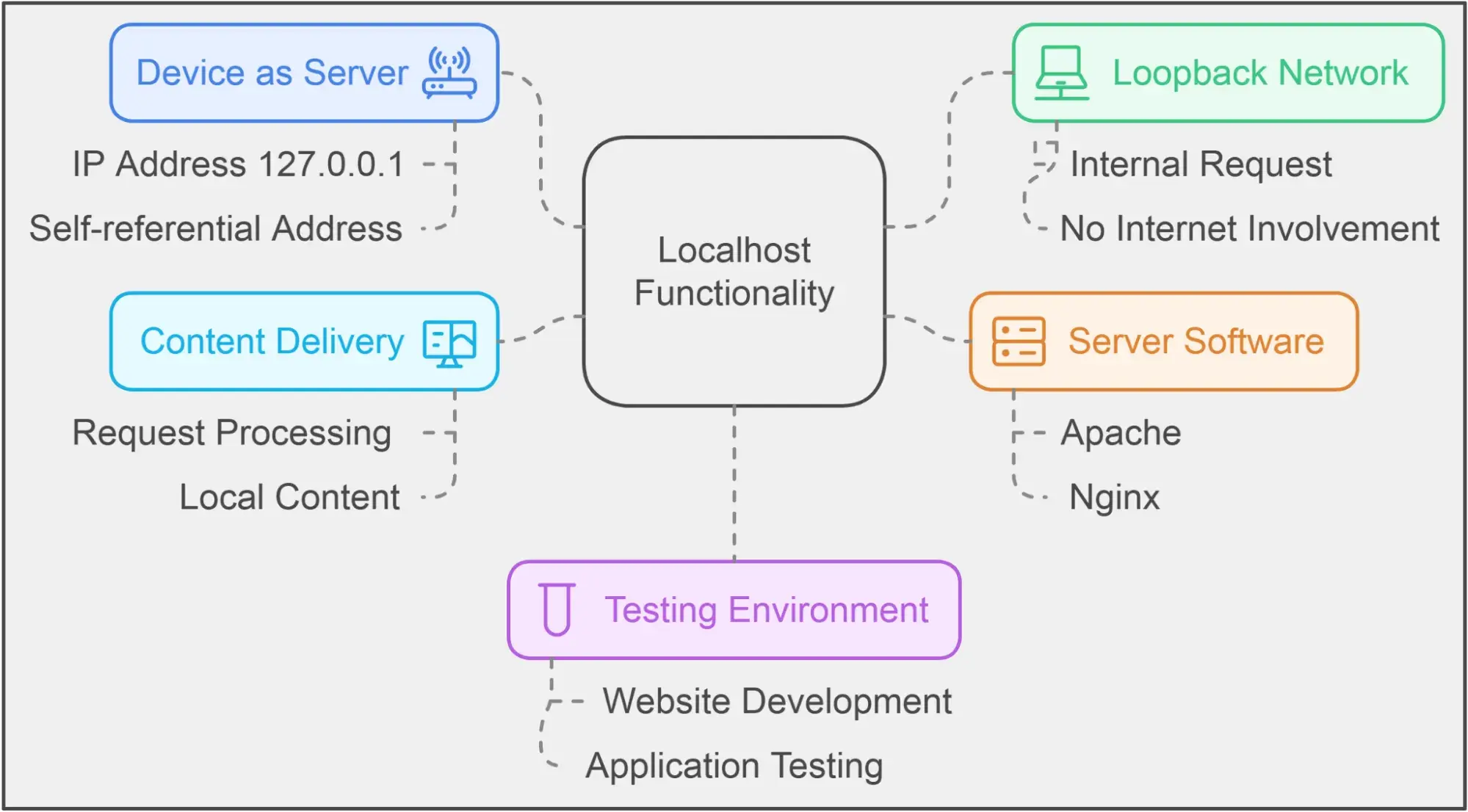
A localhost website refers to a virtual environment hosted directly on your personal computer, allowing developers to build, test, and debug web applications offline before publishing them to a live public server. It uses the loopback network address (typically 127.0.0.1 or the hostname localhost) to simulate a real web server environment locally.
Introduction to Local Development Environments
Building a modern website or web application requires a stable, fast, and isolated environment where code changes can be made and tested instantly. In the early days of the internet, developers often uploaded code to a remote live server to see how it functioned, risking downtime, broken user experiences, and security vulnerabilities for visitors. Today, the standard industry practice relies on local development, a workflow where the entire website ecosystem—including the source code, database, and server software—runs entirely on a local machine.
At the center of this workflow is the concept of localhost. Understanding what a localhost website means requires looking beyond a simple definition and examining how local web servers operate, why they are indispensable for modern developers, and how they bridge the gap between writing code on a laptop and deploying it to a global audience. Whether you are building a lightweight static blog, a complex content management system (CMS) like WordPress, or a dynamic single-page application using React or Node.js, your journey almost always starts on localhost.
What Is Localhost and How Does It Work?
To understand a localhost website, one must first understand what the term "localhost" actually represents. In networking terminology, localhost is a hostname that means this computer. It functions as a loopback address, meaning any network request sent to localhost does not travel out to the wider internet through a router or modem; instead, it loops directly back to the local machine's operating system.
When you type http://localhost into a web browser, your computer tells itself to look inward for a web server program rather than querying a Domain Name System (DNS) server to find a website hosted somewhere else in the world.
The standard Internet Protocol (IP) address assigned to this loopback function is 127.0.0.1 in IPv4, and ::1 in IPv6.
For this localhost website to function like a real website on the internet, your computer must run specialized server software. A web browser cannot simply open raw programming files (like PHP, Python, or Node.js scripts) directly from a local folder without an interpreter and a server environment to process them. Therefore, a local development setup pairs your project files with a local server stack, translating your code into rendered HTML, CSS, and JavaScript that the browser can display seamlessly.
The Core Components of a Local Development Stack
A localhost website is rarely just a collection of HTML files. Modern websites rely on databases, server-side scripting languages, and routing systems. To replicate a live hosting environment on your machine, developers use a local server stack. Historically, acronyms like LAMP (Linux, Apache, MySQL, PHP) or WAMP/MAMP (Windows/Mac, Apache, MySQL, PHP) defined these stacks. In modern workflows, containerized environments and lightweight development tools have expanded these options significantly.
The primary components that power a localhost website include:
- The Web Server: Software such as Apache, Nginx, or Node.js HTTP modules that listens for incoming HTTP requests from your browser and serves the appropriate web pages.
- The Database Management System: Systems like MySQL, PostgreSQL, or SQLite that store dynamic data, user accounts, and configuration settings for your website.
- The Server-Side Language Processor: Interpreters for languages like PHP, Python, Ruby, or Node.js that execute backend logic before sending the final output to the browser.
- Local Domain and Port Management: Mechanisms that allow you to run multiple websites simultaneously by assigning specific ports (such as
http://localhost:3000orhttp://localhost:8080) or customized local domains (such asmyproject.local).
Comparison of Popular Local Development Environments
Choosing the right tool to run your localhost website depends on your technical expertise, operating system, and the specific technology stack of your project.
| Tool Name | Supported Operating Systems | Primary Use Case / Best For | Key Advantages |
|---|---|---|---|
| Local (by Flywheel) | Windows, macOS, Linux | WordPress Development | Extremely fast setup, automated SSL, easy site cloning, and intuitive UI. |
| XAMPP | Windows, macOS, Linux | General PHP/MySQL Development | Completely free, open-source, and includes Apache, MariaDB, PHP, and Perl. |
| Docker | Windows, macOS, Linux | Advanced Containerized Applications | Mirrors production environments precisely; highly isolated and scalable. |
| Node.js / NPM | Windows, macOS, Linux | JavaScript & Frontend Frameworks | Essential for modern build tools (Vite, Webpack) and live-reloading servers. |
Why Local Development Is Essential for Developers
Working on a localhost website provides distinct advantages that make remote live development obsolete for professional engineering teams and hobbyists alike. The benefits span across speed, safety, cost efficiency, and flexibility.
1. Complete Isolation and Safety
When you make a catastrophic coding error on a live website, it can result in the dreaded "White Screen of Death," data corruption, or exposure of sensitive database credentials to the public. On a localhost website, errors are entirely isolated to your personal machine. If your code breaks the database or triggers an infinite loop, no external users are affected, and you can troubleshoot in a stress-free environment.
2. Offline Accessibility
Because a localhost website runs entirely on your local hardware, you do not need an active internet connection to build and test your projects. You can write code, compile assets, query local databases, and verify layout designs while traveling on an airplane, working from a remote cabin, or experiencing a local broadband outage.
3. Blazing Fast Performance and Instant Feedback
Loading assets over remote File Transfer Protocol (FTP) or waiting for code to sync to a distant cloud server introduces latency. Local development eliminates network lag. With modern build tools featuring Hot Module Replacement (HMR), saving a file in your code editor updates the localhost website in your browser almost instantaneously, dramatically accelerating the development feedback loop.
4. Cost Efficiency
Renting remote staging servers, cloud virtual private servers (VPS), or managed hosting tiers for every single experimental project can quickly become expensive. Localhost development is entirely free. You can spin up dozens of different websites, test multiple database configurations, and destroy them when finished without incurring any hosting fees.
How to Access and Navigate a Localhost Website
Accessing a localhost website requires understanding how web browsers interpret local addresses and ports. When you launch a local server application (such as starting a local development tool), the software binds itself to a specific port on your computer.
Understanding Ports
A computer has thousands of communication ports. Standard web traffic over the internet uses Port 80 for HTTP and Port 443 for HTTPS. However, on a local machine running multiple applications, these standard ports might be occupied.
http://localhostdefaults to Port 80 if unspecified.http://localhost:3000directs the browser to communicate with an application listening specifically on port 3000 (commonly used by React, Vue, or Node.js development servers).http://localhost:8888or8080are frequently used by alternative local stacks like MAMP or integrated development environments.
Navigating the File System
Unlike a public website where files live in a remote server directory managed by an enterprise hosting provider, a localhost website points to a designated folder on your local hard drive (for example, C:\xampp\htdocs\my-website on Windows or /Users/username/Local Sites/my-site/app/public on macOS). Any changes you make to the files inside this directory using a code editor like Visual Studio Code are immediately registered by your local server.
Common Challenges and Troubleshooting Localhost Issues
Even though localhost environments are designed to simplify development, developers frequently encounter configuration hurdles. Knowing how to diagnose and resolve these issues saves valuable hours.
Port Conflicts
If you attempt to start a local server and receive an error stating that the port is already in use, it usually means another application (such as Skype, a different web server instance, or database software) is occupying that specific port.
- Solution: You can either shut down the conflicting application or configure your local development tool to use a different port (e.g., changing from port 80 to port 8080).
Database Connection Errors
Many localhost websites (especially WordPress, Drupal, or custom web apps) require a database connection. If your local server software (like MySQL or MariaDB) is not running, or if your configuration file (wp-config.php, .env, etc.) lists incorrect credentials, your site will throw a database connection error.
- Solution: Verify that your local database service is actively running in your control panel, and ensure that the database name, user (often
root), and password match your configuration settings.
Host File Misconfigurations
Advanced local development often involves setting up virtual hosts to use custom domain names like myproject.test instead of numeric ports. If your computer cannot resolve this custom domain, you may need to edit your operating system’s hosts file (located at /etc/hosts on macOS/Linux and C:\Windows\System32\drivers\etc\hosts on Windows) to map the domain name directly to 127.0.0.1.
Frequently Asked Questions About Localhost Websites
Can other people on the internet view my localhost website?
No. By default, a localhost website is strictly isolated to your personal machine because the loopback address (127.0.0.1) cannot be accessed from outside your local network. However, advanced developers can use tunneling tools like ngrok to generate a temporary public URL that safely shares their localhost environment with clients or team members for review.
Do I need to know how to code to use a localhost website?
It depends on the project. While custom web development requires coding knowledge in HTML, CSS, JavaScript, or backend languages, many non-developers use localhost environments to run platforms like WordPress locally for testing themes, plugins, or practicing site design without risking a live production domain.
What is the difference between localhost and a live staging server?
A localhost website runs entirely on your local physical hardware (your laptop or desktop), while a staging server is a replica of your live production website hosted on a remote cloud server accessible via the internet. Staging servers are typically used for final client reviews and pre-launch testing in an environment that mirrors the exact hosting configuration of the final public site.
How do I move a localhost website to a live web hosting provider?
Migrating a localhost website to a live server involves exporting your local database (usually via a tool like phpMyAdmin), uploading all your project source files to your web host via SFTP or a file manager, importing the database onto the live server, and updating your configuration files to point to the new live database credentials and domain name.
Conclusion and Recommended Next Actions
A localhost website serves as the bedrock of modern web development, offering a secure, isolated, and high-performance environment to build and test applications before they ever touch the public internet. By mastering local server stacks, understanding port configurations, and utilizing dedicated development tools, you can streamline your workflow and eliminate the risks associated with live-server editing.
If you are ready to set up your own localhost website, follow these actionable next steps:
- Identify the technology stack your project requires (e.g., PHP for WordPress, Node.js for modern frontend apps).
- Download and install a trusted local development environment that matches your operating system, such as Local, XAMPP, or Docker.
- Create a new project directory, write a basic HTML or script file, launch your local server, and navigate to
http://localhostto verify your environment is working correctly.
Image Gallery
Select an image to open it in a new tab.



Simon Caldwell
Enterprise Technology and Systems Editor
