If Terraria keeps crashing, the most effective solution is usually to verify the integrity of game files through your launcher (Steam or GOG) to repair corrupted data. Additionally, ensure that your graphics drivers are updated, disable conflicting background applications like OneDrive or antivirus software, and confirm that your hardware meets the game’s requirements for its current version.
Terraria remains one of the most enduring sandbox experiences in gaming history. Even in 2026, its "Labor of Love" legacy continues to draw hundreds of thousands of players into its pixelated worlds. However, despite its seemingly simple 2D graphics, Terraria is built on a complex framework that can occasionally succumb to stability issues. Whether you are experiencing a crash on startup, a freeze during world generation, or a "System.OutOfMemoryException" while using mods, understanding the technical underpinnings of these errors is the first step toward a permanent fix.
Understanding Why Terraria Crashes
Before diving into the fixes, it is essential to understand the environment in which Terraria operates. The game primarily runs on the Microsoft XNA Framework (or its modern implementation, MonoGame, in later versions and ports). This framework acts as a bridge between the game's code and your hardware. When this bridge is interrupted by outdated software, missing libraries, or hardware bottlenecks, the game "hangs" or shuts down abruptly.
Common triggers for crashes include:
- File Corruption: A single missing sprite or tile data point can cause the engine to fail when it attempts to render an object.
- Permission Conflicts: Modern operating systems often protect the "Documents" folder, where Terraria stores your worlds and players. If the game cannot write to this folder, it will crash.
- Modding Overload: Using tModLoader adds a layer of complexity. If a mod is poorly optimized or conflicts with another, the game’s memory allocation can skyrocket, leading to a crash.
- Third-Party Overlays: Software like Discord, Steam Overlay, or GPU monitoring tools can sometimes interfere with how Terraria handles its windowed or full-screen modes.
Primary Troubleshooting Steps
When Terraria fails, you should always start with the least invasive methods before moving toward reformatting or deep-system edits.
Verifying Game Integrity
This is the "gold standard" for fixing Steam-based games. Over time, files can become corrupted due to unexpected shutdowns or disk errors.
- Open your Steam Library.
- Right-click on Terraria and select Properties.
- Navigate to the Installed Files tab.
- Click Verify integrity of game files.
Steam will compare your local files with the official manifest. If it finds a discrepancy, it will redownload the specific corrupted files without wiping your save data. For GOG users, the "Verify / Repair" option in the GOG Galaxy client performs the exact same function.
Managing Administrative Privileges
Terraria needs constant access to your C:\Users\[Username]\Documents\My Games\Terraria folder. If your Windows user account does not have full control over this directory, the game may crash when attempting to auto-save.
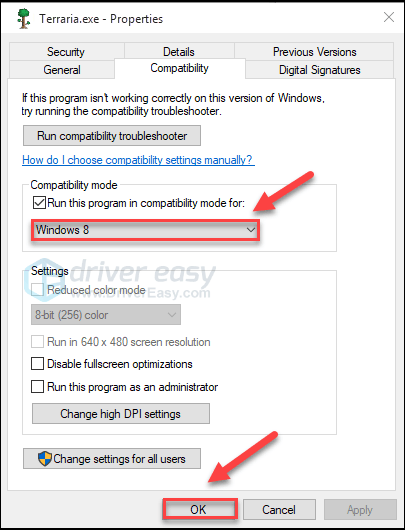
To fix this, locate the Terraria.exe file (usually in C:\Program Files (x86)\Steam\steamapps\common\Terraria). Right-click the executable, select Properties, go to the Compatibility tab, and check the box for Run this program as an administrator. While you are there, you may also want to disable "Full-screen optimizations," as this has been known to resolve flickering and crashes on Windows 10 and Windows 11/12 systems.
The OneDrive Conflict
One of the most frequent causes of crashes in the mid-2020s is Microsoft OneDrive. By default, OneDrive often attempts to sync the "Documents" folder to the cloud in real-time. When Terraria tries to write a save file while OneDrive is "locking" that file for upload, the game will crash.
To resolve this, you should either disable OneDrive while playing or add the My Games/Terraria folder to the OneDrive exclusion list. If your save files are currently stuck in a "cloud-only" state, download them back to your local drive and ensure the folder is no longer set to "Online-only."
Advanced Technical Fixes
If the basic steps do not resolve the issue, the problem likely lies deeper within the software environment or specific configuration files.
Updating the .NET Framework and XNA
Terraria relies heavily on the .NET Framework. In 2026, most Windows systems handle this via Windows Update, but manual corruption can still occur. Ensuring you have the latest version of .NET installed is crucial. Furthermore, the XNA Framework Redistributable 4.0 is a legacy requirement for the classic version of the game. If you are running an older installation of Terraria, reinstalling the XNA framework can resolve "System.DllNotFoundException" errors.
Resetting the Config.json
Sometimes, the game’s settings file becomes bloated or contains values that your hardware no longer supports (such as a resolution higher than your monitor's current capacity).
- Navigate to
Documents\My Games\Terraria. - Find the file named
config.json. - Move this file to your desktop (do not delete it yet).
- Launch Terraria.
The game will generate a brand-new, default config.json. If the game launches successfully, the issue was a corrupted setting. You can then manually re-adjust your volume and keybinds in-game.
Graphics Driver Clean Install
While Terraria isn't a "triple-A" graphical powerhouse, its lighting engine can be taxing on integrated graphics or outdated drivers. Simply hitting "Update" in your GPU software is sometimes insufficient. If you experience "Display driver stopped responding" crashes, use a tool like Display Driver Uninstaller (DDU) to completely wipe your old drivers in Safe Mode, then install the latest stable version from the manufacturer’s website (NVIDIA, AMD, or Intel).
Troubleshooting tModLoader and Mods
Modding is a massive part of the Terraria community, but it is also the leading cause of "Out of Memory" (OOM) errors and "Index out of range" crashes.
64-Bit Memory Allocation
Historically, Terraria was a 32-bit application, limiting it to 4GB of RAM. In 2026, tModLoader is natively 64-bit, which theoretically allows it to use all available system memory. However, if you have a massive list of "Content Mods" (like Calamity, Thorium, and Fargo's together), you may still hit a wall if your Page File is disabled or your RAM is physically insufficient.
If tModLoader crashes:
- Check the Logs: Go to
Documents\My Games\Terraria\tModLoader\Logs. Theclient.logfile will tell you exactly which mod threw the error. Look for the last line before the "Stack Trace." - Disable Mods in Batches: If the game won't even reach the main menu, go to the
Modsfolder and move all files out. Reintroduce them one by one to find the culprit. - Check for Version Mismatches: In 2026, mods are frequently updated. Ensure that the tModLoader core version matches the version required by your installed mods.
Hardware and Environmental Comparisons
Different crash symptoms point to different hardware or software failures. Use the table below to identify your specific issue.
| Symptom | Primary Cause | Recommended Action |
|---|---|---|
| Crash on Startup (Black Screen) | Resolution mismatch or missing .NET | Delete config.json and reinstall XNA/MonoGame. |
| Crash During World Gen | Corrupted World Template or RAM limit | Verify file integrity; reduce number of active large mods. |
| Random "Freezing" in-game | Background process interference | Disable Steam Overlay and close OneDrive/Antivirus. |
| "System.OutOfMemoryException" | Mod conflict or 32-bit limitation | Upgrade to 64-bit tModLoader; check RAM usage. |
| Blue Screen of Death (BSOD) | Hardware failure or Driver conflict | Check GPU/CPU temperatures; run MemTest86 for RAM health. |
| "Access to path is denied" | Permission/Administrator issues | Run Terraria as Admin; check folder "Read-Only" status. |
Platform-Specific Considerations
While PC is the most common platform for these issues, console and mobile players aren't immune.
Consoles (Xbox, PlayStation, Switch)
On consoles, you lack the ability to edit files. If Terraria keeps crashing on your console:
- Power Cycle: Unplug the console for 30 seconds to clear the system cache.
- Reinstall: Delete the game and redownload it. Your saves are stored in a separate partition (or the cloud) and will remain safe.
- Check for System Updates: Ensure the console OS itself is up to date, as Re-Logic frequently optimizes for the latest firmware.
Mobile (Android/iOS)
Mobile crashes are almost always related to RAM management.
- Close Background Apps: Mobile OSs are aggressive with memory. Ensure Terraria is the only major app running.
- Lower Lighting Settings: In the game's video settings, change "Lighting" to "Retro" or "Trippy." This significantly reduces the load on the mobile processor.
Frequently Asked Questions
Why does Terraria crash every time I try to save and exit?
This is almost exclusively a file permissions issue. When you click "Save and Exit," the game attempts to overwrite the .wld (world) and .plr (player) files in your Documents folder. If a program like OneDrive or an Antivirus is scanning that folder at the same moment, Terraria is denied access and crashes to prevent data loss. Disable real-time syncing for that specific folder to fix this.
Can a corrupted world file cause the entire game to crash?
Yes. If you try to load a world and the game crashes during the "Settling Liquids" or "Resetting Light Maps" stage, the world file is likely corrupted. You can often recover this by going to the Worlds folder and deleting the corrupted .wld file, then renaming the .wld.bak (backup) file to just .wld.
Will reinstalling Terraria delete my characters and worlds?
No, as long as you do not manually delete the folder in your Documents directory. Reinstalling via Steam or GOG only replaces the game’s core engine files. Your saves are stored separately. However, it is always a best practice to copy the My Games/Terraria folder to a USB drive or different cloud service before performing a clean install.
Why does my game crash when I use the "Autopause" feature?
In some rare instances, Autopause can conflict with specific UI mods or Steam's friend-list notifications. If you notice crashes occurring specifically when you open your inventory, try disabling Autopause in the General Settings to see if the stability improves.
Is there a "Crash Log" I can send to the developers?
Yes. On PC, you can find crash logs in the game's install directory or under Documents\My Games\Terraria\Logs. If you are seeking help on the official Terraria forums or Discord, providing these logs is the fastest way to get an accurate diagnosis from the community or the Re-Logic support team.
Final Recommendations for a Stable Experience
To ensure Terraria remains stable throughout 2026, maintain a "clean" environment for the game. This means keeping your mod list curated, ensuring your Windows "Documents" folder is not being fought over by multiple cloud services, and keeping your hardware drivers current. If you are a heavy mod user, consider a weekly "Log Check" to ensure that no minor errors are building up and causing memory leaks over long play sessions.
For those still experiencing persistent issues, the next logical step is to check for hardware degradation. Use diagnostic software to ensure your storage drive (SSD/HDD) isn't developing bad sectors where the game is installed. A healthy system is the foundation of a crash-free journey through the world of Terraria.
Image Gallery
Select an image to open it in a new tab.
Akira Tanaka
International Academic Trends Correspondent
