If your Nintendo Switch controller is failing to charge, the issue usually stems from a depleted battery, a faulty connection between the Joy-Con rails and the console, or a malfunctioning power source. Most problems can be resolved by re-seating the controllers, checking for debris in the charging ports, or performing a hard power cycle on the console itself to reset the internal power management system.
Understanding the Nintendo Switch Charging Ecosystem
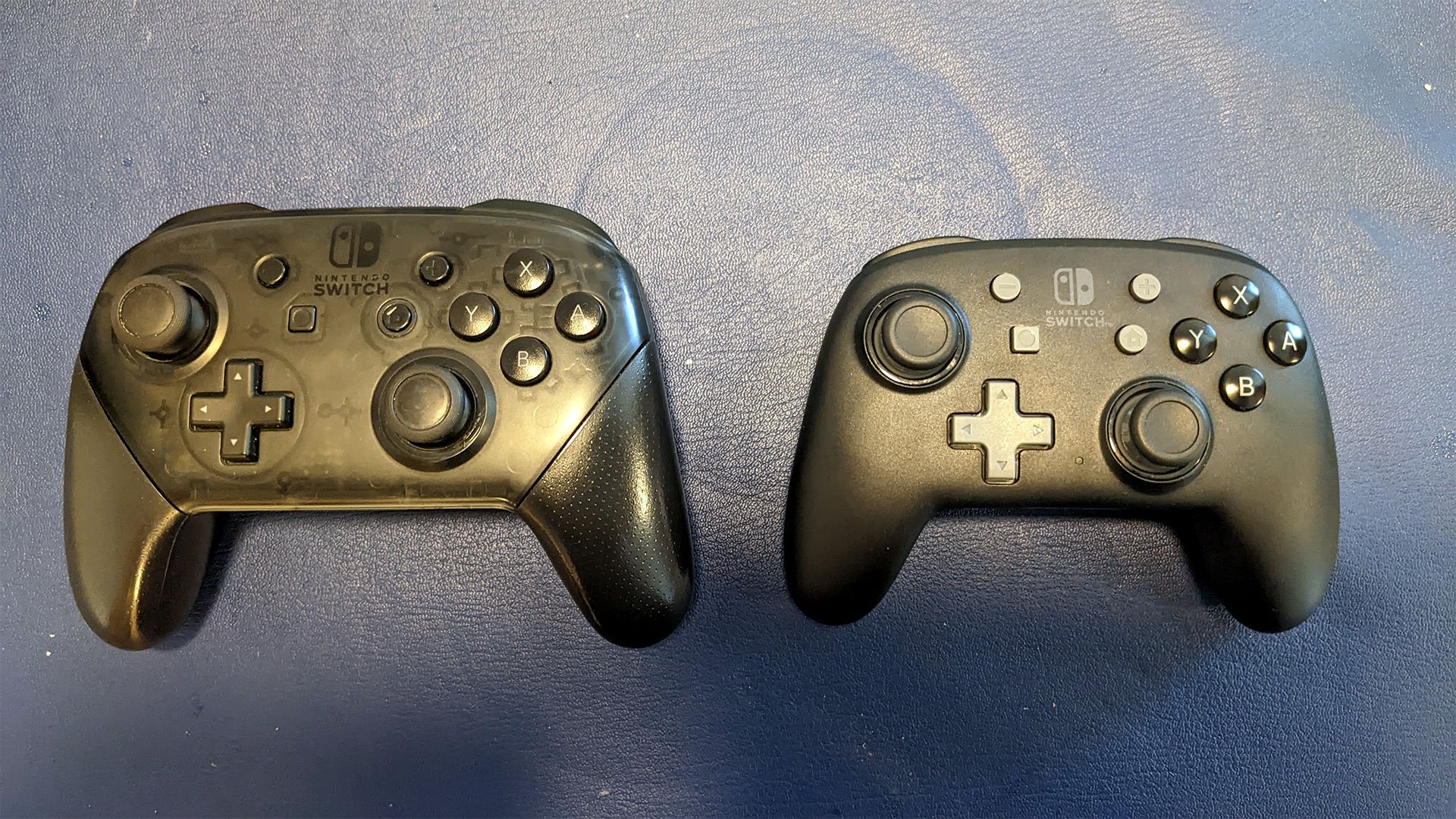
The Nintendo Switch architecture manages power differently depending on the controller type you are using. To troubleshoot effectively, you must first identify which hardware you are dealing with: the Joy-Con controllers, which attach to the side of the console, or the Nintendo Switch Pro Controller, which charges via a dedicated USB-C cable.
The Joy-Cons rely on the internal battery of the Switch console to charge when attached to the side rails. This connection is physical and electrical; if the rails are obstructed or if the console itself is not sufficiently charged, the Joy-Cons will remain stagnant. Conversely, the Pro Controller operates as a standalone peripheral. Understanding these distinct power paths is the first step in diagnosing your charging failure.
Troubleshooting Joy-Con Charging Issues
When Joy-Cons fail to charge, the fault often lies in the communication between the controller's internal power pins and the console’s sliding rails. Because these rails are exposed, they are susceptible to dust, oxidation, and physical wear.
Step 1: Physical Inspection and Cleaning
Examine the bottom of the Joy-Con and the corresponding rail on the side of the Switch console. Look for dust, lint, or debris that might be preventing the metallic contacts from meeting. Use a dry, clean microfiber cloth to wipe the contacts. If you suspect debris is lodged deep within the rail, use a can of compressed air to gently clear the cavity. Avoid inserting metal objects or liquid cleaners, as these can cause short circuits or permanent corrosion.
Step 2: The Console Power Requirement
A common misunderstanding is that the Switch can charge Joy-Cons indefinitely. If your Nintendo Switch console is in sleep mode and its battery is low, it will stop charging the Joy-Cons to preserve its own remaining energy. Ensure your console is docked or connected to an official Nintendo AC adapter. When the console is plugged into a power source, it is prioritized to charge itself first, and then it will distribute power to the attached controllers.
Step 3: Removing and Re-attaching
Sometimes the software interface simply fails to recognize the connection. With the console powered on, detach both Joy-Cons completely. Wait approximately 10 seconds, then slide them back onto the rails until you hear the audible "click." This action forces the console to re-poll the controllers and re-initiate the charging handshake protocol.

Troubleshooting the Nintendo Switch Pro Controller
The Pro Controller is a more traditional device, utilizing a USB-C charging port located at the top of the unit. Charging failures here are typically related to the cable, the power adapter, or a "soft-locked" battery state.
Evaluating Your Power Cable and Adapter
The Pro Controller is designed to work with standard USB-C cables, but not all cables are created equal. If you are using a third-party cable, it may lack the necessary data pins or power delivery standards required to trigger the charging circuit. Always attempt to charge the controller using the official USB cable provided with the console, or a high-quality USB-C cable known to support power delivery.
Furthermore, check your power source. Plugging the controller into a computer USB port may provide insufficient voltage to "wake up" a completely dead battery. Always test by plugging the USB-C cable directly into the official Nintendo Switch AC adapter or a certified wall charger.
Resetting the Controller
If the Pro Controller does not show a charging light when plugged in, it may be experiencing a firmware hang. You can reset the device by unplugging the cable, waiting for the indicator light to remain dark, and then holding the SYNC button—located near the charging port—for several seconds while the controller is disconnected. Reconnect the cable after this reset to see if the charging LED pulses as intended.
Comparison of Charging Methods and Indicators
It is essential to know what "charging" looks like for your specific hardware. Using the table below, determine if your equipment is behaving within normal parameters.
| Device | Primary Power Source | Normal Charging Indicator | Troubleshooting Priority |
|---|---|---|---|
| Joy-Con | Console Rail | Battery icon on screen | Clean rails; update firmware |
| Pro Controller | USB-C Cable | Solid orange LED | Swap cable; check AC adapter |
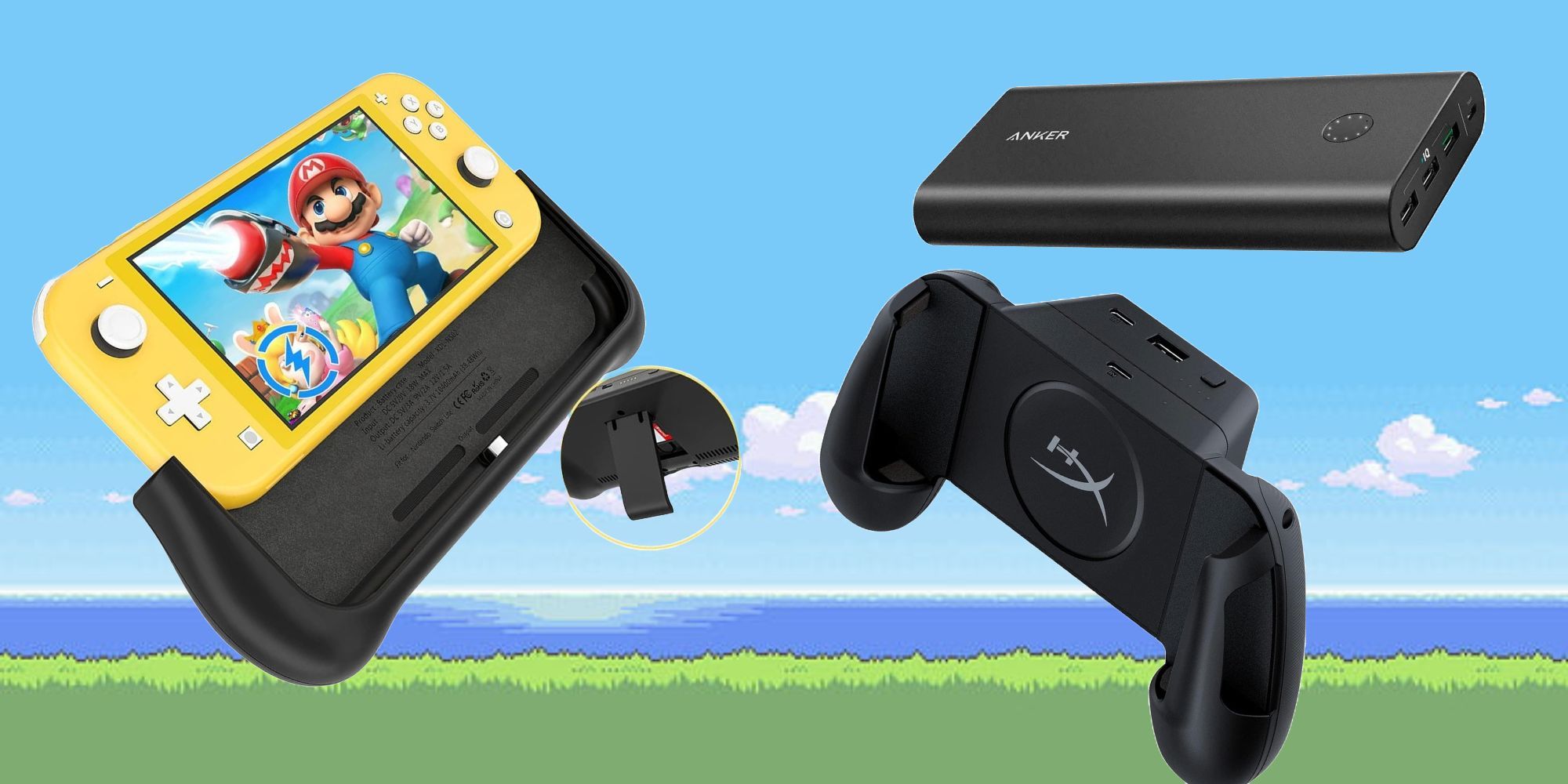
| Charging Grip | USB-C Cable | Charging icon on screen | Verify USB port integrity |
Addressing Software and Firmware Conflicts
In some instances, the hardware is functional, but the console's internal software is failing to report the charge status correctly. Navigate to the "Controllers and Sensors" menu in the System Settings. Here, you can view the battery percentage of all connected devices.
If the menu shows a controller as "Disconnected" despite it being physically attached, the issue is almost certainly with the rail connection rather than the battery itself. Additionally, check for a "System Update" within the System Settings. While rare, Nintendo periodically releases firmware updates for Joy-Cons to improve power management. If your controllers are significantly outdated, they may struggle to hold a charge effectively.
When to Seek Professional Assistance
If you have cleaned the contacts, tested multiple charging cables, performed a hard reset, and verified that the console itself is functional, you may be dealing with a "dead cell" or a failed charging IC (Integrated Circuit) within the controller.
Lithium-ion batteries have a finite lifespan. If a controller has been left completely discharged for several months (or years), the voltage may drop below the threshold where the charging circuit can safely initiate a recharge. In this state, the battery is considered "bricked." If you have confirmed the hardware is otherwise clean and functional, it is time to contact Nintendo support for a repair or consider a battery replacement if you are comfortable with electronics repair. Note that opening your controller will void any existing warranty, so verify your warranty status before attempting any internal hardware modifications.
Frequently Asked Questions
Why is one Joy-Con charging but the other is not?
This usually indicates an issue with the specific rail on the console or the contacts on that specific Joy-Con. Test the "non-charging" Joy-Con on the other side of the console. If it charges on the opposite side, the console’s left rail may be damaged. If it still does not charge, the issue lies within the Joy-Con itself.
Should I leave my Switch controllers on the charger all the time?
Yes, it is generally safe to leave controllers attached to the console while it is docked. The Nintendo Switch system uses intelligent power management to prevent overcharging. Once the batteries reach 100%, the console stops the flow of electricity to avoid degradation of the lithium-ion cells.
Can I use a phone charger to charge my Pro Controller?
Yes, you can use most USB-C phone chargers, provided they are of high quality. However, if the charger is very low-wattage, it may take significantly longer to charge the controller, or it may fail to charge if the controller’s battery is completely depleted.
How long does a full charge take?
For a Joy-Con, it typically takes about 3.5 hours to reach a full charge when attached to a docked console. A Pro Controller typically requires approximately 6 hours to fully charge from a depleted state, though this can vary based on the power output of your adapter.
My controller light blinks when I plug it in. Is it broken?
If the charging LED on the Pro Controller blinks briefly and then turns off, it is likely a sign of an incompatible cable or a weak power source. Try a different cable and plug it directly into a wall outlet. If the light does not stay solid or pulse, the battery may be beyond its functional life.
Recommendation
If your troubleshooting efforts fail, your next logical step is to perform a factory reset of the controller settings within the console menu. If that proves ineffective, visit the official Nintendo support website to determine if your hardware is still covered under the manufacturer's warranty. Do not attempt to force deep-seated debris out of the rails with sharp metal tools, as you risk permanently damaging the copper contact pins.
Image Gallery
Select an image to open it in a new tab.



Zara El-Hashem
Sociocultural Dynamics and Academics Writer
