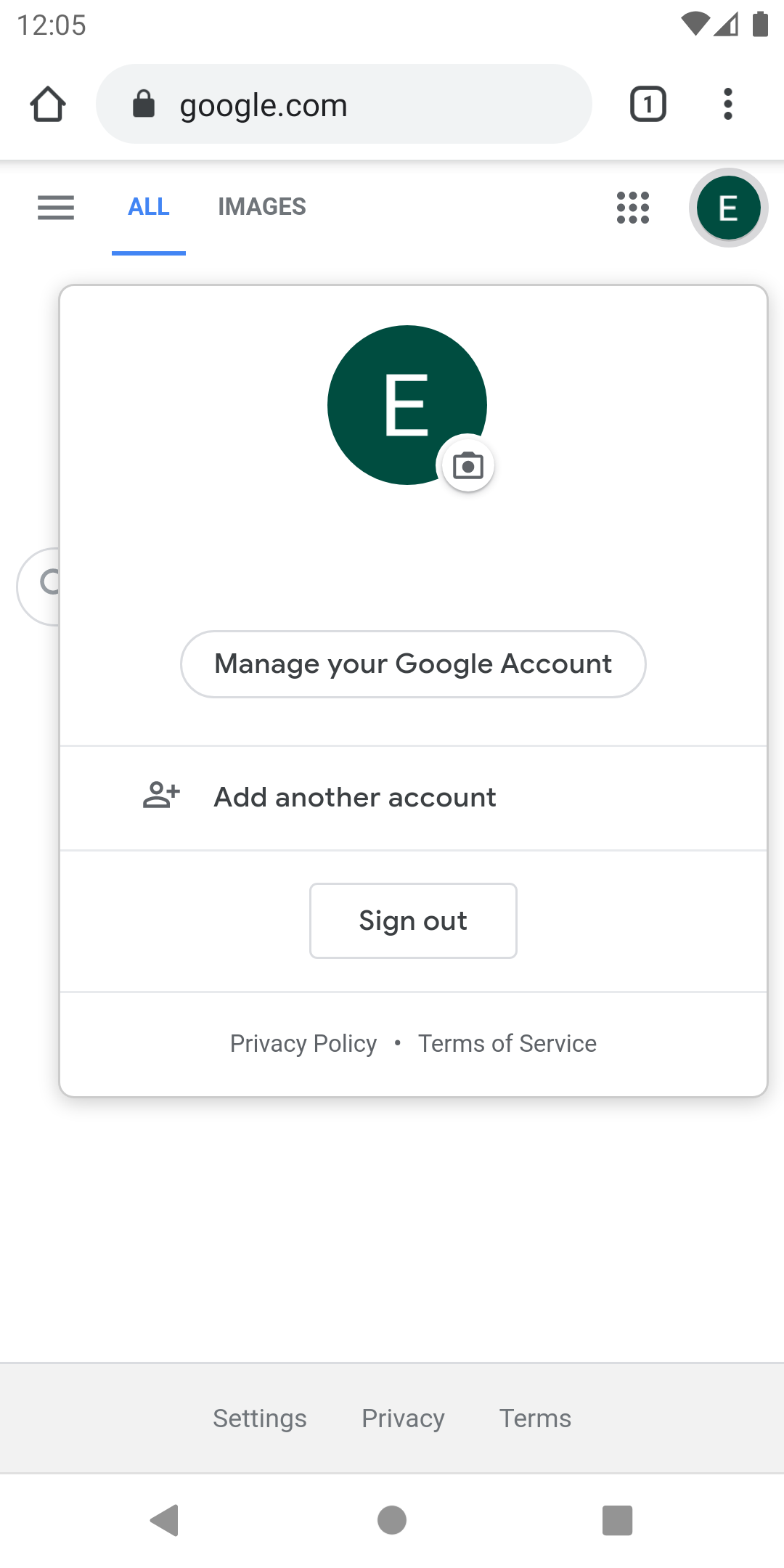
To sign out of a Google account on an Android phone, navigate to your device Settings, select Passwords & accounts (or Users & accounts), tap on the specific Google account you wish to disconnect, and then select Remove account. This process logs you out and stops data syncing on that specific device.
Understanding Google Account Integration on Android
On the Android operating system, signing out of a Google account functions differently than signing out of a typical website or social media application. Because Android is built by Google, your Google Account is deeply integrated into the system’s core architecture. It powers the Google Play Store, manages your contacts, backs up your photos, and facilitates system-level security through features like Find My Device.
When you "sign out" on an Android device, you are technically removing the account from the system. This action severs the link between the physical hardware and the Google cloud services. It is essential to understand that removing an account from your phone does not delete the account itself; your emails, files, and photos remain safely stored in Google’s cloud, accessible from any other computer or mobile device.
In 2026, Android versions have streamlined this process to ensure users have better control over their digital identity. Whether you are preparing to sell your device, switching to a new primary email, or simply troubleshooting a synchronization error, knowing the precise steps for account removal is a fundamental technical skill for any Android user.
Prerequisites Before Removing Your Account
Before proceeding with the logout process, there are several critical factors to consider. Failure to prepare can lead to data loss or security lockout issues, particularly on modern devices with advanced theft protection.
1. Verify Data Sync and Backup
When you remove a Google account, any data that has not yet been synced to the cloud will be lost from that specific device. This includes:
- Google Photos: Ensure all recent captures have the "Upload complete" checkmark.
- Contacts: Verify that new contacts are saved to your Google Account and not just the "Phone" storage.
- Calendar: Ensure all appointments are visible on the web version of Google Calendar.
- Keep Notes: Force a sync by opening the app while connected to Wi-Fi.
2. Understand Factory Reset Protection (FRP)
Since Android 5.1 and continuing into 2026, Google uses a security feature called Factory Reset Protection (FRP). If you intend to factory reset the phone after signing out, you must remove the Google account first. If you reset the phone through recovery mode while the account is still active, the phone will be locked to that specific Google account upon reboot, rendering it a "brick" for anyone who does not know your password.
3. Check for Work Profiles
If your Android phone is managed by an organization, you may have a "Work Profile." Removing a Google account associated with a work profile may require administrative permission or might delete the entire work container, including corporate apps like Slack or Microsoft Teams.

Step-by-Step Guide: How to Sign Out of Google on Android
The following steps are based on the standard Android 15 and Android 16 interfaces commonly found in 2026. While some manufacturers like Samsung (One UI) or Xiaomi (HyperOS) may rename specific menu items, the logic remains consistent.
Method 1: The System Settings Path (Primary Method)
- Access the Settings Menu: Swipe down from the top of your screen to open the notification shade and tap the Gear icon, or locate the "Settings" app in your app drawer.
- Locate Account Management: Scroll down until you find Passwords & accounts. On older devices or specific manufacturer skins, this may be labeled as Users & accounts, Accounts & sync, or simply Accounts.
- Select the Targeted Google Account: You will see a list of all accounts currently logged in (Google, Outlook, Facebook, etc.). Find the specific Gmail address you want to sign out of and tap on it.
- Initiate Removal: Tap the button labeled Remove account.
- Confirm the Action: A pop-up dialog will appear, warning you that "Removing this account will delete all of its messages, contacts, and other data from the phone." Tap Remove account again to confirm.
- Security Verification: If you have a screen lock (PIN, Pattern, or Biometrics), the device will ask you to verify your identity before finalizing the removal. This prevents unauthorized users from removing your account if they happen to have access to your unlocked phone.
Method 2: Signing Out via the Google App
If you find the system settings confusing, you can initiate the process through the Google app itself, though it will eventually redirect you to the system settings.
- Open the Google app or the Gmail app.
- Tap your Profile Picture in the top right corner.
- Tap the downward arrow next to your account name or select Manage accounts on this device.
- This will bring you to the same "Passwords & accounts" screen mentioned in Method 1. Follow the same steps to remove the account.
How to Sign Out of Google Remotely
There are scenarios where you might need to sign out of an Android phone that is no longer in your possession—perhaps it was lost, stolen, or you sold it and forgot to log out. Google provides a centralized security dashboard to handle this.
- On a computer or another smartphone, go to the Google Account Security page (myaccount.google.com).
- Navigate to the Security tab on the left-hand menu.
- Find the section labeled Your devices and select Manage all devices.
- Locate the specific Android phone from the list.
- Tap on the device and select Sign out.
- A confirmation window will appear; click Sign out again.
Note: This remote action does not remove the account from the phone's settings menu immediately if the phone is offline, but as soon as the device connects to the internet, it will be unauthorized, and Google services will stop working. This is a vital step for protecting your personal data from unauthorized access.
Signing Out vs. Using Incognito Mode
If your goal is not to permanently remove your account but simply to browse or use apps without saving history, "signing out" might be overkill. Google offers alternative states for temporary privacy.
| Feature | Action Result | Best Use Case |
|---|---|---|
| Remove Account | Completely disconnects the account and deletes local data. | Selling the phone or switching primary users. |
| Incognito Mode | Browsing/searching without saving history to the account. | Searching for sensitive info or gift shopping. |
| Guest Mode | Creates a temporary user profile on the Android OS. | Letting a friend borrow your phone for a few minutes. |
| Pause Sync | Keeps the account logged in but stops data updates. | Saving battery or limiting data usage. |
| Use Without Account | Available in apps like YouTube or Maps to browse anonymously. | Watching videos without affecting your recommendations. |
Troubleshooting Common Logout Issues
Occasionally, you may encounter resistance when trying to remove a Google account. Below are the most common obstacles and how to resolve them.
"Account is Required by an App"
Some system-level apps or carrier-branded security apps may "lock" the primary Google account to prevent theft. If you receive an error stating the account cannot be removed, check if "Find My Device" is currently active as a Device Administrator. Go to Settings > Security > Device admin apps and temporarily toggle off Find My Device. Remember to turn it back on for your new account later.
The "Remove Account" Button is Missing
In 2026, some enterprise-managed devices (COPE - Company Owned, Personally Enabled) restrict the ability to remove the primary work account. If the button is greyed out or missing, you must contact your company's IT department. They likely have a Mobile Device Management (MDM) profile installed that prevents account modification.
Sync Errors After Logging Back In
If you remove an account and then immediately re-add it (a common troubleshooting step for Gmail sync issues), the phone may take up to 30 minutes to re-index your data. Ensure you are on a stable Wi-Fi connection and that "Auto-sync data" is toggled ON in the Passwords & accounts menu.
Security Considerations for 2026
As of 2026, biometric passkeys have largely replaced traditional passwords for many Google users. When you sign out or remove an account from an Android device, the Passkey associated with that specific hardware is usually invalidated. If you plan to log back in later, ensure you have an alternative sign-in method available, such as a physical security key or a backup code, especially if the phone you are logging out of was your primary 2FA (Two-Factor Authentication) device.
Furthermore, if you are removing the account because you suspect the device is compromised, signing out is only the first step. You should also:
- Change your Google Account password from a known clean device.
- Revoke "App Passwords" associated with the Android phone.
- Check your "Recent Security Activity" in your Google Account settings for any unauthorized changes made before you logged out.
Frequently Asked Questions
Does signing out of Google on my phone sign me out on my computer too?
No. Removing a Google account from an Android phone only affects that specific device. Your sessions on laptops, tablets, or other smartphones remain active until you manually sign out of them or use the remote logout feature.
Will I lose my paid apps if I sign out?
Your app purchases are tied to your Google Account, not your phone's hardware. While you won't be able to update or download those apps on the phone once the account is removed, you will regain access to all of them as soon as you sign into that Google account on any Android device.
How do I sign out of just Gmail but keep the Play Store active?
Android does not allow you to sign out of Gmail while keeping other Google services active on the same account. However, you can disable Gmail notifications or stop syncing Gmail data. Go to Settings > Passwords & accounts > [Your Account] > Account sync and toggle off Gmail. This keeps the account on the phone but stops the mail app from updating.
What happens to my WhatsApp backups?
WhatsApp backups on Android are typically stored in Google Drive. If you remove the Google account, WhatsApp will no longer be able to create new backups. Before signing out, perform a final manual backup within WhatsApp settings and ensure you have the login credentials for the Google account to restore your chats on a new device.
Can I sign out using Google Assistant?
In 2026, Google Assistant (and Gemini-integrated AI) can navigate you to the settings page, but for security reasons, it cannot perform the final "Remove account" action via voice command. You must manually confirm the removal using your biometrics or PIN.
Practical Recommendation
If you are signing out because you are giving the phone to someone else, do not stop at just removing the Google account. Perform a Factory Data Reset after the account is removed. This ensures that all residual data, cached files, and third-party app logins are wiped clean. Conversely, if you are simply trying to fix a "Gmail not syncing" error, try clearing the cache of the Gmail app and the Google Play Services app before resorting to a full account removal, as re-syncing large amounts of data can be time-consuming.
Image Gallery
Select an image to open it in a new tab.




Vivian Cho
Executive IT and Emerging Technologies Reporter
