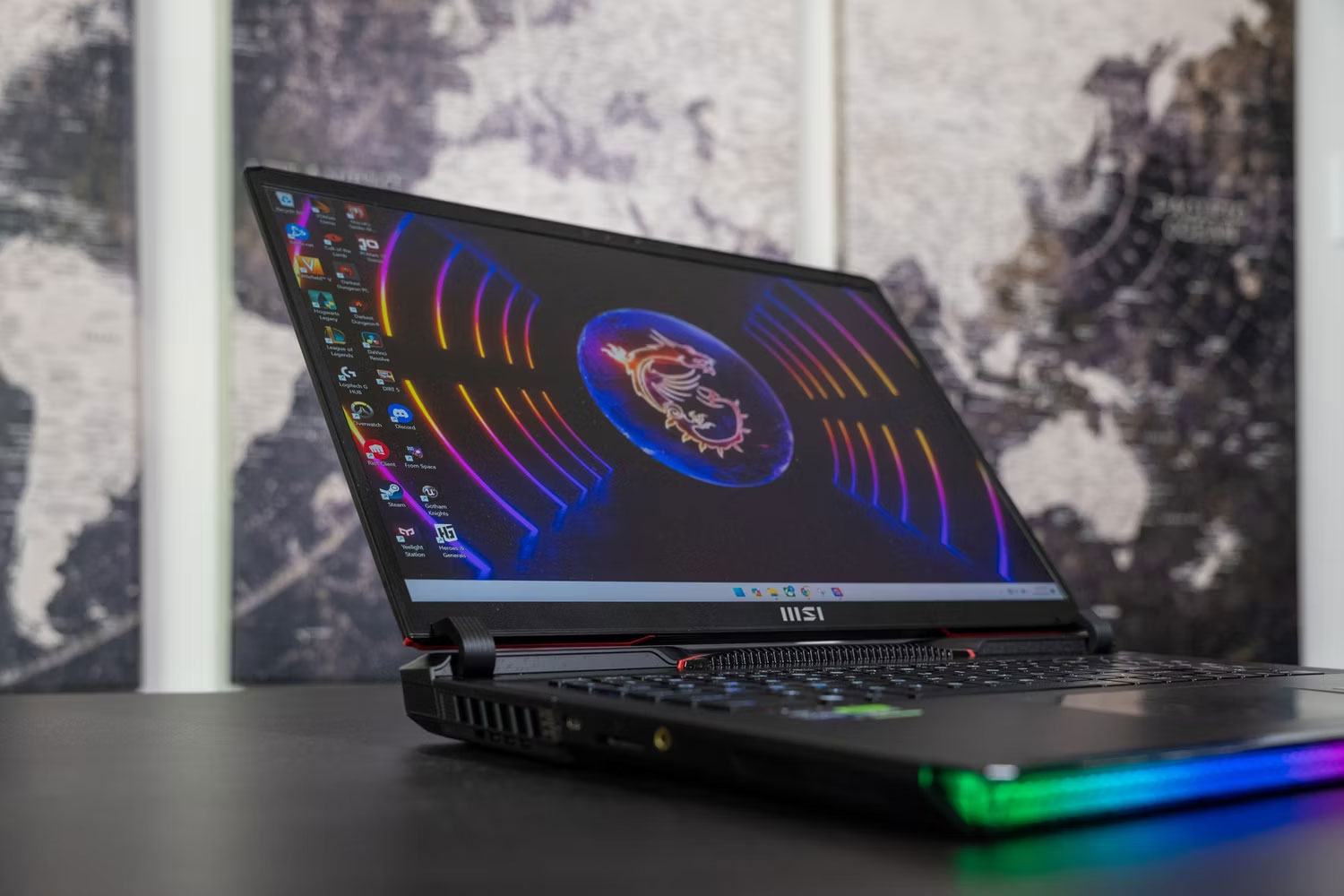
To play games on a laptop efficiently, you must balance thermal management, power delivery, and software optimization. Always connect to a dedicated power source, use a hard and flat surface to maximize airflow, enable Windows Game Mode, and utilize AI upscaling technologies like DLSS or FSR to maintain high frame rates without overtaxing your hardware.
Laptop gaming has evolved significantly by 2026, with mobile GPUs rivaling desktop performance in ways previously thought impossible. However, the fundamental laws of physics—specifically heat dissipation and power limits—remain the primary hurdles for any mobile gamer. Efficiency in this context is not just about raw speed; it is about achieving the smoothest possible gameplay while maintaining the longevity of your components and ensuring the system does not "throttle" (slow down to prevent damage from overheating).
Optimizing Physical Environment and Thermal Management
The most significant bottleneck for laptop gaming efficiency is heat. Unlike desktop towers with massive heatsinks and large-diameter fans, laptops must dissipate significant thermal energy through a chassis only a few centimeters thick. When internal components reach their thermal limit—usually around 90°C to 100°C for modern CPUs—the system automatically reduces clock speeds to cool down, causing sudden "stutters" or frame rate drops.
Elevation and Airflow
The simplest way to increase efficiency is to ensure the laptop can breathe. Most gaming laptops draw cool air from the bottom and exhaust hot air through the sides or rear. Placing a laptop on a bed, carpet, or sofa suffocates the intake fans, forcing them to spin faster (creating more noise) while failing to cool the system effectively. Always use a hard, flat surface. For maximum efficiency, use a laptop stand or a cooling pad to lift the rear of the device by even an inch. This significantly reduces the static pressure against the fans, allowing for higher airflow volumes.
Internal Cleaning and Maintenance
Over six months to a year, dust accumulates in the dense fin arrays of the heatsinks. This buildup acts as an insulator, trapping heat inside. Efficient gaming requires a clean path for air. Use a can of compressed air to blow out the vents every few months. If your laptop is several years old, the factory-applied thermal paste between the chips and the heatsink may have dried out. Replacing this with a high-quality thermal interface material (TIM) or a phase-change pad can result in a 5°C to 10°C drop in operating temperatures, allowing for higher sustained performance.
Power Management and Battery Health
Efficiency also refers to how the laptop handles its energy intake. Mobile components are designed with variable power envelopes; they behave differently depending on whether they are drawing power from a lithium-ion battery or a 240W+ AC adapter.
The Necessity of AC Power
Gaming on battery power is fundamentally inefficient for performance. To preserve battery life and prevent damage from high current draw, Windows and hardware manufacturers heavily limit the power supplied to the GPU and CPU when unplugged. This often cuts frame rates by 50% or more and introduces significant input lag. For an efficient session, always remain plugged into the wall. This allows the system to enter its "Max Performance" or "Turbo" profiles, where the cooling fans and silicon can operate at their intended design limits.
Battery Longevity Settings
If you primarily use your laptop as a stationary gaming machine while plugged in, keeping the battery at 100% charge at all times is actually inefficient for the battery's long-term health. Many modern laptops from manufacturers like ASUS, Lenovo, and Dell include a "Battery Conservation Mode" or "Battery Charge Limit" in their BIOS or control software. Setting this to 60% or 80% prevents the battery from sitting at high-voltage stress, ensuring that when you do need to take the laptop on the go, the battery hasn't degraded significantly.
Software and Operating System Optimization
Windows 11 (and the updates through 2026) has introduced several features specifically designed to make laptop gaming more efficient by prioritizing system resources for the active application.
Windows Game Mode and HAGS
Ensure that Game Mode is toggled 'On' in your system settings. This feature prevents Windows Update from installing driver updates or sending restart notifications while you are playing. More importantly, it allocates the majority of CPU cycles and RAM to the game process.
Additionally, Hardware-Accelerated GPU Scheduling (HAGS) should be enabled. This allows the graphics card to manage its own memory more effectively, reducing latency and freeing up the CPU to handle game logic and physics calculations.
Background Process Management
Efficiency is lost when a dozen "helper" apps are running in the system tray. Before launching a demanding title, close unnecessary browsers, communication tools, and cloud storage syncs. Tools like Discord or Spotify often have "Hardware Acceleration" enabled in their own settings; while this makes those apps smoother, it steals small amounts of GPU power that could otherwise go toward your game’s frame rate.
Optimizing Graphics Settings for Efficiency
The "Ultra" preset is often the most inefficient way to play. The visual difference between "High" and "Ultra" is frequently negligible, yet "Ultra" can require 30% more processing power.
Leveraging AI Upscaling (DLSS, FSR, and XeSS)
In 2026, AI-driven upscaling is the gold standard for efficiency. Technologies like NVIDIA DLSS (Deep Learning Super Sampling) or AMD FSR (FidelityFX Super Resolution) allow your laptop to render the game at a lower internal resolution (e.g., 1080p) and then use AI to upscale the image to your screen’s native resolution (e.g., 1440p). This reduces the workload on the GPU significantly, leading to lower temperatures, less fan noise, and much higher frame rates.
The Role of Frame Generation
If your laptop supports Frame Generation (available on NVIDIA RTX 40-series and newer, as well as AMD's equivalent), you can effectively double your perceived smoothness. By inserting AI-generated frames between traditionally rendered ones, the system provides a fluid experience without the massive power draw that "real" frames would require. However, keep in mind that this can introduce slight input latency, so it is best used in single-player titles rather than competitive shooters.
MUX Switch and Advanced Optimus
Many gaming laptops use an integrated GPU (iGPU) to handle the display, even when the powerful discrete GPU (dGPU) is doing the work. This "Optimus" routing creates a slight performance bottleneck. For maximum efficiency, check if your laptop has a MUX Switch or Advanced Optimus. Enabling the "dGPU Only" mode bypasses the integrated graphics entirely, sending the signal directly from the gaming card to the screen. This can increase performance by 5% to 15% and reduce system latency.
Comparative Performance Impact of Efficiency Tweaks
The following table illustrates the typical impact of various optimizations on a mid-range gaming laptop in 2026.
| Optimization Tweak | FPS Impact | Temperature Impact | Complexity |
|---|---|---|---|
| Plugging into AC Power | +100% to +150% | Moderate Increase | Very Low |
| Enabling DLSS/FSR (Quality) | +30% to +50% | Significant Decrease | Low |
| Using a Cooling Pad/Stand | +0% to +5% (sustained) | -5°C to -10°C | Low |
| Enabling MUX Switch | +5% to +15% | Negligible | Medium |
| Cleaning Fans/Vents | +0% to +10% (prevents throttling) | -10°C to -15°C | Medium |
| Undervolting CPU/GPU | +2% to +5% | -5°C to -8°C | High |
Network Efficiency for Online Play
For multiplayer games, efficiency is measured in milliseconds of latency (ping). Playing on Wi-Fi is inherently less efficient than using a physical connection due to signal interference and packet loss.
- Ethernet: If your laptop has a LAN port, use it. If not, a USB-C to Ethernet adapter is a worthy investment. A wired connection provides a stable "pipe" for data, reducing the "rubber-banding" effect in games.
- Wi-Fi 7 and 6GHz Bands: If you must use wireless, ensure you are connected to the 6GHz band of a Wi-Fi 6E or Wi-Fi 7 router. This band is less crowded than the traditional 2.4GHz or 5GHz bands, leading to more consistent performance.
- Router QoS: Enable "Quality of Service" (QoS) on your router to prioritize gaming packets over other network traffic like Netflix streaming or large file downloads in the household.
Advanced Tuning: Undervolting
For enthusiasts, undervolting is the pinnacle of efficiency. Manufacturers often ship chips with more voltage than they actually need to ensure stability across all units (the "silicon lottery"). By using tools like MSI Afterburner or Intel Extreme Tuning Utility (XTU), users can slightly lower the voltage supplied to the CPU or GPU.
When done correctly, this allows the components to run at the same clock speeds but with lower power consumption and significantly less heat. A cooler chip can stay at its "Boost" frequency longer without hitting thermal limits, providing a more consistent and efficient gaming experience. Note: Undervolting requires careful testing to ensure system stability.
Frequently Asked Questions
Does keeping my laptop plugged in all the time damage the battery?
No, modern laptops are designed to bypass the battery once it reaches 100% (or your set limit), running directly on AC power. To ensure long-term health, use the manufacturer’s battery conservation software to limit the maximum charge to 80% if you rarely use it on the go.
Why does my laptop feel slower after an hour of gaming?
This is likely due to thermal throttling. As the internal components heat up, the cooling system may struggle to keep up. Once a temperature threshold is hit, the hardware slows itself down to prevent physical damage, resulting in lower frame rates. Improving airflow or cleaning the fans usually resolves this.
Is it worth upgrading my RAM for better gaming efficiency?
If your laptop has 8GB or 16GB of RAM, upgrading to 32GB (especially DDR5 in 2026) can improve efficiency in modern "open-world" titles. It prevents the system from having to use the "page file" on your SSD, which is much slower than RAM and can cause micro-stutters.
Should I always use the "Turbo" or "Max" fan profile?
While these profiles provide the best cooling, they are not always the most efficient. They consume more power and create significant noise. For many games, the "Balanced" profile offers a better middle ground, only ramping up the fans when absolutely necessary.
Can I play games efficiently on a "thin and light" laptop?
Yes, but you must be more aggressive with settings. Use "Medium" graphics presets and rely heavily on AI upscaling (DLSS/FSR). Because thin laptops have less thermal mass, they hit their heat limits much faster than thick gaming "desktop replacements."
Final Recommendation for Efficient Laptop Gaming
The most effective way to play efficiently is to prioritize thermal headroom above all else. Start by ensuring your laptop is elevated on a hard surface and plugged into power. Use the NVIDIA or AMD control software to enable AI upscaling, and resist the urge to use "Ultra" settings unless your hardware comfortably supports it. By maintaining a target temperature below 85°C, you ensure that your laptop provides consistent performance throughout your gaming session without the frustration of thermal throttling or long-term hardware degradation.
Image Gallery
Select an image to open it in a new tab.
Vivian Cho
Executive IT and Emerging Technologies Reporter
