
Signing a PDF easily involves using built-in system tools like macOS Preview, the Microsoft Edge browser, or free software such as Adobe Acrobat Reader. Most modern devices allow you to create a signature via trackpad, camera, or touch screen, then drag-and-drop it directly onto the document electronically without the need for printing.
In the fast-paced digital environment of 2026, the traditional "print-sign-scan" workflow has become an obsolete relic. Whether you are finalizing a freelance contract, authorizing a mortgage application, or signing a simple school permission slip, knowing how to handle PDFs efficiently is a core digital literacy skill. While the task may seem daunting if you are unfamiliar with the software, the process has been streamlined across all major operating systems. This guide explores the most reliable, secure, and user-friendly methods to sign your documents in seconds.
Understanding the Difference: Electronic vs. Digital Signatures
Before selecting a method, it is crucial to distinguish between an electronic signature and a digital signature. While these terms are often used interchangeably in casual conversation, they represent different levels of security and legal verification.
Electronic Signatures (e-Signatures)
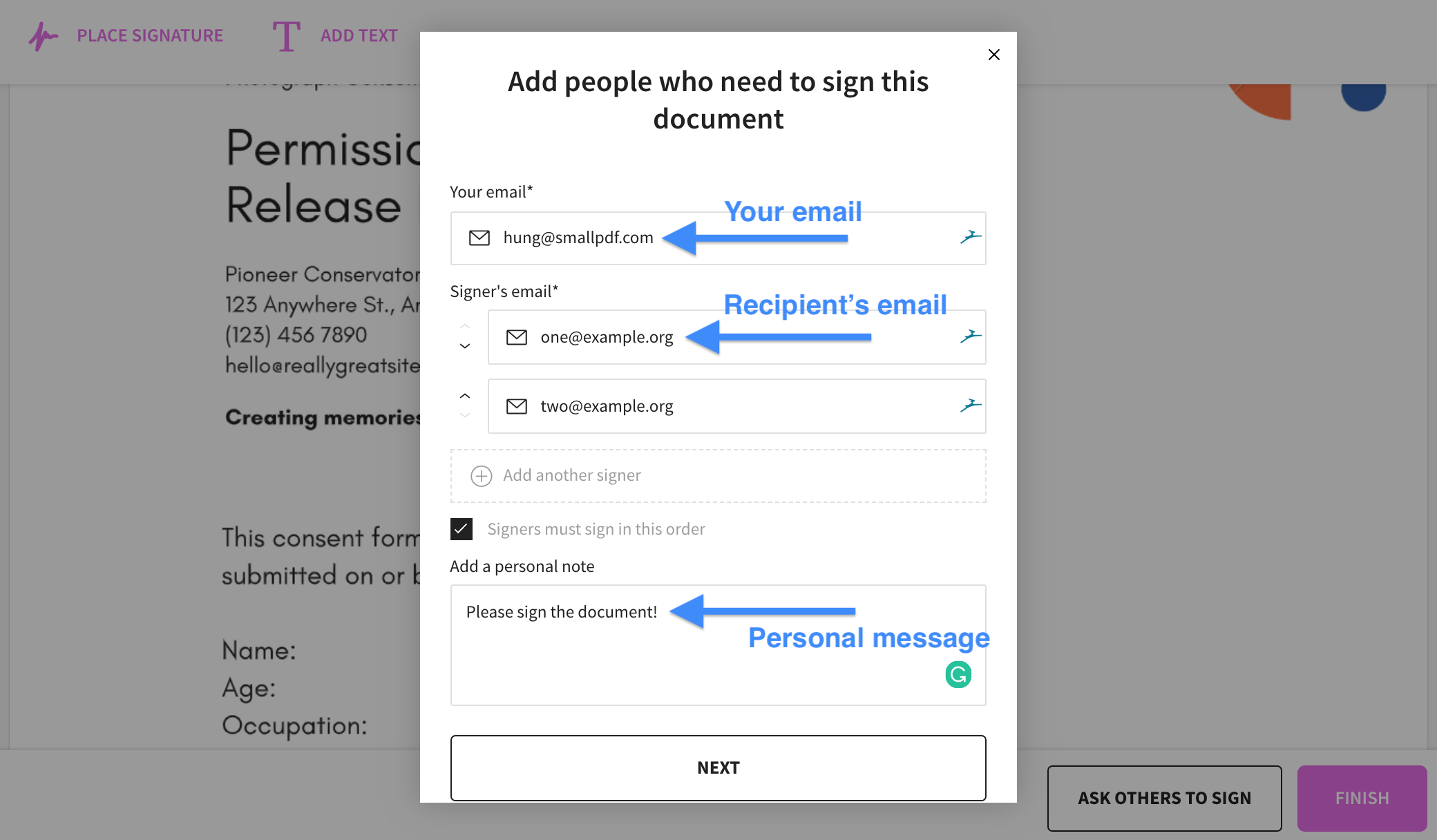
An electronic signature is the most common form used by individuals and small businesses. It is essentially a digital image of your handwritten signature placed on a document. It can be a typed name with a stylized font, a drawing made with a mouse or trackpad, or a photo of a physical signature. e-Signatures are generally legally binding for most everyday agreements, such as NDAs, offer letters, and service contracts.
Digital Signatures
A digital signature is a specific, high-security type of electronic signature. It uses Public Key Infrastructure (PKI) to associate a signer with a document through a certificate-based digital ID. This process "envelops" the document with encryption, making it nearly impossible to alter the text without the signature becoming invalid. Digital signatures are often required for high-stakes legal documents, government filings, and international trade agreements because they offer non-repudiation—meaning the signer cannot easily claim they didn't sign the document.
How to Sign a PDF on macOS Using Preview
For Apple users, macOS provides perhaps the most seamless integrated solution through the Preview app. You do not need to download any third-party software; the functionality is built directly into the operating system.
Creating Your Signature
- Open the PDF: Double-click your PDF file to open it in Preview.
- Access Markup Tools: Click the "Show Markup Toolbar" icon (it looks like a pen tip inside a circle) located near the top right of the window.
- Click the Sign Icon: Select the "Sign" button in the toolbar.
- Choose a Method:
- Trackpad: Use your finger to draw your signature directly on the trackpad. Press any key when finished.
- Camera: Sign your name on a white piece of paper. Hold it up to your Mac’s camera. Preview will recognize the ink and convert it into a digital signature.
- iPhone/iPad: If your devices are on the same iCloud account, you can select your mobile device. A signature window will appear on your iPhone screen, allowing you to use your finger or an Apple Pencil.
Placing the Signature
Once created, your signature is saved in the Preview library. Click the Sign icon again, select your signature, and it will appear as a movable box on the PDF. You can drag it to the signature line and resize it by pulling the corners of the box. Save the document (Command + S) to finalize the changes.
Signing PDFs on Windows: Edge and Adobe Reader
Windows users have two primary "easy" paths: using the native Microsoft Edge browser for quick tasks or the industry-standard Adobe Acrobat Reader for more formal requirements.
Using Microsoft Edge
Microsoft Edge has evolved into a robust PDF editor by 2026. This is the fastest method if you do not want to install new software.
- Open the PDF: Right-click the file and select "Open with" > "Microsoft Edge."
- Select the Draw Tool: In the top menu bar, click the "Draw" icon (the pencil).
- Sign the Document: Use your mouse or a stylus (if using a surface device) to write your signature directly on the line.
- Save: Click the "Save" icon in the top right. Note that this method creates a flattened image of your drawing, which is a basic electronic signature.
Using Adobe Acrobat Reader (Free Version)
For a more professional look, Adobe Acrobat Reader remains the gold standard. While the full "Pro" suite requires a subscription, the "Fill & Sign" feature is free.
- Open the File: Open your PDF in Adobe Reader.
- Fill & Sign: In the right-hand pane, click "Fill & Sign."
- Add Signature: Click "Sign Yourself" at the top of the document view.
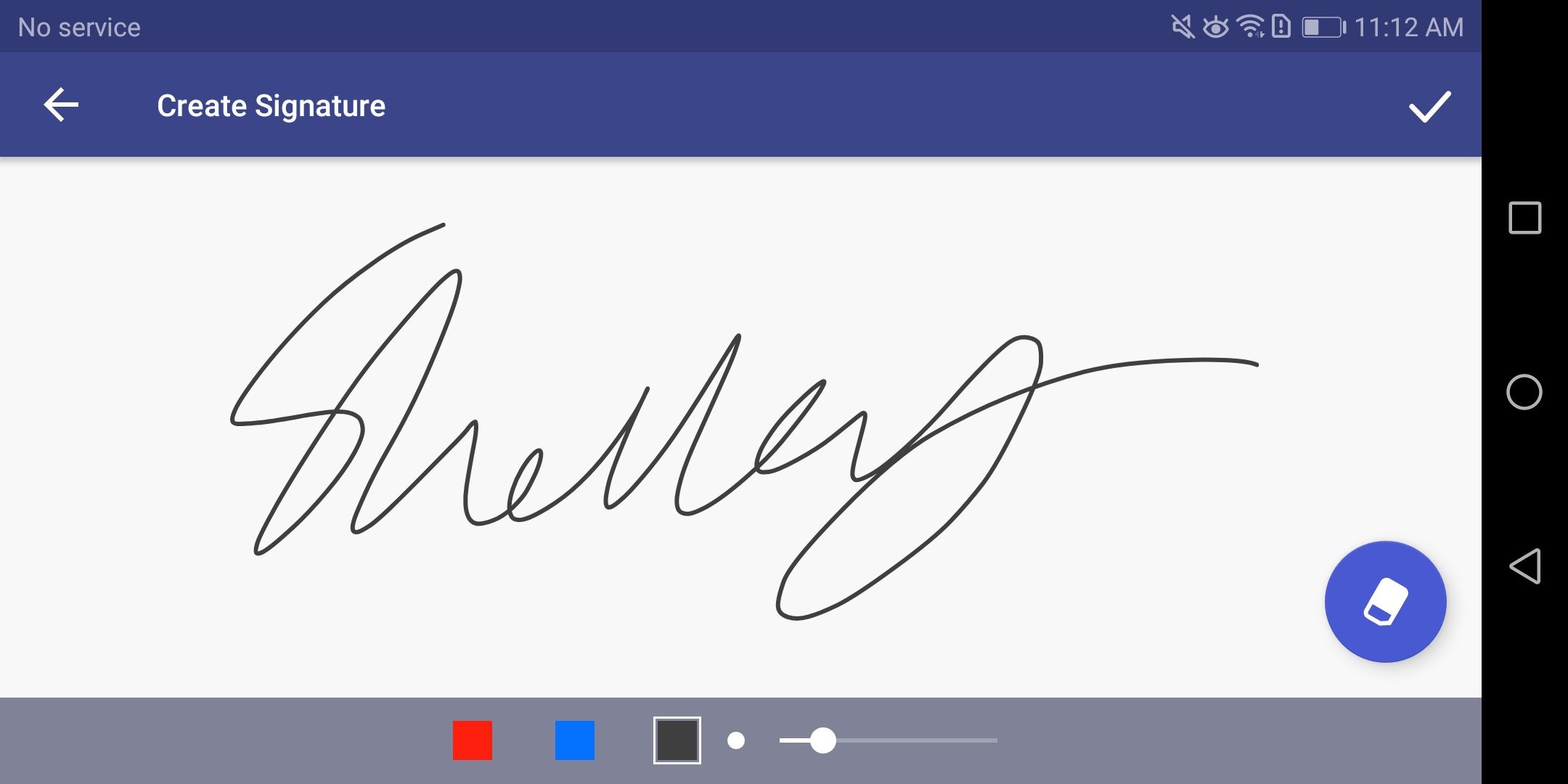
- Create Signature: You can type your name (Adobe provides several cursive fonts), draw it, or upload an image file of your physical signature.
- Apply: Click "Apply" and then click the area of the document where the signature belongs. Adobe allows you to adjust the size and color (usually black or blue) to match the document's aesthetic.
Mobile Solutions: Signing on the Go
In 2026, mobile devices are often the preferred tool for signing because touchscreens naturally mimic the act of writing with a pen.
iOS (iPhone and iPad)
Apple’s Markup tool is available within the Files app and the Mail app.
- From Files: Open the PDF, tap the pen icon in the corner, tap the "+" button, and select "Signature." You can add a new signature or use one synced from your Mac.
- From Mail: If someone emails you a PDF, tap the attachment, then tap the Markup icon. This allows you to sign and reply to the email in one fluid motion.
Android
Android users typically rely on the Google Drive app or Adobe Fill & Sign.
- Google Drive: Open the PDF in the Drive app. Tap the "Edit" (pencil) icon. Select the "Annotate" tool to draw your signature.
- Adobe Fill & Sign: This dedicated app is highly recommended for Android users who handle many documents. It allows you to create a profile with your signature and initials, which you can then "stamp" onto any PDF with a single tap.
Security and Legal Validity
When signing a PDF easily, it is important not to sacrifice security for speed. In the United States, the Electronic Signatures in Global and National Commerce (ESIGN) Act and the Uniform Electronic Transactions Act (UETA) establish that electronic signatures have the same legal weight as paper ones. Similarly, in the European Union, the eIDAS Regulation governs electronic identification and trust services.
Key Considerations for Security
- Avoid Public Online Editors: Be cautious with "free" online PDF editors that require you to upload your document to their servers. Unless they have a clear, encrypted privacy policy, your sensitive information (and your signature) could be stored on their backend.
- Flatten the Document: After signing, it is often best to "flatten" the PDF or print it to a new PDF. This prevents other people from easily moving or deleting your signature image.
- Audit Trails: Professional tools like DocuSign or Adobe Acrobat Sign provide an "Audit Trail," which logs the IP address, timestamp, and email of the signer. This is vital for high-value contracts.
Comparison of PDF Signing Methods
| Method | Platform | Best For | Security Level | Cost |
|---|---|---|---|---|
| macOS Preview | Mac | Personal & Business | Moderate | Free (Built-in) |
| Microsoft Edge | Windows | Quick, casual signing | Basic | Free (Built-in) |
| Adobe Reader | Windows/Mac | Professional forms | High (Digital ID support) | Free |
| iOS Markup | iPhone/iPad | On-the-go signatures | Moderate | Free (Built-in) |
| Online Tools | Web Browser | One-off use | Variable (Privacy Risk) | Free / Subscription |
| Dedicated eSign | All Platforms | Legal contracts/Real Estate | Very High | Paid |
Troubleshooting Common Issues
The PDF is Password Protected
If a PDF is "read-only" or password-protected, you may not be able to add a signature. You will need to obtain the "Permissions Password" from the document owner or have them send a version with editing enabled.
The Signature Looks Blurry
If you are uploading a photo of your signature, ensure it is taken in high resolution under bright, natural light. Most modern apps use AI to remove the white background of the paper, but a shadowy or blurry photo will result in a "boxy" or unprofessional look.
The Document Won't Save
This often happens when signing PDFs directly within a web browser's preview mode (like the Gmail preview). Always download the file to your local drive before signing to ensure the changes are permanent.
Frequently Asked Questions
Is a typed signature legally binding?
Yes, in most jurisdictions, a typed signature is legally binding as long as there is clear "intent to sign." When you type your name into a designated signature field in a program like Adobe or DocuSign, you are legally manifesting your agreement to the terms, just as you would with ink.
Can I remove a signature after saving a PDF?
It depends on how the PDF was saved. If the document was "flattened," the signature becomes part of the image layer and cannot be easily removed without professional editing software. If it was saved as a standard PDF, you can usually click the signature and hit "Delete"—provided you are the one who added it and the file isn't locked.
Do I need to buy Adobe Pro to sign a PDF?
No. While Adobe heavily promotes its "Pro" subscription, the basic "Fill & Sign" capabilities are included in the free version of Adobe Acrobat Reader. For simple electronic signatures, the free version is more than sufficient.
How do I sign a PDF that is not a fillable form?
Most people assume they can only sign "interactive" PDFs with blue boxes. However, the tools mentioned in this guide (Preview, Edge, and Adobe Fill & Sign) allow you to place a signature anywhere on the page, regardless of whether the creator of the document added a formal signature field.
What is the safest way to sign a sensitive document?
For sensitive documents, use a local application (like macOS Preview or Adobe Reader) rather than an online web-tool. This ensures your document never leaves your computer until you are ready to send the signed version. For maximum security, use a digital signature with a certificate rather than a simple electronic one.
Final Recommendation
For the majority of users in 2026, the easiest and safest way to sign a PDF is to use the tools already on your computer. If you are on a Mac, use Preview. If you are on Windows, use Adobe Acrobat Reader. These methods keep your data local, provide a professional appearance, and are completely free. If you find yourself signing dozens of documents a week, consider using a mobile tablet with a stylus, as it provides the most natural experience and produces the cleanest results. Once your signature is placed, always remember to save a copy for your own records before emailing it back to the recipient.
Image Gallery
Select an image to open it in a new tab.


Mateo Castillo
Decentralized Finance and E-Payments Strategist
