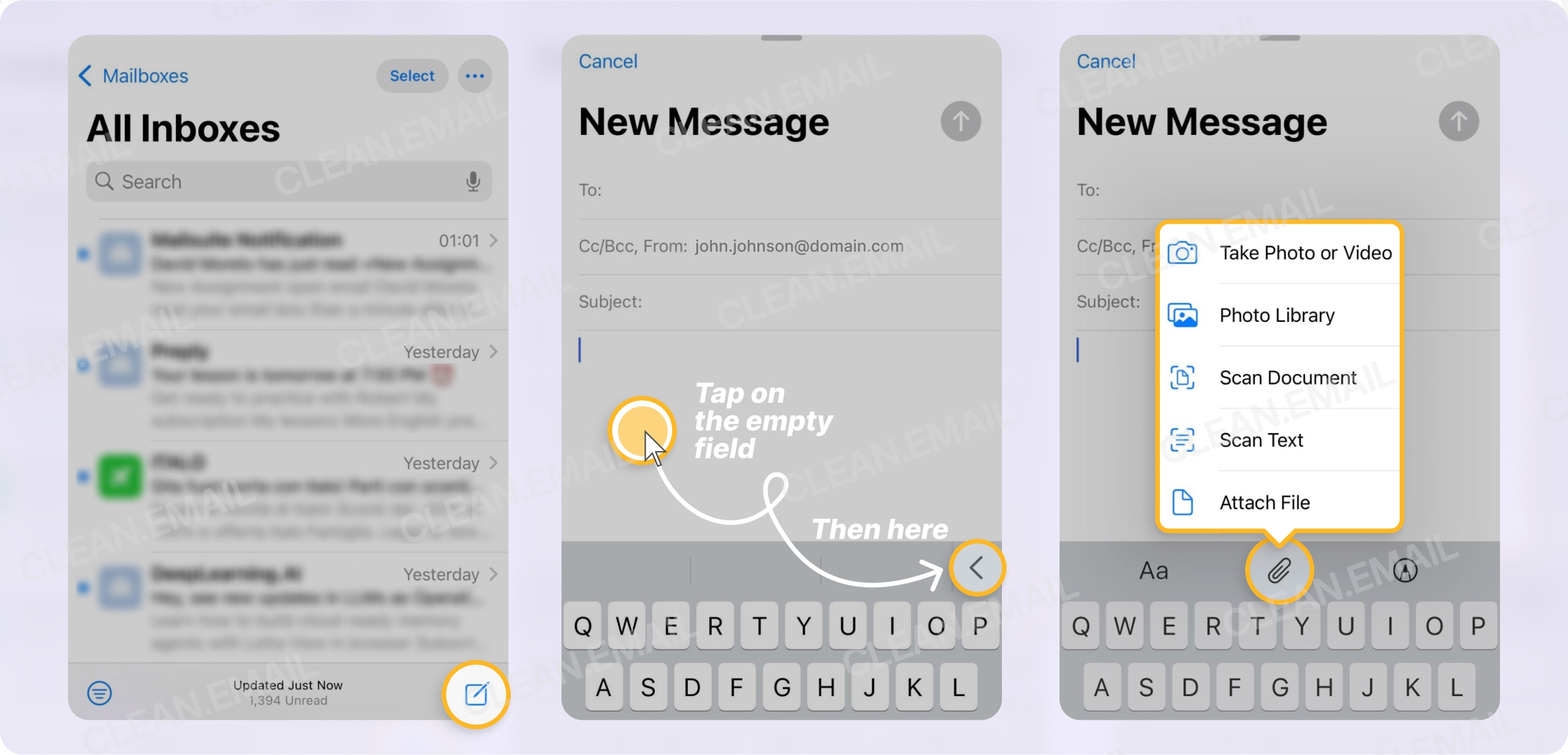
To set up your Verizon email on an iPhone, open the Settings app, navigate to Mail, then Accounts, and select Add Account. Choose AOL as the provider, as Verizon transitioned its email infrastructure to AOL (now part of Yahoo Inc.). Log in with your @verizon.net address and your password or a generated App-Specific Password.
Setting up an email account on a mobile device is often a straightforward process, but for Verizon customers, the situation is slightly more complex due to historical shifts in the company’s service offerings. Since Verizon officially exited the email hosting business years ago, all legacy @verizon.net accounts are now hosted on the AOL or Yahoo Mail platforms. In 2026, these accounts remain fully functional for long-time users, but they require specific configuration steps to ensure seamless synchronization with the Apple iOS ecosystem.
Understanding the Verizon and AOL/Yahoo Relationship
Before proceeding with the technical setup, it is essential to understand the current state of Verizon email. Verizon ceased offering new email addresses to customers in 2017. Users were given the option to either migrate their existing @verizon.net email address to AOL or move it to a different third-party provider. Because AOL and Yahoo are now under the same parent organization (Yahoo Inc.), the infrastructure supporting Verizon email is identical to that of an AOL or Yahoo account.
When you attempt to add your Verizon account to an iPhone, you will rarely see a "Verizon" button in the mail provider list. Instead, you must treat the account as an AOL account. This ensures that the iPhone uses the correct IMAP (Internet Message Access Protocol) settings to sync your inbox, sent folders, and drafts across all your devices.
Why IMAP is Preferred Over POP3
During the setup process, you may encounter references to IMAP and POP3. For modern iPhone users in 2026, IMAP is the standard and recommended protocol.
- IMAP: This protocol leaves the original email on the server and simply mirrors it on your iPhone. If you delete an email on your phone, it is deleted on the server and your computer. This is ideal for users who access email from multiple devices.
- POP3: This protocol downloads the email to your device and often deletes it from the server. This can lead to fragmented inboxes where some emails are on your computer but not on your phone.
Using the "AOL" preset on the iPhone automatically configures the account using IMAP, which is the most reliable way to manage your communications.
Prerequisites for a Successful Setup
To ensure the setup process goes smoothly, verify that you have the following information ready:
- Full Email Address: Your complete
@verizon.netaddress. - Account Password: Your current AOL/Verizon webmail password.
- App-Specific Password: This is the most common point of failure. Because modern security standards require Two-Factor Authentication (2FA), the standard iOS Mail app sometimes cannot log in using your regular password. You may need to generate a unique 16-character code from the AOL/Yahoo security portal.
- Stable Internet Connection: A reliable Wi-Fi or cellular connection is required to verify account credentials with the server.
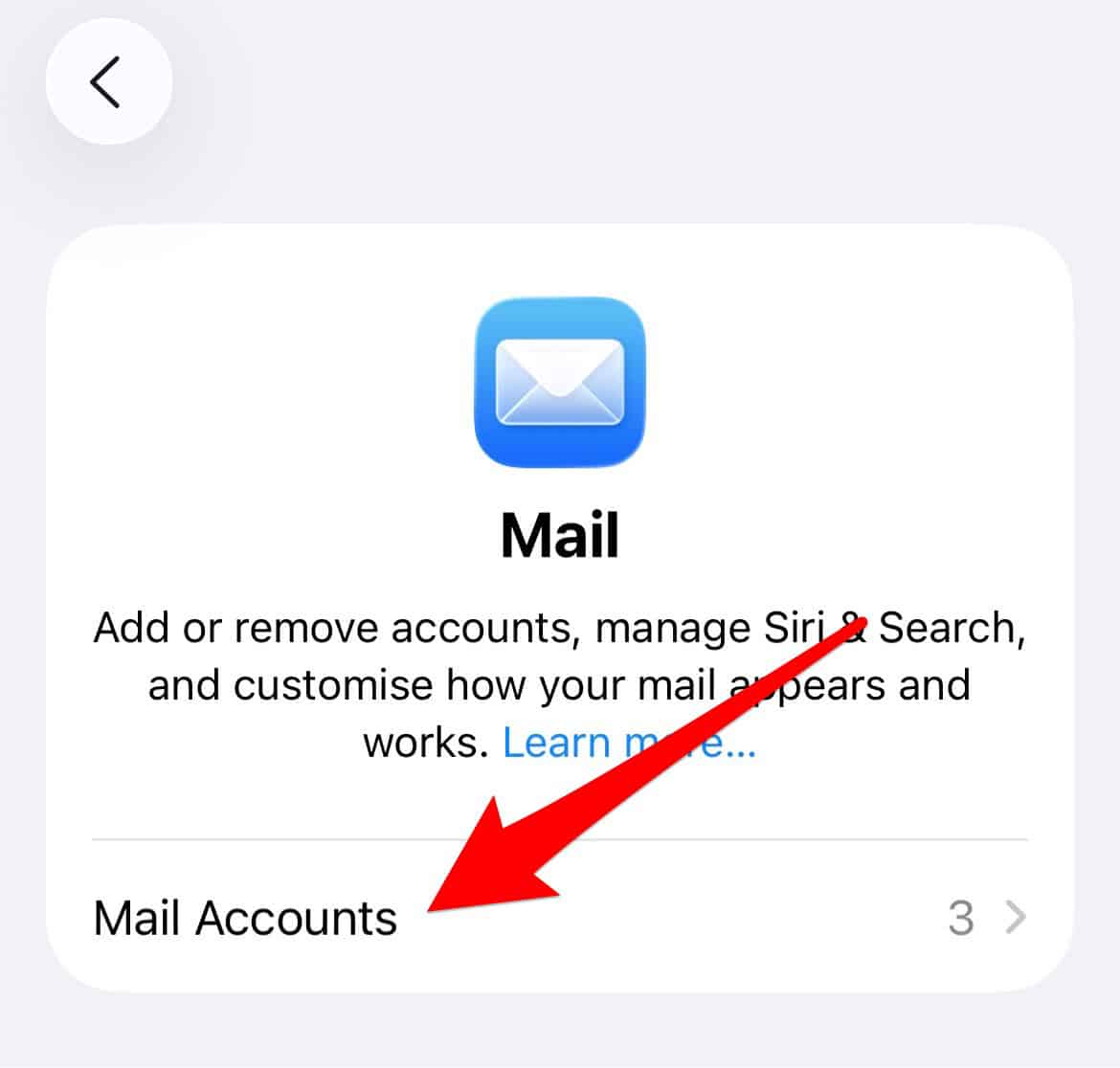
Step-by-Step Guide: Automatic Setup (Recommended)
The most efficient way to set up Verizon email on an iPhone is through the "AOL" provider preset. This method automatically populates the necessary server addresses and port numbers.
- Open Settings: Launch the Settings app on your iPhone.
- Navigate to Mail: Scroll down and tap on Mail.
- Access Accounts: Tap on Accounts, then select Add Account.
- Select AOL: From the list of providers (iCloud, Microsoft Exchange, Google, etc.), select AOL. Even though your email ends in
@verizon.net, this is the correct gateway. - Enter Credentials: A sign-in window will appear. Enter your full Verizon email address and tap Next.
- Password Entry: Enter your password. If you have 2FA enabled on your AOL/Verizon account, you will be prompted to enter a verification code sent to your phone or backup email.
- Select Sync Options: Once verified, you can choose which data to sync. Options typically include Mail, Contacts, Calendars, and Notes. Most users enable Mail and Notes.
- Save: Tap Save in the top right corner. Your account is now added to the iOS Mail app.
Generating an App-Specific Password
If the automatic setup fails or repeatedly tells you that your password is incorrect (even when you know it is right), you likely need an App-Specific Password. Yahoo and AOL transitioned to this security model to protect accounts from third-party apps that do not support modern OAuth login screens.
To generate this password:
- Go to the AOL Help or My Account page on a web browser.
- Log in with your Verizon credentials.
- Navigate to Account Security.
- Look for the section labeled Generate app password or Manage app passwords.
- Select "iPhone Mail" from the dropdown list and click Generate.
- A 16-character code will appear. Copy this code.
- Return to your iPhone's Mail setup and paste this code into the password field instead of your regular account password.
Manual Configuration (The "Other" Method)
In some instances, the automatic AOL preset might not work due to specific legacy account configurations. In this case, you must enter the server settings manually.
- Go to Settings > Mail > Accounts > Add Account.
- Select Other (at the bottom of the list).
- Tap Add Mail Account.
- Enter your Name, Email (
@verizon.net), Password, and a Description (e.g., "Verizon Mail"). - On the next screen, ensure IMAP is selected at the top.
- Enter the following server details:
Incoming Mail Server (IMAP)
- Host Name:
imap.aol.com - User Name: Your full email address (including @verizon.net)
- Password: Your password or App-Specific Password
Outgoing Mail Server (SMTP)
- Host Name:
smtp.aol.com - User Name: Your full email address
- Password: Your password or App-Specific Password
| Setting | Incoming Server (IMAP) | Outgoing Server (SMTP) |
|---|---|---|
| Server Address | imap.aol.com | smtp.aol.com |
| Port | 993 | 465 (or 587) |
| Requires SSL | Yes | Yes |
| Authentication | Yes | Yes |
After entering these details, the iPhone will "Verify" the settings. This may take a minute. If successful, you will see blue checkmarks next to each line.
Troubleshooting Common Verizon Email Issues
Even with the correct settings, users may encounter hurdles. Here are the most common issues and how to resolve them in 2026.
The "Cannot Get Mail" Error
This is usually a connection or authentication timing issue. First, check your internet connection. If the connection is stable, try deleting the account from your iPhone and re-adding it. This refreshes the security token between the device and the AOL servers.
Emails Not Syncing Correctly
If you can see new emails but cannot delete them, or if deleted emails keep reappearing, check your IMAP Path Prefix.
- Go to Settings > Mail > Accounts.
- Tap on your Verizon account.
- Tap the Account (Email address) again to see the advanced settings.
- Scroll to the bottom and tap Advanced.
- Ensure the IMAP Path Prefix is blank or set correctly according to AOL's current technical documentation.
Outgoing Mail Stuck in Outbox
If you can receive mail but cannot send it, the issue lies with the SMTP settings. Many users forget that the outgoing server also requires a username and password. Ensure that "Authentication" is set to "Password" in the SMTP settings and that your credentials are filled in, even if the iPhone says they are optional.
Security Best Practices for 2026
When managing a legacy email account like a Verizon address, security is paramount. Since these accounts have often been active for over a decade, they are frequent targets for phishing and credential stuffing attacks.
- Enable Two-Step Verification: Always enable 2FA through the AOL/Yahoo security portal. This adds a layer of protection that prevents unauthorized access even if your password is stolen.
- Use the Official AOL App: While the iOS Mail app is convenient, using the official AOL app from the App Store can sometimes provide a more stable experience. It handles security updates and folder management natively without requiring manual IMAP configuration.
- Regularly Update iOS: Apple frequently releases security patches for the Mail app. Ensure your iPhone is running the latest version of iOS to maintain compatibility with Yahoo/AOL’s evolving security protocols.
Comparison: iOS Mail App vs. AOL Official App
Deciding how to access your Verizon mail depends on your workflow. Below is a comparison to help you choose.
| Feature | iOS Mail App | AOL Official App |
|---|---|---|
| Integration | Deeply integrated with iOS sharesheets and Siri. | Limited to the app environment. |
| Setup Difficulty | Moderate (may require App-Specific Password). | Easy (standard login). |
| Push Notifications | Supported for most accounts. | Highly reliable and instant. |
| Unified Inbox | Can view Verizon, Gmail, and iCloud together. | Limited to AOL/Yahoo/Verizon accounts. |
| Advertising | Ad-free interface. | May contain sponsored content/ads. |
Frequently Asked Questions
Do I use Verizon or AOL settings for my @verizon.net email?
You must use AOL settings. Verizon migrated all its email customers to the AOL platform years ago. While your email address still ends in @verizon.net, the servers that process your data are owned and operated by AOL (Yahoo Inc.). Choosing the "AOL" option during setup is the most reliable way to connect.
Why does my iPhone say my Verizon password is incorrect?
This is usually due to the lack of an App-Specific Password. If you have Two-Factor Authentication enabled on your account, the native iPhone Mail app cannot always trigger the 2FA prompt. Generating a unique 16-character password from your AOL account security settings will typically bypass this error.
Can I still get a new @verizon.net email address?
No. Verizon stopped issuing new email addresses in 2017. If you are a new Verizon Fios or Wireless customer, you are encouraged to use a third-party provider like Gmail, Outlook, or iCloud. Existing users can keep their addresses indefinitely as long as they migrated to the AOL platform during the transition period.
What is the difference between IMAP and POP for Verizon email?
IMAP is the modern standard that synchronizes your email across all devices, meaning changes made on your iPhone are reflected on your computer. POP (Post Office Protocol) downloads emails to a single device and often removes them from the server, which is generally not recommended for users with multiple devices.
How do I update my Verizon email password on my iPhone?
To update your password, go to Settings > Mail > Accounts, select your Verizon account, and tap on Account. You can then update the password field. If you are using an App-Specific Password, you will need to generate a new one on the AOL website and enter that instead.
Final Recommendation
For most users, the automatic AOL setup method is the best path forward. It balances ease of use with the robust features of the iOS Mail app. If you encounter persistent authentication errors, the immediate next step should be generating an App-Specific Password. If your email needs are strictly professional or you require features like instant "Push" notifications that sometimes lag on third-party IMAP setups, consider downloading the standalone AOL app from the App Store as a secondary or primary interface for your @verizon.net communications.
Image Gallery
Select an image to open it in a new tab.

Lars Thomsen
Global Labor Markets and Economic Strategy Editor
