
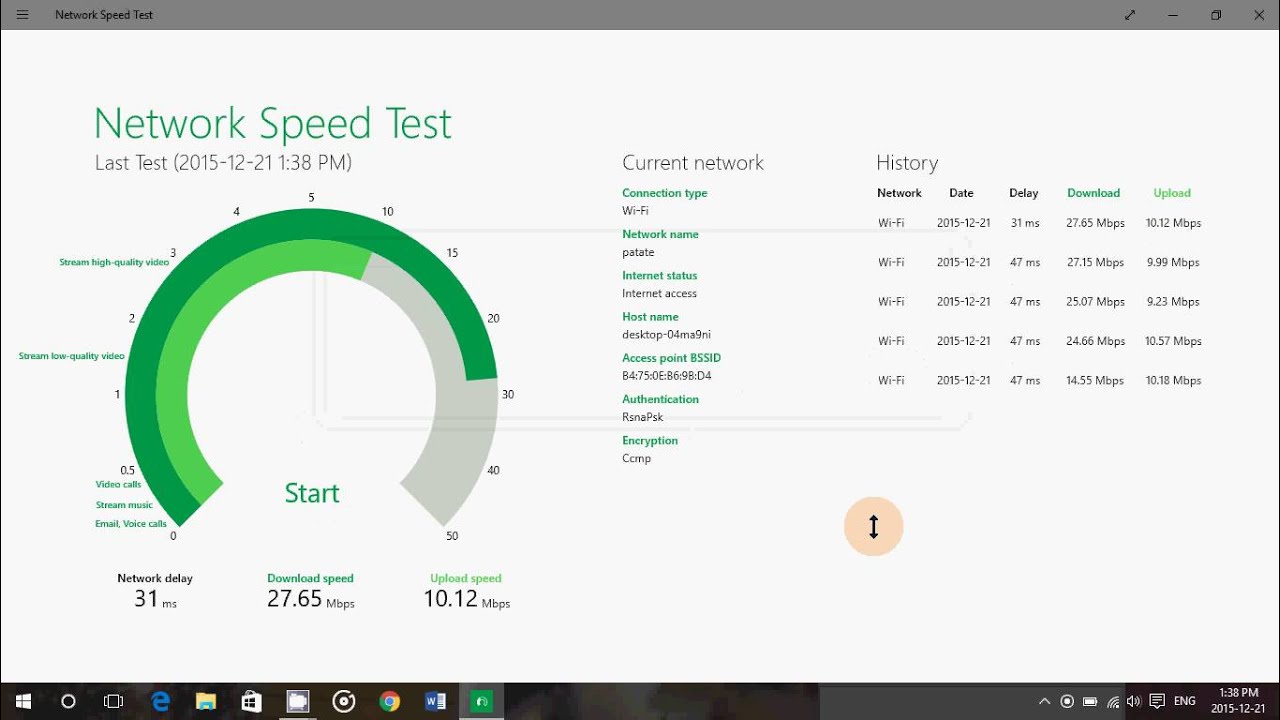
Checking your internet speed on a PC involves running a diagnostic test that measures the data transfer rate between your computer and a remote server. By evaluating your download speed, upload speed, and latency, you can determine if your current connection meets the performance standards promised by your Internet Service Provider (ISP) and whether your hardware configuration is supporting those speeds effectively.
Understanding the Metrics of Connectivity
Before initiating a test, it is essential to understand the three primary metrics that define your connection quality. These measurements provide a snapshot of how your network interacts with the digital world.
- Download Speed: Measured in Megabits per second (Mbps) or Gigabits per second (Gbps), this represents the rate at which data is transferred from the internet to your PC. High download speeds are crucial for streaming 4K video, downloading large files, and loading web pages quickly.
- Upload Speed: This represents how quickly your PC sends data to the internet. This metric is increasingly important for video conferencing, cloud storage synchronization, and uploading content to streaming platforms or social media.
- Latency (Ping): Measured in milliseconds (ms), latency is the time it takes for a request to travel from your computer to a server and back. Lower latency is vital for real-time applications like online gaming or VoIP calls. High latency often results in "lag," where inputs feel delayed or sluggish.
Preparing Your PC for an Accurate Test
To ensure the data you receive is accurate, you must minimize variables that could artificially suppress your results. Many users perform tests while background processes are consuming bandwidth, leading to a misleadingly low score.
- Close Background Applications: Modern operating systems run dozens of background tasks. Shut down applications that consume significant data, such as cloud backup services (e.g., OneDrive, Dropbox), video streaming apps, game launchers (like Steam or Epic Games), and peer-to-peer software.
- Disconnect Other Devices: If you are on a shared network, devices like smart TVs, smartphones, and tablets may be using bandwidth simultaneously. For the most precise baseline, perform the test on a single device or disconnect other units from the Wi-Fi.
- Use a Wired Connection: Wi-Fi is subject to environmental interference from walls, other electronic devices, and signal congestion. Connecting your PC directly to your router or modem via an Ethernet cable (Cat 5e or higher is recommended for speeds above 100 Mbps) eliminates wireless instability and provides the most accurate measurement of the speed coming directly into your home.
- Select a Browser: Use a standard, up-to-date web browser. Ensure that browser extensions, particularly VPNs or proxy services, are disabled, as these significantly encrypt and route your traffic through secondary servers, which inherently slows down the connection and results in inaccurate data.
How to Execute a Speed Test
Most internet speed tests are browser-based, utilizing HTML5 technology to interact with servers globally. You do not need to install software for a standard assessment.
- Navigate to a Reliable Testing Service: Several reputable platforms are widely recognized for their server infrastructure and neutrality. Examples include Ookla’s Speedtest.net, Fast.com (run by Netflix), and the Google Fiber Speed Test.
- Initiate the Test: Click the "Go" or "Start" button on the web page. The site will automatically detect your nearest server. For better accuracy, ensure the server location is geographically close to your actual physical location.
- Observe the Sequence: The test typically proceeds in a sequence: first testing latency (ping) and jitter, then download speed, and finally upload speed.
- Interpreting the Results: Compare your findings against the plan you are currently paying for. Note that ISPs often advertise "up to" speeds, meaning you may rarely hit the theoretical maximum during peak usage hours in your neighborhood.
Comparison of Popular Testing Methodologies
| Feature | Speedtest (Ookla) | Fast.com (Netflix) | Google Fiber Test |
|---|---|---|---|
| Focus | Comprehensive metrics | Video streaming stability | General connectivity |
| Server Selection | Manual/Automatic | Automatic | Automatic |
| Ad-supported | Yes | No | No |
| Advanced Data | Jitter, packet loss | Minimal info | Latency and speed |
Troubleshooting Poor Results
If your results are consistently lower than your ISP’s claims, consider the following technical variables before contacting your provider.
- Router Positioning: If using Wi-Fi, ensure your router is in an open space, away from large metal objects, thick concrete walls, or other electronics that operate on the 2.4GHz frequency, such as microwaves or cordless phones.
- Firmware Updates: Outdated router firmware can cause performance bottlenecks. Check your router manufacturer’s support website to see if a newer firmware version is available for your hardware model.
- Hardware Limitations: Even if your internet plan offers 1 Gbps, your PC’s network interface card (NIC) might be capped, or your router may have older hardware that cannot handle high-speed traffic. Check your PC's Device Manager to confirm your network adapter supports current standards.
- ISP Traffic Shaping: Some service providers use "traffic shaping" during peak hours to manage network congestion, which might throttle specific types of traffic. If you notice speeds drop only at specific times, this may be the cause.
The Role of VPNs and Proxies
It is a common misconception that a VPN provides a "boost" to internet speeds. In reality, a VPN adds a layer of encryption and routes your traffic through an intermediary server. Because this adds distance and computational overhead, your internet speed will almost always be lower when a VPN is active. If you are conducting a speed test to troubleshoot a connection issue, always turn off your VPN first. If you leave it on, you are testing the speed of the VPN server, not the speed of your ISP connection.
Frequently Asked Questions
1. Why does my Wi-Fi speed differ from my Ethernet speed? Wi-Fi signals suffer from signal attenuation and interference. Ethernet cables provide a dedicated, shielded path for data, ensuring minimal packet loss and maximum throughput. Wireless signals are also subject to "channel congestion" if many neighbors are using the same Wi-Fi frequencies.
2. What is "Jitter" in a speed test result? Jitter is the variance in latency over time. If your ping jumps between 20ms and 100ms, you have high jitter. This is often more detrimental to real-time applications like gaming or voice calls than a high but stable ping, as it causes inconsistent delivery of data packets.
3. Does the time of day matter? Yes. In many residential areas, bandwidth is shared at the ISP node. During peak hours (typically between 7:00 PM and 11:00 PM), local network congestion often causes temporary slowdowns. Testing at different times of the day can help you determine if your speed issue is constant or tied to network load.
4. How much speed do I actually need? For 2026 standards, a single user requires roughly 25 Mbps for 4K streaming and light web browsing. For households with multiple users and devices, 200–500 Mbps is generally considered the "sweet spot" for performance without overpaying for unused capacity.
5. Should I trust my ISP’s own speed test tool? Some ISP-provided testing tools are configured to test only the connection between your home and their internal network. While useful for verifying the connection to their hardware, they may not accurately represent the speeds you will experience when accessing public web services. Use an independent, third-party tool for a more neutral verification.
Next Steps
If your tests consistently show speeds significantly below 70% of your subscribed plan after following these steps, you should document your findings. Run the tests at various times of the day and keep a record. Contact your ISP’s customer support, provide your test results, and specify that you have already performed the test using a wired Ethernet connection. This preempts their standard troubleshooting scripts and allows support technicians to escalate your issue to network diagnostics more effectively.

Image Gallery
Select an image to open it in a new tab.


Lars Thomsen
Global Labor Markets and Economic Strategy Editor
