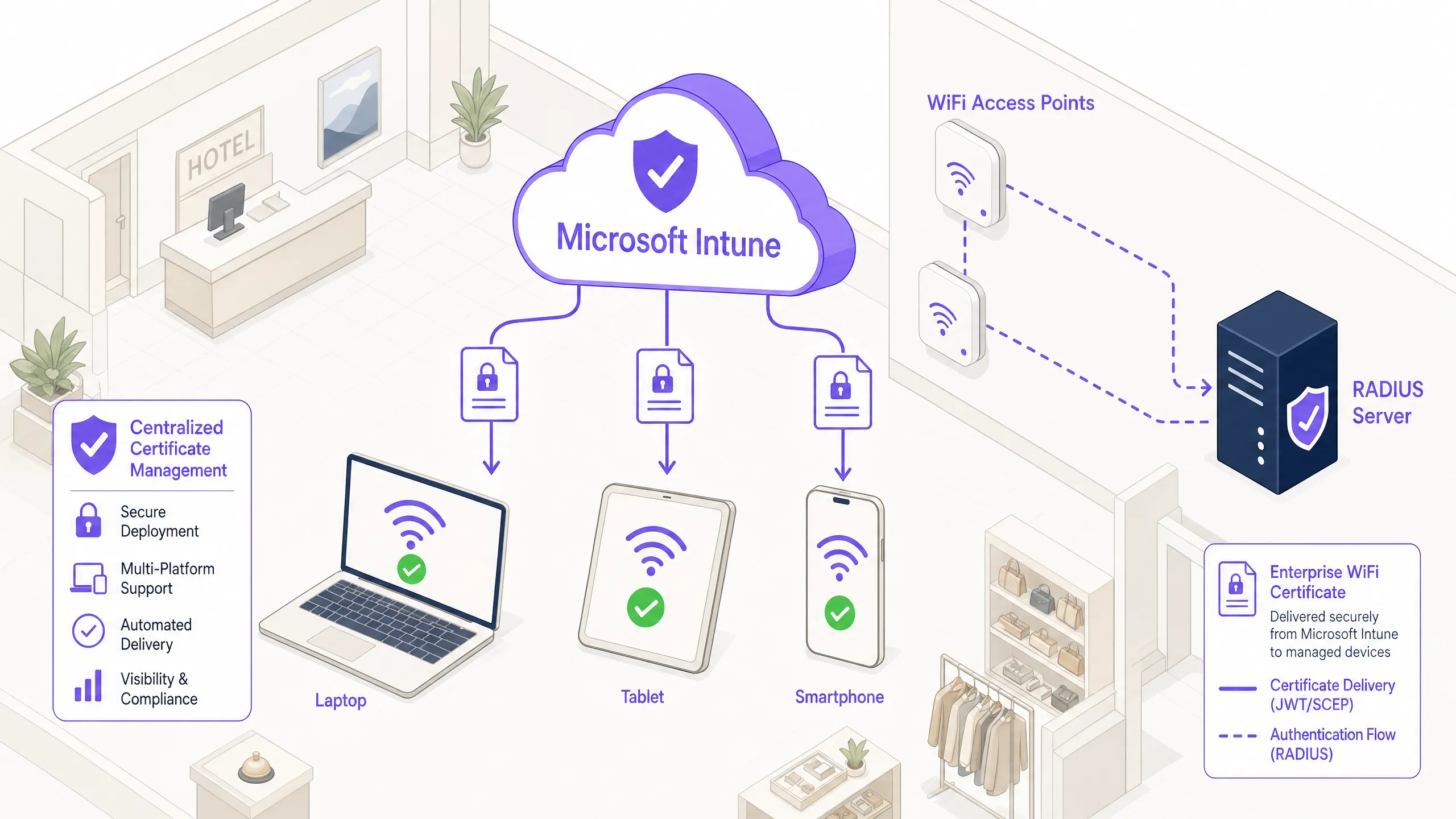
A Wi-Fi CA (Certificate Authority) certificate is a digital file used by your device to verify the identity of a wireless network server before connecting. It acts as a digital "passport" that ensures you are connecting to a legitimate network rather than a malicious "spoof" network designed to steal your credentials.
In modern networking environments, especially those utilizing WPA2-Enterprise or WPA3-Enterprise protocols, security is not just about a shared password. It is about mutual authentication. When your smartphone, laptop, or IoT device attempts to connect to a secure corporate or campus network, the network server presents a certificate. The CA certificate stored on your device is the trusted reference used to validate that server's certificate. Without this verification step, your device has no way of knowing if the Wi-Fi access point is truly owned by your organization or if it is a "honeypot" set up by an attacker.
The Role of a Certificate Authority (CA) in Wireless Security
To understand a Wi-Fi CA certificate, one must first understand the concept of a Certificate Authority. A CA is a trusted third-party entity—either a public company like DigiCert or Sectigo, or a private server within a corporation—that issues digital certificates. These certificates link a public key to the identity of a server or person.
In the context of Wi-Fi, the CA certificate you install on your device is technically a Root Certificate or an Intermediate Certificate. It contains the public key of the Certificate Authority itself. When the Wi-Fi server sends its own "Server Certificate" during the connection handshake, your device checks the signature on that certificate against the CA certificate it already trusts. If the signatures match, the connection proceeds; if they do not, or if the certificate is missing, the device will flag the connection as untrusted.
The Chain of Trust
The security of this system relies on what is known as the Chain of Trust. At the top of the hierarchy is the Root CA. Because Root CAs are incredibly sensitive, they often issue certificates to "Intermediate CAs," which in turn issue the final "End-Entity" certificates to Wi-Fi authentication servers (like a RADIUS server).
When you configure a Wi-Fi profile, you specify which CA your device should trust. By doing so, you are telling your operating system: "Only allow me to connect to this Wi-Fi network if its server can prove it was vetted by this specific authority." This prevents a common cyberattack known as the Evil Twin attack, where a hacker creates a Wi-Fi network with the same name (SSID) as your office or school network to intercept your data.
Why Devices Require CA Certificates in 2026
As of 2026, the industry has moved almost entirely away from "unvalidated" connections. Historically, many users chose "Do Not Validate" or "Trust on First Use" when connecting to Enterprise Wi-Fi. However, modern operating systems like Android 13 and later, iOS, and Windows 11/12 have phased out the ability to skip certificate validation.
The reason for this strictness is the prevalence of credential harvesting. In an Enterprise environment, you often log in with a username and password (via PEAP or EAP-TTLS). If you do not validate the server certificate, you might unknowingly send your username and hashed password to an attacker’s laptop. With the CA certificate in place, the encrypted tunnel (TLS) is only established with a verified, legitimate server, ensuring your login tokens are never exposed to unauthorized parties.

How Wi-Fi Authentication Protocols Use Certificates
Wi-Fi certificates are central to the Extensible Authentication Protocol (EAP). Depending on the specific EAP method your organization uses, certificates are utilized in different ways.
EAP-TLS (Transport Layer Security)
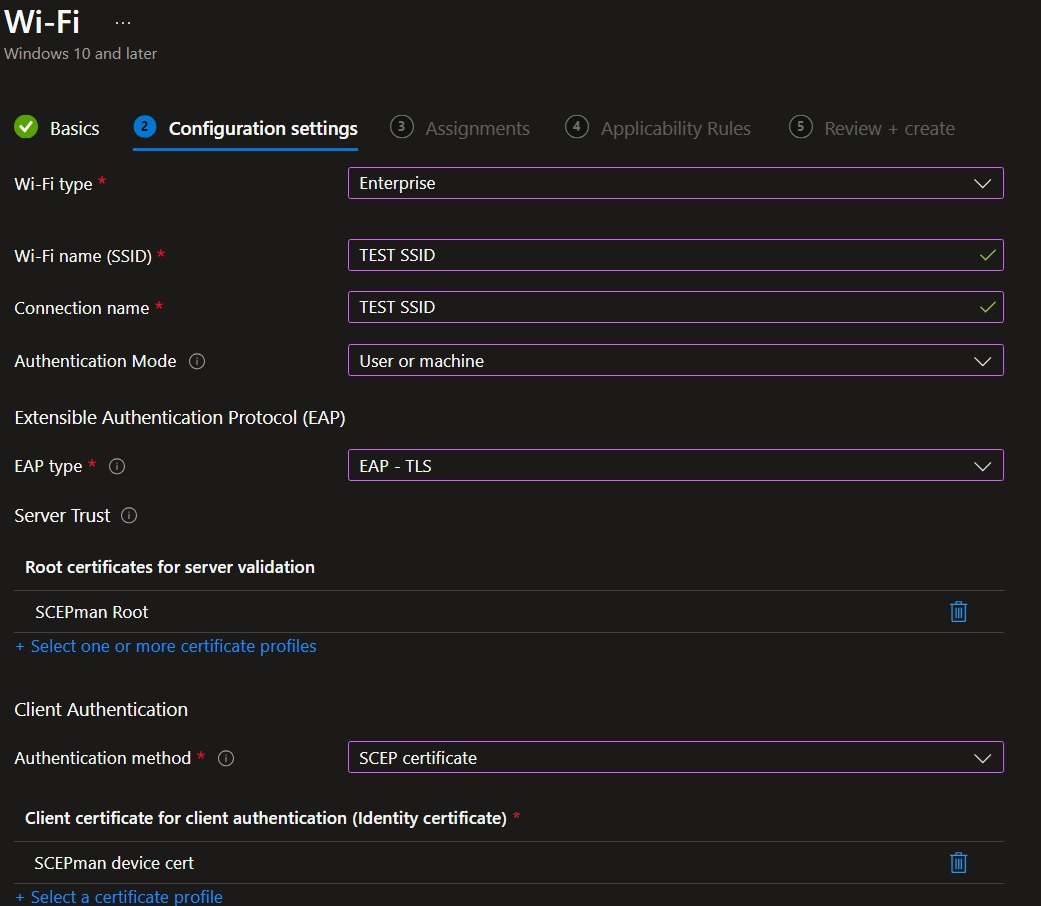
This is considered the gold standard for wireless security. In EAP-TLS, both the server and the client (your device) must have certificates. The server presents its certificate to the device (verified by the CA certificate), and the device presents its own "Client Certificate" to the server. This provides mutual, password-less authentication that is extremely difficult to compromise.
PEAP (Protected EAP)
PEAP is the most common method used in universities and offices. In this scenario, only the server needs a certificate. The device uses the CA certificate to verify the server's identity and then creates an encrypted tunnel. Inside this tunnel, the user’s traditional username and password are sent securely. This is why you are often asked to "Select CA Certificate" when setting up Wi-Fi on an Android device manually.
EAP-TTLS (Tunneled TLS)
Similar to PEAP, EAP-TTLS creates a secure tunnel. The primary difference lies in the inner authentication protocol used. However, the requirement for a CA certificate on the client side remains identical to PEAP; the client must verify the server before it trusts the tunnel enough to send credentials.
Technical Requirements for CA Certificates
For a CA certificate to work correctly in a Wi-Fi environment, it must meet specific technical standards defined by the Internet Engineering Task Force (IETF). Most Wi-Fi systems utilize X.509 certificates.
- Format: Certificates are typically distributed in
.crt,.cer,.pem, or.derformats. For Windows or Android, these are usually encoded in Base64 or Binary. - Key Usage: The certificate must be marked for "Digital Signature" and "Key Encipherment."
- Expiration: All certificates have an expiration date. If the CA certificate on your device expires, you will lose the ability to connect to the Wi-Fi until a new, valid certificate is installed.
- Subject Alternative Name (SAN): Modern devices often require the server's certificate to have a SAN that matches the "Domain" field you enter during Wi-Fi setup.
| Feature | EAP-TLS | PEAP (msCHAPv2) | EAP-TTLS |
|---|---|---|---|
| Server Certificate Required | Yes | Yes | Yes |
| Client Certificate Required | Yes | No | No |
| Primary Credential | Digital Certificate | Username/Password | Username/Password |
| Security Level | Highest | High | High |
| User Experience | Seamless (No login) | Manual login | Manual login |
| Setup Complexity | High | Medium | Medium |
Managing CA Certificates on Different Platforms
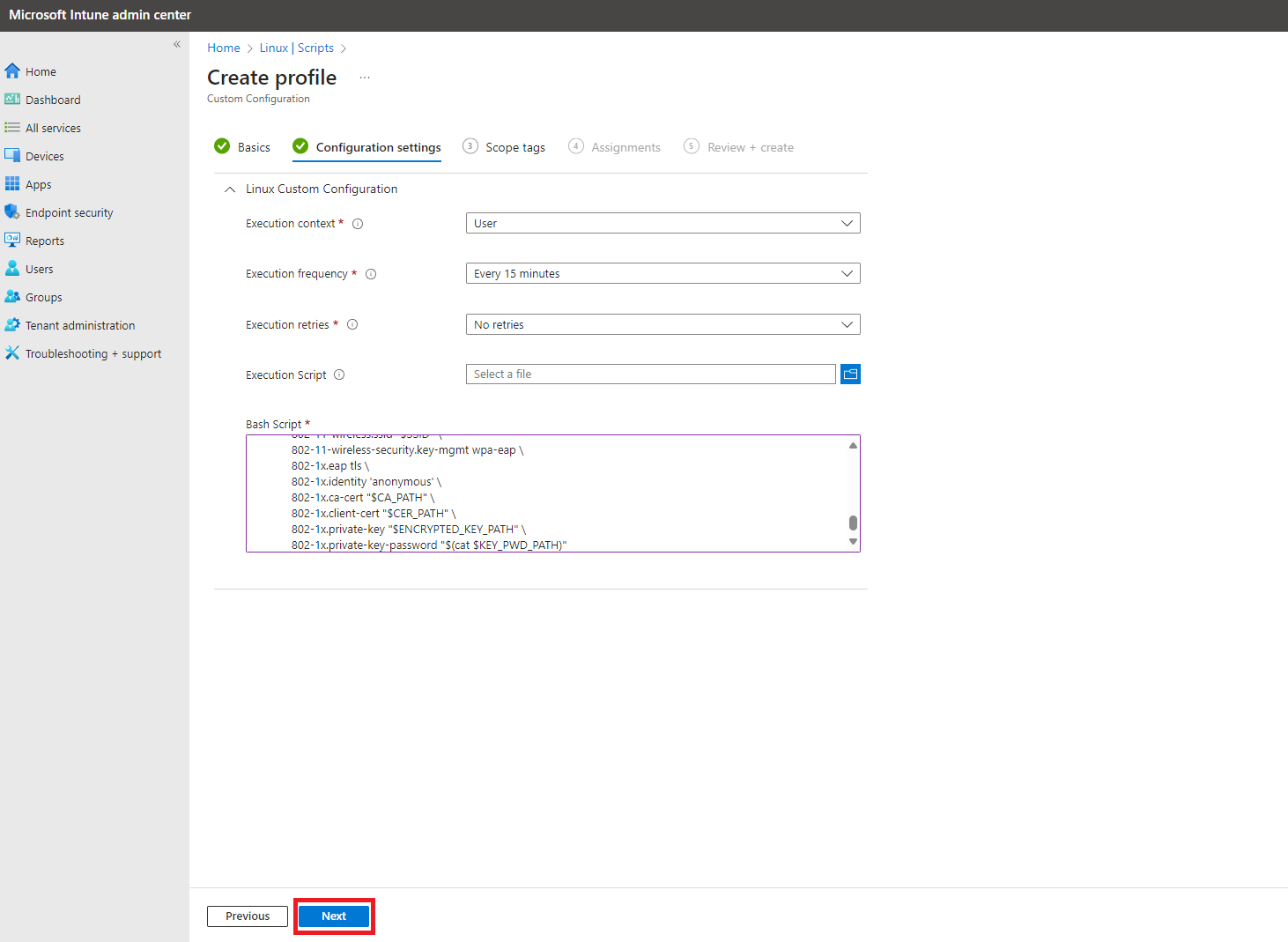
The process for installing and using a Wi-Fi CA certificate varies significantly across operating systems. In managed environments, such as a workplace, this is usually handled automatically via Mobile Device Management (MDM) software.
Android (Version 11 through 2026 Standards)
Android has the most visible certificate requirements. When adding a "WPA2/WPA3-Enterprise" network, you will see a dropdown for "CA certificate."
- Install First: You often must download the certificate file from your IT portal.
- System Settings: Go to Settings > Security > More Security Settings > Encryption & Credentials > Install a Certificate > Wi-Fi Certificate.
- Specify Domain: After selecting the certificate in the Wi-Fi menu, you must enter the domain (e.g.,
wifi.university.edu). This ensures the server certificate matches the intended source.
iOS and macOS
Apple devices typically handle certificates through "Configuration Profiles." When you download a .mobileconfig file from your organization, it automatically installs the necessary CA certificates and configures the Wi-Fi settings in one step. If you are doing it manually, you must "Trust" the certificate in Settings > General > About > Certificate Trust Settings.
Windows 10/11/12
Windows usually handles CA certificates through the System Certificate Store. If a network requires a specific CA, it must be located in the "Trusted Root Certification Authorities" folder. If your organization uses Active Directory, these certificates are usually pushed to your machine automatically via Group Policy.
Common Problems and Troubleshooting
The most frustrating aspect of Wi-Fi CA certificates is the "Authentication Error" or "Unable to Connect" message, which often provides little detail.
"No CA Certificate Provided"
This error occurs primarily on Android devices when the user leaves the CA certificate field as "Use system certificates" or "None" without specifying a domain. Because modern security standards forbid unvalidated Enterprise connections, the device simply refuses to attempt the connection. To fix this, you must obtain the specific root certificate from your network administrator.
Certificate Expiration
If your network was working yesterday but stopped today, a certificate may have expired. This can happen to either the Server Certificate or the CA Certificate stored on your device. Check your device's "Trusted Credentials" list to see if any certificates are marked in red or show an expired date.
Time and Date Mismatch
Certificates are time-sensitive. If your device's clock is incorrect (e.g., set to a year in the past), it will perceive a perfectly valid certificate as being "not yet valid" or "expired." Always ensure your device is set to "Set time automatically."
Domain Validation Failure
When using "System Certificates" on Android or Windows, you must provide a Domain. This is the common name (CN) or Subject Alternative Name (SAN) of the server certificate. If you type company.com but the server’s certificate is issued to radius.company.com, the validation will fail for security reasons.
The Future of Wi-Fi Certificates: WPA3 and Beyond
In 2026, the transition to WPA3-Enterprise has solidified. WPA3 increases the minimum security requirements, mandating 192-bit cryptographic strength for highly sensitive environments. This shift has made CA certificates even more critical.
Furthermore, Opportunistic Wireless Encryption (OWE) and Enhanced Open are becoming standard for public Wi-Fi (like coffee shops and airports). While these don't always require a manual CA certificate installation by the user, they use the same underlying Public Key Infrastructure (PKI) principles to provide encryption without a shared password.
For the average user, the "Certificate Authority" will become increasingly invisible. Technologies like Passpoint (Hotspot 2.0) allow devices to automatically discover and trust networks using pre-provisioned certificates, making the transition between cellular data and secure Wi-Fi seamless and secure.
FAQs
Can I connect to an Enterprise Wi-Fi without a CA certificate?
Technically, some older devices might allow it, but it is highly discouraged and often blocked by modern operating systems. Connecting without a CA certificate leaves you vulnerable to "Man-in-the-Middle" attacks, where an attacker can intercept your username and password. In 2026, most secure networks require a certificate to establish a connection.
Is it safe to install a CA certificate from my employer or school?
Yes, provided you trust the organization. By installing their CA certificate, you are allowing your device to verify their servers. However, you should be aware that a CA certificate can technically be used to inspect encrypted (HTTPS) traffic if the organization also requires you to route your web browsing through their proxy. Always use a VPN if you are concerned about privacy on a managed network.
What is the difference between a Client Certificate and a CA Certificate?
A CA Certificate is a public file used to verify others. A Client Certificate is a private file used to identify yourself. Think of the CA Certificate as a list of "Authorized Passport Offices" and the Client Certificate as your own personal "Passport."
Where do I get the CA certificate for my network?
You should contact your organization's IT help desk or visit their official support portal. Most universities and corporations provide a download link or an automated configuration tool (like Eduroam’s CAT tool) that installs the certificate for you.
Why does Android ask for a "Domain" when I select a CA certificate?
The "Domain" field is an extra layer of security. It tells your phone: "Not only must the server's certificate be signed by this CA, but the server's name must also match this specific domain." This prevents an attacker who happens to have a valid certificate from the same CA from tricking you into connecting to their malicious server.
Summary and Next Actions
Understanding the Wi-Fi CA certificate is essential for navigating modern enterprise environments. These files are the backbone of wireless security, ensuring that your data remains encrypted and your credentials remain private.
If you are currently struggling to connect to a network:
- Verify your credentials: Ensure your username and password are correct.
- Download the certificate: Visit your organization’s IT website to get the latest
.crtor.pemfile. - Check your Domain: Ensure the domain field in your Wi-Fi settings matches the server's requirements.
- Update your OS: Ensure your device is running the latest security patches, as certificate libraries are updated frequently.
For network administrators, the move toward EAP-TLS is recommended for the best balance of security and user experience, despite the initial overhead of managing client-side certificates.
Image Gallery
Select an image to open it in a new tab.
Celine Dubois
Contemporary Living and Global Arts Columnist
