
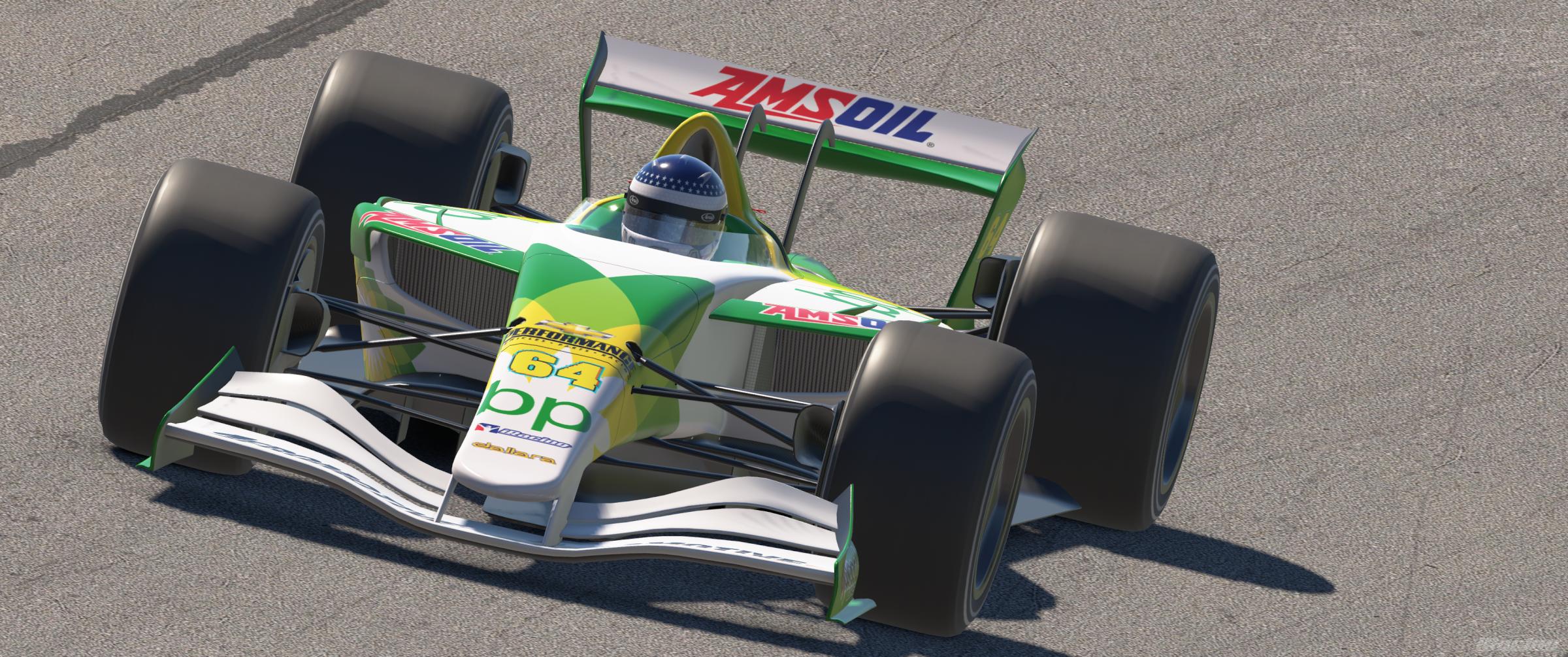
Trading Paints is the essential third-party service for iRacing members that enables users to upload, manage, and display custom paint schemes on their virtual race cars. By installing the Trading Paints downloader application, you can view your own custom designs and the personalized liveries of other competitors in real-time, transforming the default, uniform iRacing field into a vibrant grid of unique, high-definition car models.
Understanding the Trading Paints Ecosystem
In the world of online sim racing, iRacing provides the chassis, the physics, and the competition, but it relies on an external infrastructure to manage the massive influx of custom artwork created by the community. Trading Paints serves as the bridge between your local design files and the iRacing simulation environment. Without this service, you would only see the standard, developer-provided paint jobs or simple in-game custom color options.
When you install the Trading Paints downloader, you are effectively authorizing a background service to communicate with the iRacing client. As you join a race session, the application automatically polls the server to see if your opponents have assigned a custom livery to their current vehicle. If they have, the downloader pulls those image files from the cloud and places them into your local iRacing "paint" folder. This happens seamlessly during the loading process, ensuring that when you step into the cockpit, your surroundings reflect the personalized aesthetics of your fellow drivers.
Getting Started: Installation and Setup
To begin trading paints, you must first create an account on the official Trading Paints website. Once registered, the process is straightforward, though it requires attention to detail to ensure your liveries appear correctly in the simulation.
System Prerequisites
- iRacing Membership: You must have an active iRacing subscription.
- Trading Paints Account: A free account is sufficient for viewing and uploading personal liveries, while a Pro subscription offers advanced features like custom layers and showroom management.
- The Downloader: You must download and install the official Trading Paints desktop application. This software remains running in the background while you race.
Step-by-Step Configuration
- Download the App: Navigate to the download section of the Trading Paints website and install the client for your operating system.
- Launch and Log In: Open the application and log in with your Trading Paints credentials.
- Syncing: The app will automatically detect your iRacing installation path. If it does not, you can manually point the app to your
Documents/iRacingfolder. - Active Status: Ensure the app is running before you launch the iRacing UI. You will see a small icon in your system tray indicating that the service is active and communicating with the server.

Managing Your Personal Liveries
The power of Trading Paints lies in your ability to express your identity on the track. Whether you are part of a professional esports team or a casual Sunday night league, the platform allows you to apply unique decals, sponsors, and color schemes to every car you drive.
Uploading a Design
After creating your livery using software like Adobe Photoshop, GIMP, or Paint.NET, you must save your design as a TGA file. The Trading Paints platform provides templates for every car model in iRacing, which include the essential UV maps—the "wireframe" that guides your design onto the 3D model of the car. Once your TGA file is ready, you navigate to your "My Paints" section on the website, select the specific car model, and upload your file.
Utilizing the Showroom
For those who are not graphic designers, the Trading Paints Showroom acts as a repository of community-created content. You can browse thousands of liveries, filter by car or team, and click "Race this paint" to instantly assign a design to your car. This is the most efficient way for new drivers to start racing with a professional look without needing technical design skills.
Technical Considerations and Troubleshooting
Because Trading Paints involves the synchronization of large image files across a global network, users may occasionally encounter issues where liveries fail to load or appear as blank, white cars.
Common Troubleshooting Steps
- Verify File Paths: Ensure your iRacing
Documentsfolder is not on a cloud-synced drive (like OneDrive or Dropbox), as this can interfere with the way the Trading Paints downloader writes files to the disk. - Update the Client: Always ensure you are running the latest version of the Trading Paints downloader. The developers release frequent updates to ensure compatibility with iRacing’s bi-monthly patch schedule.
- The "Clear Paints" Function: If liveries appear garbled or outdated, use the "Clear My Paints" or "Refresh" options within the Trading Paints downloader to force the application to re-download the latest versions from the server.
- Disk Space: While individual livery files are small (typically a few megabytes), caching thousands of liveries from your competitors can consume a significant amount of hard drive space over time. Periodically monitor your storage if you notice performance issues.
Comparison: Free vs. Pro Subscription
While the base features of the platform are free, Trading Paints offers a Pro tier that enhances the user experience for serious competitors.
| Feature | Free Version | Pro Version |
|---|---|---|
| Personal Liveries | Unlimited | Unlimited |
| Viewing Opponent Liveries | Included | Included |
| Custom Number Layers | Limited | Full Support |
| Spec Map Editing | Limited | Advanced Support |
| Ad-Free Experience | No | Yes |
| Showroom Priority | Standard | High Priority |
The Pro subscription is primarily targeted at users who want to manipulate "Spec Maps"—the files that control the metallic, chrome, or matte finish of the car—to create highly realistic or stylized finishes.
Next Actions for iRacing Competitors
If you are currently racing in iRacing with only the default liveries, your next step should be to visit the Trading Paints website and download the client. Start by browsing the "Showroom" for a car you frequently drive, click "Race this paint," and jump into an official or hosted practice session. You will immediately notice the difference when you pull up alongside a teammate or rival who is also using the service.
To take it a step further, attempt to create your own livery using one of the provided templates. Designing your own car adds a layer of immersion to your racing career, making every session feel more personalized. Remember, the key to success with Trading Paints is consistency; ensure the downloader is running before every session, and keep your local paint folder organized.
Image Gallery
Select an image to open it in a new tab.



Vivian Cho
Executive IT and Emerging Technologies Reporter
