How to Navigate Family Management on PS4: A Complete Guide to Parental Controls

To navigate family management on PS4, go to Settings > Parental Controls/Family Management > Family Management. From here, the designated Family Manager can add members, set playtime limits, restrict spending, and filter content based on age ratings. These settings can also be managed remotely via the PlayStation App or a web browser.
As we move through 2026, the PlayStation 4 remains a staple in millions of households. Whether it serves as a primary console or a dedicated device for younger family members, understanding how to effectively manage user permissions is essential for maintaining a safe and balanced digital environment. Sony’s "Family Management" system is a robust framework designed to replace the older, more rigid sub-account structures, offering granular control over every aspect of the gaming experience.
This guide provides a comprehensive walkthrough of the Family Management ecosystem, from initial setup to advanced troubleshooting, ensuring you can tailor the console's environment to your family's specific needs.
Understanding the PSN Family Structure
Before diving into the menus, it is vital to understand the hierarchy of the PlayStation Network (PSN) family system. Unlike simple guest accounts, Family Management relies on a cloud-synced structure that follows the user across devices.
The Role of the Family Manager
Every family group begins with a Family Manager. This is the adult account that initiates the family group. The Family Manager has absolute authority; they can add or remove members, adjust all parental controls, and appoint other adults in the family as "Parents or Guardians." There can only be one Family Manager per group, and this role cannot be easily transferred without dissolving the group.
Adult Members and Parent/Guardian Status
Other adults can be added to the family group. By default, they do not have control over other members' settings. However, the Family Manager can grant them Parent/Guardian status. This is particularly useful for two-parent households, as it allows both adults to adjust playtime or approve spending requests without needing to share a single login.
Child Members
Child accounts are specifically for users under the age of 18 (the exact age may vary by region). These accounts are always tethered to an adult account. They do not have their own "wallet" for purchases; instead, they draw from the Family Manager’s wallet, subject to a monthly spending limit set by the Manager.
How to Access Family Management on the PS4 Console
The most direct way to manage your family is through the PS4 system software. By 2026, the interface has remained consistent, prioritizing ease of access for account holders.
- Log in to the Family Manager’s account.
- Navigate to the Settings icon on the top-level dashboard (the toolbox icon).
- Scroll down and select Parental Controls/Family Management.
- Select Family Management. You may be prompted to re-enter your PSN password at this stage for security.
- Select the specific family member you wish to manage from the list.
Within this menu, you will see a variety of sub-menus including Applications/Devices/Network Features, Play Time Settings, and Privacy Profile. Navigating these menus allows you to toggle specific permissions on a per-user basis.

Remote Management: Using the Web and PlayStation App
In a modern household, you aren't always in front of the television when a change needs to be made. Sony provides two primary ways to manage these settings remotely.
The PlayStation App
The PS App is the most convenient tool for 2026 parents. Once logged in, tap the gear icon for Settings, scroll to Account Information, and select Family Management. This will open a mobile-optimized web view where you can instantly extend playtime or change spending limits. If a child reaches their limit and requests more time, you will receive a push notification directly to your phone.
Web Browser Access
For a more detailed view, especially when setting up multiple accounts for the first time, using a PC is recommended. Navigate to the official PlayStation website and log in to your account. Under the account settings dropdown, you will find "Family Management." The web interface provides a clearer overview of the entire family structure and is often faster for typing out names or managing wallet settings.
Setting and Enforcing Playtime Limits
One of the most utilized features of Family Management is the ability to control when and for how long a child can play. This is not a "one size fits all" setting; it can be customized for every day of the week.
Play Time Settings Configuration
When you select a child account and enter the Play Time Settings, you are presented with three main options:
- Restrict Play Time: Toggle this to "Restrict" to enable the scheduling features.
- When Play Time Ends: You can choose between "Notify Only" or "Log Out PS4." The latter is more forceful, automatically saving game data (where supported) and signing the user out.
- Duration and Playable Hours: You can set a total number of hours allowed per day (e.g., 2 hours) and a specific window (e.g., 4:00 PM to 8:00 PM).
This granular control allows parents to distinguish between school nights and weekends. For example, you might allow 1 hour on Mondays but 4 hours on Saturdays. The "Notify Only" setting is often preferred for older children, as it encourages self-regulation by showing a 30-minute, 15-minute, and 5-minute warning on the screen.
Managing Spending and Wallet Restrictions
A common concern for parents is the accidental (or intentional) accumulation of digital charges. The PS4 Family Management system handles this by centralizing all funds.
The Monthly Spending Limit
Child accounts do not have their own credit cards. Instead, they use the Family Manager’s payment methods. In the Family Management settings for a child, you can set a Monthly Spending Limit.
- If set to $0.00, the child cannot make any purchases, even for free "add-ons" that technically require a checkout process.
- If set to a specific amount, the child can purchase games or DLC up to that limit, provided the Family Manager's wallet has the funds or a valid credit card attached.
Approving Purchases
Even with a spending limit, you can choose to require a password at checkout for the Family Manager’s account. This prevents a child from using the adult’s profile to bypass restrictions. It is highly recommended to enable "Require Password for Purchase" under Settings > Account Management > Account Information > Wallet > Purchase Settings.
Content Filtering: Age Ratings and Online Features
The PS4 allows you to restrict content based on the age rating systems of your region (such as ESRB in North America or PEGI in Europe).
Application Age Levels
Sony uses a numerical level system (Levels 1 through 11) that corresponds to age ratings. For example, Level 5 typically corresponds to "Teen" (ESRB) or "12" (PEGI). When a child attempts to launch a game that exceeds their allowed level, the console will block access and display a message indicating the restriction.
Restricting Network Features
Beyond game ratings, you can control how the child interacts with the broader PlayStation community:
- Communicating with Other Players: This setting can disable voice chat and messaging entirely. This is a critical safety feature for younger children to prevent contact with strangers in multiplayer environments.
- Viewing Content Created by Other Players: This restricts access to screenshots, videos, and broadcasts shared by other users, which may not be moderated by Sony.
Detailed Comparison: Family Role Permissions
The following table outlines what different roles within the Family Management system can and cannot do.
| Feature | Family Manager | Parent/Guardian | Adult Member | Child Member |
|---|---|---|---|---|
| Add/Remove Family Members | Yes | No | No | No |
| Change Playtime Limits | Yes | Yes | No | No |
| Set Spending Limits | Yes | Yes | No | No |
| Appoint Other Guardians | Yes | No | No | No |
| Use Own Wallet for PSN | Yes | Yes | Yes | No* |
| Adjust Age Ratings | Yes | Yes | No | No |
*Child members use the Family Manager's wallet subject to limits.
Troubleshooting and Common Management Issues
Even with a streamlined system, users often encounter technical hurdles or "edge cases" that require specific actions.
Forgotten Parental Control Passcode
The System Restrictive Passcode (defaulted to 0000) is different from your PSN password. If you forget this four-digit code, you may be locked out of the parental control menus on the console itself. To reset this without a full factory restore, you generally need to log into the Family Management site via a web browser and change the "Console Restrictions" settings, or contact PlayStation Support for an identity-verified reset.
Upgrading a Child Account
When a child turns 18, their account does not automatically become an adult account with full permissions. They will see a notification upon logging in after their birthday asking if they wish to "upgrade" their account. Once they accept, they are removed from the family group restrictions and gain their own independent wallet and management capabilities.
Managing Multiple Consoles
If your family has both a PS4 and a PS5, the Family Management settings carry over via the PSN. However, playtime limits are tracked per console family (PS4 vs. PS5). If you want a child to have a total of two hours across all devices, you must manually manage this, as the system does not currently "stack" the time across different console generations in real-time.
Professional Advice: Digital Safety Best Practices
While the PS4's Family Management tools are powerful, they are most effective when paired with open communication. Technical restrictions should be viewed as a safety net rather than a substitute for parental involvement.
- Review Privacy Settings Monthly: Developers often update games with new social features. Check the "Privacy Profile" in Family Management to ensure new features haven't defaulted to "Open."
- Use the "Request" System: Encourage your children to use the "Request" feature for new games. This sends a notification to your phone, allowing you to review the game's content and rating before approving the purchase.
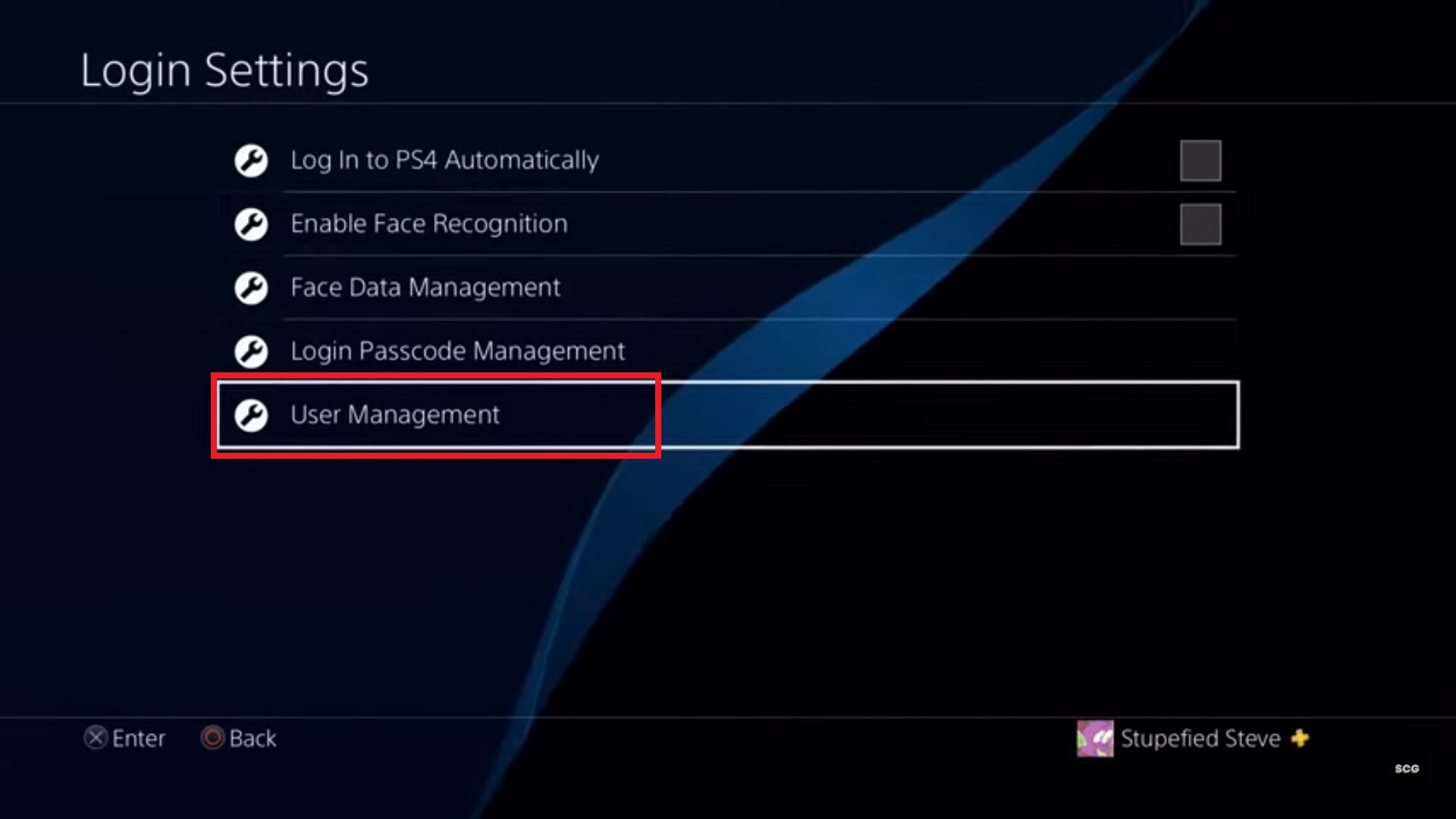
- Secure Your Manager Profile: The entire system fails if a child can simply log into the Family Manager’s profile. Always set a Login Passcode (Settings > Login Settings > Login Passcode Management) for all adult profiles on the console.
Frequently Asked Questions
Can I prevent my child from using the internet browser on PS4?
Yes. Under Parental Controls/Family Management > Family Management > [Child's Account] > Applications/Devices/Network Features, you can find a specific toggle for "Internet Browser." Setting this to "Not Allowed" will remove the browser's icon or prevent it from launching, ensuring the child only accesses curated game content.
Why can't I see the "Family Management" option in my settings?
If you do not see "Family Management," it is likely because you are not logged into a PSN account, or the account you are using is a Child account. Only adult accounts can see and manage the family structure. Ensure your console is connected to the internet, as this menu requires a live connection to Sony's servers to sync permissions.
Is it possible to hide specific games from a child's library?
While you cannot "hide" a game icon that is already installed, setting the appropriate Age Level restriction will prevent the child from starting the game. The icon may remain on the dashboard, but a padlock symbol will appear over it, and launching it will require the parent's override passcode.
How do I stop a child from adding new friends?
In the Privacy Profile settings within Family Management, you can set "Friends" and "Friend Requests" to "No One." This prevents the child from sending or receiving requests, effectively locking their social circle to those they already know or preventing social interaction entirely.
Can I set different limits for different children?
Yes. Family Management is user-specific. You can set a 1-hour limit for a younger child and a 3-hour limit for a teenager, each with their own unique age rating filters and spending allowances.
Final Recommendation for 2026 Users
The most effective way to navigate family management on PS4 is to initialize your settings through the PlayStation App. While the console menus are functional, the mobile app provides the most intuitive interface for modern parents and ensures you receive real-time notifications regarding playtime and purchase requests. After the initial setup, perform a "test run" by logging into the child's profile to verify that the restrictions are active and that the "Login Passcode" on your Manager profile successfully prevents unauthorized access to your settings.
Image Gallery
Select an image to open it in a new tab.




Vivian Cho
Executive IT and Emerging Technologies Reporter
