
Updating apps on an Android phone is the fundamental process of replacing installed software versions with the latest iterations released by developers. These updates typically include critical security patches, performance optimizations, bug fixes, and new features. By ensuring your applications remain current through the Google Play Store or authorized manufacturer app repositories, you maintain the stability, security, and compatibility of your mobile ecosystem in an increasingly complex digital environment.
The Importance of Keeping Android Apps Updated
The software lifecycle of a mobile application does not end upon installation. Developers frequently issue updates to address vulnerabilities discovered after the initial release. From a security perspective, these updates are the primary defense mechanism against malicious exploits that could compromise user data, permissions, or system integrity. When a vulnerability is identified, developers package a fix within an update; failing to install this update leaves your device susceptible to known threats.
Beyond security, performance is a major driver for consistent updates. Modern mobile hardware evolves rapidly, and developers iterate their code to improve resource management, battery efficiency, and processing speed. An outdated app may struggle to interact properly with the latest Android operating system updates, leading to crashes, graphical glitches, or unexpected battery drain. Keeping your apps updated ensures that your software environment is optimized for your specific device hardware and current Android version.
Prerequisites for Updating Applications
Before initiating an update process, certain conditions must be met to ensure the operation succeeds without interruption or data corruption.
- Stable Internet Connection: High-speed Wi-Fi is the preferred method for downloading updates, especially for larger applications, to avoid exceeding mobile data caps and to ensure a stable download stream.
- Sufficient Storage Space: Android requires free internal storage to unpack update files. If your device is near its capacity, the Google Play Store may fail to download or install pending updates.
- Active Google Account: Your device must be signed into a verified Google account associated with the Google Play Store to authenticate licenses and download updates.
- Device Power: It is recommended to have at least 20-30% battery life, or to keep the device connected to a charger during large update sessions, to prevent a power-off event during the critical installation phase.
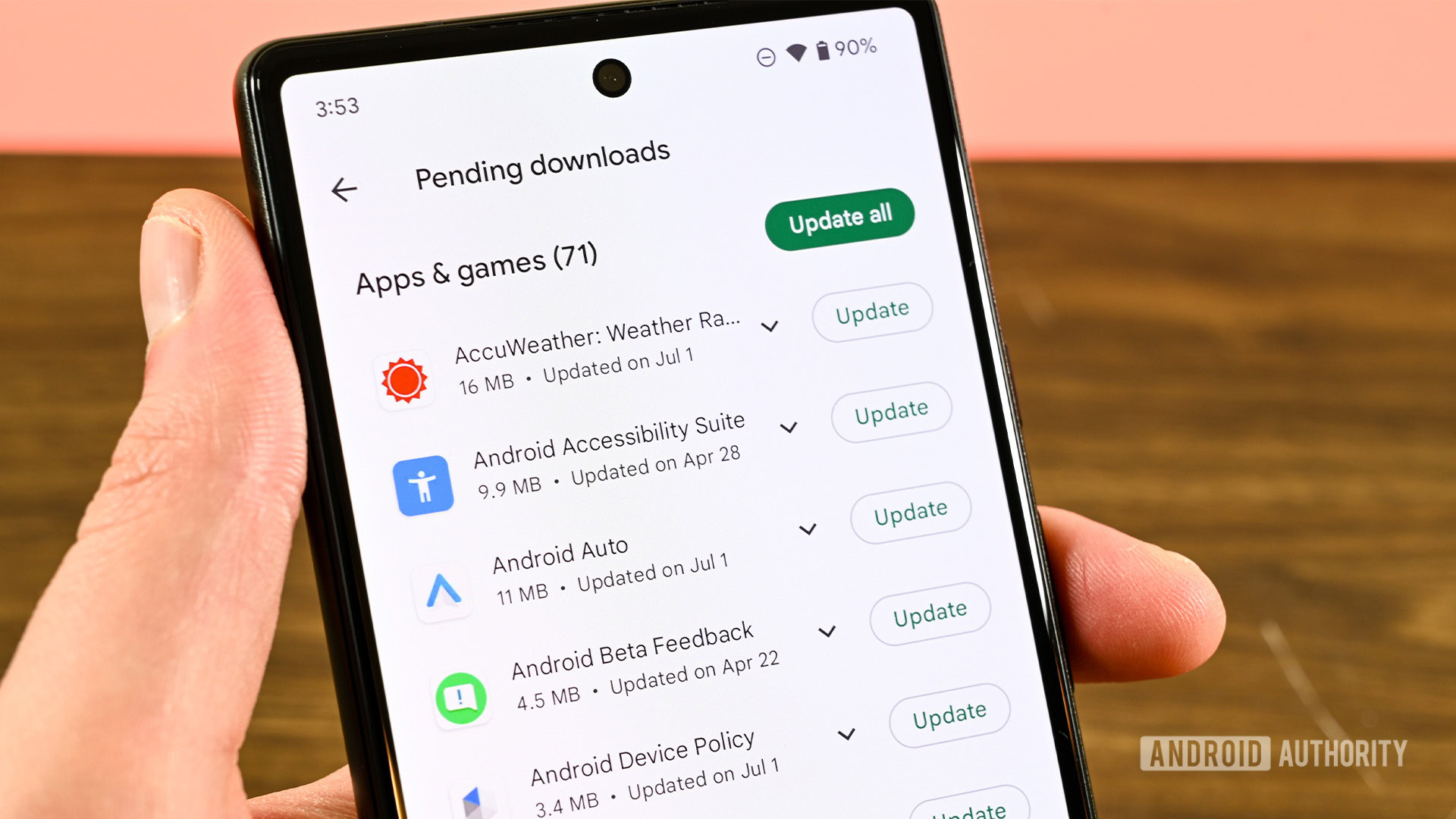
Step-by-Step: Managing Updates via the Google Play Store
The Google Play Store remains the centralized hub for managing software on almost all Android devices. The following steps outline how to manually force an update check or manage your automatic update preferences.
Manually Updating All Apps
- Open the Google Play Store application on your device.
- Tap your Profile Icon located in the top-right corner of the interface.
- Select Manage apps & device.
- Look for the Updates available section. If updates are present, you will see a button labeled Update all.
- Tapping Update all initiates the queue. You can also tap See details to view specific changelogs for each app before confirming the update.
Configuring Automatic Updates
To minimize manual intervention, you can configure your device to handle updates in the background.
- Navigate to Manage apps & device within the Play Store settings.
- Tap on Settings or look for the Network preferences dropdown.
- Select Auto-update apps.
- Choose between Over any network (uses mobile data) or Over Wi-Fi only (recommended). Enabling this ensures that your apps update automatically when you are connected to a network, keeping your device current without requiring user action.
Comparison of Update Methods
Understanding the trade-offs between manual and automatic updates helps you manage your device behavior based on your unique needs.
| Method | Advantages | Disadvantages |
|---|---|---|
| Automatic Updates | High convenience; ensures security patches are applied immediately. | Can consume data unexpectedly; may cause temporary system lag during background processes. |
| Manual Updates | Full control over data usage; ability to review changes before installing. | Easy to overlook critical security patches; requires active user management. |
| Wi-Fi Only | Preserves mobile data plans; faster download speeds for large updates. | Updates remain pending until a Wi-Fi connection is detected. |
Handling Troubleshooting and Update Failures
Sometimes, an update may fail to initiate or stall during the download process. Most issues can be resolved by diagnosing the underlying system state.
Clearing Cache and Data
A corrupted cache in the Google Play Store is a common culprit for update errors. To resolve this:
- Go to your phone’s Settings menu.
- Navigate to Apps (or Apps & notifications).
- Find and select Google Play Store.
- Tap Storage & cache.
- Select Clear cache and then Clear storage (or Clear data).
- Restart your device and attempt the update again.
Checking Account Sync
If the Play Store does not recognize your account or fails to reach the servers, verify your internet connection first. Then, ensure that your Google account is properly synced by navigating to Settings > Passwords & accounts, selecting your Google account, and confirming that Account sync is active.
Storage Management
If the system reports "Insufficient storage," you must clear space. Navigate to Settings > Storage to view which applications or files are consuming the most memory. Uninstalling unused apps or moving photos to a cloud service often frees up enough room for pending updates.
Managing Third-Party and Sideloaded Apps
It is important to distinguish between apps installed from the official Google Play Store and those "sideloaded" from third-party APK sources. Applications obtained outside of the Play Store do not receive automatic updates through the Play Store's infrastructure.
For these apps, you must rely on the developer's distribution site or the third-party app store used for the initial installation. Failing to update these apps is significantly riskier, as they lack the verification layer of the Google Play Protect service. Always ensure that you only install applications from trusted sources, and check those specific sources periodically for newer versions.
Frequently Asked Questions
Why does my phone say "Update Pending" indefinitely?
This usually indicates a bottleneck in your internet connection, a full cache, or a queue of other system tasks competing for bandwidth. Try switching from Wi-Fi to mobile data (or vice versa), clearing the Play Store cache, and pausing other active downloads to prioritize the application updates.
Can I stop an update once it has started?
Yes. You can navigate to the Play Store’s Manage apps & device section and tap the X icon next to any app currently downloading or installing. This will cancel the operation, though it is generally not recommended for security-critical applications.
Do updates consume significant battery life?
The actual download process is relatively power-efficient, but the installation phase—which involves decompressing data and writing to the system—can consume battery. If your device is overheating or running low on power, updates may be paused by the Android operating system until the device is plugged into a power source.
What is Google Play Protect?
Google Play Protect is an integrated security feature that scans your apps for malicious behavior, both before and after installation. It works in tandem with the update system to ensure that the versions of apps you are running have not been tampered with and meet established security standards.
How often should I check for updates?
If you have set your device to Auto-update apps over Wi-Fi, you do not need to check manually. However, if you prefer manual control, checking once a week is a professional best practice to ensure you stay ahead of potential security threats.
Recommendation for Optimal Maintenance
For the vast majority of users, the most effective strategy for maintaining an Android device is to enable Auto-update apps over Wi-Fi only. This setting strikes the ideal balance between security and resource management. By relying on automatic updates, you guarantee that your applications are always running the latest security patches without the risk of exhausting your mobile data plan. Periodically, perhaps once a month, perform a manual audit through the "Manage apps & device" menu to uninstall applications you no longer use, which improves both system performance and available storage capacity.
Image Gallery
Select an image to open it in a new tab.


Vivian Cho
Executive IT and Emerging Technologies Reporter
