Switching to an iPhone in 2026 is a streamlined process primarily handled via the Move to iOS app for Android users or a direct device-to-device transfer for existing Apple users. This migration securely transfers your contacts, message history, photos, videos, mail accounts, calendars, and even WhatsApp data over a private Wi-Fi connection or a physical USB-C cable.
The transition from a different operating system to Apple’s iOS platform has evolved significantly. In 2026, the integration of Apple Intelligence, the universality of USB-C across all modern handsets, and the maturity of cross-platform messaging standards like RCS (Rich Communication Services) have made "switching iPhone" less about technical hurdles and more about personal configuration. Whether you are moving from a flagship Android device or an older smartphone, understanding the technical prerequisites and the step-by-step migration path is essential for a data-safe transition.
Preparing Your Hardware and Data for the Transition
Before initiating the migration process, a period of digital hygiene and hardware verification is necessary to prevent data loss. In 2026, iPhones (specifically the iPhone 15 series through the iPhone 17 and beyond) utilize USB-C, which simplifies wired transfers, but the wireless "Move to iOS" utility remains the standard for most users.
Check Hardware and Software Compatibility
To use the official migration tools, your legacy Android device should ideally run Android 5.0 (Lollipop) or later, though for optimal performance in 2026, Android 12 or higher is recommended. On the Apple side, ensure the new iPhone is at its "Hello" setup screen. If you have already set up the phone, you must erase it via Settings > General > Transfer or Reset iPhone > Erase All Content and Settings to access the migration assistant.
Connectivity and Power Requirements
Data migration is a power-intensive process. Both your old device and your new iPhone should be plugged into power sources. Large photo libraries and years of message history can take several hours to move. Additionally, ensure that Wi-Fi is enabled on the old device. In 2026, most modern routers support Wi-Fi 6E or Wi-Fi 7; while the transfer creates a private peer-to-peer network, having a stable environment helps maintain the handshake between the two devices.
Data Volume Assessment
Review the storage capacity of your new iPhone compared to the data stored on your old device. If you are moving from a device with 512GB of data to a 256GB iPhone, the transfer will fail. Use this opportunity to delete redundant screenshots, large video files, and cached data. Since iOS handles file compression differently than Android, leaving a 10-15% buffer of free space on the new device is a best practice.
Using the "Move to iOS" Utility: A Step-by-Step Technical Guide
The Move to iOS app, available on the Google Play Store, is the primary gateway for users switching to iPhone. This app creates a secure, encrypted connection to transfer your digital life without needing a computer or cloud intermediary.
Step 1: Initiate the Transfer on iOS
Turn on your new iPhone and place it near your old device. Follow the on-screen setup instructions—choosing your language and region. When you reach the Quick Start screen, select Set Up Without Another [Apple] Device. Continue until you reach the Transfer Your Apps & Data screen, and select From Android.
Step 2: Configure the Android Device
Open the Move to iOS app on your Android smartphone. Agree to the terms and conditions. When the "Find Your Code" screen appears, tap Continue. Your iPhone will display a ten-digit or six-digit code. Enter this code on the Android device. The iPhone will then create a temporary Wi-Fi network. When prompted on your Android device, tap Connect to join that network.
Step 3: Selecting Content Types
Once the devices are paired, the Android app will display a list of data categories available for transfer. In 2026, this includes:
- Contacts and Calendars: Including local device contacts and synced accounts.
- Message History: SMS, MMS, and increasingly, RCS metadata.
- Camera Roll: All photos and videos (maintaining EXIF data like location and date).
- Files and Folders: Documents stored in the local "Downloads" or "Documents" folders.
- Accessibility and Display Settings: Many of your custom font sizes and contrast settings can now carry over.
- WhatsApp Data: This is a separate, integrated module that requires the Android device to "prepare" the chat history before the transfer begins.
Step 4: The Transfer Execution
After selecting your data, tap Continue. Leave both devices alone until the loading bar on the iPhone finishes. Crucially, do not rely on the Android device's progress bar; it may indicate the process is complete while the iPhone is still organizing the ingested data. Depending on the volume of data, this can take anywhere from 10 minutes to over two hours.
Managing Post-Migration Tasks: Apps, Accounts, and Security
Once the transfer is complete, the iPhone will prompt you to complete the setup. This involves configuring modern security features and re-establishing your app ecosystem.
Security and Identity: Face ID and Apple Intelligence
In 2026, security is paramount. You will be prompted to set up Face ID or Touch ID (depending on your model). Following this, you will likely be introduced to Apple Intelligence (Apple’s generative AI framework). During setup, the iPhone will index your transferred data locally to provide personalized AI assistance. This indexing happens on-device to maintain privacy, but it may cause the phone to feel warm or drain the battery faster for the first 24 hours.
Reinstalling Applications
The Move to iOS app identifies free apps you had on Android that are also available on the App Store and offers to download them automatically. However, paid applications do not transfer. You will need to manually search the App Store for these. Most modern subscription-based services (like Spotify, Netflix, or Microsoft 365) simply require you to log in to your existing account; your subscription state is handled by the service provider, not the app store.
eSIM and Cellular Migration
Most iPhones sold in 2026 utilize eSIM technology. During the setup, you may be prompted to transfer your cellular plan. If your carrier supports eSIM Quick Transfer, you can move your number wirelessly. If not, you may need to open your carrier’s mobile app or scan a QR code provided by their customer service portal to activate your 5G or 6G service on the new device.
Comparison: Android vs. iPhone Experience in 2026
The decision to switch often stems from specific functional differences. The following table highlights the key areas where the iPhone ecosystem distinguishes itself for new users in 2026.
| Feature | Android Experience (Varies by OEM) | iPhone Experience (iOS 19/20) |
|---|---|---|
| Software Updates | 3 to 7 years depending on manufacturer. | Minimum 7 years of guaranteed OS updates. |
| Privacy Integration | Granular controls; varies by brand. | App Tracking Transparency; Advanced Data Protection. |
| Messaging | RCS and Google Messages standard. | iMessage with full RCS support for cross-platform. |
| Hardware Ecosystem | Diverse; requires third-party sync apps. | Native "Hand-off" between Mac, iPad, and Watch. |
| Resale Value | Rapid depreciation (usually 40-60% in year 1). | High retention; often retains 70%+ value after year 1. |
| AI Integration | Google Gemini or proprietary OEM AI. | Apple Intelligence (Private Cloud Compute). |
Manual Migration Strategies for Complex Data
Sometimes the automated "Move to iOS" tool fails due to network interference or corrupted files on the source device. In these instances, a manual migration strategy is necessary.
Cloud-Based Synchronization
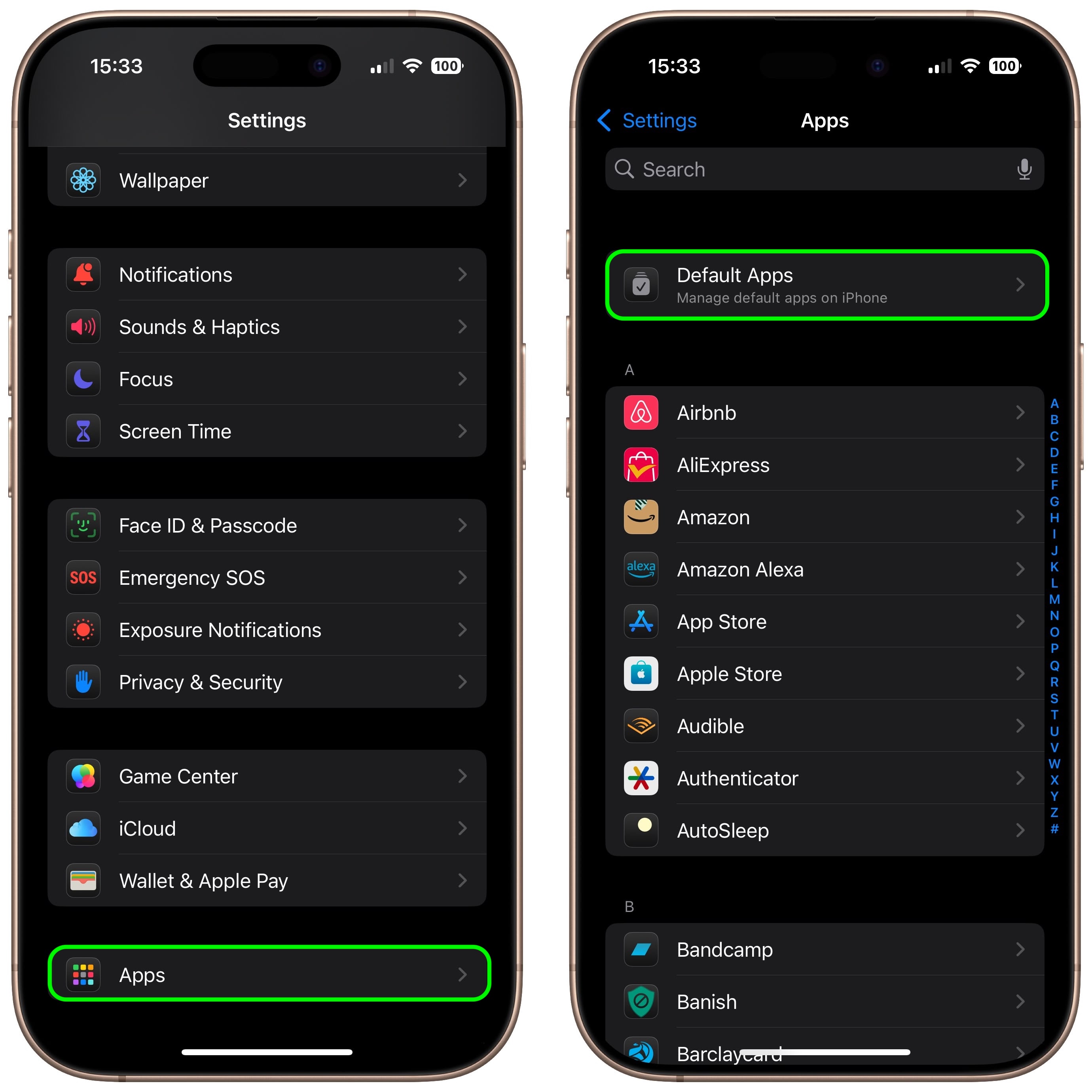
For users who already rely on Google services, switching is significantly easier. By installing Google Photos, Google Drive, and Gmail on the new iPhone, you can access your cloud-stored data immediately. In Settings > Mail > Accounts, you can add your Google or Outlook account, which will instantly sync your contacts, calendars, and emails without needing the migration app.
Music and Media Transfer
If you have a large library of local MP3s or FLAC files, these will not transfer via Move to iOS. You must move these files to a computer first. In 2026, you can connect your iPhone to a Mac (via Finder) or a PC (via the Apple Devices app) and manually sync these files. Alternatively, uploading them to a service like iCloud Drive allows you to access them via the Files app on iOS.
Professional and Enterprise Data
If your smartphone is used for work, your organization may use Mobile Device Management (MDM). You should not use the Move to iOS app for work profiles. Instead, finish the personal setup and then navigate to Settings > General > VPN & Device Management to sign in with your work credentials. This keeps your personal and professional data strictly segregated, a hallmark of iOS architecture.
Troubleshooting Common Migration Failures
Even with the advancements of 2026, the "switch iphone" process can encounter hurdles. Most issues are related to network stability or background processes on the source device.
- "Transfer Interrupted" Error: This is the most common issue. It usually occurs because a phone call came in on the Android device or the screen timed out. Before starting, turn off "Mobile Data" on the Android phone and set the screen timeout to "Never."
- Wi-Fi Disconnection: Ensure that any "Smart Network Switch" or "Adaptive Wi-Fi" settings on Android are disabled. These settings might cause the Android phone to drop the iPhone’s private network because it lacks an internet connection.
- Missing Photos: If your photos are stored on an SD card on the Android device, ensure they are moved to internal storage before starting the transfer, as the Move to iOS app sometimes fails to crawl external directories.
- WhatsApp Sync Loops: If the WhatsApp transfer gets stuck at 99%, it is often due to a lack of local storage on the iPhone. Ensure the iPhone has at least double the size of the WhatsApp backup in free space to allow for the extraction of the database.
Frequently Asked Questions
Can I transfer my paid Android apps to my new iPhone?
No, applications purchased on the Google Play Store do not transfer to the Apple App Store. Because these are two distinct marketplaces with different licensing agreements, you must repurchase paid apps. However, many "in-app" purchases and subscriptions (like Disney+ or Evernote) are tied to an account rather than the store and will work once you log in on the iPhone.
How does RCS affect the switch to iPhone in 2026?
With Apple’s full adoption of RCS, the social "penalty" of switching has vanished. Before you even finish the switch, your Android group chats will support high-resolution media, read receipts, and typing indicators when communicating with iPhone users. Once you switch, your phone number seamlessly transitions from RCS to iMessage, maintaining the quality of these interactions.
Will my browser bookmarks and passwords transfer?
The Move to iOS app can transfer Chrome bookmarks if you are signed in on the Android device. However, for passwords, it is highly recommended to use a cross-platform manager like Bitwarden or 1Password. If you rely on Google Password Manager, you can install the Google app on your iPhone and set it as an AutoFill provider in Settings > Passwords.
Does switching to iPhone affect my cloud storage?
Switching devices does not delete your data in Google Drive or OneDrive. However, iOS is built to favor iCloud. While you can continue using Google Photos on iPhone, the system-level backups (for device settings and app data) will require an iCloud subscription if your data exceeds 5GB.
Is a wired transfer faster than the wireless Move to iOS app?
Yes. In 2026, using a USB-C to USB-C cable to connect the Android device directly to the iPhone is supported by various third-party transfer tools and some native iOS processes. A wired connection is generally 3-5 times faster and more stable than the peer-to-peer Wi-Fi method, making it preferable for users with 1TB+ of data.
Final Recommendation
When you switch iphone in 2026, the most effective path is to use the official Move to iOS app for the bulk of your data, while relying on cloud-native services (like Google or Microsoft) for your professional files. To ensure a seamless experience, perform a final backup of your old device to a computer or cloud service before starting, and ensure both devices are connected to power. Once the transfer is complete, take the time to explore Apple Intelligence settings, as these will define how your new device interacts with the data you have just migrated.
Image Gallery
Select an image to open it in a new tab.



Vivian Cho
Executive IT and Emerging Technologies Reporter
