
Sending your location on WhatsApp is a straightforward process that allows you to share either your current stationary spot or your real-time movements with friends, family, or colleagues. Whether you need someone to meet you at a specific restaurant, want to update a family member on your evening commute, or need to coordinate a meeting point in an unfamiliar city, WhatsApp provides built-in sharing features for both Android and iPhone devices without requiring third-party mapping applications.
Understanding the Core Location-Sharing Features on WhatsApp
WhatsApp offers two distinct ways to share your geographical positioning with other users or group chats. Understanding the difference between these features ensures you select the right option for your privacy needs and communication goals.
Send Your Current Location
When you choose to send your current location, WhatsApp captures a single, stationary GPS coordinate of where you are standing or sitting at that exact moment. It generates a static pin on a map thumbnail within the chat window.
- Characteristics: It does not update if you move. Once you tap send, that specific coordinate is permanently fixed in the chat history.
- Best Uses: Ideal for telling someone your home address, pointing out a specific storefront, or sharing a static venue where you plan to stay put.
Share Live Location
The live location feature allows you to stream your real-time movements on a map for a chosen duration. The recipient can see you move in real time as you walk, drive, or travel.
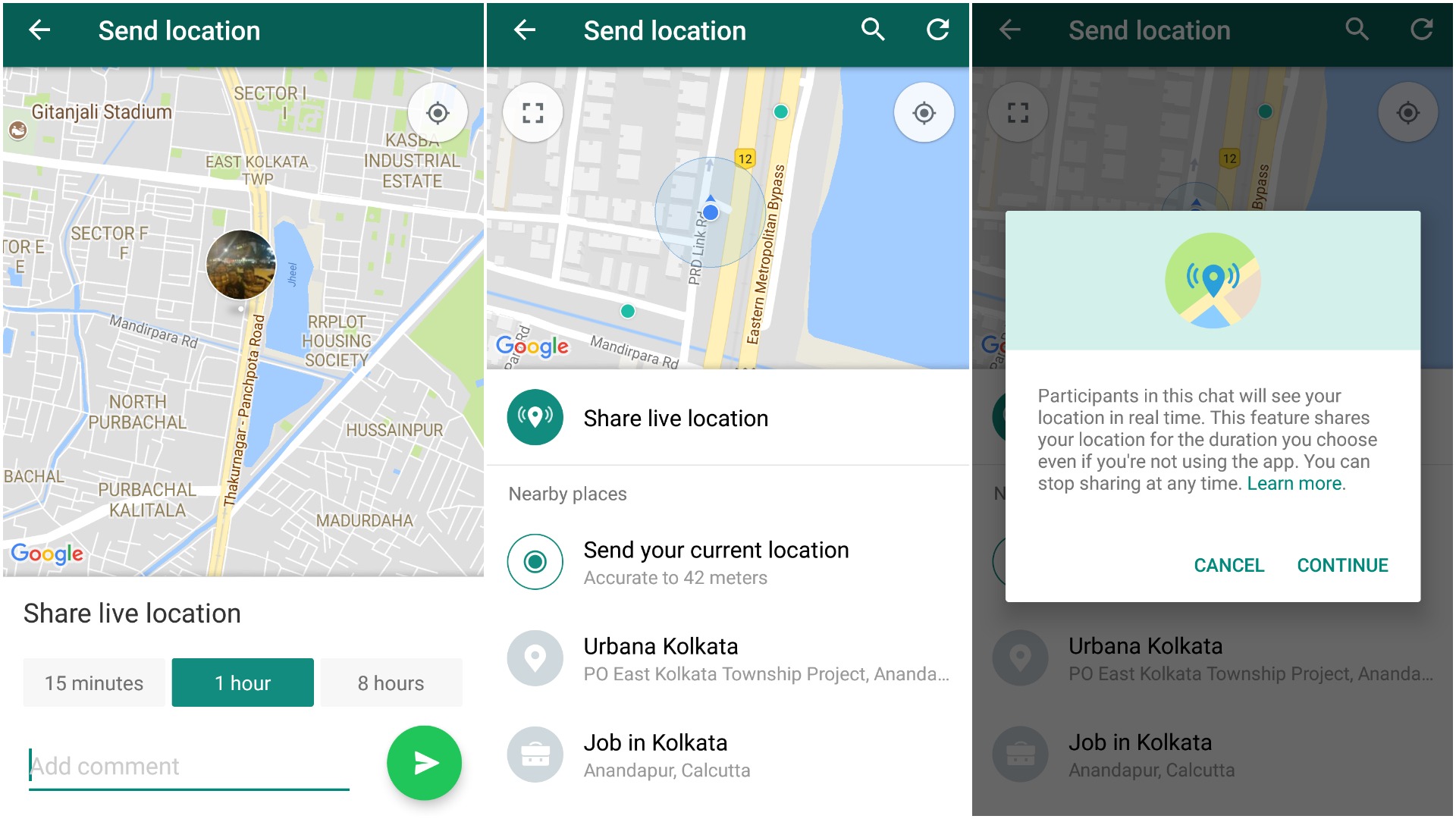
- Characteristics: Requires continuous GPS tracking, which consumes extra battery power. You can manually stop sharing at any time before the timer expires. Pre-set duration options typically include 15 minutes, 1 hour, or 8 hours.
- Best Uses: Perfect for walking home alone at night, letting a friend track your progress when you are running late to a meetup, or coordinating with someone while traveling through a busy venue or festival grounds.
Prerequisites and System Permissions
Before you can successfully send your location on WhatsApp, your mobile device and application must be properly configured. Failing to grant the necessary permissions is the single most common reason location-sharing fails.
Device-Level Location Services
Your smartphone’s internal GPS must be enabled.
- On iPhone (iOS): Navigate to Settings > Privacy & Security > Location Services and ensure the toggle is switched on. Scroll down to find WhatsApp in the application list and set access to While Using the App or Always (if you plan to use live location extensively in the background). Also, ensure Precise Location is toggled on to allow WhatsApp to pinpoint your exact coordinates rather than a generalized neighborhood radius.
- On Android: Open your device Settings > Location and ensure location access is enabled. Then, go to Apps > WhatsApp > Permissions > Location and select Allow only while using the app or Ask every time. Ensure the Use precise location switch is active.
Network and Connectivity Requirements
Location sharing requires an active internet connection. If you are experiencing poor cellular data coverage or an unstable Wi-Fi connection, WhatsApp may fail to load the map interface or transmit your GPS coordinates. Ensure your cellular data or Wi-Fi is functioning correctly before attempting to share.
Step-by-Step Instructions: How to Send Your Location on Android
If you are using an Android smartphone, the interface for sharing location is integrated directly into the chat attachment menu. Follow these precise steps to share your coordinates:
- Open WhatsApp and Select a Chat: Launch the application and tap on the individual chat or group chat where you want to send your location.
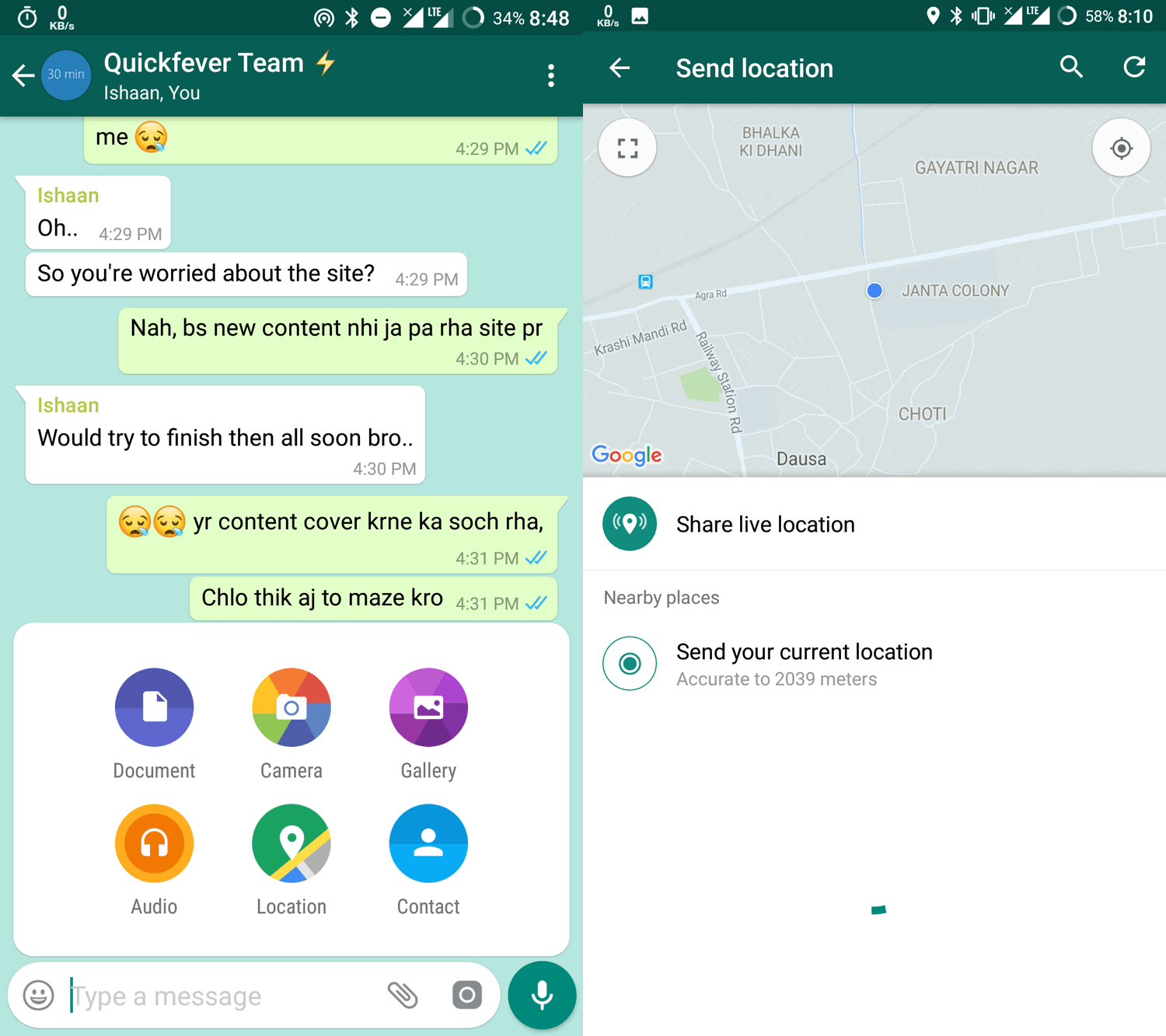
- Tap the Attachment Icon: Look at the bottom message input bar where you type your text. Tap the paperclip icon (attachment symbol) located near the camera icon.
- Select Location: A menu of sharing options will pop up (Document, Camera, Gallery, Audio, Location, Contact, Poll). Tap on the Location icon, which features a map pin graphic.
- Choose Your Sharing Type:
- To share a stationary point, select Send your current location. WhatsApp will instantly grab your GPS coordinates and send the static map pin into the chat.
- To share your real-time tracking, select Share live location. Choose your desired duration (15 minutes, 1 hour, or 8 hours), add an optional comment if desired, and tap the send arrow icon.
Step-by-Step Instructions: How to Send Your Location on iPhone (iOS)
The process on iOS is structurally similar to Android, though the layout of the attachment menu reflects Apple's design guidelines. Follow these steps to share your location from an iPhone:
- Open WhatsApp and Select a Chat: Navigate to the specific chat or group conversation where you wish to send your location.
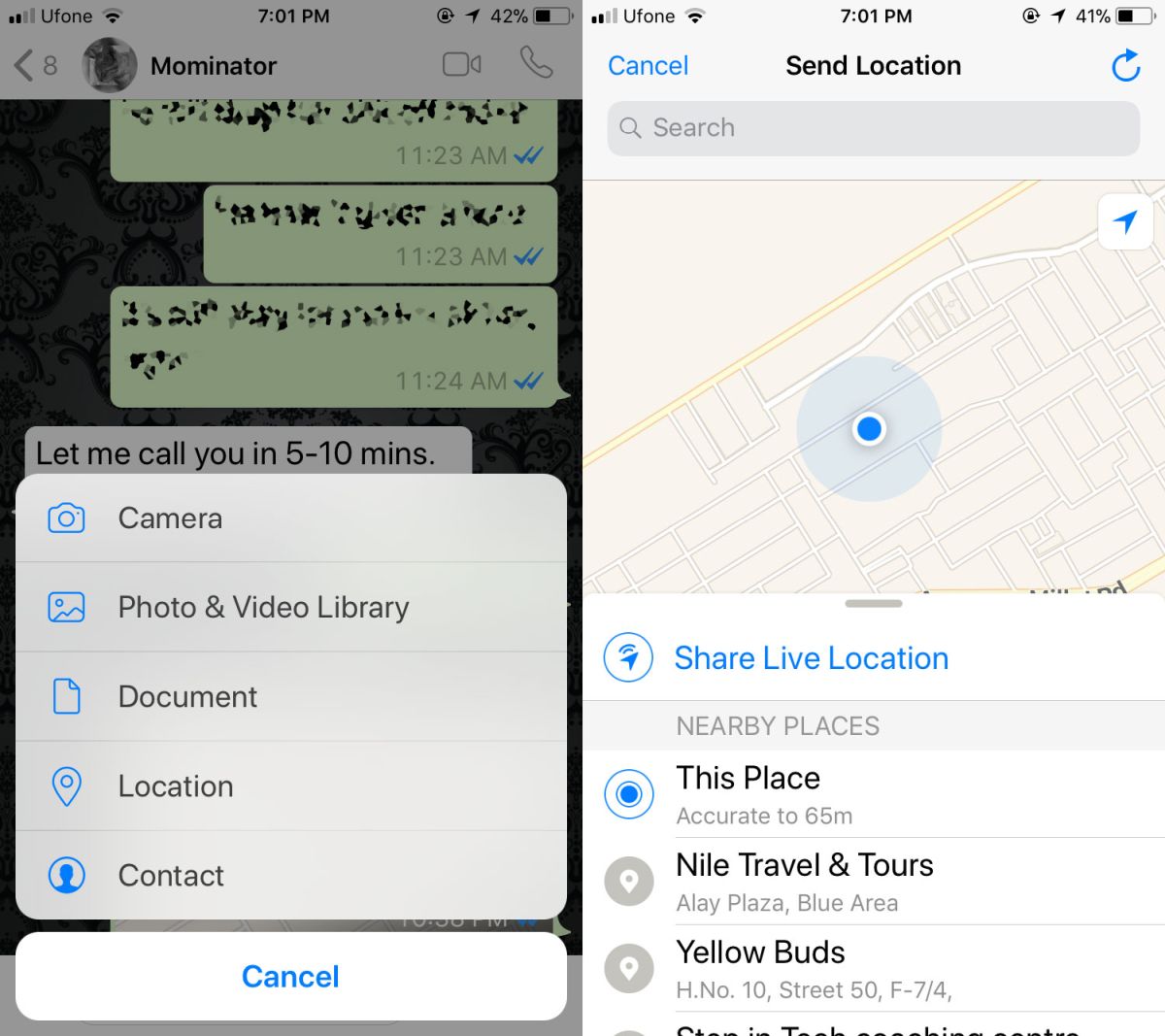
- Tap the Plus (+) Icon: Locate the plus (+) symbol on the bottom-left side of the text input field, directly to the left of the message box.
- Select Location: From the pop-up menu that appears above the text bar, tap on Location.
- Choose Your Sharing Type:
- If prompted by iOS to allow WhatsApp to access your location, tap Allow While Using App.
- To send a stationary pin, tap Send Current Location.
- To track your movement over time, tap Share Live Location, select your preferred time limit, and tap the send button.
Comparison of Location-Sharing Options
To help you decide which method fits your current communication scenario, review the feature comparison matrix below.
| Feature | Send Current Location | Share Live Location |
|---|---|---|
| Duration | Instantaneous (One-time transmission) | Timed (15 mins, 1 hour, or 8 hours) |
| Tracking Type | Static pin on a map | Dynamic, moving marker updated in real time |
| Battery Impact | Negligible | Moderate to High (due to continuous GPS polling) |
| Privacy Control | Shared once; recipient cannot see future movements | Can be manually stopped at any time before expiration |
| Primary Use Case | Indicating a fixed building, address, or meeting spot | Coordinating transit or ensuring personal safety during travel |
Managing and Stopping Live Location Sharing
When you share your live location, you maintain full control over who can see you and for how long. You do not have to wait for the pre-set timer to expire if you have already met up with your contact.
How to Manually Stop Sharing
- Open the specific chat where you are currently sharing your live location.
- Tap the Stop Sharing button, which appears directly beneath the live map preview in the chat thread.
- Confirm by tapping Stop when prompted.
- Alternatively, you can manage all active location streams globally by going to WhatsApp Settings > Account > Privacy > Live Location and tapping Stop Sharing for all active chats.
Troubleshooting Common Location-Sharing Issues
Users occasionally encounter technical hurdles when attempting to send their location. Review these common scenarios and solutions to resolve errors quickly.
- "Location Services Disabled" Error: If WhatsApp displays a warning that location services are turned off, navigate to your phone’s core operating system settings (iOS Settings or Android Settings) and re-enable global location tracking.
- Inaccurate Pin Placement: GPS signals can be weak indoors, underground, or in dense urban areas surrounded by tall skyscrapers. If the map pin does not match your exact street corner, step outside into an open area with a clear view of the sky to allow your phone's GPS receiver to acquire a stronger satellite lock.
- Loading Failures: If the map interface displays a gray box or fails to load entirely, check your internet connection. Switching from a weak Wi-Fi network to cellular data often resolves map-loading timeouts.
Frequently Asked Questions
Can I share my location on WhatsApp Web or Desktop?
No, WhatsApp Web and the desktop applications for Windows and Mac do not currently support generating or sending your live or current location directly from a computer. You must use the mobile application on an Android or iOS device to share map coordinates. However, you can view and click on locations sent by others from your desktop.
Are my shared locations encrypted?
Yes. Like all personal messages and media sent on the platform, location sharing on WhatsApp is protected by end-to-end encryption. This ensures that only you and the recipient (or members of a secure group chat) can view the coordinates you transmit; intermediaries, third parties, and WhatsApp itself cannot read or intercept your location data.
Will the recipient be notified if I stop sharing my live location?
When you manually tap "Stop Sharing" or when the time limit expires, the map thumbnail in the chat will update to show a grayed-out notice stating "Live location ended." The recipient will not receive a push notification alert when it stops, but the chat window will visually reflect that tracking is no longer active.
Can I share a location that is different from where I am currently standing?
Yes. When you open the location menu on your phone, WhatsApp usually displays a search bar or a list of nearby notable places, landmarks, and businesses. You can manually search for an address, venue, or business name anywhere in the world and send that specific pin to your chat, even if you are miles away from that location.
Conclusion and Next Actions
Mastering how to send your location on WhatsApp is a vital skill for effortless modern coordination and personal safety. Whether you choose a quick, static pin of your current spot or opt to broadcast your real-time journey via live tracking, ensure your device permissions are properly configured before you step out. Open your mobile app today, test the attachment menu in a chat with a trusted contact, and familiarize yourself with the interface so you are fully prepared the next time you need to guide someone straight to your side.
Image Gallery
Select an image to open it in a new tab.



Simon Caldwell
Enterprise Technology and Systems Editor
