Blocking an entire email domain in your inbox is the most efficient way to stop persistent spam, phishing attempts, and unwanted marketing newsletters from reaching your digital workspace. Instead of manually flagging individual messages one by one, filtering out everything originating from a specific web address suffix—such as @example.com—secures your primary inbox and minimizes digital distractions across desktop and mobile clients.
Understanding Email Domain Blocking and How It Works
Before modifying your inbox settings, it helps to understand what happens when you block a domain. An email address consists of two parts separated by the "at" symbol (@): the local part (your username or identifier) and the domain name (the mail server provider or corporate organization).
When you block an entire domain, your email service provider (ESP) creates a routing rule or spam filter rule. Any incoming message where the sender's address ends with that specific domain is automatically intercepted before it hits your main folder. Depending on the email client, these messages are either routed straight to the Trash or Spam folder, or deleted permanently without leaving a trace.
The Difference Between Blocking a Sender vs. Blocking a Domain
Many users confuse blocking an individual sender with blocking an entire domain.
- Blocking a single sender (e.g.,
john.doe@marketingfirm.com) stops messages from that precise email address. However, if John Doe or his marketing firm switches tojohn.smith@marketingfirm.comorsupport@marketingfirm.com, those new addresses will still reach your inbox. - Blocking the entire domain (e.g.,
@marketingfirm.com) casts a much wider net. It intercepts any message sent from any mailbox hosted on that domain's mail servers. This is exceptionally effective against organizations that spin up dozens of alias addresses to bypass basic filters.
Prerequisites and Preparation
Before you dive into your inbox settings, take a moment to prepare your account. Proper preparation ensures you do not accidentally lock out important communications from legitimate organizations.
- Audit Recent Messages: Search your inbox for past communications from the domain you intend to block. Confirm that no essential invoices, automated password resets, or human colleagues use that domain.
- Access a Desktop Browser: While mobile applications allow basic blocking, configuring robust domain-level rules or filters is almost always easier and more reliable through a web browser on a desktop or laptop computer.
- Check Administrative Permissions: If you are using a corporate, educational, or organizational email address managed by an IT administrator, user-level domain blocking may be restricted by organization-wide security policies. In such cases, you may need to submit a ticket to your IT department.

How to Block an Email Domain Across Major Platforms
Different email service providers handle domain blocking through varying interfaces. Below are step-by-step instructions for the most widely used platforms.
Gmail (Google Workspace and Personal)
Gmail handles domain blocking through its filter creation tool rather than a simple one-click button, because the standard "Block" button usually only targets individual addresses.
- Open Gmail in your web browser.
- Click the Show search options icon (the small sliders) on the right side of the main search bar at the top of the page.
- In the From field, type the domain you want to block, making sure to include the "@" symbol (for example,
@unwanteddomain.com). - At the bottom of the search window, click Create filter.
- In the list of filter options that appears, check the box next to Delete it (or Skip the Inbox (Archive it) and Apply the label if you prefer to review them later).
- Click Create filter to activate the rule across all incoming mail.
Microsoft Outlook (Outlook.com and Microsoft 365)
Microsoft Outlook provides straightforward junk email settings that easily accommodate domain-level rules.
- Open Outlook in your web browser and click the Gear icon (Settings) in the top-right corner.
- Navigate to Mail and then select Junk email.
- Under the Blocked senders and domains section, click the + Add button.
- Type the exact domain name you wish to block (e.g.,
unwanteddomain.comor@unwanteddomain.com). - Press Enter on your keyboard, and then click Save at the bottom of the window to update your security rules.
Apple Mail (macOS and iOS)
Apple Mail relies heavily on Rules configured on desktop macOS applications, which then sync across iCloud-connected devices.
- Open the Mail application on your Mac.
- Go to the top menu bar, click Mail, and select Settings (or Preferences on older macOS versions).
- Click on the Rules tab, then click Add Rule.
- Give your rule a descriptive name (e.g., "Block Domain XYZ").
- Set the condition to:
From->Contains->unwanteddomain.com. - Set the action to:
Move Messageto mailboxTrash(orJunk). - Click OK, and when prompted whether to apply the rule to existing messages, select your preferred option.
| Email Service | Primary Method for Domain Blocking | Where Blocked Mail Goes |
|---|---|---|
| Gmail | Create a Filter (From: @domain.com) |
Trash, Archive, or Custom Label |
| Microsoft Outlook | Junk Email Settings (Blocked senders) |
Junk Email Folder |
| Apple Mail | Desktop Rules (From Contains) |
Trash or Junk Folder |
| Yahoo Mail | More Settings (Security and Privacy) |
Spam Folder |
Common Mistakes to Avoid
When setting up domain blocks, users often make small configuration errors that lead to missed communications or ineffective filtering. Keep these pitfalls in mind:
- Omitting the At Symbol: Depending on the platform, typing
domain.comwithout the@symbol might block any email that simply mentions that domain in the body text, rather than strictly blocking messages originating from that domain. Always use@domain.comwhen configuring advanced filters. - Failing to Test: After setting up a block rule, test it if possible (or monitor your spam/trash folder over the next 48 hours) to ensure legitimate mail isn't getting caught in the crossfire.
- Forgetting Corporate Aliases: Large companies often operate across multiple regional domains (e.g.,
.com,.co.uk,.org). Blocking only one extension will leave your inbox vulnerable to messages sent from the others.
Troubleshooting and Advanced Management
If you notice that messages from a blocked domain are still slipping past your defenses, or if you accidentally blocked a domain you actually need, follow these troubleshooting steps:
Reviewing and Editing Existing Rules
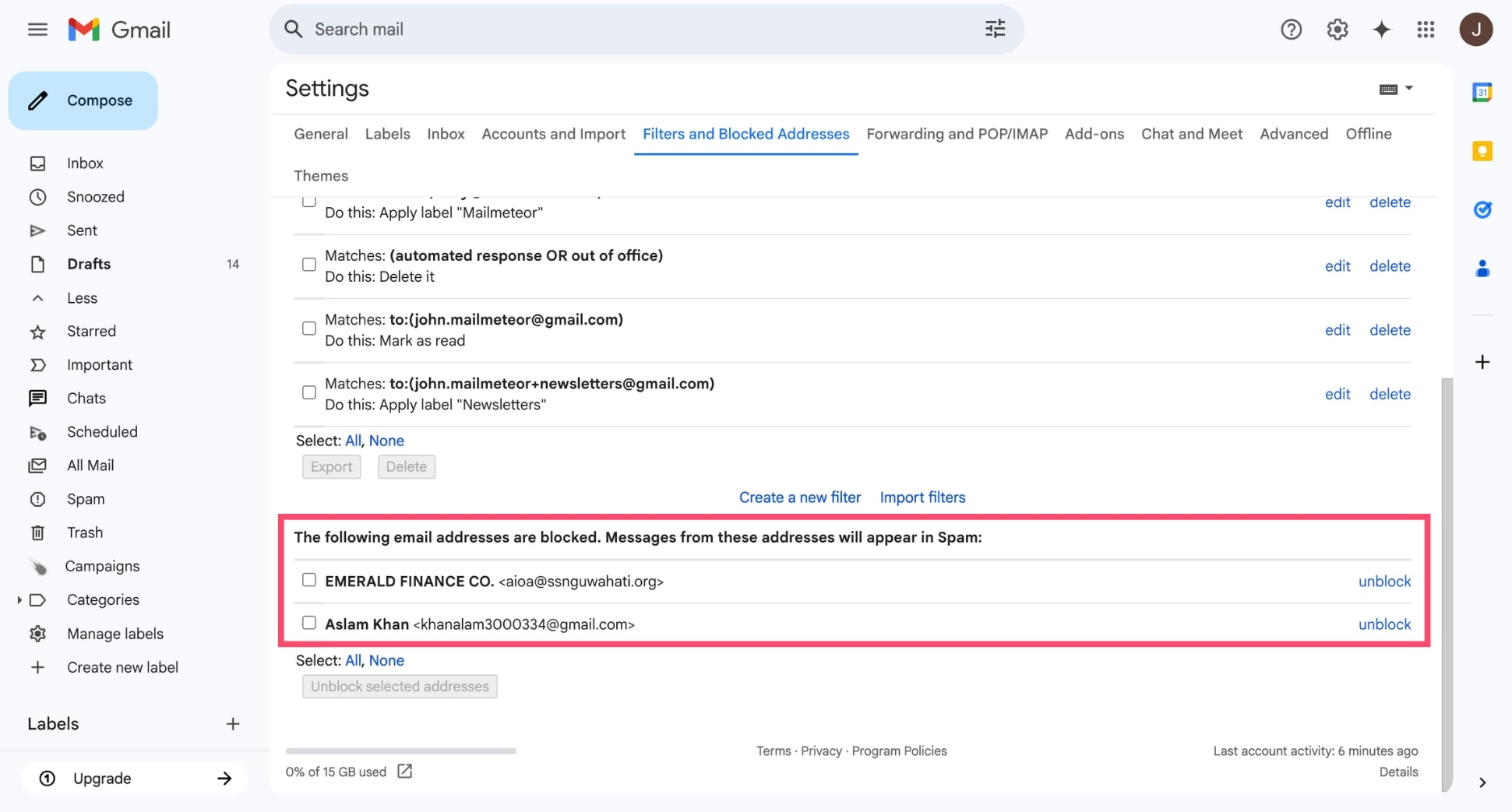
- In Gmail: Go to Settings -> See all settings -> Filters and Blocked Addresses. Here, you can review, edit, or delete any domain filter you have previously built.
- In Outlook: Return to Settings -> Mail -> Junk email to remove entries from your blocked list if you need to restore communication.
Dealing with Spoofed Domains
Advanced spammers often "spoof" domains, making it look like an email originates from a trusted source while hiding its actual origin behind malicious mail servers. If domain blocking fails to stop a persistent sender, examine the email's full internet header to find the true originating server, and report the abuse directly to your email provider.
Frequently Asked Questions
What happens to emails from a blocked domain?
When you block an email domain, future messages sent from that domain are typically intercepted automatically. Depending on your email client's configuration, they are sent straight to your Trash folder, routed to Junk/Spam, or deleted entirely before you ever see a notification.
Will the sender know that I blocked them?
No. Standard email protocols do not send a notification, read receipt, or bounce message indicating that an address or domain has been blocked. The sender's message will appear to go through successfully on their end, protecting your privacy and preventing further retaliation.
Can I block an entire country code domain extension?
Most mainstream email clients do not allow you to block an entire top-level domain extension (like .xyz or .top) with a single click, as this can inadvertently block legitimate international partners. Instead, you must create specific filter rules for individual abusive domains as they appear.
How do I unblock a domain if I made a mistake?
To unblock a domain, navigate to your email client's security, filter, or junk settings menu. Locate the blocked senders list or filter list, find the domain in question, and select the option to delete, remove, or unblock it. Future emails from that domain will then resume normal delivery to your inbox.
Does blocking a domain work on mobile apps?
While mobile email apps allow you to block individual senders easily, complex domain-level filters (such as those required in Gmail) are usually best configured via a desktop web browser. Once established, these rules apply universally across both desktop and mobile devices synced to your account.
Final Recommendations
Maintaining a clean inbox requires routine maintenance. Periodically review your filter rules and blocked lists to prune outdated entries and ensure your communication channels remain secure. By proactively managing unwanted domains, you reclaim valuable time and protect your digital workflow from persistent spam.
Image Gallery
Select an image to open it in a new tab.

Declan O'Connor
Higher Education and Campus Culture Reporter
