To choose the perfect USB flash drive personalized for your needs, you must align the device’s storage capacity, interface speed (USB 3.2 or USB 4), and physical durability with your specific use case. Determine whether you require high-speed data transfers for 4K video, hardware encryption for security, or dual-connectors for cross-platform compatibility.
In 2026, the humble USB flash drive remains an essential tool for data portability, despite the ubiquity of cloud storage. Choosing the right one is no longer just about picking the highest gigabyte count for the lowest price. The landscape of NAND flash memory, interface protocols, and physical form factors has evolved significantly, making it necessary to understand the technical nuances to ensure your purchase serves your specific workflow without becoming a bottleneck.
Assessing Your Storage Capacity Requirements
The first step in personalizing your choice is identifying exactly how much space you need. In 2026, storage capacities have shifted upward; 64GB is now considered the bare minimum for basic document transport, while 1TB and 2TB drives are common for professional use.
Basic Document and Student Use (128GB to 256GB)
For students and office workers primarily moving Word documents, PDFs, and occasional PowerPoint presentations, a 128GB or 256GB drive is the "sweet spot." These capacities provide ample room for years of academic work without the risk of running out of space during a critical project. Choosing a drive in this range is also the most cost-effective way to get a high-quality, branded device that offers better reliability than no-name alternatives.
Creative Professionals and Media Enthusiasts (512GB to 1TB)
If your "needs" involve high-resolution photography, 4K video editing, or carrying a high-fidelity music library, you should not look below 512GB. A single minute of uncompressed 4K video can consume gigabytes of data. For these users, personalization means looking for "Pro" or "Extreme" lines from manufacturers like SanDisk or Kingston, which are optimized for high-capacity workflows.
Power Users and Backup Solutions (2TB and Beyond)
In 2026, 2TB and 4TB USB flash drives serve as viable emergency backup solutions or "sneakernets" for massive datasets. While external SSDs offer more speed at these capacities, the ultra-portable form factor of a flash drive is preferred by IT professionals who need to carry entire operating system installers, diagnostic tools, and driver repositories in their pockets.
Understanding Interface Speeds and Standards
The speed of a USB flash drive is often its most misunderstood feature. A "personalized" choice requires matching the drive's speed to the ports available on your computer and the type of files you move.
USB 3.2 Gen 1 vs. Gen 2 vs. Gen 2x2
Most mid-range drives currently utilize USB 3.2. However, the naming conventions can be confusing:
- USB 3.2 Gen 1: Offers speeds up to 5 Gbps. This is sufficient for small files and occasional use.
- USB 3.2 Gen 2: Doubles the speed to 10 Gbps. This is the baseline recommendation for anyone moving video files or large folders frequently.
- USB 3.2 Gen 2x2: Reaches 20 Gbps. These are specialized drives that require a compatible port to function at full speed.
The Rise of USB 4 and Thunderbolt 4
In 2026, high-end laptops and desktops are equipped with USB 4 ports. If you are a video editor or database manager, choosing a USB 4 flash drive is the ultimate personalization for your high-performance needs. These drives can reach speeds exceeding 40 Gbps, making the transfer of a 50GB file happen in seconds rather than minutes. However, ensure your host device supports these protocols, or the drive will default to slower legacy speeds.

Selecting the Right Physical Connector
Personalization also means ensuring the drive physically fits your hardware. We are currently in a transitional period between connector types, making "dual" drives increasingly popular.
USB Type-A: The Legacy Standard
The rectangular USB-A port is still found on many desktop PCs, older laptops, and car infotainment systems. If you frequently interact with older hardware or public kiosks, having a USB-A connector is a necessity.
USB Type-C: The Modern Standard
Almost all modern smartphones, tablets, and ultrabooks utilize USB-C. If your workflow involves moving files from an Android phone or an iPad Pro to a MacBook or a modern Windows laptop, a native USB-C drive is the most efficient choice. It eliminates the need for cumbersome dongles.
Dual-Connector (OTG) Drives
For the most versatile personalized experience, On-The-Go (OTG) drives feature both USB-A and USB-C connectors (often on a swivel or slide mechanism). These are highly recommended for consultants and teachers who never know what kind of computer they will encounter in a classroom or boardroom.
NAND Flash Architecture and Longevity
Not all flash memory is created equal. The internal architecture of the drive—the NAND flash—determines how long the drive will last before the cells wear out.
- SLC (Single-Level Cell): The most durable and fastest, but extremely expensive and rare in consumer flash drives. Used primarily in industrial applications.
- MLC (Multi-Level Cell): Highly reliable with good endurance. Found in high-end "Professional" drives.
- TLC (Triple-Level Cell): The most common type in 2026. It strikes a balance between cost, capacity, and lifespan.
- QLC (Quad-Level Cell): Used in very high-capacity, low-cost drives. While fine for storage, they have lower write endurance and can slow down significantly once the drive starts to fill up.
For a personalized choice that lasts years, aim for TLC-based drives from reputable manufacturers who provide long-term warranties (5 years or more).
Security and Data Protection Features
If your data is sensitive, personalizing your drive means looking beyond storage and speed toward security.
Hardware vs. Software Encryption
Basic drives may come with software that creates a password-protected folder. However, for true security, you should choose a drive with AES 256-bit hardware encryption. Hardware encryption is more secure because the cryptographic process happens on a dedicated chip on the drive itself, making it much harder to crack than software-based solutions.
Biometric and Physical Keypads
Some specialized drives feature built-in fingerprint scanners or physical alphanumeric keypads. These are ideal for healthcare professionals, legal experts, or government contractors who must comply with strict data protection regulations like GDPR or HIPAA.
Comparison of USB Flash Drive Profiles for 2026
The following table helps you narrow down the best drive based on your primary usage profile.
| User Profile | Recommended Capacity | Recommended Interface | Key Feature to Look For |
|---|---|---|---|
| Student / Office | 128GB - 256GB | USB 3.2 Gen 1 | Durability & Value |
| Photographer | 512GB - 1TB | USB 3.2 Gen 2 | High Sequential Write Speed |
| Video Editor | 1TB - 2TB | USB 4.0 | Thermal Management |
| IT Professional | 256GB - 512GB | USB 3.2 Gen 2 (Dual) | Multi-boot Compatibility |
| Security Focused | 64GB - 128GB | USB 3.2 Gen 1 | FIPS 140-2 Level 3 Certification |
| Smartphone User | 128GB - 512GB | USB-C / OTG | Small Form Factor |
Aesthetics and Physical Personalization
Beyond technical specs, "personalized for your needs" can also refer to the physical design of the drive.
Ruggedization
If you are an outdoor enthusiast or work in industrial environments, choose a drive with an IP67 or IP68 rating. These drives are dust-proof and can survive immersion in water. Some are even built with zync-alloy casings or rubberized exteriors to withstand significant drops and pressure.
Branding and Customization
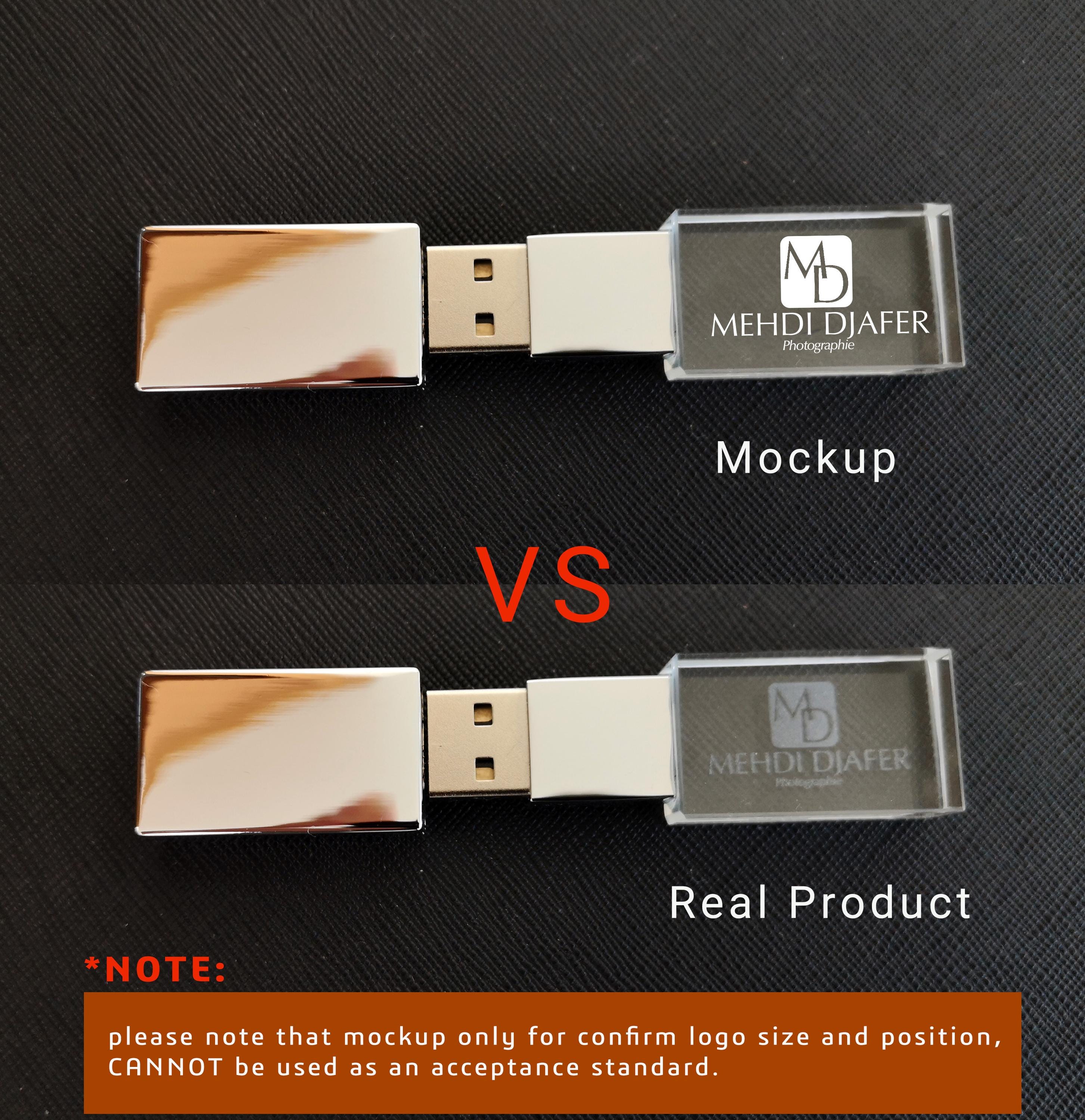
For corporate gifts or personal branding, many suppliers offer laser engraving or custom-molded casings. When choosing a drive for custom branding, ensure the internal controller is still of high quality. Many "novelty" drives use sub-standard NAND flash; it is better to personalize a known entity like a Kingston DataTraveler or a SanDisk Ultra through professional engraving services.
Common Pitfalls to Avoid
When selecting a personalized drive, avoiding certain common mistakes is just as important as choosing the right specs.
- Buying Based on "Up To" Speeds: Manufacturers often list "Up to 400 MB/s" for read speeds, but the write speed might be significantly lower. Always check independent benchmarks for the specific model to see the sustained write performance.
- Ignoring Thermal Throttling: High-speed USB 4 drives generate significant heat. Look for drives with metal casings, as they act as a heatsink. Cheap plastic drives may slow down (throttle) during large file transfers to prevent overheating.
- Falling for Fake Capacities: Be wary of incredibly cheap high-capacity drives (e.g., a 2TB drive for $10). These are often "spoofed" drives that report a large capacity to the OS but overwrite data once they reach their actual, much smaller limit. Use tools like H2testw to verify the capacity of any new drive.
- Overlooking Warranty: A flash drive is a mechanical-free but electronically sensitive device. A 5-year or lifetime warranty is a sign that the manufacturer trusts the quality of the NAND flash used inside.
FAQs
What is the difference between a USB flash drive and a portable SSD?
A USB flash drive is designed for maximum portability and often uses a single-chip controller. A portable SSD (Solid State Drive) uses more complex controllers and multiple NAND chips, similar to an internal computer drive. While flash drives are smaller, portable SSDs generally offer much higher sustained speeds and better endurance for tasks like running an operating system or editing video directly from the drive.
Can I use a USB-C flash drive with my iPhone?
Yes, as of 2026, all modern iPhones (iPhone 15 and later) use a standard USB-C port. You can plug a USB-C flash drive directly into the phone to move photos, videos, and files using the native "Files" app. This is an excellent way to personalize your mobile storage without paying for expensive iCloud upgrades.
How long does data stay safe on a USB drive if it's not plugged in?
NAND flash memory stores data using electrical charges. Over several years of total inactivity, these charges can "leak," leading to data corruption (bit rot). For long-term cold storage (5+ years), USB drives are not recommended. They are intended for data transport and temporary backup. For archival needs, look into M-DISC or high-quality hard drives stored in a controlled environment.
Why does my 128GB drive only show 119GB in Windows?
This is due to the difference between decimal and binary measurements. Manufacturers use decimal (1GB = 1,000,000,000 bytes), while operating systems like Windows use binary (1GiB = 1,073,741,824 bytes). No storage is being "lost"; it is simply a difference in how the capacity is calculated and displayed.
Is it necessary to "Eject" a drive in 2026?
While Windows and macOS have improved "Quick Removal" features that minimize the risk of data loss, it is still best practice to manually eject the drive. This ensures that all "cached" write operations are completed. Removing a drive while it is actively writing can lead to file system corruption, requiring a reformat of the drive.
Practical Recommendation
For the vast majority of users in 2026, the best "personalized" choice is a 256GB USB 3.2 Gen 2 Dual-Connector (USB-A and USB-C) drive. This configuration offers the best balance of speed, future-proof compatibility, and ample storage for both professional and personal use. If you work with sensitive information, prioritize a model with hardware-level AES-256 encryption. Always stick to established brands to ensure the longevity of your data and the accuracy of the advertised speeds.
Image Gallery
Select an image to open it in a new tab.


Ingrid Bjornson
Global Cyber Policy and Regulation Analyst
