Understanding Write Protection: How to Fix a Read-Only SD Card in 2026
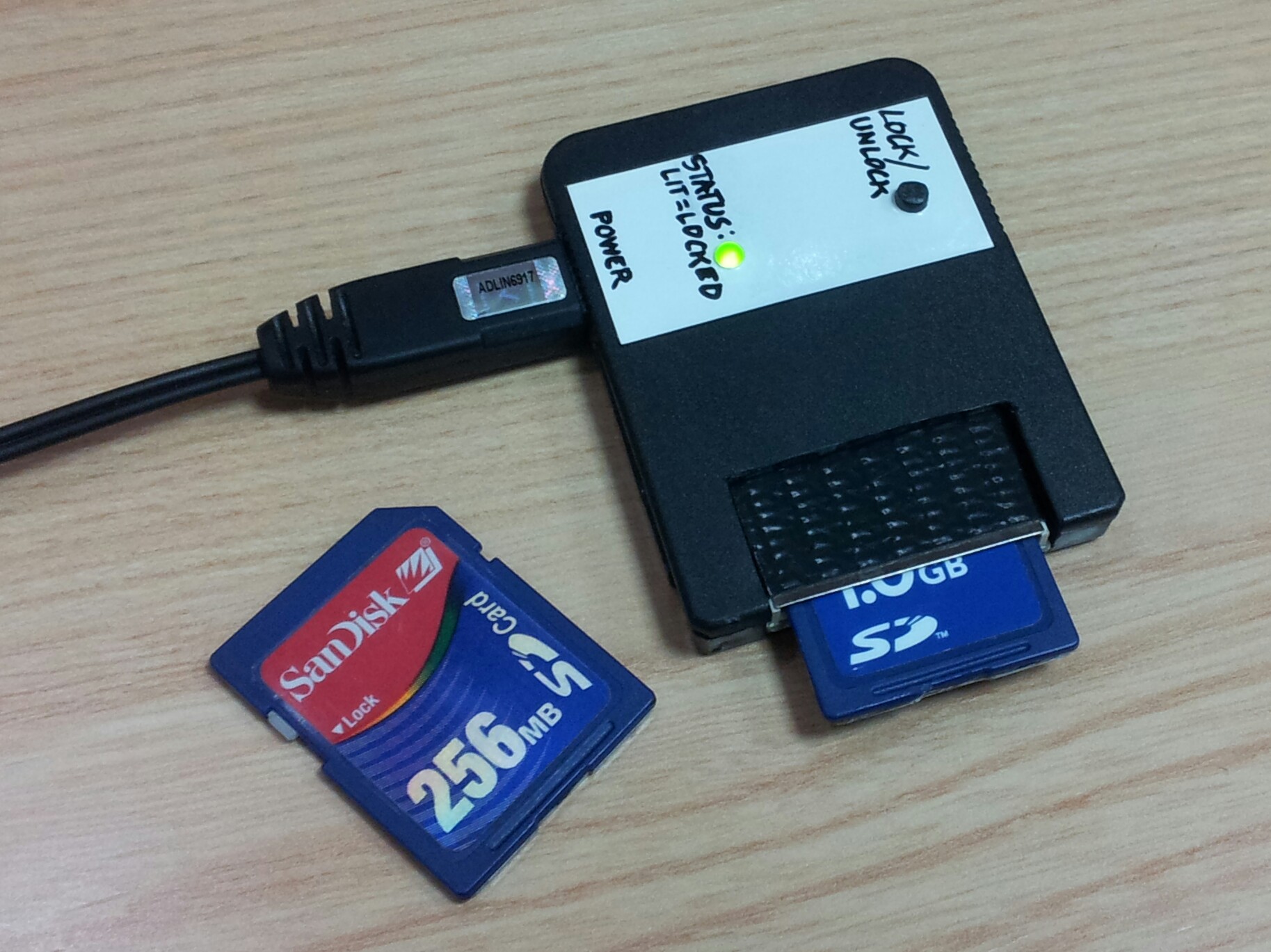
Write protection on an SD card is a security state that prevents the storage device from being modified, meaning you can view and copy files from the card but cannot delete, edit, or add new data. This "read-only" status is either a physical mechanical setting on the card itself or a logical software attribute triggered by the operating system, file system errors, or the card's internal controller reaching its end-of-life.
The Nature of Write Protection and Read-Only States
To understand why an SD card becomes write-protected, one must first distinguish between the mechanical and digital layers of the device. An SD (Secure Digital) card is not merely a passive storage medium; it contains a sophisticated controller and NAND flash memory. In 2026, even with the prevalence of high-speed SDUC (Secure Digital Ultra Capacity) cards and SD Express interfaces, the fundamental logic of write protection remains a critical fail-safe for data integrity.
When a device is "read-only," the communication between the host (your computer, camera, or smartphone) and the storage medium is restricted to outbound data. The "Write Enable" command is essentially ignored or blocked. This is often a deliberate choice by the user to prevent accidental erasure, but more frequently, it serves as a warning sign of underlying hardware or software issues. Understanding the "Why" behind this state is the first step in resolving the "How" of the fix.
Physical Write Protection: The Mechanical Slider
The most common and simplest cause of a read-only SD card is the physical lock switch. This small, usually yellow or white slider is located on the left edge of standard-sized SD cards. It is important to note that this switch does not electronically disconnect any circuits within the card. Instead, it is a mechanical signal that the card reader detects.
When the slider is in the "Lock" position (usually moved downward toward the bottom of the card), the card reader’s internal sensor detects the gap and tells the operating system to treat the volume as write-protected. If the slider is loose or the card reader's sensor is dusty, the card might report as read-only even if the switch appears to be in the "Unlock" position.
To resolve this, you should physically toggle the switch back and forth several times to ensure it isn't stuck in an intermediate state. If the switch is broken or missing, the card will often default to a locked state for safety. In such cases, a temporary hardware fix involving a small piece of adhesive tape over the switch notch can sometimes trick the reader into allowing writes, though this is a risky maneuver for long-term data safety.

Software-Level Attributes and the Diskpart Utility
If the physical switch is not the culprit, the write protection is likely "logical," meaning it exists in the software environment of the operating system. In Windows environments, the Diskpart utility is the primary tool for managing these attributes. Sometimes, a system crash or an improper ejection can leave a "readonly" flag on the disk’s attributes in the Windows registry or the partition table.
To clear these attributes using Diskpart, follow these steps:
- Open the Start menu, type cmd, and run the Command Prompt as an Administrator.
- Type diskpart and press Enter to launch the disk management utility.
- Type list disk to see all storage devices connected to your machine. Identify your SD card by its size (e.g., Disk 2).
- Type select disk X (replace X with the number of your SD card).
- Type attributes disk clear readonly and press Enter.
This command sends a specific instruction to the Windows mount manager to strip away the read-only flag from the device's software profile. If successful, you will see a message stating "Disk attributes cleared successfully." This does not delete your data; it simply flips the digital bit that was preventing write access.
Modifying the Windows Registry for System-Wide Policies
In some enterprise or highly secured computing environments, write protection isn't a property of the SD card itself, but a global policy within the Windows Registry. This is often used by IT administrators to prevent data exfiltration or the spread of malware via USB and SD storage.
If you have administrative rights, you can check for a key called StorageDevicePolicies. Navigate to the following path in the Registry Editor (regedit):
HKEY_LOCAL_MACHINE\SYSTEM\CurrentControlSet\Control\StorageDevicePolicies
Look for a DWORD value named WriteProtect. If this value is set to 1, your computer will treat every external storage device as read-only, regardless of the card's actual settings. Changing this value to 0 and restarting the computer will restore write capabilities. If this key does not exist, it means your system is not enforcing a global write-protection policy, and the issue lies elsewhere.
File System Corruption and Chkdsk
A frequent but misunderstood cause of read-only status is file system "dirty bits" or corruption. When a file system like FAT32 or exFAT (standard for SD cards) detects structural inconsistency—perhaps from being pulled out of a camera while it was still saving a photo—the operating system may mount the drive as read-only to prevent further damage to the data.
The chkdsk (Check Disk) utility is designed to find and repair these logical errors. By running the command chkdsk E: /f (where E is your SD card's drive letter), Windows will scan the file allocation table. If it finds orphaned files or incorrect index entries, it attempts to repair them. Once the file system is marked as "clean," the OS will often automatically lift the read-only restriction.
Hardware Failure: The "End-of-Life" Read-Only Mode
Modern NAND flash memory, which powers all SD cards, has a limited lifespan measured in Program/Erase (P/E) cycles. Each time you write or delete data, the physical cells of the memory wear down slightly. To prevent catastrophic data loss, SD card controllers are programmed with "wear-leveling" algorithms and an ultimate fail-safe.
When the controller detects that the flash cells have reached their reliability limit or that the number of "bad blocks" has exceeded a safe threshold, it will permanently lock the card into a read-only state. This is an intentional design feature meant to allow the user one final chance to rescue their data. In 2026, high-end cards from manufacturers like SanDisk, Samsung, and Lexar utilize advanced firmware that triggers this state more gracefully than older cards.
If you have tried all physical and software fixes and the card remains write-protected across multiple different computers and devices, the hardware has likely failed. In this scenario, the card cannot be "fixed." The focus must shift entirely to data recovery, followed by the disposal of the card.
Comparison of Write Protection Types
| Protection Type | Primary Cause | Solution Method | Data Risk |
|---|---|---|---|
| Physical | Mechanical slider on the side of the card. | Move the switch to the "Unlock" position. | Low |
| Logical (OS) | Diskpart attribute or Registry policy. | Use diskpart or Registry Editor to clear flags. |
Low |
| File System | Corruption, "Dirty Bit," or improper ejection. | Run chkdsk or reformat the volume. |
Moderate |
| Firmware/EOL | NAND flash wear-out or controller failure. | None (Hardware is failing; backup immediately). | High |
| Adapter Error | Faulty microSD to SD adapter or card reader. | Replace the adapter or use a different port. | Low |
Dealing with Write Protection on macOS and Mobile
While Windows is the most common platform for these issues, macOS and Android users also encounter read-only SD cards. On macOS, the issue is often related to the Disk Utility. If a card is formatted in NTFS (a Windows-native format), macOS will mount it as read-only by default because Apple’s operating system requires third-party drivers to write to NTFS volumes. In 2026, most SD cards use exFAT, which is natively supported for both reading and writing on macOS and Android, but a corrupted partition map can still trigger a "First Aid" requirement in Disk Utility.
On Android devices, a read-only status is frequently a permissions issue or a sign that the card is "SD card is corrupted" or "Read-only." Android's security model often restricts apps from writing to the SD card unless specific "Document Provider" permissions are granted. If the system itself marks the card as read-only, it is almost always a sign of hardware failure or file system corruption that requires a format.
When to Reformat the Card
Formatting should be the penultimate step before declaring a card dead. Formatting a write-protected card is a paradox: you cannot format a card that is write-protected, but sometimes the act of attempting a "Low-Level Format" using specialized tools can bypass certain software-level locks.
Tools such as the SD Memory Card Formatter (provided by the SD Association) are more effective than standard Windows or Mac formatting tools. These utilities are designed specifically to adhere to the SD specification. If the SD Association's own tool cannot format the card because it is write-protected, it is a definitive confirmation that the card's internal controller has locked the device due to hardware failure.
Frequently Asked Questions
Why does my SD card say write-protected when the switch is off?
This usually happens because the mechanical switch is loose or the sensor inside the card reader is faulty. Try using a different card reader or a different microSD-to-SD adapter. Additionally, ensure the card is pushed fully into the slot; if the card is slightly askew, the reader might misinterpret the position of the lock switch.
Can a virus make an SD card read-only?
Yes, certain types of malware can change the attributes of a disk to read-only to prevent antivirus software from deleting the malicious files. If you suspect this, running the diskpart "attributes disk clear readonly" command followed by a deep antivirus scan is the recommended course of action.
Is it possible to remove write protection on a microSD card?
MicroSD cards do not have physical lock switches. If a microSD card is read-only, it is either due to the software settings on the host device (like a phone or PC), a setting on the SD adapter it is sitting in, or internal hardware failure. Check the adapter's switch first, then proceed to diskpart commands.
Does "read-only" mean my photos are lost?
No, "read-only" actually means your photos are safer than usual because they cannot be deleted or overwritten. It simply means you cannot add new photos. You should immediately copy all files from a read-only SD card to a secure location (like your computer's hard drive or cloud storage) before attempting any destructive fixes like formatting.
Why does my camera say "Card Locked" but my computer works fine?
Cameras are often more sensitive to the physical position of the lock switch and the integrity of the file system than computers are. If the camera detects even a slight structural error in the DCIM folder or a slightly out-of-place lock switch, it will refuse to write to the card to prevent data loss.
Final Recommendations for 2026
If you encounter the "write protected" or "read-only" error, follow a systematic approach:
- Check the Hardware: Verify the physical switch and try a different adapter or reader.
- Clear Software Flags: Use the
diskpartutility in Windows to clear the readonly attribute. - Repair the File System: Run
chkdskto fix logical errors. - Rescue Data: If the above fail, copy your data immediately.
- Accept Hardware Failure: If the card remains read-only after trying these steps on multiple devices, the internal NAND controller has reached its end-of-life. Retire the card and replace it with a high-quality SDUC or SDXC card to ensure future reliability.
Image Gallery
Select an image to open it in a new tab.

Simon Caldwell
Enterprise Technology and Systems Editor
