Accessing and installing apps on an Apple TV is a straightforward process managed through the tvOS App Store. Whether you are looking to stream new content, play games, or utilize utility applications, you can browse, download, and manage these programs directly from your television interface using your Apple ID. To begin, ensure your Apple TV is connected to the internet and signed into an iCloud account, then navigate to the App Store icon on your Home screen to search for and install your desired software.
Understanding the Apple TV Ecosystem and Compatibility
Before attempting to download applications, it is essential to understand that the "Apple TV" experience refers to two distinct but related concepts: the Apple TV hardware (a physical media player) and the Apple TV app (a software application available on various platforms).
This guide focuses on the physical Apple TV hardware—the set-top box running tvOS. Because this device functions as a dedicated computer for your television, it requires its own specific ecosystem of applications. Apps built for an iPhone or a Mac will not automatically appear on your Apple TV unless the developer has specifically created a version compatible with tvOS. When searching for apps, you are restricted to the version of the App Store curated specifically for the Apple TV hardware.
Prerequisites for App Installation
To successfully manage apps on your Apple TV, your device must meet a few baseline requirements:
- Network Connectivity: Your device must be connected to a stable Wi-Fi or Ethernet network. Without an active internet connection, you cannot reach the App Store servers to verify or download files.
- Apple ID Configuration: You must be signed in with an active Apple ID. If you do not have one, or if you are not signed in, you will be unable to finalize "purchases," even for free applications, as the device requires account authentication to link the app to your user profile.
- Storage Capacity: While most streaming apps are relatively small in file size, some gaming applications can be significant. If you run out of local storage, you will need to delete existing apps before you can install new ones.
Step-by-Step Guide to Installing Apps
The process of adding an app to your Apple TV is designed to be intuitive. Follow these steps to find and install your software:
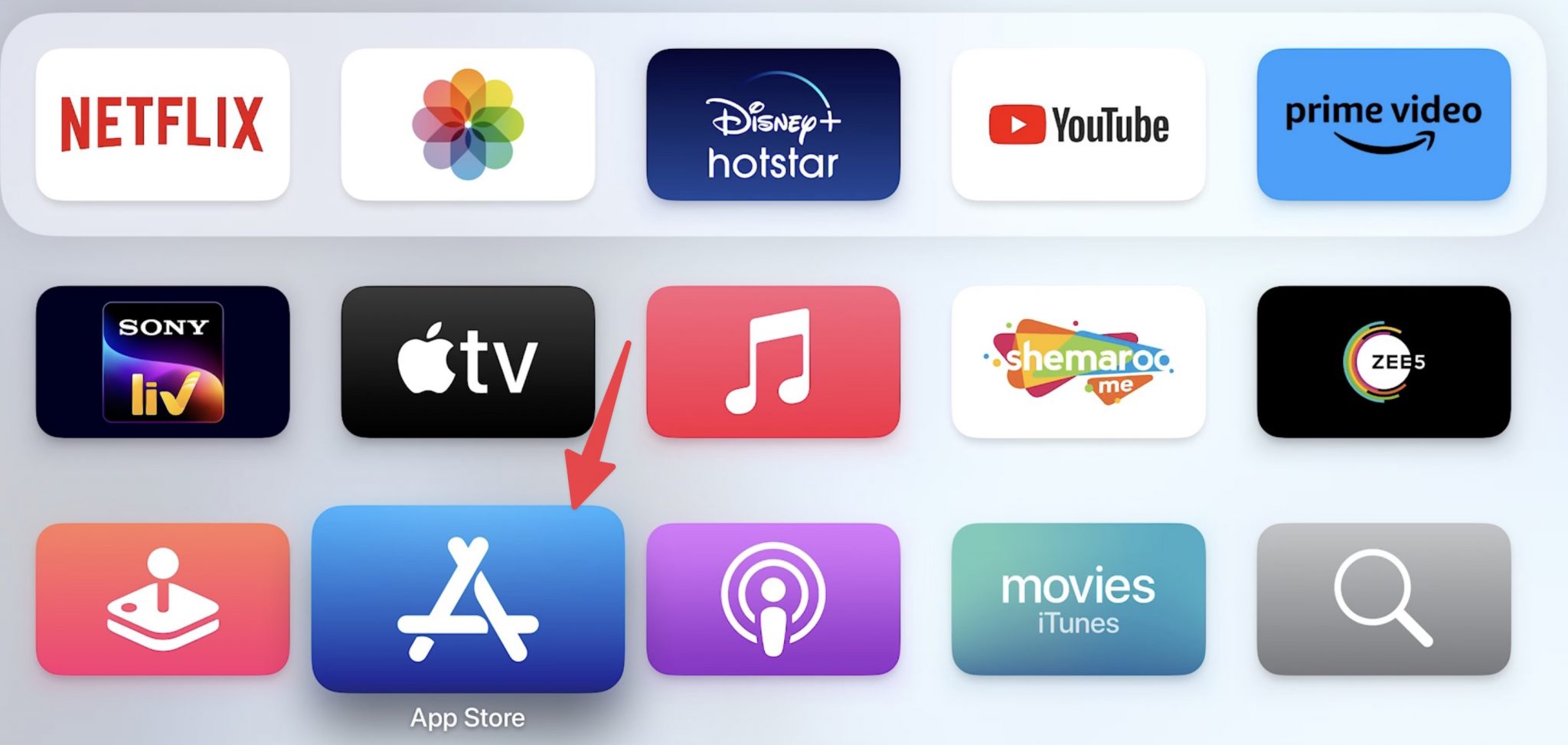
- Locate the App Store: Use your Siri Remote to navigate to the "App Store" icon on your Home screen. It is typically represented by a blue icon with a white "A" character.
- Browse or Search: Once inside the App Store, you can browse "Featured," "Top Charts," or "Categories" to discover content. If you have a specific app in mind, navigate to the "Search" tab located at the top of the screen.
- Select the Application: Use the clickpad on your Siri Remote to highlight the app you wish to install. Click the center of the pad to open the app’s details page.
- Initiate the Download: Select the "Get" button (for free apps) or the price button (for paid apps). If prompted, enter your Apple ID password or confirm the installation using Touch ID or Face ID on your paired iPhone or iPad.
- Monitor Progress: The app icon will appear on your Home screen, and a progress ring will indicate the download status. Once the ring disappears, the app is ready to launch.
Managing Your App Library
Once you have installed multiple applications, your Home screen can become cluttered. Managing your digital space is key to a smooth experience.
Moving and Organizing Apps
You can reorganize your apps to prioritize your most frequently used services. To do this, navigate to the app icon you wish to move, then press and hold the center of the clickpad on your Siri Remote until the icon begins to jiggle. You can then use the directional buttons to move the app to a new location. Clicking the center of the remote again will "drop" the app in its new spot.
Deleting Apps
If you no longer use an application, removing it frees up storage and cleans up your interface. Highlight the app you wish to remove, press and hold the clickpad, and select "Delete App" from the context menu that appears. Confirm the action when prompted. Deleting an app does not delete your subscription status; if you have a paid subscription to a service (such as a streaming platform), you will need to cancel that subscription through your account settings if you wish to stop paying for it.
Automatic App Installation
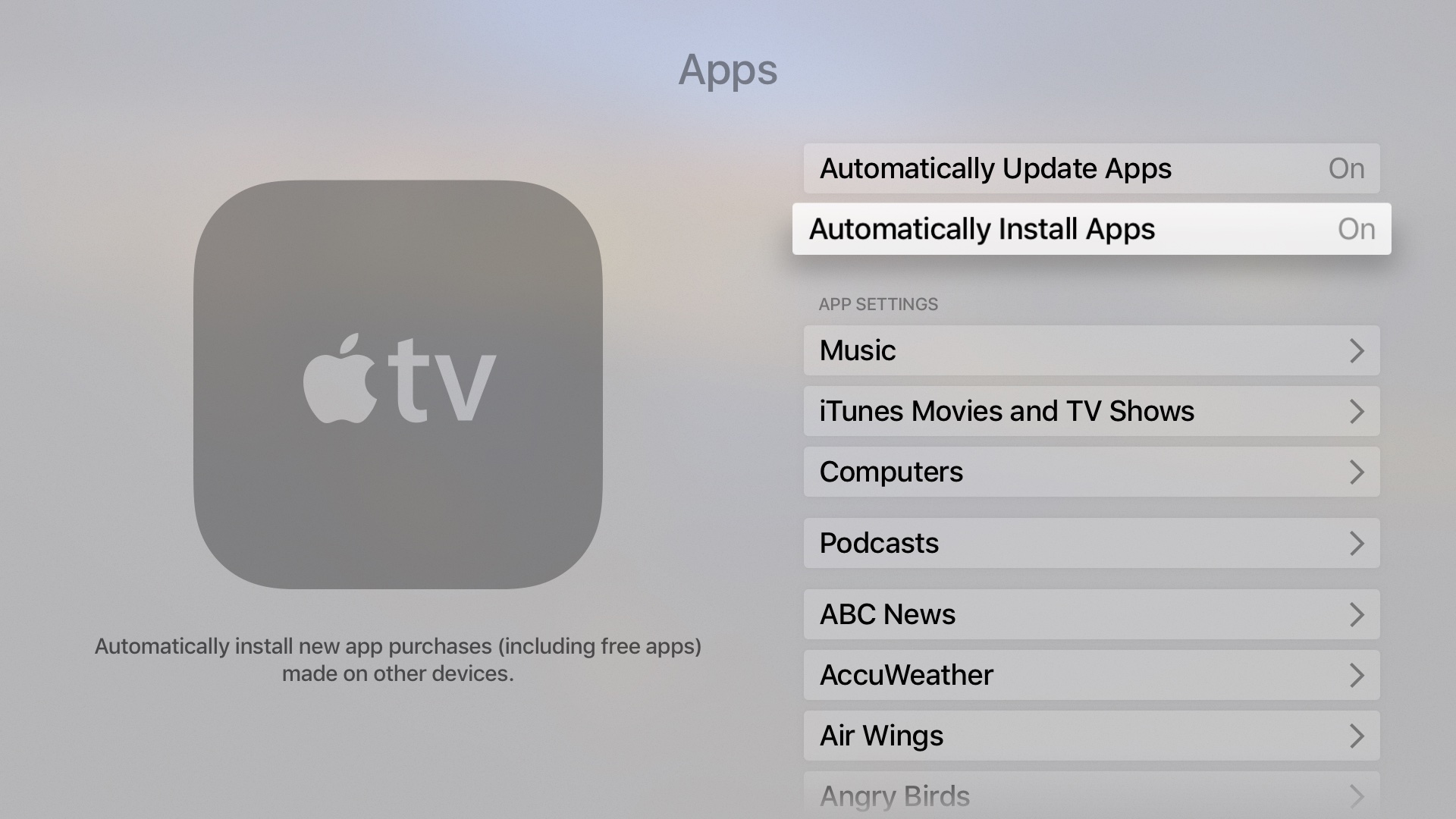
Apple TV allows you to sync app installations across your devices. If you enable "Install Apps Automatically" in your settings (found under Settings > Apps), any app you download on your iPhone or iPad that also has a corresponding tvOS version will be installed on your Apple TV automatically. This feature is particularly useful for users who want a unified experience across their household devices.
Comparison of Apple TV App Management Methods
| Method | Best For | Requirement |
|---|---|---|
| On-Device App Store | Direct, manual installation | Physical remote access |
| Automatic Sync | Synchronizing apps across devices | Signed into same Apple ID |
| Siri Voice Search | Quickly finding specific titles | Enabled Siri and internet |
| Computer/Web Portal | Managing subscriptions/purchases | Access to appleid.apple.com |
Troubleshooting Common Issues
Even in a mature ecosystem, issues may arise. If you find yourself unable to download an app, consider these common solutions:
- Check Billing Information: If you are trying to download a paid app or an app that requires an in-app subscription, ensure your payment method on file is current. If your credit card has expired, the App Store will block new installations.
- Restart the Device: If the App Store appears frozen or does not load, navigate to Settings > System > Restart. This clears temporary cache issues that may prevent the store from connecting to Apple's servers.
- Verify Regional Availability: Some applications are restricted to specific geographic regions due to licensing agreements. If you are traveling or using a VPN, you may find that certain apps are not available in the App Store for your current location settings.
- Check Software Updates: Ensure your Apple TV is running the latest version of tvOS. Outdated software may be incompatible with the current requirements of newer apps. Go to Settings > System > Software Updates to check for available patches.
Frequently Asked Questions
Why can't I find a specific app on the Apple TV App Store?
If an app is not showing up in the search results, it is likely because the developer has not created a version for tvOS. While many mobile apps have tvOS counterparts, it is not a requirement for developers. Check the developer’s website to confirm if they support Apple TV hardware.
Do I have to pay for apps that I already downloaded on my iPhone?
In most cases, if an app is a "universal" purchase or a free service, you do not need to pay for it again. However, if the developer has created a separate, paid version for tvOS, you may be required to pay for the television version separately. Always check the price button in the App Store; it will display "Get" or "Install" if it is free for you to download.
How do I update my apps?
By default, your Apple TV is set to update apps automatically. You can verify this in Settings > Apps. If you prefer to update manually, you can visit the App Store and check the "Purchased" or "Updates" tab, though Apple TV generally handles this background maintenance without user intervention.
Can I install apps from outside the official App Store?
The Apple TV environment is a "walled garden." You cannot "sideload" apps or install software from third-party websites. This restriction is in place to ensure the security and stability of the platform, as all apps on the App Store are vetted by Apple for malware and performance standards.
Will installing too many apps slow down my Apple TV?
Generally, no. tvOS is optimized to manage background processes. However, if you are low on storage space, system performance can degrade. Keep at least a few gigabytes of storage free to ensure the device has room for system logs, temporary files, and software update caches.
Next Actions
To get the most out of your Apple TV, start by auditing your current apps. Navigate to your Home screen, organize your most-used streaming services to the top row, and delete any applications you have not opened in the last six months. If you are new to the device, navigate to the App Store and download the official apps for the streaming services you already pay for, ensuring you have your login credentials ready. For further control, visit Settings > Users and Accounts to ensure your profile is fully optimized for your viewing habits.
Image Gallery
Select an image to open it in a new tab.
Simon Caldwell
Enterprise Technology and Systems Editor
