How to Check Your Spam Folder Message Across Major Email Platforms
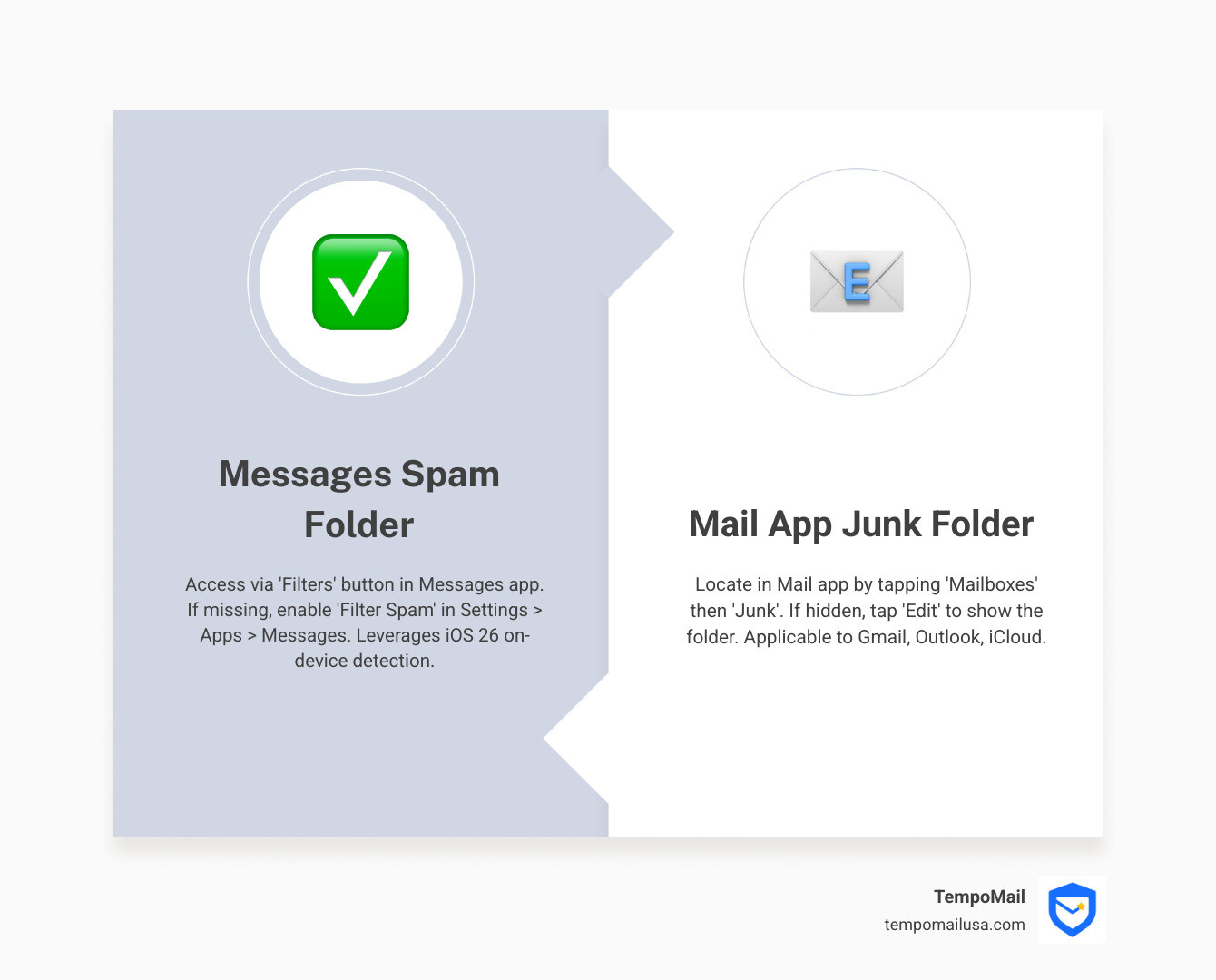
Checking your spam folder is a fundamental troubleshooting step when you are expecting an important message that has failed to appear in your primary inbox. By navigating to the designated folder within your email provider’s interface, you can locate quarantined communications, mark them as legitimate, and restore them to your inbox to ensure they are properly delivered in the future.
Why Emails End Up in the Spam Folder
Email service providers use sophisticated automated filters to protect users from malicious activity. These filters evaluate incoming messages against a variety of criteria to determine if they are legitimate or potential threats.
When a message is flagged, the system does not always delete it immediately. Instead, it shunts the email to a secondary folder—commonly labeled "Spam" or "Junk"—to prevent the message from cluttering your primary workspace while keeping it accessible for your review.
Common factors that trigger these filters include:
- Sender Reputation: If the sender’s domain has a history of sending bulk unsolicited mail or has not properly authenticated its domain using protocols like SPF (Sender Policy Framework), DKIM (DomainKeys Identified Mail), or DMARC (Domain-based Message Authentication, Reporting, and Conformance), filters are more likely to flag it.
- Content Patterns: Emails containing specific keywords associated with phishing, excessive capitalization, suspicious links, or unsolicited commercial offers are often flagged.
- Engagement History: If you have previously marked emails from a particular sender as spam, your provider’s algorithm learns this preference and will automatically route future messages from that sender to the spam folder.
- Technical Triggers: Unusual headers, broken images, or hidden scripts in the HTML code of an email can cause an automated security response.
Step-by-Step: Checking Spam on Major Providers
While the underlying logic of spam filtering remains consistent across the industry, the specific user interface steps vary by provider.
Gmail
Gmail’s spam folder is hidden by default in the side navigation bar to keep the interface clean.
- Open your Gmail account on your desktop browser.
- On the left-hand sidebar, look for the "More" option. If you do not see it, you may need to click the downward-facing arrow or scroll down.
- Select "Spam." If the folder is not visible, it may be hidden in your settings; go to Settings > Labels to ensure the "Show in label list" box is checked for Spam.
- Once in the folder, click on the message you were expecting.
- If the message is legitimate, click the "Report not spam" button at the top of the screen to move the email back to your primary inbox and signal to Google that messages from this sender should be trusted.
Outlook
Outlook manages junk mail via a dedicated folder usually found near the bottom of your mail list.
- Log in to your Outlook account via the web or the desktop application.
- Expand your folder list in the left-hand navigation pane.
- Locate and click the "Junk Email" folder.
- Browse the contents. If you find your expected email, right-click the message.
- Select "Not junk." A prompt will ask if you want to report the message as safe; confirming this will move the email to your Inbox and automatically add the sender to your "Safe Senders" list.
Apple Mail (iCloud/macOS/iOS)
Apple’s approach focuses on a "Junk" mailbox that is generated once the system identifies potential spam.
- Open the Mail app on your device.
- View your main mailbox list.
- Scroll until you find the "Junk" mailbox. If you do not see it, you may have no messages currently classified as junk.
- Tap or click on the message.
- Click the "Not Junk" button in the banner at the top of the message window. The message will move to the Inbox.
Comparison of Spam Management Features
| Feature | Gmail | Outlook | Apple Mail |
|---|---|---|---|
| Primary Label | Spam | Junk Email | Junk |
| Recovery Action | Report not spam | Mark as not junk | Mark as not junk |
| Safe Sender List | Automatic based on action | Manual/Automatic | Managed via Contacts |
| Access Location | Sidebar (under "More") | Sidebar (Folders) | Mailbox List |
Troubleshooting: When the Email Isn't in the Spam Folder
If you have thoroughly searched your spam folder and still cannot find the expected message, the issue may exist at a different stage of the delivery pipeline.
Check Other Folders and Tabs Many modern email services, especially Gmail, employ "Inbox Categories." A message might be perfectly legitimate but was automatically sorted into the "Promotions," "Social," or "Updates" tabs. Click through these tabs to verify the message wasn't simply miscategorized by the provider’s organizational algorithms.
Search All Mail Users often overlook the power of the search bar. Sometimes, a message is delivered to the "All Mail" or "Archive" folder without appearing in the inbox. Use the search bar to look for the sender’s email address or the subject line of the message. This often bypasses organizational folders and surfaces the email immediately.
Verify Sender Information If you are expecting an email from a specific organization, ensure you have the correct email address. A minor typo in the sender's domain (e.g., .net instead of .com) can cause an email to be bounced back to the sender rather than reaching your inbox. Additionally, ensure the sender is not experiencing technical issues with their own mail server.
Wait for Propagation Email delivery is generally near-instant, but network latency or server-side bottlenecks can cause delays of several hours. If the message was sent recently, it may be stuck in a queue. If 24 hours have passed without receipt, it is appropriate to reach out to the sender to verify that the message was sent correctly and that they have not received a "bounce-back" or "non-delivery" notification.
Preventive Measures: Keeping Important Mail in the Inbox
To prevent future complications with legitimate emails ending up in the spam folder, you can take proactive steps to "train" your email filters.
- Add Contacts to Your Address Book: Most email providers prioritize messages from addresses stored in your contacts. By saving the sender’s email address to your contacts list, you tell the provider that you have a pre-existing relationship with this entity.
- Use the "Not Spam" Function Consistently: Every time you move an email from the spam folder to the inbox using the official "Not Spam" or "Not Junk" buttons, you are actively improving the filter’s accuracy for your account. This is more effective than simply dragging and dropping the message.
- Check Domain Authentication: If you are a sender who finds your own emails going to the spam folders of others, ensure your domain has proper SPF, DKIM, and DMARC records. These are industry-standard authentication methods that prove to receiving servers that you are the legitimate owner of the domain, drastically reducing the chances of your emails being flagged as spoofing or fraud.
- Maintain Engagement: If you subscribe to newsletters or automated alerts, ensure you open them regularly. Providers monitor user engagement; if they see that you consistently ignore or delete mail from a specific source, they may eventually start filtering those messages as low-priority or spam.
Frequently Asked Questions
How long do emails stay in the spam folder? Most providers, including Gmail and Outlook, automatically delete messages from the spam folder after 30 days. This is an automated privacy and storage maintenance feature. If you need a message that was in the spam folder, move it to your inbox or another folder immediately to prevent it from being purged.
Can I stop emails from going to spam entirely? You cannot turn off spam filtering completely, as this would expose your inbox to significant security risks. However, you can create "Filters" or "Rules" in your email settings. For example, in Gmail, you can create a filter that says "Never send it to Spam" for messages from a specific sender address.
Does checking the spam folder hurt my account security? Checking the spam folder is safe, provided you do not interact with the contents. Avoid clicking links, downloading attachments, or displaying external images within suspicious emails. If you aren't sure if an email is safe, keep it in the spam folder and delete it without opening it.
Why does my own email go to my recipient's spam folder? This is typically due to the reputation of your email server or the content of the message. If you send emails to large lists or use generic marketing templates, your emails may be flagged as bulk mail. Ensure your sending domain is properly authenticated and that you are following best practices for email marketing, such as including a clear unsubscribe link.
Is there a difference between "Junk" and "Spam"? Technically, they are the same thing. The terminology is purely a choice made by the specific email provider. Gmail uses "Spam," while Outlook and Apple Mail often use "Junk." Both folders serve the same purpose: holding messages identified as unsolicited or potentially dangerous.
What should I do if I accidentally deleted a spam message? If you deleted a message from the spam folder, it is generally unrecoverable. Most email providers move items from the spam folder directly to permanent deletion rather than to a "Trash" or "Bin" folder. If the message was important, you will need to contact the sender and request that they resend it.
Practical Next Steps
If you are currently struggling to find a missing email, start by checking your "Promotions" or "Updates" tabs. If that fails, go directly to the "Spam" or "Junk" folder via your sidebar and perform a manual search for the sender’s name. Once located, mark the email as "Not Spam" immediately to ensure future correspondence reaches your primary inbox. If you are the sender, review your domain’s authentication records to ensure your messages meet modern security standards.

Image Gallery
Select an image to open it in a new tab.
Vivian Cho
Executive IT and Emerging Technologies Reporter
