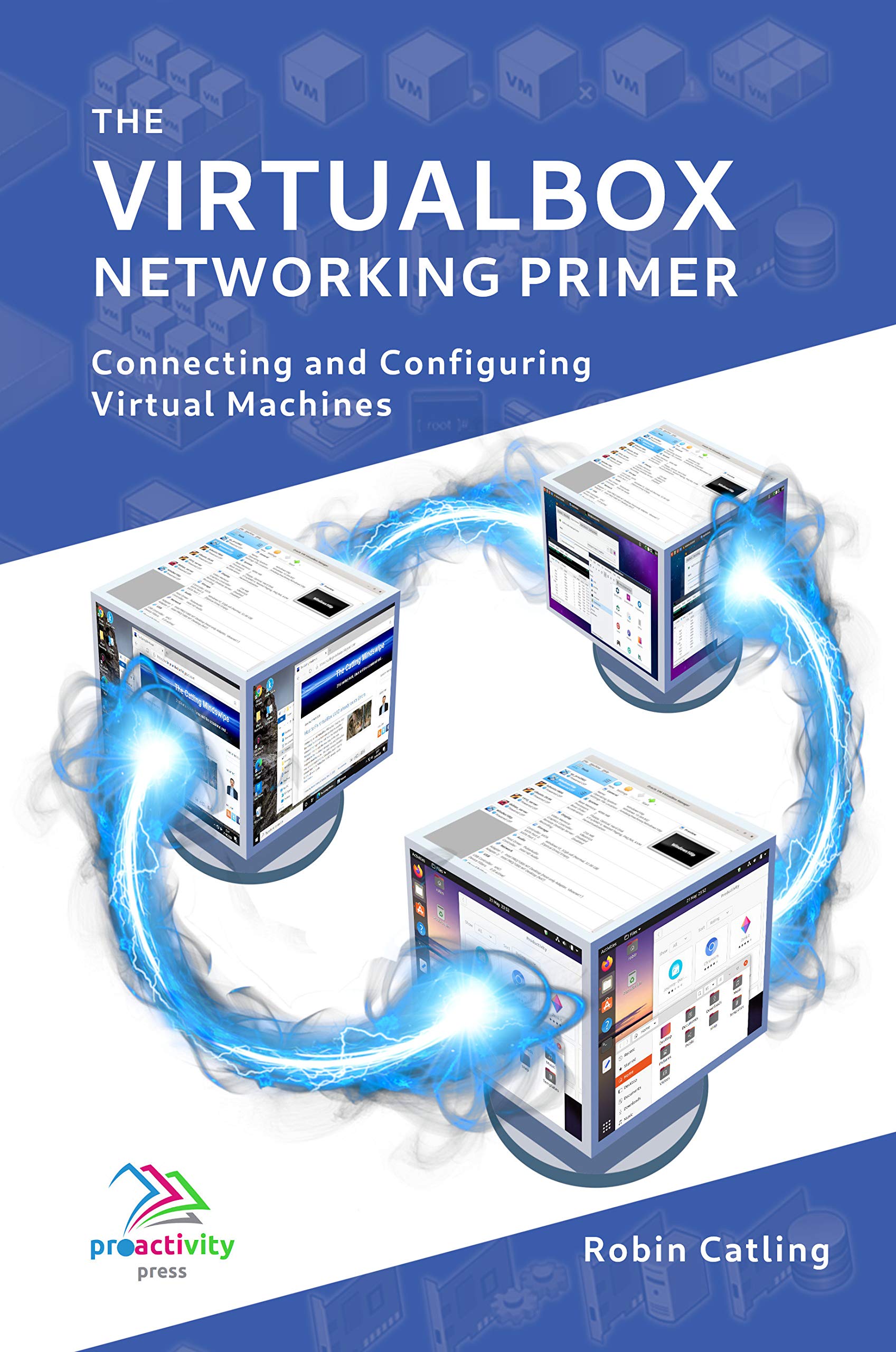
Selecting the appropriate network adapter configuration in VirtualBox is essential for ensuring your virtual machine communicates correctly with your host operating system, your physical local network, and the wider internet. By default, VirtualBox provides several distinct networking modes—each with unique security profiles, connectivity capabilities, and performance characteristics—that dictate how virtualized hardware interfaces with your computer’s physical network controller.
The Role of Virtual Network Adapters
When you create a virtual machine (VM) in VirtualBox, the software creates a virtualized network interface card (vNIC). This vNIC acts as a bridge between the guest operating system (the OS running inside the VM) and the physical hardware of the host computer. Understanding these settings is not just about establishing an internet connection; it is about defining the scope of trust and access between your virtual environment and your physical network.
The hypervisor manages the traffic flowing through these virtual cards. Depending on the mode selected, the hypervisor may perform network address translation (NAT), act as a switch, or simply pass traffic through to the host's physical hardware. Incorrect settings can lead to "no network" errors, isolation from local resources like printers or NAS drives, or potential security vulnerabilities if a public-facing service is inadvertently exposed to the wider network.
Overview of VirtualBox Networking Modes
VirtualBox offers six primary networking modes, each designed for specific use cases. Choosing the wrong one is the most common reason for connectivity failure in a new VM.
1. NAT (Network Address Translation)
NAT is the default mode and the safest option for most users. In this mode, the VM is assigned an IP address by a virtual DHCP server internal to VirtualBox. The guest OS can access the internet via the host’s own connection, but it remains invisible to the outside world and even to other computers on your local network. It is ideal for general web browsing and downloading updates.
2. Bridged Networking
Bridged networking makes the VM appear as a separate, physical device on your local network. The VM gains its own IP address from your router’s DHCP server, just like your host machine or a smartphone on your Wi-Fi. This is the correct choice if you need to access the VM from other devices on your network or host services like a web server, database, or file share.
3. Internal Networking
Internal networking creates a virtual, isolated network that exists only within the host. VMs connected to the same internal network can communicate with one another, but they cannot communicate with the host OS or the external internet. This is useful for testing distributed systems or cluster configurations in a secure, sandbox environment.
4. Host-Only Networking
Host-only networking provides a communication bridge between the host OS and the guest OS. The host can communicate with the VM, and the VM can communicate with the host, but the VM has no access to the outside internet. This is frequently used for development environments where you want to access a web app running inside the VM from the host’s browser without exposing the VM to the internet.
5. NAT Network
A NAT Network is a more advanced version of the standard NAT mode. It allows multiple VMs to share a single internal network while also providing a NAT gateway to the outside world. This creates a "private network" effect where VMs can talk to each other but remain hidden from the outside, while still maintaining internet connectivity.
6. Generic Networking
This is a specialized mode used for advanced tunneling or non-standard protocols. Most users will not need to touch this setting, as it is primarily intended for expert use with specific virtualization frameworks that require raw access to the network stack.
Comparison of Networking Modes
| Networking Mode | Can Access Internet? | Visible to Local Network? | Can Host Reach Guest? | Typical Use Case |
|---|---|---|---|---|
| NAT | Yes | No | No | General Browsing |
| Bridged | Yes | Yes | Yes | Server Hosting / LAN Access |
| Internal | No | No | No | Isolated Lab / Testing |
| Host-Only | No | No | Yes | Host-Guest Development |
| NAT Network | Yes | No | No | Multi-VM Private Lab |
Prerequisites and Requirements
Before modifying network settings, ensure your VirtualBox installation is up to date. While the networking architecture has remained stable, older versions may lack compatibility with modern guest OS network drivers.
To configure these settings:
- Power off the VM (modifications to network adapters are typically not possible while the machine is running).
- Right-click the VM in the VirtualBox Manager and select Settings.
- Navigate to the Network tab.
- Expand the Adapter options to choose from the modes listed above.
- Under Advanced, ensure the Adapter Type is set to a standard virtual model (like Intel PRO/1000 MT Desktop). Modern operating systems usually recognize these drivers automatically.
Advanced Configuration: Port Forwarding
If you are using the default NAT mode but occasionally need to access a service (such as SSH on port 22 or an HTTP server on port 80) running inside the guest from your host machine, you do not need to switch to Bridged mode. Instead, you can use Port Forwarding.
By clicking the Port Forwarding button within the Network settings, you can map a port on your host machine to a port inside the guest. For example, you can tell VirtualBox to listen for traffic on port 2222 of your host and redirect that traffic to port 22 of your guest. This allows you to maintain the security benefits of NAT while retaining the ability to reach specific services within the VM.
Troubleshooting Network Connectivity
If your virtual machine loses network connectivity, follow this systematic diagnostic approach:
- Verify the Cable: In the Network settings, ensure Cable Connected is checked. If this is unchecked, the virtual NIC will report a "disconnected" status, and no IP address will be requested from the DHCP server.
- Check the DHCP Client: If you are using Bridged or NAT mode, the guest OS must have its network settings configured to "Automatic (DHCP)." If you have assigned a static IP inside the guest, ensure it is on the same subnet as the VirtualBox virtual DHCP (if using NAT) or your home router (if using Bridged).
- Reset the MAC Address: Occasionally, if you have cloned a VM, both the original and the clone may share the same MAC address. This causes IP address conflicts. You can click the Refresh icon next to the MAC address field in the Network settings to generate a new, unique identifier.
- Host-Side Interference: Sometimes, third-party firewalls or VPN software on the host machine interfere with the bridge or NAT translation. Try temporarily disabling the host’s firewall or VPN to isolate whether the issue lies with the VirtualBox configuration or the host’s networking stack.
Common Pitfalls and Best Practices
Users frequently encounter issues when attempting to bridge a virtual adapter to a wireless interface. While many modern Wi-Fi chipsets support this, it is not guaranteed. If Bridged mode fails on Wi-Fi, it is often because the wireless access point restricts multiple MAC addresses on a single client connection. In such cases, NAT is the preferred alternative.
Furthermore, always maintain consistency in your network naming schemes. If you are running a complex multi-VM setup, documenting which adapter handles the private communication and which handles the internet traffic will save significant time during future troubleshooting sessions.
Frequently Asked Questions
Why can't I access my VM from my main computer? If you are using the default NAT setting, the host cannot reach the guest directly. Switch the adapter mode to Bridged if you need the VM to be a peer on your local network, or use Port Forwarding if you only need access to a specific service.
Is it safe to use Bridged Networking? Bridged mode makes your VM behave like a physical device on your network. This means the VM is subject to the same risks as any other physical computer on your network, such as being visible to scanners. Ensure your guest OS has its own internal firewall enabled and is fully patched.
Can I have multiple network adapters in one VM? Yes. You can enable up to four network adapters for a single virtual machine. This is highly useful for advanced setups where one adapter provides internet access via NAT, while a second adapter uses Internal Networking to communicate securely with other local VMs.
What is the difference between NAT and NAT Network? NAT is a single-VM solution where the VM is isolated. NAT Network allows multiple VMs to share a common virtual network, meaning they can ping and talk to one another while still sharing a single outgoing connection to the internet through the host.
Why does my virtual machine show as "Disconnected"? This is almost always due to the "Cable Connected" checkbox being disabled in the VirtualBox Network settings. Ensure this is enabled, then restart the network interface inside the guest operating system.
Recommendation
For the vast majority of users, NAT is the appropriate starting point for virtual networking. If you find yourself needing to host a service or provide external access to your VM, upgrade to Bridged mode. If you are experimenting with multiple VMs that need to intercommunicate without exposing them to your physical network, configure a NAT Network with a unique internal subnet. Always document your configuration changes to ensure that if connectivity fails, you have a clear path to roll back to a known working state.

Image Gallery
Select an image to open it in a new tab.

Lars Thomsen
Global Labor Markets and Economic Strategy Editor
