
To give control during a Microsoft Teams screen share, begin sharing your screen or application window during an active meeting. Move your mouse cursor to the top of the shared screen to reveal the presenter toolbar, click Give control, and select the participant's name. The recipient can then interact with your screen using their mouse and keyboard.
Technical Prerequisites for Screen Control in Microsoft Teams
Interactive screen control in Microsoft Teams allows meeting participants to co-edit documents, troubleshoot technical issues, or demonstrate software steps directly on another user's display. However, the Give control and Request control features rely on specific operating system permissions, tenant-level administrative policies, and client application capabilities.
- Presenter Desktop Client
- Requires OS Permissions (macOS Accessibility/Screen)
- Microsoft Teams Infrastructure
- Attendee Desktop Client
- Requires Supported Client (Desktop / Select Browsers)
Before attempting to share mouse and keyboard input during a call, ensure your system meets the following software and configuration requirements:
1. Supported Operating Systems and Client Applications
- Windows: Full support for giving and requesting control is native to the Microsoft Teams desktop app for Windows 10 and Windows 11.
- macOS: Full support is available on the Teams desktop client for macOS, provided system-level security permissions are explicitly granted.
- Web Browsers: Giving control is supported in the desktop versions of Microsoft Edge and Google Chrome. However, performance and gesture support may differ compared to the native desktop applications.
- Mobile Apps: The Teams mobile application on iOS and Android allows users to view shared screens, but mobile users cannot give control of their mobile devices or take full desktop control over another user's workstation.
2. Operating System Permissions (macOS Security Requirements)
Apple's macOS enforces strict security controls around screen recording and device accessibility. If you run Teams on a Mac, you must grant two separate permissions in macOS System Settings; otherwise, attendees will see your shared screen but their mouse clicks will not register.
- Open System Settings on your Mac.
- Navigate to Privacy & Security.
- Select Screen Recording (or Screen & System Audio Recording) and confirm that Microsoft Teams is enabled.
- Return to Privacy & Security, select Accessibility, and toggle the switch for Microsoft Teams to ON.
- Restart Microsoft Teams to apply the changes.
If Accessibility permission is omitted, the attendee will successfully receive the control assignment UI, but their clicks and keystrokes will fail to register on the presenter's Mac screen. Apple provides detailed instructions on managing macOS privacy settings if permissions fail to persist across system updates.
3. Tenant Administration Policies
IT administrators can control whether users inside an organization can yield or request remote control during meetings. This governance is handled through the Microsoft Teams Admin Center via Meeting Policies.
The governing policy parameter is AllowParticipantToGiveRequestControl. When set to Disabled, the Give control and Request control buttons disappear entirely from the meeting toolbar for affected users. Administrators manage this setting directly in PowerShell using the Microsoft Teams PowerShell Module:
Set-CsTeamsMeetingPolicy -Identity Global -AllowParticipantToGiveRequestControl $true
If your account is linked to an enterprise tenant where this setting is toggled off globally or restricted to specific user groups, you cannot give control even if your local application is fully updated.
Step-by-Step Guide: How to Give Control of Your Screen
When you present your desktop or an application window, yielding control allows a designated participant to click, type, scroll, and execute commands on your computer.
- Presenter Actions:
- Start Screen Share
- Hover Top Edge for Toolbar
- Click "Give Control"
- Select Attendee
- Attendee Actions:
- Receive Notification
- Click inside Shared Window
- Begin Input
- To Revoke:
- Hover Top Edge
- Click "Take Back Control"
Step 1: Initiate Content Sharing
- Open Microsoft Teams and join your scheduled meeting or ad-hoc call.
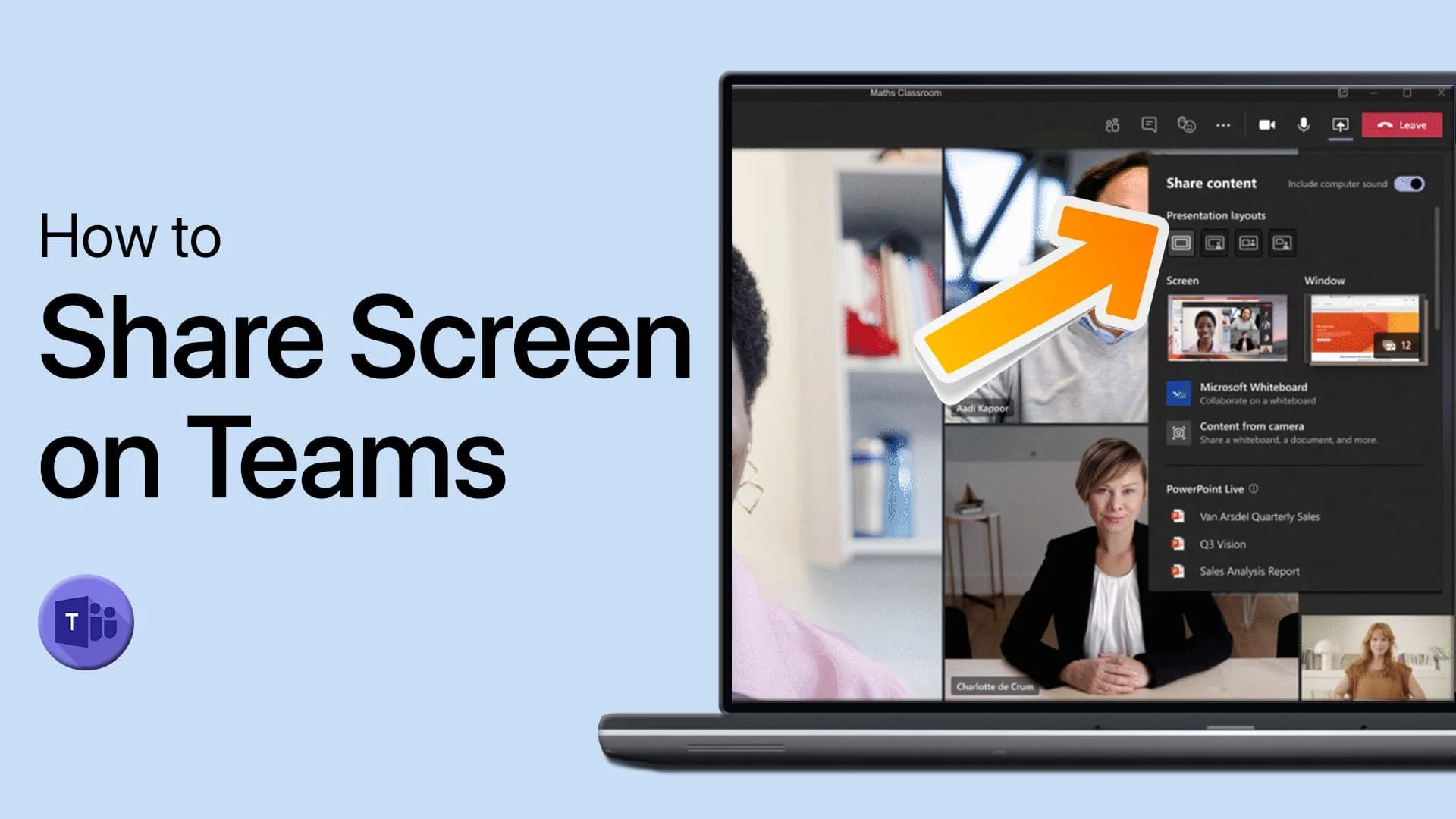
- In the upper-right corner of the meeting window, click the Share button (represented by a rectangle with an upward-pointing arrow).
- Under the Share content panel, choose what you wish to share:
- Screen (Entire Screen): Shares your entire monitor. This is recommended if you need the other person to interact with multiple applications, taskbars, or pop-up windows.
- Window: Shares a single application window (e.g., Microsoft Word or a web browser). If you select a single window, the attendee can only interact within that specific program boundary.
Step 2: Access the Presenter Toolbar
Once screen sharing begins, a red border appears around the shared region of your screen.
- Move your mouse cursor to the top-center edge of the screen that is currently being shared.
- A hidden drop-down toolbar (the Presenter Bar) will slide down into view.
Step 3: Assign Control to an Attendee
- On the presenter toolbar, click the Give control button.
- A drop-down list of all meeting participants will appear.
- Click the name of the participant you wish to grant control to.
Microsoft Teams will issue a notification to the selected attendee stating that they have been granted control. Simultaneously, a secondary user avatar icon will appear next to your mouse pointer, representing the guest user's active cursor.
Step 4: Revoking or Taking Back Control
As the presenter, you retain master administrative priority over your hardware input devices at all times. If the participant moves to an unauthorized application or completes their task:
- Move your mouse cursor back to the top-center edge of your shared display to reveal the presenter toolbar.
- Click Take back control (or Cancel control).
- The remote control session terminates immediately, revoking the attendee's keyboard and mouse privileges while keeping the visual screen share active.
Step-by-Step Guide: How to Request Control of Another Screen
If another participant is presenting their screen and you need to interact with their content, you do not have to wait for them to offer control; you can request it directly.
- Attendee: Click "Request Control"
- Presenter: Receives Pop-Up
- Presenter: Clicks "Allow"
- Attendee Controls Screen
Step 1: Submit the Control Request
- While viewing another user's shared screen in the Teams meeting window, look at the top action bar of your meeting frame.
- Click the Request control button located near the main meeting controls.
Step 2: Await Presenter Approval
- A banner notification displays on the presenter's screen indicating that you are requesting control of their desktop or window.
- The presenter must click Allow to approve the request. If they click Deny, the request is cancelled.
Step 3: Interact with the Remote Display
- Once approved, click anywhere inside the shared screen region to focus your input devices on the host display.
- Your local mouse pointer will drive a secondary cursor on the presenter's system.
- When you finish your task, click Release control on the top meeting bar to return exclusive input rights back to the presenter.
Platform Feature Availability Matrix
The capabilities of Microsoft Teams screen control vary based on the host operating system, client framework, and meeting participant roles. Consult the matrix below to verify feature support across environments.
| Platform / Client Type | Can Share Screen? | Can Give Control? | Can Request Control? | Required System Permissions / Administrative Settings |
|---|---|---|---|---|
| Windows Desktop App | Yes | Yes | Yes | Admin Policy: AllowParticipantToGiveRequestControl |
| macOS Desktop App | Yes | Yes | Yes | Admin Policy + macOS Accessibility & Screen Recording |
| Microsoft Edge (Web) | Yes | Yes (Limited) | Yes (Limited) | WebRTC Permissions + Supported Browser Build |
| Google Chrome (Web) | Yes | Yes (Limited) | Yes (Limited) | WebRTC Permissions + Supported Browser Build |
| Mozilla Firefox (Web) | Yes | No | No | Browser framework limitations for remote input synthetic events |
| iOS / iPadOS App | Yes (Screen Only) | No | No | Mobile OS sandboxing prevents external mouse input routing |
| Android App | Yes (Screen Only) | No | No | Android OS permission model restricts virtual remote input |
| Virtual Desktop (VDI) | Yes | Yes | Yes | Requires Citrix HDX / VMware Horizon Teams Optimization |
For detailed information on configuring content sharing parameters across enterprise topologies, refer to the Microsoft Teams documentation on content sharing.
Troubleshooting Common Screen Control Issues
When the Give control or Request control buttons are grayed out, missing, or non-functional, the root cause typically falls into one of four categories: operating system security, tenant policy restrictions, hardware acceleration conflicts, or guest account limitations.
- Troubleshooting Decision Tree
- Button Missing / Grayed Out
- Check Policy & Client
- Teams Admin Policy: Set
AllowParticipant... - External Guest Restrictions
- Teams Admin Policy: Set
- Check Policy & Client
- Clicks Do Not Register
- Check macOS Settings
- macOS Accessibility: Enable in System Settings
- Multiple Displays: Move Presenter Bar
- Check macOS Settings
- Button Missing / Grayed Out
1. The "Give Control" Button Is Missing Entirely
If the top presenter bar lacks a Give control drop-down menu entirely, review the following conditions:
- You Are Sharing an Unsupported Application Window: Some applications running with elevated administrator privileges (Run as Administrator) block input events sent from non-elevated processes like Microsoft Teams. Try sharing your Entire Screen instead of a single application window.
- Tenant Policy Restrictions: If your organization or the hosting organization has disabled control sharing, the option will not render. You can verify your active meeting policies by contacting your IT Helpdesk or examining your assigned policy in the Microsoft Teams Admin Center.
- External / Guest Access Constraints: Cross-tenant federation settings may restrict remote control between different corporate directories. If your organization's External Access policy blocks interactive control with external participants, you cannot yield control to attendees logged in from outside your primary tenant.
2. The Remote User Can Click, But Nothing Happens (macOS Focus Issue)
This scenario occurs almost exclusively on Apple devices running macOS. The remote participant sees the shared screen, receives approval to take control, and their mouse pointer moves across the screen, but clicking on icons, menus, or text fields produces no response.
- Solution: The presenter must navigate to System Settings > Privacy & Security > Accessibility on their Mac. Ensure Microsoft Teams is toggled ON. If Teams is already listed and toggled on, remove it from the list using the minus (
-) button, re-add it manually from the Applications folder, and restart the Teams application.
3. Presenter Bar Does Not Appear at the Top of the Screen
When sharing an entire monitor—especially on high-resolution displays (4K/Ultrawide) or multi-monitor setups—the top edge detection threshold may fail to trigger the sliding presenter bar.
- Keyboard Shortcut: Press
Ctrl + Alt + Space(on Windows) orCmd + Option + Space(on macOS) while focused on the screen-sharing boundary to programmatically focus the top control bar. - Hardware Acceleration: Disable GPU Hardware Acceleration in Microsoft Teams settings (Settings > General > Disable GPU hardware acceleration) if rendering glitches prevent the presenter bar from expanding. Restart Teams afterward.
4. Remote Control Disconnects or Lags Severely
Remote control relies on continuous, low-latency synthetic mouse and keyboard event data transmission layered over the WebRTC video channel. High latency, packet loss, or high CPU consumption can cause input lag.
- Lower the resolution of the host display if sharing over low-bandwidth networks.
- Close resource-intensive background processes that compete for CPU thread availability.
- Avoid using third-party screen scaling software or custom cursor hooks that intercept input hooks at the kernel level.
Enterprise Governance and Security Considerations
Allowing external or internal participants to execute commands on an enterprise workstation poses clear security and compliance challenges. IT administrators and organization security leads should implement proper safeguards around screen control features.
| Security Best Practices Checklist |
|---|
| [x] Share individual application windows instead of full desktop |
| [x] Verify attendee identity before approving "Request Control" |
| [x] Audit cross-tenant B2B meeting policies periodically |
| [x] Terminate control immediately upon task completion |
Risk Mitigation Strategies
- Window-Level Scoping: Encourage staff to share specific application windows rather than entire desktops whenever possible. Window sharing prevents remote controllers from switching to background applications, accessing system trays, or reading desktop notifications containing sensitive information.
- Explicit Consent: Remote control requires explicit host confirmation. Never leave a session unattended while control is active.
- Auditing & Compliance Logging: Microsoft 365 Audit Logs track meeting events, including screen-sharing sessions and participant join/leave timestamps. Administrators can query these logs using the Microsoft Purview Compliance Portal to review session details when investigating security incidents.
- Conditional Access Policies: Combine Teams meeting policies with Entra ID Conditional Access rules to restrict external control sharing to compliant, domain-joined devices.
Frequently Asked Questions
Why can't I give control in Microsoft Teams on a Mac?
Giving control on a Mac typically fails if Microsoft Teams lacks required system permissions under System Settings > Privacy & Security > Accessibility and Screen Recording. Both permissions must be granted to allow Teams to pass remote mouse and keyboard events to the macOS window server.
Can external or guest participants take control of a screen in Teams?
Yes, external users and guests can take control if the meeting host's IT administrator has enabled the AllowParticipantToGiveRequestControl policy for external users. However, if host tenant policies restrict cross-tenant control, the Give control button will be hidden for external accounts.
Can I give control when using Microsoft Teams on the web?
Giving and requesting control is partially supported in desktop web browsers like Microsoft Edge and Google Chrome, but performance is limited compared to the native desktop app. Web clients on unsupported browsers (such as Safari or Firefox) cannot send or receive synthetic input events.
How do I stop someone from controlling my screen immediately?
As the presenter, moving your physical mouse or typing on your keyboard overrides the remote user's input immediately. To revoke permission completely, move your cursor to the top edge of the shared screen to expand the presenter toolbar, then click Take back control.
Why is the "Give Control" button grayed out during screen sharing?
The button is grayed out or unavailable if you are sharing content that does not support remote input (such as a PowerPoint Live deck or a digital whiteboard session), if your tenant administrator has disabled the feature, or if the application you are sharing is running with elevated administrator privileges.
Does screen control work on mobile devices?
No. While participants on iOS and Android devices can view a shared screen presentation, mobile operating systems restrict third-party applications from controlling system inputs. Mobile users cannot give control of their device or remotely control a desktop participant's screen.
Summary and Next Steps
To successfully use interactive screen control in Microsoft Teams:
- Verify Application Setup: Install the native Microsoft Teams desktop application on Windows or macOS for full feature compatibility.
- Confirm System Permissions: On macOS, ensure Microsoft Teams is explicitly enabled under both Accessibility and Screen Recording within System Settings.
- Initiate Sharing Correctly: Share your entire screen or specific application window, then access the top presenter bar to select Give control.
- Enforce Administrative Governance: IT administrators should review and configure
Set-CsTeamsMeetingPolicysettings to balance remote technical support capabilities with enterprise security rules.
Image Gallery
Select an image to open it in a new tab.
Zara El-Hashem
Sociocultural Dynamics and Academics Writer
