To check your website ranking accurately, use Google Search Console for official, zero-cost historical impression data, perform incognito browser searches for quick unbiased spot-checks, or deploy third-party rank tracking software (such as Ahrefs, Semrush, or SE Ranking) for automated daily position updates across specific geographic locations and device types.
Understanding Website Rankings and SERP Dynamics
Checking your website ranking involves measuring where your web pages appear on Search Engine Results Pages (SERPs) for specific search queries (keywords). Position #1 sits at the very top of organic results, while position #10 generally marks the bottom of the first page. However, modern search engine result pages are far more complex than a simple vertical list of ten blue links.
When you track rankings, you are measuring position across multiple search presentation formats, including:
- Featured Snippets: Direct answer boxes positioned above traditional organic results (often called position zero).
- AI Overviews: Synthesized multi-source summaries generated at the top of search queries.
- Local Packs: Map-based listings displaying three local businesses for geographically targeted queries.
- People Also Ask (PAA) Boxes: Expandable accordion elements containing related questions and answers.
- Image and Video Carousels: Visual media blocks inserted directly into organic streams.
Furthermore, search engine rankings are dynamic rather than fixed. Position data changes continuously based on user location, device type (desktop versus mobile), browser search history, search engine algorithm updates, and real-time competitor activity. A website ranking in position #3 for a user in Chicago on desktop might sit at position #7 for a mobile user in Dallas searching the exact same phrase.
Understanding this variability is critical. Evaluating website ranking requires establishing baseline metrics using repeatable, unbiased testing methods rather than relying on an isolated search from your personal computer.
Prerequisites Before You Start Rank Tracking
Before executing a rank check, setting up standard baseline parameters ensures that the data gathered is actionable and consistent.
1. Compile Your Core Keyword List
Do not attempt to check rankings for random search terms. Group your target phrases into three operational categories:
- Brand Keywords: Queries containing your company or product name (e.g., "Acme Software login").
- Commercial Intent Keywords: Queries used by buyers looking for solutions (e.g., "best enterprise CRM software").
- Informational Keywords: Educational queries top-of-funnel users search for (e.g., "how to automate inventory management").
2. Segment by Device and Geography
Decide which parameters matter most to your business. If 80% of your web traffic originates from mobile devices, tracking mobile rank data takes priority over desktop. If your market is national or international, select representative regional test centers or stick to nationwide aggregates.
3. Establish Baseline Metrics
Record your starting positions alongside secondary performance metrics—specifically click-through rates (CTR) and organic sessions—before making major technical or editorial changes to your website.

Method 1: Check Rankings for Free Using Google Search Console
Google Search Console (GSC) is the primary first-party reporting tool provided directly by Google. It displays actual performance data generated by real user searches, eliminating the guessing game of third-party rank estimation algorithms.
Step 1: Access the Performance Report
Log into your Google Search Console property. In the left navigation sidebar, click on Performance (or Search Results under the Performance section).
Step 2: Enable Average Position Data
By default, GSC shows Total Clicks and Total Impressions. At the top of the chart, check the boxes labeled:
- Average CTR
- Average Position
This activates the orange position line across your dashboard timeline and inserts a "Position" column into the data tables below the chart.
| [X] Total Clicks | [X] Total Impressions | [X] Avg CTR | [X] Avg Position |
|---|
Step 3: Filter by Keyword Query or Target Page
Scroll down to the table below the main performance graph:
- To check position by keyword: Click the Queries tab. Type a specific keyword into the filter box to see your site's average ranking for that query over your selected timeframe.
- To check position by URL: Click the Pages tab, select a specific page URL, and then switch back to the Queries tab. This shows all keywords that specific web page ranks for.
Step 4: Apply Device and Geographic Filters
To eliminate skew from mixed global data, click the + New filter button at the top of the report:
- Select Country and filter for your primary operating region (e.g., United States).
- Click + New again, select Device, and isolate Desktop or Mobile.
Strengths and Limitations of Google Search Console
Google Search Console provides absolute accuracy regarding real impressions, but its metrics represent average position across all instances where your site appeared in search results. Additionally, GSC data carries a 48- to 72-hour reporting lag and aggregates data over chosen time periods rather than providing a single real-time snapshot.
Method 2: Manual Rank Checking via Unbiased Browsing
If you need an immediate spot-check for a single keyword, performing a manual search in a standard browser window produces inaccurate results. Google personalizes search output based on your IP address, past browsing history, logged-in Google Account, and localized cache. To execute an unbiased manual check, follow these steps.
Step 1: Open a Clean Incognito / Private Window
Open your browser and launch a private browsing window (Ctrl+Shift+N in Chrome, or Cmd+Shift+N on macOS). This prevents your personal search history and stored cookies from biasing the search engine results.
Step 2: Disable Account Sign-In and Location Services
Ensure you are not signed into any Google services within the incognito window. If your browser prompts for permission to use your precise device location, select Block.
Step 3: Use Search Parameters to Isolate Location
For strict location control without specialized tools, append location parameters directly to the search URL, or use Google's search settings:
- Navigate to
google.com. - Click Settings in the bottom right corner and select Search settings.
- Under Other settings > Language & Region, select your target geographic region.
- Return to the search bar, type your search term, and execute the query.
Step 4: Count Organic Positions Accurately
When evaluating your position on the results page, count carefully:
- Ignore Sponsored/Ad Listings: Text ads at the top of the page (marked with "Sponsored") do not count toward organic rank position.
- Position #1: The first non-ad, non-sponsored organic web result.
- SERP Features: If a Featured Snippet appears above standard text links, it occupies position #1. If an AI Overview appears at the top, standard links sit below it.
Method 3: Automated Rank Tracking Software for Business Scale
Manual checks and Search Console data become unwieldy when monitoring dozens or hundreds of target keywords. Professional SEO operations rely on third-party tracking tools that query search engine APIs daily across thousands of geo-located proxy servers.
Recommended Tool Categories
- Comprehensive SEO Suites (Ahrefs, Semrush, Moz): Best for enterprise teams needing keyword discovery, backlink analysis, and rank tracking integrated into a single platform.
- Dedicated Rank Trackers (SE Ranking, AccuRanker, Nightwatch): Best for specialized rank monitoring with high refresh frequencies (hourly or daily) and precise local ZIP-code tracking.
- Local Geogrid Trackers (BrightLocal, Local Falcon): Essential for brick-and-mortar businesses tracking Google Maps Local Pack positions across specific neighborhood grids.
How to Set Up Automated Rank Tracking
Step 1: Create a Project and Connect Domain
Inside your chosen tool, create a new project by entering your root domain (e.g., example.com).
Step 2: Configure Tracking Parameters
Specify exact parameters to prevent distorted rank calculations:
- Search Engine: Select Google (or Bing, Yahoo, YouTube based on audience).
- Location: Enter targeted cities, states, or country-level parameters.
- Device Type: Choose Mobile, Desktop, or Tablet.
- Competitor URLs: Input 2–5 direct competitor domains to enable side-by-side rank comparisons.
Step 3: Import Keywords and Tag Categories
Upload your core keyword list via CSV file or manual input. Use tagging features to organize keywords into strategic segments:
tag: product-pagestag: blog-poststag: high-intent
- Keyword List Upload
- Tagging (Category/Intent)
- Daily API Query
- Dashboard Dashboard Output
Step 4: Monitor SERP Feature Capture
Modern rank tracking platforms highlight whether your site captures enhanced SERP elements. Check your reporting dashboard for icons indicating ownership of:
- Featured Snippets
- Site Links
- Image Packs
- Video Snippets
- Knowledge Panels
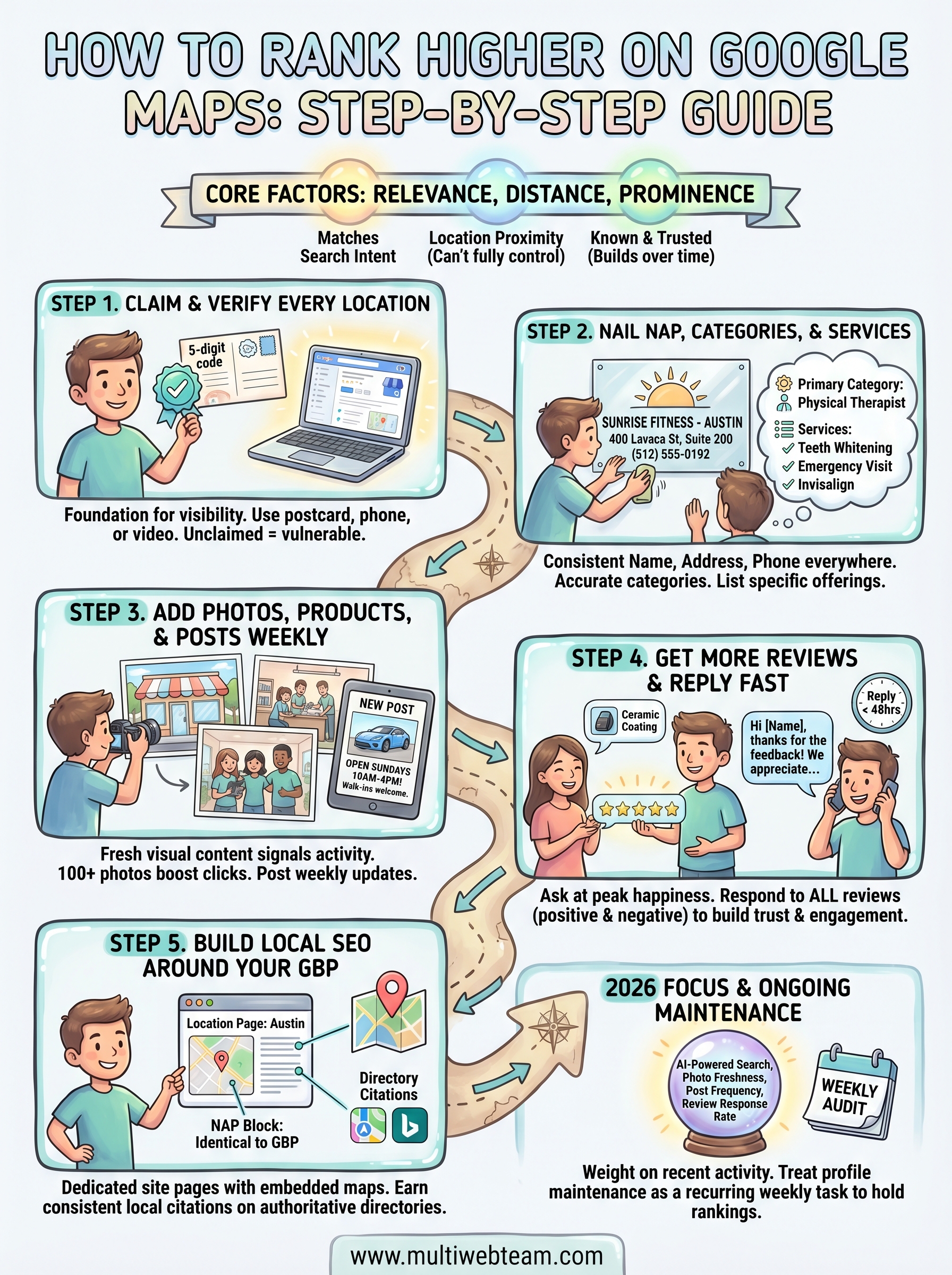
Method 4: Tracking Local Search and Google Maps Rankings
If your business relies on local customers (e.g., medical clinics, home services, retail stores), ranking in standard organic search results is only half the battle. You must also check your placement in Google's Local 3-Pack and Google Maps.
Using Google Business Profile Insights
Log into your Google Business Profile dashboard to review native local performance metrics:
- Navigate to the Performance tab.
- Review Searches: Tracks how many users found your profile via direct business name searches versus discovery (category or service) searches.
- Review Map Views vs. Search Views: Distinguishes between desktop/mobile SERP views and dedicated Google Maps views.
Using Geogrid Visualizers
Standard rank trackers struggle with local pack evaluation because local positions change block-by-block. A plumber might rank #1 for a user standing 100 yards from their office, but rank #8 for a user two miles south.
Tools like BrightLocal or Local Falcon solve this by rendering a map grid over a specific radius:
- Grid Details:
- Grid Radius: 5 Miles
- Center: Business Location
- Each node represents a geo-simulated search check
- Grid Nodes:
- Row 1: [#1], [#1], [#2]
- Row 2: [#1], [BIZ], [#4]
- Row 3: [#3], [#5], [#8]
Each grid node simulates a mobile user standing at that exact geographic coordinate, providing an accurate spatial view of your local search presence.
Comparing Rank Checking Methods
Selecting the right rank checking workflow depends on budget, scale, technical expertise, and localized business needs.
| Method | Data Source | Cost | Location Precision | Update Frequency | Best Use Case |
|---|---|---|---|---|---|
| Google Search Console | First-Party Real User Data | Free | Country Level | 48–72 Hour Lag | Baseline performance, identifying actual traffic-driving keywords, technical auditing. |
| Incognito Manual Search | Real-Time Engine Query | Free | Browser Default / Country | Instant | Quick spot-checking for single high-priority terms. |
| Third-Party SEO Tools | Third-Party Proxy Scraping | Paid ($49–$299+/mo) | City / ZIP Code Level | Daily or Real-Time | Scaled tracking, competitor comparison, agency client reporting. |
| Geogrid Local Trackers | Geo-Targeted API Queries | Paid ($10–$50+/mo) | Precise Map Radius / Block | On-Demand / Weekly | Brick-and-mortar storefronts, local service area businesses (SABs). |
Common Mistakes to Avoid When Checking Website Rankings
Even experienced site owners can misinterpret ranking data by falling into technical assessment traps.
1. Relying on Logged-In Personal Searches
Searching for your own website while signed into a personal Google account distorts reality. Search engines recognize your frequent visits to your own domain and artificially elevate your site in your personalized results. Always use incognito mode or authenticated tracking software.
2. Panicking Over Short-Term Volatility
Search engine algorithms undergo thousands of micro-adjustments each year, along with major core updates. Ranking fluctuations of 2–5 positions day-to-day are standard search engine behavior. Evaluate trends over 30-, 90-, and 180-day windows rather than reacting to daily movements.
3. Ignoring Search Intent Changes
If a page drops from position #2 to position #9, the cause is not always technical or backlink-related. Search engines frequently update their assessment of what searchers want for a given term. Compare the top-ranking results before and after a drop; if top results shifted from product pages to informational guides, your page content no longer matches the active search intent.
4. Tracking Generic Terms Instead of Intent-Driven Keywords
Ranking #1 for a generic term with high search volume sounds impressive, but if that keyword does not match your business offerings, it yields high bounce rates and zero conversions. Prioritize tracking long-tail, high-intent terms that drive actual business outcomes over vanity metrics.
How to Act on Your Ranking Data to Improve Visibility
Raw ranking data is only valuable if it informs concrete technical and editorial improvements. Follow this strategic framework to upgrade your positions based on reporting outputs.
- Identify Positions #11-#20
- Audit Search Intent
- Update Content & Technicals
- Track Movement
Strategy 1: Target "Low-Hanging Fruit" (Positions 11 to 20)
Pages ranking on Page 2 of Google (positions 11 through 20) are already indexed, recognized as relevant, and close to capturing meaningful organic traffic.
- Filter Google Search Console data for queries with an average position between 11.0 and 20.0.
- Identify the corresponding landing page for each query.
- Update the page by expanding thin content sections, adding missing subheadings (H2/H3) addressing unanswered user questions, and adding internal links from topically relevant high-authority pages on your site.
Strategy 2: Protect and Optimize Top Performers (Positions 1 to 3)
Pages sitting in top positions generate the vast majority of organic clicks. However, competitors continuously optimize to take those spots.
- Monitor CTR in Google Search Console. If a position #2 ranking yields a low click-through rate, rewrite the page title tag and
- Check Indexing Status: Perform a
site:yourdomain.com/urlsearch or check GSC's URL Inspection tool to ensure the page was not accidentally de-indexed or hit with anoindextag. - Review Technical Changes: Confirm that recent site updates did not introduce broken redirects, server errors (5xx status codes), or canonical tag errors pointing to a different URL.
- Inspect Search Engine Updates: Verify if a Google Core Update rolled out during the drop window using tracking utilities like MozCast or Semrush Sensor.
- Check Indexing Status: Perform a
Frequently Asked Questions
How long does it take for a new website or page to rank on Google?
For brand-new domains, ranking on page one for competitive search terms typically takes between 3 to 9 months. Search engines require time to discover, crawl, index, and establish trust in a new domain's authority. For established domains with existing topical authority, new pages can rank within hours or days of published indexing.
Why does my website rank differently on mobile compared to desktop?
Google uses mobile-first indexing, meaning it primarily evaluates the mobile version of your content to determine search ranks. Differences occur if your desktop site contains content, links, or media that are hidden or absent on the mobile version, or if your mobile page performance (Core Web Vitals) exhibits slow load times and layout shifts.
What is the difference between average position and exact position?
Average position (reported in tools like Google Search Console) calculates the numerical mean of your rank across every instance your site appeared in search results for all users over a selected time period. Exact position (reported by rank tracking software) reflects a single, real-time snapshot of where your site appears for a specific simulated search query at a precise moment, location, and device type.
Does checking my own website ranking harm its SEO performance?
No. Performing manual searches or using automated rank tracking software does not negatively affect your SEO performance. Search engines treat automated rank queries as routine traffic and do not penalize site domains for rank monitoring. However, conducting excessive manual searches on your personal browser may distort your impression data in Google Search Console if you click your own links.
Establishing Your Ongoing Rank Tracking Workflow
To track your website's search performance effectively, combine first-party historical reporting with automated monitoring:
- Set Up Google Search Console: Establish GSC as your baseline, zero-cost foundation for accurate impression and click data.
- Deploy Automated Tracking: Configure dedicated rank-tracking software to track your top 20–50 business-critical keywords weekly.
- Audit Monthly: Review rank shifts monthly, prioritizing pages occupying positions 11–20 for rapid content and technical optimization.
By establishing structured tracking workflows rather than relying on sporadic personal searches, you gain reliable, actionable search data to protect your current rankings and drive measurable organic growth.
Image Gallery
Select an image to open it in a new tab.



Celine Dubois
Contemporary Living and Global Arts Columnist
